
AI video generators are everywhere in 2026.
But making a good 8-second clip is very different from making a YouTube video people will actually watch.
For this guide, I compared tools for faceless videos, AI presenters, Shorts, voiceovers, and cinematic B-roll.
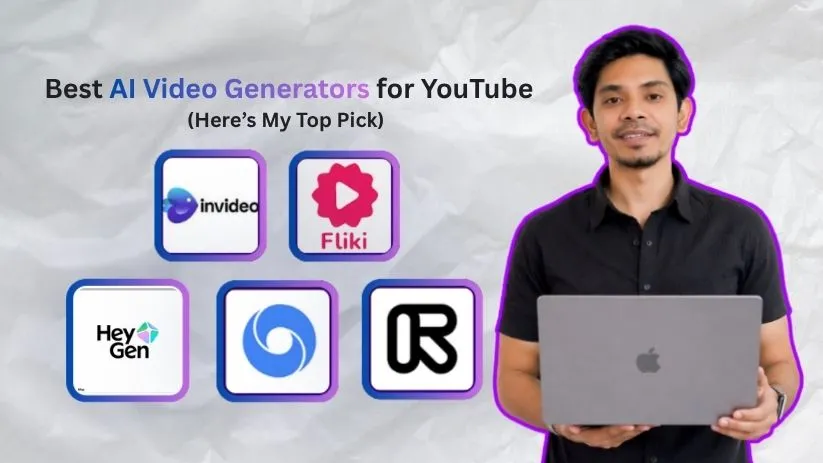
Five tools stood out for different reasons.
If you want a broader category overview first, see my best AI video generator tools guide.
Let’s get into the details.
TL;DR: Best AI Video Generators for YouTube at a Glance
Not every AI video generator for YouTube does the same job.
Some turn a script into a nearly finished video with narration, captions, and visuals.
Others generate short cinematic shots that you edit into a larger video yourself.
| Tool | Best For | Full Video? | Best YouTube Use |
| InVideo AI | Best overall | Yes | Faceless long-form + Shorts |
| Fliki | Voiceovers | Yes | Faceless explainers |
| HeyGen | AI presenters | Yes | Tutorials + education |
| Google Veo 3.1 | Cinematic B-roll | No | Realistic scenes + Shorts |
| Runway | Creative control | No | B-roll + storytelling |
InVideo AI is the strongest all-in-one option.
Fliki makes more sense for narration-heavy channels, while HeyGen is better when you want an AI presenter.
Veo 3.1 and Runway are for creators who want high-quality generated footage and prefer doing the final edit themselves.
How I Evaluated These AI Video Generators for YouTube
I did not rank these tools by flashy demo clips alone.
I compared them around what matters for YouTube production:
- Can they handle 16:9 videos and YouTube Shorts?
- Do they create complete videos or individual clips?
- How useful are the voice, caption, avatar, and audio tools?
- How much editing is still required?
- How quickly do credits disappear after retries?
- What are the watermark and commercial-use limitations?
A cheap AI video maker for YouTube is not cheap if retries burn most of your credits.
The better metric is cost per finished video.
The 5 Best AI Video Generators for YouTube in 2026
1. InVideo AI
⭐ Best For: Best Overall AI Video Generator for YouTube
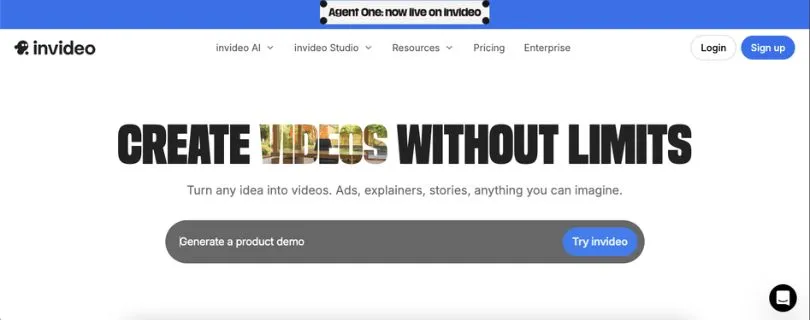
InVideo AI takes #1 because it handles more of the production workflow in one place.
You can start with an idea or script, build scenes, add voiceover and captions, mix stock footage with AI visuals, and edit the result. InVideo currently supports prompt-based video creation, script-to-video workflows, voiceovers, subtitles, stock media, and generative media inside the same platform.
That makes it particularly useful for faceless channels.
My What Is InVideo AI? guide explains the workflow in more detail.
1. Prompt-to-Finished Video
The biggest advantage is convenience.
Instead of writing, voicing, sourcing B-roll, and editing in separate apps, InVideo keeps most of the workflow together.
2. Stock Footage + Generative AI
It also does not force you to generate every scene.
Stock footage works well for reliable filler, while generative models can handle scenes that need something more specific. InVideo lets you switch between stock and generative media inside a project.
✅ What I Liked
- Strong fit for faceless videos, explainers, and Shorts.
- Combines stock media and generated visuals.
- Covers more of the finished workflow than raw video models.
❌ What I’d Improve
- Generative video can burn through credits quickly.
- It offers less granular cinematic control than Runway or Veo.
Pricing
A free option is available with limited credits. Starter begins at $20 per seat/month when billed annually at the time of writing.
For the full breakdown, see my InVideo AI pricing guide.
Also Read: InVideo AI alternatives
Who should use InVideo AI: Faceless YouTubers, solo creators, and teams that want to go from an idea to a nearly finished video without stitching together several tools.
2. Fliki
⭐ Best For: Faceless YouTube Videos and AI Voiceovers
Fliki is the AI video generator I would look at if narration is the center of your YouTube workflow.
You can start with an idea, script, blog post, or presentation and turn it into a complete video.
Fliki then matches the script with visuals, adds an AI voice, and organizes everything into scenes.
That makes it particularly useful for educational videos, listicles, explainers, and faceless YouTube channels.
If you already publish written content, these AI tools for turning blog posts into videos show other ways to reuse the same content.
Key Features
- Turn ideas, scripts, blog posts, and PPTs into videos
- 1,000 voices on the Standard plan
- Voice cloning for your own narration style
- Full HD 1080p export on paid plans
- Direct YouTube publishing
- Commercial usage rights on paid plans
Fliki’s Standard plan currently supports videos up to 15 minutes, while Premium extends the maximum length further.
It also supports more than 80 languages, which is useful if you run channels for multiple markets.
What makes Fliki interesting is that the AI voiceover is not something bolted onto the end.
Voice generation sits at the center of the workflow.
You write the script, choose a voice, adjust scenes, replace media where needed, and export.
That is a better fit for narration-heavy content than generating every second of footage from scratch.
✅ What I Liked
- The script-to-video workflow is easy to understand.
- Its large voice library makes faceless narration much more flexible.
- You can combine stock media with generated images and AI video clips.
- Paid plans include commercial rights and remove the watermark.
❌ What I Didn’t Like
- The free plan exports at 720p and includes a Fliki watermark.
- Editing the script repeatedly can consume additional credits because audio needs to be regenerated.
- It gives you less cinematic control than tools such as Runway or Veo.
Pricing
Fliki has a free plan with limited monthly credits.
Standard increases the video length to 15 minutes and adds 1080p exports, voice cloning, commercial rights, and watermark-free videos.
Who should use Fliki: Faceless YouTubers, educators, bloggers, and creators who want to turn scripts into narrated videos without recording their own voice.
3. HeyGen
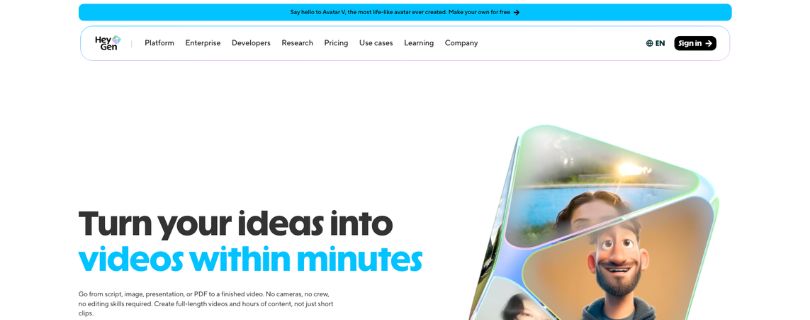
⭐ Best For: AI Presenter and Talking-Head YouTube Videos
HeyGen solves a different YouTube problem.
Instead of building a faceless video around stock footage, it can put an AI presenter on screen and have that avatar deliver your script.
That makes it useful for tutorials, software explainers, educational channels, product videos, and business content.
I cover the platform in more detail in my HeyGen review.
The biggest advantage is that you do not need a camera setup every time you want to publish.
Choose an avatar, enter your script, select a voice, and HeyGen generates the presenter footage.
You can also create a custom video avatar and clone your voice on paid plans.
Key Features
- 700+ stock video avatars on the Creator plan
- Custom video avatars
- AI voice cloning
- 1,000+ AI voices
- 175+ languages and dialects
- Videos up to 30 minutes on Creator
- 1080p export and watermark removal
HeyGen’s Creator plan currently includes 600 monthly credits and videos up to 30 minutes.
That is long enough for many tutorials and educational YouTube videos rather than only Shorts or short social clips.
The multilingual workflow is another major advantage.
Instead of recording an entirely new version for another country, you can translate and localize the same presenter-led content.
That can make HeyGen particularly useful for channels targeting audiences in several languages.
If AI avatars are central to your workflow, my Synthesia review covers another major option in this category.
✅ What I Liked
- You can create presenter-led videos without filming yourself.
- Voice cloning helps maintain a more consistent channel identity.
- Long-form support makes it more practical for YouTube than avatar tools limited to short clips.
- The language support is strong for localized channels.
❌ What I Didn’t Like
- Avatar videos can start to feel repetitive if every scene uses the same presenter.
- It is not my first pick for cinematic B-roll or highly visual storytelling.
- Advanced generation uses credits, so higher-volume channels need to watch usage carefully.
Pricing
HeyGen has a free plan with three videos per month, each up to one minute.
Creator costs $29/month, or $24/month when billed annually, and adds longer videos, 1080p exports, voice cloning, and watermark removal.
You can see the plans in more detail in my HeyGen pricing guide.
Also Read: Best HeyGen alternatives
Who should use HeyGen: YouTubers who want an on-screen AI presenter for tutorials, educational videos, business content, or multilingual channels without filming every video themselves.
4. Google Veo 3.1
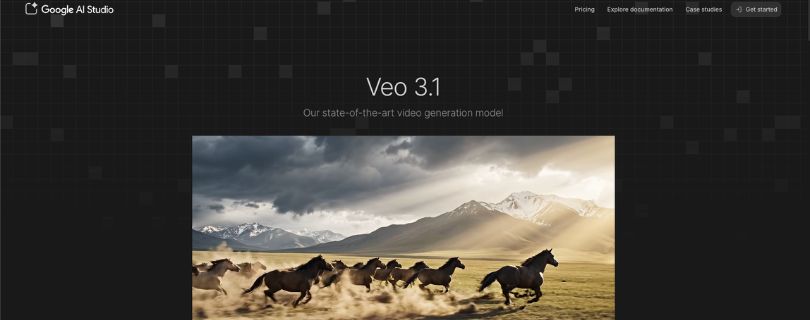
⭐ Best For: Cinematic AI B-Roll for YouTube
Google Veo 3.1 is the tool I would pick when you do not need AI to automate the entire YouTube video.
It is better at one thing.
Generating cinematic shots that make your edit look far more polished.
That includes establishing shots, realistic environments, product scenes, short story sequences, and B-roll that would be difficult to film yourself.
If you are choosing between Google’s model and one of its closest rivals, my Kling vs Veo comparison goes deeper into the differences.
Veo 3.1 supports text-to-video, image-to-video, native audio, reference images, camera controls, first-and-last-frame control, motion control, and output up to 1080p and 4K.
The native audio is particularly useful for YouTube because generated scenes can include sound instead of requiring every layer to be added later.
Key Features
- Text-to-video and image-to-video
- Native generated audio
- Reference images for characters, objects, and scenes
- Camera and motion controls
- First and last frame control
- 1080p and 4K output
If human motion is your priority, compare it with my Kling AI review.
For another cinematic option, I have also covered Luma Dream Machine.
✅ What I Liked
- The output can look closer to filmed B-roll than template-based video.
- Native audio makes generated scenes more useful inside a finished edit.
- Camera and reference controls give creators more direction over each shot.
❌ What I Didn’t Like
- Veo is not a one-click YouTube production system.
- You still need editing, narration, captions, and channel packaging.
- Strong results may take multiple generations.
Pricing
Veo 3.1 is available through Google products including Gemini and Flow, with access depending on the Google AI plan and current limits.
Who should use Google Veo 3.1: YouTubers who already edit their videos and want realistic B-roll, cinematic intros, or story sequences instead of a fully automated video.
5. Runway
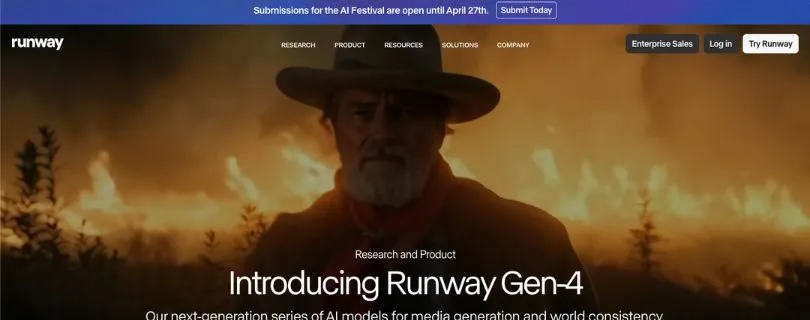
⭐ Best For: Creative Control and Professional AI Video Generation
Runway is the AI video generator I would choose when control matters more than simplicity.
Its current Gen-4.5 model supports text-to-video and image-to-video.
You can describe camera movement, subject action, timing, and scene changes instead of relying on a simple generate button.
That makes it useful for storytelling channels, documentaries, music videos, ads, and cinematic explainers.
I covered the platform in more detail when I tested Runway Gen-4.
Key Features
- Text-to-video and image-to-video
- Detailed camera choreography
- 16:9 and 9:16 generation
- 2- to 10-second Gen-4.5 clips
- Fixed-seed and iterative workflows
- Additional generative tools inside Runway
Gen-4.5 currently costs 12 credits per second and supports 16:9, 9:16, square, portrait, and widescreen formats.
That makes it useful for both regular YouTube videos and Shorts, but it remains a shot generator rather than a complete long-form video factory.
My Runway vs Kling comparison is useful if you are comparing creative control and generation value.
You can also see how the workflow differs in Runway vs Pika.
✅ What I Liked
- Camera instructions give you strong control over individual shots.
- Image-to-video works well when you already have a storyboard frame or character design.
- The workflow gives serious creators room to iterate.
❌ What I Didn’t Like
- Gen-4.5 clips are short, so long-form videos still require editing.
- Credits can disappear quickly after several retries.
- The learning curve is higher than InVideo AI or Fliki.
Pricing
Runway has a free plan with 125 one-time credits.
Standard includes 625 monthly credits, while Pro includes 2,250.
See my Runway pricing guide before choosing a plan based only on monthly price.
Also Read: Best Runway alternatives
Who should use Runway: YouTubers who edit their own footage and want more control over AI B-roll, camera movement, and visual storytelling.
How to Choose an AI Video Generator for YouTube
The best AI video generator for YouTube depends on what you expect the AI to create.
I would look at these five things before paying for any tool.
1. Decide Whether You Need a Full Video or B-Roll
This is the biggest difference between the tools on this list.
InVideo AI, Fliki, and HeyGen can handle much more of the finished video.
Veo and Runway are better for generating individual shots that you assemble yourself.
If you want more control over cinematic workflows, my LTX Studio vs Runway comparison covers another option for AI-driven production.
2. Check Long-Form and Shorts Support
A good AI YouTube video generator should match the format you actually publish.
For regular videos, look for 16:9 output, 1080p or better resolution, and enough duration for long-form content.
For Shorts, 9:16 support matters much more.
Tools such as Pika are also worth considering when short visual effects are the priority. I covered that workflow in my Pika AI review.
3. Decide How You Want to Handle Voice
For faceless channels, voice quality can matter more than the visuals.
Fliki works well when AI narration drives the video.
HeyGen makes more sense when you want a visible presenter with a cloned or synthetic voice.
Veo and Runway usually fit better when narration is handled separately.
4. Compare Cost Per Usable Video
Do not compare these tools using subscription price alone.
AI video generation involves retries.
A cheaper plan can become expensive if you generate the same scene five times before getting something usable.
I would compare how many publishable minutes you actually get from your monthly credits.
If budget generation matters, my Hailuo AI review covers another text-to-video and image-to-video option.
5. Check Commercial Rights and Watermarks
This matters if you plan to monetize your channel.
Check whether your plan permits commercial use and whether exported videos contain a watermark.
Do this before building an entire channel around one platform.
Which AI Video Generator Should You Choose for Your YouTube Workflow?
1. Faceless YouTube Channel
I would start with InVideo AI.
It handles more of the script-to-video process without requiring several separate applications.
If voiceovers are the most important part of your videos, choose Fliki instead.
2. Presenter or Educational Channel
Go with HeyGen.
It makes the most sense when you want an AI host delivering tutorials, explainers, or educational content.
3. Cinematic or Storytelling Channel
Use Veo 3.1 for high-quality generated scenes and Runway when you want more creative control.
Other models are worth exploring too.
PixVerse AI is useful for short AI clips, while my Vidu AI review covers another image-to-video option.
For open-model workflows, you can also see my Wan AI review.
Can You Monetize AI-Generated Videos on YouTube?
Yes, AI-generated videos can be monetized on YouTube.
Using AI by itself does not automatically make a video ineligible for monetization.
YouTube says creators should disclose realistic content that has been meaningfully altered or generated with AI. That disclosure itself does not reduce a video’s eligibility to earn money.
The bigger issue is originality.
YouTube’s monetization policies say content should not be mass-produced, generic, or repetitive. AI-generated videos using largely identical templates without meaningful original value can therefore have monetization problems.
So use AI to speed up production—not to publish hundreds of nearly identical videos.
Final Verdict
There is no single winner for every YouTube workflow.
Choose InVideo AI for complete production, Fliki for faceless narration, HeyGen for AI presenters, Veo 3.1 for cinematic B-roll, and Runway when creative control matters most.
FAQs on AI Video Generators for YouTube
1. What Is the Best AI Video Generator for YouTube?
For an all-in-one workflow, I would choose InVideo AI.
If you mainly need cinematic footage, Veo 3.1 or Runway makes more sense.
2. What Is the Best Free AI Video Generator for YouTube?
Most leading tools offer some form of limited free access, but credits, watermarks, resolution, and commercial rights vary.
If you are experimenting before paying, these free AI animation tools give you a few more options to test.
3. Which AI Video Generator Is Best for a Faceless YouTube Channel?
InVideo AI is my first choice for a complete faceless workflow.
Choose Fliki if narration and AI voices are more important to you than cinematic generation.
4. What Is the Best AI Video Generator for YouTube Shorts?
For complete Shorts, InVideo AI is easier.
For individual eye-catching AI scenes, Veo, Runway, Pika, or similar pixel generators give you more visual freedom.
5. Can AI Generate an Entire 10-Minute YouTube Video?
Yes, but there is an important distinction.
Tools like InVideo AI and Fliki can assemble long videos from scripts, narration, stock footage, and AI-generated media.
Models such as Veo and Runway generate shorter scenes that you normally combine in an editor.
If you want more alternatives for cinematic generation, see my Luma Dream Machine alternatives.
6. Is Kling AI Good for YouTube?
Yes.
Kling is especially useful for image-to-video generation, realistic motion, and short cinematic clips.
I would still choose an all-in-one AI video maker for YouTube if the goal is producing complete faceless videos with less editing.