If you are here, your last attempt at finding the best AI video generator probably did not go well.
That is okay. You are in the right place!!!
AI video tools are not hard to find.
Every platform out there promises to turn your text prompt into a polished, realistic video.
But the actual problem is that many of them produce weird motion, blurry faces, broken hands, or clips that look nothing like your prompt.
That doesn’t just waste your time and credits.
And it also gives you a few creative breakdowns, too. I mean, burning through paid video credits just to get one usable 8-second clip is the worst nightmare!
In this blog, you will find:
- 5 best AI video generator tools
- Their key features
- In-depth analysis of their video quality, pricing, workflow, and best use cases
Let’s see how they compare, where each one wins, and which one fits your use case.
TL;DR – The 3 Best AI Video Generator Tools at a Glance
If you only have 60 seconds, here’s what you need to know.
- Google Veo 3.1 → Best for creators, marketers, and teams that want realistic AI videos with strong prompt accuracy, natural motion, and built-in audio.
- Runway Gen-4.5 → Best for filmmakers, agencies, and creative teams that want cinematic control, advanced editing tools, and more room to direct the final look.
- Luma Dream Machine → Best for creators who want smooth image-to-video quality, natural movement, and a fast text-to-video workflow for testing visual ideas.
| Feature | Google Veo 3.1 OUR PICK | Runway Gen-4.5 | Luma Dream Machine |
| Starting Price | Varies by access point | Free / paid plans with credits | Free / paid plans with credits |
| Best Use Case | Realistic AI videos, product clips, social media videos, AI ad creative | Cinematic shots, music videos, branded films, creative storytelling | Image-to-video clips, motion tests, concept videos, visual brainstorming |
| Video Quality | High realism, natural lighting, strong prompt accuracy | Cinematic look, strong visual control, polished creative output | Smooth motion, good physics, strong image animation |
| Text-to-Video Workflow | Simple prompt-based generation with audio support | More advanced controls for directors and editors | Fast prompting and iteration for quick ideas |
| Image-to-Video Quality | Strong when using clear reference images | Great for stylized and cinematic image animation | One of its strongest areas, especially for natural motion |
| Built-in Editing | Limited compared with full editors | Strong creative editing suite | Basic editing and iteration tools |
How I Evaluated These Tools for AI Video Generation
Choosing an AI video generator shouldn’t take weeks. Most tools promise the same thing: type a prompt, get a video. So before I get into the list, I’ll give you my honest take on each platform. Here is what I tested each tool against.
- Text-to-video quality.I looked at how well each tool followed a written prompt, whether the final clip matched the scene I asked for, and how often I had to regenerate before getting something usable.
- Image-to-video quality and motion consistency.A still image can look great, but the video can fall apart once the subject starts moving. I tested whether each tool could animate reference images without warping faces, breaking hands, or making objects drift in strange ways.
- Realism and visual polish.AI videos can look impressive at first glance but messy when you pause them. I checked lighting, facial details, camera movement, background consistency, and whether the clip looked good enough for social media, ads, or client work.
- Ease of use and workflow.Some tools are simple enough for a beginner. Others feel more like professional creative software. I tested how easy it was to write prompts, adjust settings, preview results, edit clips, and export videos without getting stuck.
- Pricing, credits, and export limits.AI video credits can disappear fast. I checked how each platform handles free plans, paid tiers, watermarks, resolution limits, video length, and whether the pricing makes sense for creators, marketers, and small teams.
As you know, I always share pricing for each tool, but check the official websites for the most current numbers.
5 Best AI Video Generator Tools in 2026
Below are the 5 AI video generator tools I tested. For each tool, I have covered what it does best, where it falls short, and what it costs so you can pick the one that fits your creative workflow.
1. Google Veo 3.1
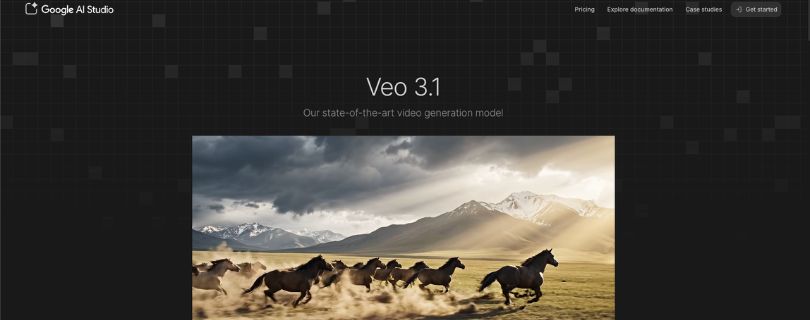
Google Veo 3.1 is the first AI video generator on my list for one simple reason.
The output looks the most polished for everyday creators, marketers, and teams that want realistic clips without spending hours fixing weird motion.
You can use it through Google’s AI plans, Gemini, Flow, and supported partner tools. Google says its AI plans include video generation in Gemini and Flow, with Pro giving higher access and Ultra giving the highest access to Veo 3.1.
If you want a text-to-video workflow that can create realistic social clips, product shots, cinematic scenes, or quick AI ad creative, Veo is the place I’d start.
The platform gives you a strong set of AI video features:
- Text-to-video generation from simple prompts
- Image-to-video support through Google’s creative tools
- Realistic lighting, motion, and camera movement
- Native audio support in Veo-powered workflows
- Access through Gemini, Flow, Canva, and other supported platforms
From my testing, Veo works best when your prompt is focused. Ask for one clear subject, one scene, and one camera movement, and the output usually feels clean. Ask for five characters, three actions, and a complicated story, and things can still get messy.
What I liked most is that Veo understands natural visual language better than many tools. If you ask for “a slow cinematic push-in on a glass perfume bottle on wet marble,” it usually understands the mood, lighting, and camera movement without needing a giant prompt.
That said, Veo is not the cheapest option if you want to generate a lot of clips every day. The best access usually sits behind Google AI Pro or Ultra, and the limits depend on your plan, country, and access point.
Pricing
- Google AI Free: Limited access
- Google AI Pro: $19.99/month in supported regions
- Google AI Ultra: $249.99/month in supported regions
- Enterprise/API access: Pricing depends on Google Cloud or partner setup
2. Runway Gen-4.5
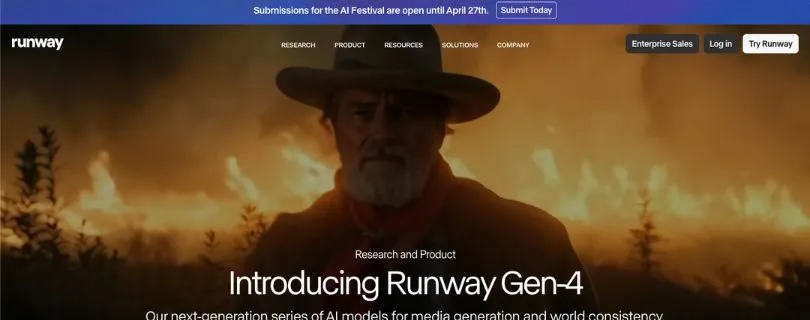
The next AI video generator on my list is Runway. It is here for one reason.
Creative control.
Runway feels less like a simple prompt box and more like a proper creative workspace for people who want to direct the final result. If you care about camera movement, image-to-video quality, video editing, and cinematic style, Runway is one of the strongest tools to test.
Runway’s paid plans include access to Gen-4.5 text-to-video, Gen-4 image-to-video, Aleph video editing, Act-Two performance capture, Veo 3.1, third-party video models, watermark removal, upscaling, and monthly credits.
The platform comes with a solid set of AI video creation features:
- Gen-4.5 text-to-video
- Gen-4 image-to-video
- Video-to-video and editing tools
- Upscaling and watermark removal on paid plans
- Third-party model access, including tools like Kling and Seedance
- Video editor projects and asset storage
From my testing, Runway works best for creators who already have a visual direction in mind. You can start with a prompt, but the real value comes when you use reference images, adjust the shot, and keep iterating until the video feels intentional.
If you are making music video clips, brand films, short cinematic ads, or concept visuals for a client, Runway gives you more room to shape the output than most beginner-friendly tools.
That said, Runway can feel expensive fast. The Standard plan includes 625 monthly credits, which Runway says equals around 25 seconds of Gen-4.5 video. So if you regenerate often, your credits can disappear before you feel like you have enough usable clips.
Pricing
- Free: $0/month, includes 125 one-time credits
- Standard: $12/user/month, billed annually
- Pro: $28/user/month, billed annually
- Unlimited: $76/user/month, billed annually
- Enterprise: Custom pricing
3. Luma Dream Machine
Luma Dream Machine is one of the best AI video generator tools if your main focus is motion.
Some tools create a beautiful first frame and then fall apart once the video starts moving. Luma is better at keeping the scene alive. Camera moves feel smoother, objects move more naturally, and image-to-video quality is one of its strongest areas.
Luma’s current pricing page lists Plus, Pro, and Ultra plans. Plus starts at $30/month, Pro at $90/month, and Ultra at $300/month when billed yearly. Luma also says its plans include free trial credits, commercial use on paid plans, and access to Luma and third-party image and video models.
For AI video creation, Luma gives you:
- Text-to-video generation
- Image-to-video generation
- Luma and third-party video models
- Commercial use on paid plans
- Guest collaborator editing access
- Higher usage on Pro and Ultra plans
What I liked about Luma is how quickly you can test ideas. If you have a product image, character frame, or moodboard still, you can turn it into a short motion test without building a full scene from scratch.
It is especially useful for creators who want to explore different visual directions before committing to a final edit. For example, you can test whether a product should rotate slowly, glide across a table, or appear in a dramatic camera push-in.
However, Luma still needs patience. Some clips look great right away. Others need multiple attempts because the subject bends, the background shifts, or the camera movement becomes too floaty.
Pricing
- Plus: $30/month, billed yearly as $300
- Pro: $90/month, billed yearly as $900
- Ultra: $300/month, billed yearly as $3,000
- Team: Coming soon
- Enterprise: Custom pricing
4. Higgsfield AI
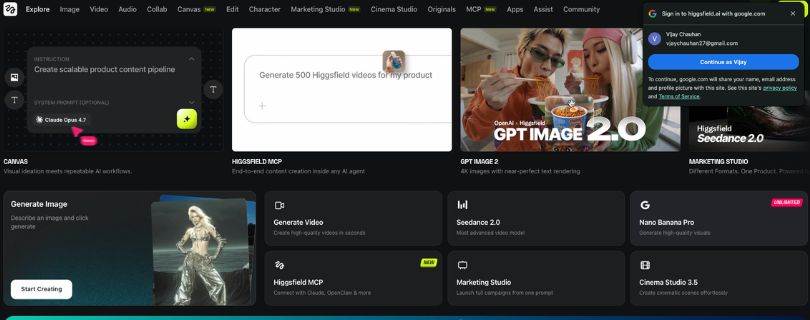
Higgsfield is the tool I would look at if you want AI videos that feel more directed and social-first.
It is built around camera motion, visual effects, character-style content, and access to multiple AI video models in one place. Higgsfield says its AI video platform gives access to models like Kling 3.0, Veo 3.1, Seedance 2.0, Wan, and others, so you can compare different outputs without jumping between separate tools.
For creators making TikTok videos, Reels, YouTube Shorts, fashion clips, product demos, or AI ad creative, Higgsfield has a very different feel from tools like Canva or Luma.
The platform gives you:
- AI video generation from prompts and images
- Multiple video models in one workspace
- Camera control and motion effects
- Social-first video formats
- Character, fashion, and product-style creative tools
- Parallel image and video generations on paid plans
What I liked most is the camera-control angle. Instead of just hoping the model gives you a cool shot, Higgsfield lets you work with camera styles and movement patterns that feel closer to social video direction.
It is useful when you want a clip to feel energetic: a crash zoom, a fashion-style walk, a product reveal, or a camera move that grabs attention in the first second.
I would like to highlight that Higgsfield can feel a little busy at first. There are a lot of models, effects, and creative options. That flexibility is great once you know what you want, but beginners may need time to understand which model works best for each type of video.
Pricing
- Free plan available
- Starter: $15/month, billed annually
- Plus: $39/month, billed annually
- Ultra: $99/month, billed annually
- Business: Custom or team-based pricing
Higgsfield’s pricing page is dynamic, but its official pricing information shows paid plans using a credit-based system, with Starter, Plus, and Ultra plans offering different monthly credit limits.
5. Canva AI Video Generator
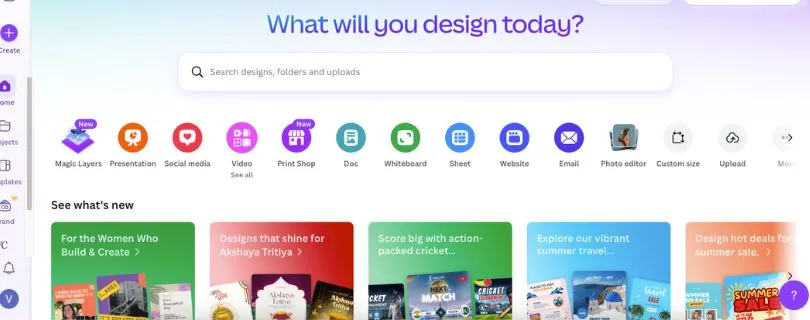
Sometimes you do not need the most advanced AI video generator.
You just need a fast social media video creation tool that lets you generate a clip, add text, match your brand colors, drop in music, and publish without opening five different apps.
That is Canva.
Canva’s AI Video Generator uses Create a Video Clip, powered by Google Veo, to generate 16:9 videos up to eight seconds with synchronized audio. Canva says Pro, Teams, Enterprise, and Nonprofit users can create a limited number of cinematic video clips per month.
For marketers, small businesses, teachers, and creators, Canva is not just an AI video generator. It is also an AI graphic design tool for marketers, a template editor, a brand kit manager, and a lightweight video editor in one place.
The feature set is focused on speed:
- Text-to-video generation
- Synchronized audio, including dialogue and sound effects
- Built-in video editor
- Templates, fonts, stickers, graphics, and stock assets
- Brand kit features for colors, logos, and fonts
- Easy exports for social media posts, ads, and presentations
What I liked is that Canva makes the “after generation” part much easier. With many AI video tools, you generate a clip and then need another editor to add captions, resize for Instagram, or place it inside a branded layout. Canva already has those tools in the same workspace.
If you are a solo creator or social media manager, that matters. You can turn a rough prompt into a usable post faster than you can with most advanced video platforms.
However, Canva is not the best choice if you need deep cinematic control. You do not get the same level of camera direction, model selection, or advanced video editing that you get in Runway or Higgsfield.
Pricing:
- Free: Available, but AI video access is limited
- Canva Pro: Paid plan; pricing varies by region
- Canva Teams/Business: Paid team plan; pricing varies by region and seat count
- Canva Enterprise: Custom pricing
- Canva Nonprofit: Available for eligible organizations
Before you commit, review Appsmith’s pricing in detail:
[Canva Pricing Explained]
What About Sora? Why It’s Not in Our Top 5
Sora deserves a quick mention because, for a while, it was one of the most talked-about AI video generators.
But for this list, I did not include Sora in the top 5.
The reason is simple: it is no longer the safest recommendation for someone choosing an AI video generator tool right now.
OpenAI’s Help Center says the Sora web and app experiences were discontinued on April 26, 2026. It also says the Sora API will be discontinued on September 24, 2026.
That matters because this guide is meant to help you pick a tool you can actually build a workflow around. If you are a creator, marketer, agency, educator, or small business owner, you probably do not want to spend time learning a platform that is already being phased out.
Best AI Video Generator by Use Case
Here is the simple way to choose based on what you actually want to create.
| Use Case | Best Tool |
| Best overall realistic AI video | Google Veo 3.1 |
| Best cinematic control | Runway Gen-4.5 |
| Best natural motion | Luma Dream Machine / Ray3 |
| Best camera movements | Higgsfield AI |
| Best beginner-friendly tool | Canva AI Video Generator |
| Best short-form repurposing | OpusClip |
| Best avatar/training videos | Synthesia or HeyGen |
| Best commercially safe creative workflow | Adobe Firefly |
| Best for product ad concepts | Veo or Canva |
| Best for experimental visuals | Runway or Luma |
Prompting Tips to Get Better AI Videos
A good AI video prompt should be clear, visual, and specific. Don’t ask the tool to create a full movie scene in one go. Give it one clean shot to work with.
Use this simple formula:
Subject + action + setting + camera movement + lighting + style + audio + aspect ratio
Example:
“A close-up cinematic shot of a luxury perfume bottle on wet black marble, slow push-in camera movement, soft golden studio lighting, shallow depth of field, subtle mist, elegant piano background, 9:16 vertical format.”
A few quick tips:
- Use reference images when possible.
- Ask for one clear action per clip.
- Avoid crowded scenes with too many people or objects.
- Specify the camera movement, like zoom, pan, tilt, or push-in.
- Generate short clips first, then stitch the best ones together.
- Mention audio only if the AI video generator supports it.
- Save reusable brand prompts for future product videos and social media clips.
How to Choose the Right AI Video Generator Tool
The best AI video generator tool depends less on having the flashiest demo videos and more on whether it fits your actual creative workflow. Before choosing an AI video generator, focus on these factors.
1. Prioritize Video Quality and Motion Consistency
A beautiful first frame means little if the video falls apart once it starts moving.
Look for tools that offer:
- Realistic motion
- Clean facial details
- Stable hands and objects
- Strong image-to-video quality
- Consistent lighting and backgrounds
If you want videos for ads, social media, or client work, output quality should be your first filter.
2. Evaluate Text-to-Video and Prompt Control
Not every platform makes it easy to turn a written idea into a useful clip.
Look for controls such as:
- Camera movement
- Aspect ratio
- Video style
- Scene duration
- Reference images
- Audio or sound effects
- Regeneration and variation options
The better the prompt control, the easier it is to get a clip that matches your idea.
3. Choose Based on Your Use Case
Different tools serve different creative goals.
If you need:
- Realistic clips for marketing, prioritize Veo-style quality and audio
- Cinematic videos, prioritize Runway-style control and editing
- Fast image animation, prioritize Luma-style motion
- Social-first videos, prioritize camera effects and vertical formats
- Simple branded content, prioritize Canva-style templates and brand kits
Pick for your workflow, not just feature count.
4. Check Pricing, Credits, and Export Limits
AI video credits can disappear quickly, especially when you need multiple generations to get one usable clip.
Before paying, check:
- Monthly credits
- Watermark limits
- Maximum video length
- Export resolution
- Commercial use rights
- Whether unused credits roll over
A cheap plan is not always cheap if it only gives you a few usable videos.
5. Consider Whether You Need Generation Only or Generation + Editing
Some tools only help you create AI video clips. Others combine:
- Text-to-video generation
- Image-to-video generation
- Captions
- Timeline editing
- Brand kit features
- Social media export formats
If you want to move from prompt to published video in one workflow, this can matter a lot.
Final Verdict: Which AI Video Generator Tool Should You Pick?
The best AI video generator tool depends on what you are trying to create.
If you want the strongest overall balance of realism, prompt accuracy, motion, and audio, Google Veo 3.1 is the best pick. It is the tool I would start with if you want realistic AI videos for ads, product clips, social media posts, or short creative scenes.
If you want more control over the final look, Runway Gen-4.5 makes more sense. It is better for filmmakers, agencies, and creative teams that want to shape camera movement, style, and editing instead of relying only on one prompt.
If your main focus is image-to-video quality and smooth movement, Luma Dream Machine is worth testing. It is especially useful when you already have a still image, product shot, or concept visual and want to turn it into a moving clip.
For short-form creators, Higgsfield AI stands out because of its camera controls and social-first effects. It is a strong fit for TikTok, Reels, fashion clips, product reveals, and AI ad creative that needs movement right away.
And if you want the easiest workflow, Canva AI Video Generator is the safest choice. It may not give you the deepest control, but it is fast, beginner-friendly, and great for branded social media videos.
My pick? Start with Google Veo 3.1 for overall quality. Choose Runway if creative control matters more. Use Canva if speed and simplicity are your top priorities.
FAQs About AI Video Generator Tools
1. What is the best AI video generator tool in 2026?
The best AI video generator tool for most users is Google Veo 3.1 because it gives a strong mix of realism, prompt accuracy, natural motion, and built-in audio.
That said, the “best” tool depends on your workflow. Runway Gen-4.5 is better for cinematic control, Luma Dream Machine is great for image-to-video quality, Higgsfield AI works well for social-first camera effects, and Canva AI Video Generator is the easiest option for beginners.
2. Which AI video generator is best for beginners?
Canva AI Video Generator is the best option for beginners.
You do not need to understand advanced video editing, camera settings, or prompt engineering. You can generate a short AI video, add text, use templates, apply your brand kit, and export it for social media from the same workspace.
If you already use Canva for graphics, presentations, or social posts, the learning curve is very small.
3. Which AI video generator makes the most realistic videos?
Google Veo 3.1 is one of the strongest options for realistic AI video generation.
It handles lighting, camera movement, facial details, and scene composition better than many basic text-to-video tools. For cinematic realism, Runway Gen-4.5 is also a strong choice, especially if you want more control over the final look.
4. Which AI video generator is best for text-to-video?
For text-to-video, Google Veo 3.1 is the best overall pick.
It works well when your prompt is clear and focused. For example, instead of writing “make a cool product ad,” you will get better results with a prompt like:
“Create an 8-second cinematic video of a black smartwatch rotating on a glass table, soft studio lighting, slow camera push-in, premium tech ad style.”
That kind of detail gives the AI a better shot at creating something usable.
5. Which AI video generator is best for image-to-video?
Luma Dream Machine is one of the best tools for image-to-video quality.
It does a good job of turning still images into short moving clips without destroying the original look. It is useful for product images, character concepts, fashion shots, artwork, and visual storyboards.
Runway is also a strong option if you want more creative control after generating the clip.
6. Can AI video generators create videos with audio?
Yes, some AI video generators can create videos with audio.
Google Veo-powered tools can generate video with synchronized audio in supported workflows. Canva also supports AI video clips with sound through its Veo-powered video feature.
Still, audio quality depends on the tool. For serious projects, you may still want to edit the voiceover, music, or sound effects in a separate video editor.
7. Are AI video generators good enough for ads?
Yes, but with limits.
AI video generators are very useful for ad concepts, product visuals, social media ads, storyboards, and short promotional clips. Tools like Google Veo, Runway, Higgsfield, and Canva can help you create quick AI ad creative without hiring a full production team.
But for high-budget brand campaigns, you should still review every frame carefully. Watch for strange hands, warped product labels, inconsistent logos, and motion that feels unnatural.
8. What is the best AI video generator for YouTube Shorts, TikTok, and Instagram Reels?
Higgsfield AI and Canva AI Video Generator are two of the best options for short-form video creation.
Higgsfield is better if you want bold camera movement, fashion-style clips, character videos, and fast social effects. Canva is better if you want to create a branded social media video quickly with text, templates, music, and simple editing tools.
9. What is the best free AI video generator?
Most free AI video generators come with limits.
You may get a small number of credits, lower resolution, watermarks, or limited access to the best models. Runway, Luma, Canva, and Higgsfield usually offer some form of free or limited access, but the free plans are better for testing than serious production.
If you plan to create videos every week, expect to pay for a plan.
10. Do AI video generators have watermarks?
Some do, especially on free plans.
Paid plans usually remove watermarks or give you higher-quality exports. Before choosing a tool, check whether the plan includes watermark-free downloads, commercial rights, HD or 4K export, and enough credits for your workflow.
This matters if you are creating videos for clients, ads, YouTube, or branded social media posts.
11. Can I use AI-generated videos commercially?
In many cases, yes, but you should check each tool’s terms before using the video in ads, client work, paid products, or brand campaigns.
Commercial use rights can depend on your plan, the model used, the assets you upload, and the platform’s terms. If you are creating videos for a business, do not skip this step.
12. What is the difference between text-to-video and image-to-video?
Text-to-video means you type a prompt and the AI creates a video from scratch.
Image-to-video means you upload a still image and the AI animates it.
Text-to-video is better when you want to create a scene from an idea. Image-to-video is better when you already have a product photo, character design, brand visual, or concept image that you want to bring to life.
13. Why do AI videos sometimes look weird?
AI videos can look weird because the model has to predict motion, lighting, objects, people, and camera movement at the same time.
Common problems include:
- Warped hands or faces
- Flickering backgrounds
- Objects changing shape
- Text or logos becoming unreadable
- Characters moving unnaturally
- Product details shifting between frames
The best fix is to keep prompts simple, use reference images, generate short clips, and avoid overcrowded scenes.
14. How do I write a good AI video prompt?
A good AI video prompt should include the subject, action, setting, camera movement, lighting, style, and format.
For example:
“Create a 9:16 vertical video of a fitness creator tying running shoes on a city sidewalk at sunrise, slow handheld camera movement, natural lighting, realistic motion, energetic social media ad style.”
That prompt gives the tool clear direction without overloading it.
15. Which AI video generator is best for marketers?
Google Veo 3.1 is best for realistic marketing clips, while Canva AI Video Generator is best for quick branded content.
If you are a marketer creating product demos, short ads, launch videos, or social posts, Canva may be easier because it includes templates, brand kit features, text editing, and export options in one place.
For higher-quality standalone AI clips, Veo is stronger.
16. Which AI video generator is best for filmmakers?
Runway Gen-4.5 is the best pick for filmmakers and creative directors.
It gives you more control over the look and feel of the video. You can work with image references, cinematic styles, generative editing, and more advanced creative tools than you get in beginner-friendly platforms.
17. Is Sora still the best AI video generator?
Not for most users right now.
Sora was one of the most talked-about AI video generators, but it is not the safest recommendation if you want a tool you can actively use long-term. For current AI video creation, tools like Google Veo 3.1, Runway Gen-4.5, Luma Dream Machine, Higgsfield AI, and Canva AI Video Generator are more practical picks.
18. What AI video generator should I use for product videos?
For product videos, start with Google Veo 3.1 or Canva AI Video Generator.
Veo is better if you want realistic product shots, cinematic lighting, and polished AI-generated scenes. Canva is better if you want to place that product video inside a branded layout with text, music, templates, and social media formatting.
19. What AI video generator should I use for faceless YouTube videos?
For faceless YouTube videos, you may not need the most advanced cinematic tool.
Use Canva if you want simple explainer-style videos, stock footage, AI clips, captions, and graphics in one editor. Use Runway or Veo if you want more realistic B-roll or cinematic scenes to support your narration.
For long-form faceless videos, you will still need a proper editing workflow for voiceover, pacing, captions, and final assembly.
20. Are AI video generators worth paying for?
Yes, if you create videos regularly.
Paid plans usually give you better models, more credits, higher resolution, watermark-free exports, faster generation, and commercial use rights. But do not buy the most expensive plan right away.
Start with a small plan, test your real prompts, check how many usable clips you get, and then upgrade only if the tool fits your workflow.