Canva is one of the easiest ways to create designs without being a designer.
And if you are looking at Canva to help you create social media posts, presentations, thumbnails, and business graphics faster, I am not surprised!
- Easy drag-and-drop editor
- Thousands of ready-made templates
- Free plan available
- And promises to make design simple for everyone!
All big claims, but does it actually deliver?
I tested it properly, and this is my honest review of Canva.
You will get:
- My personal experience with Canva.
- A detailed breakdown of its key features.
- Reviews from real current users.
- An overview of its pricing plans.
Let us get started!
TL;DR: My Experience Using Canva?
Need a quick rundown? No problem: here is a summary of my experience with Canva:
Did Canva Actually Work?
Absolutely!
I used it to create a mix of everyday designs, including social media posts, YouTube thumbnails, presentations, and simple business graphics.
Most basic designs took me just a few minutes to create.
The ready-made templates made the process faster, especially when I needed something clean without starting from a blank page.
Note: Canva is great for quick designs, but it is not the best choice for advanced logo design, complex photo editing, or detailed vector work.
Is It Affordable?
Yes: Canva is affordable compared to hiring a designer or paying for multiple design tools.
For example:
With Canva Free, you can create designs, use templates, and export your work without paying anything.
That is enough for casual users, students, and beginners.
Canva Pro makes more sense if you need premium templates, Brand Kit, Background Remover, Magic Resize, and more storage.
What Is Canva and Who Is It For?
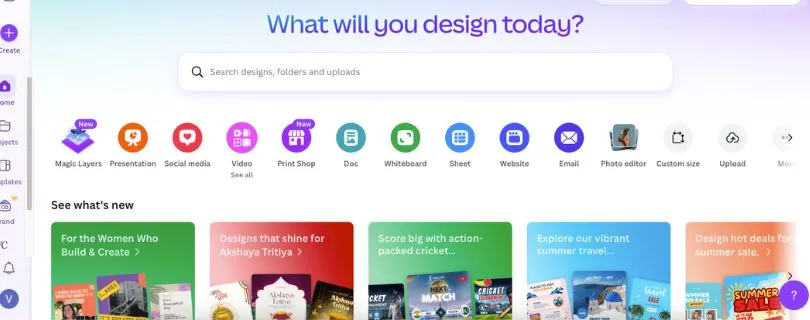
Canva is a simple but powerful online design tool.
It helps you create good-looking designs without needing advanced design skills or expensive software.
It does this with a drag-and-drop editor, ready-made templates, stock photos, fonts, icons, videos, and AI-powered design features.
Here is how it works:
- You choose what you want to create, like an Instagram post, presentation, poster, resume, logo, or YouTube thumbnail.
- Canva shows you ready-made templates for that format.
- You edit the text, colors, images, fonts, and layout.
- You can add your own photos, logos, and brand colors.
- Then you download, share, print, or publish the design.
And Canva keeps the whole process pretty simple!
The best thing about Canva is how beginner-friendly it feels.
It is ideal for content creators, small business owners, students, marketers, bloggers, teachers, and anyone who needs quick designs.
Moreover, it also offers a free plan.
You can use it to test the editor, create designs, and export your work before upgrading to Canva Pro.
Now that you know what Canva does, let me share my personal experience using it.
What Are the Key Features of Canva?
Canva offers several useful features that help you create designs faster, even if you have no design background.
Here is how they work:
- Drag-and-Drop Design Editor
- Ready-Made Templates
- Brand Kit
- Background Remover
- Magic Resize
- AI Design Tools
- Stock Photos, Videos, Fonts, and Elements
- Collaboration and Sharing
- Presentations, Videos, and Website Builder
- Printing and Export Options
1. Drag-and-Drop Design Editor
This is the main reason why Canva is so easy to use.
Its editor lets you create designs by simply dragging text, images, shapes, icons, videos, and graphics onto the canvas.
Here are some of the things you can do:
- Add text boxes, images, icons, frames, stickers, and charts.
- Move elements around with your mouse.
- Resize designs without touching complicated settings.
- Change colors, fonts, spacing, and layouts in a few clicks.
- Upload your own photos, logos, and brand files.
In short,
Canva lets you design almost anything without learning professional design software!
The interface feels clean and beginner-friendly.
I did not have to watch a long tutorial to create my first design. I picked a template, changed the text, replaced the image, adjusted the colors, and downloaded it.
The Result:
I was able to create a decent social media post in under 10 minutes.
If you have used tools like Photoshop or Illustrator before, Canva may feel limited.
But if you want speed, Canva does the job really well.
2. Ready-Made Templates
This is the part that most beginners will love.
Canva gives you templates for almost everything.
You can create:
- Instagram posts and reels
- YouTube thumbnails
- Facebook covers
- Presentations
- Resumes
- Posters
- Flyers
- Business cards
- Logos
- Infographics
- Invitations
- Ebooks
- Worksheets
The best part?
You do not have to start from scratch.
You can choose a design, edit the text, swap the images, adjust the colors, and make it your own.
I used templates for a YouTube thumbnail and a simple presentation.
Both looked polished without much effort.
But here is the catch:
Some Canva templates are used by thousands of people.
So if you use them as-is, your design can look generic.
My advice?
Use templates as a starting point, not the final design.
Change the fonts, colors, images, spacing, and layout enough to make it feel like yours.
3. Brand Kit
Brand Kit is one of the best Canva Pro features.
It helps you keep your designs consistent.
You can upload and save:
- Your logo
- Brand colors
- Brand fonts
- Brand images
- Design assets
- Templates
This is useful if you create content regularly.
For example:
If you run a small business, blog, YouTube channel, or Instagram page, you do not want every design to look different.
Brand Kit helps you keep everything on-brand.
I tested it by adding a logo, two brand colors, and a font combination.
After that, I could apply the same style across different designs without manually entering color codes every time.
This saved a lot of time.
If you create content for clients, Brand Kit becomes even more useful.
You can keep separate brand styles and avoid mixing up colors, logos, or fonts.
4. Background Remover
This is another Canva Pro feature I liked.
The Background Remover lets you remove the background from an image with one click.
You can use it for:
- Product photos
- Profile pictures
- YouTube thumbnails
- Social media graphics
- Posters
- Ads
- Website banners
I tested it with a portrait image and a product-style image.
The result was good for simple backgrounds.
It removed the background quickly and kept the main subject clean.
But it was not perfect every time.
If the image had messy hair, shadows, or a busy background, Canva needed small manual adjustments.
Still, for quick content creation, it works well.
In short,
Canva’s Background Remover is not Photoshop-level, but it is fast and useful for everyday designs.
5. Magic Resize
Magic Resize is one of those features that sounds small until you actually use it.
It lets you resize one design into multiple formats.
For example:
You can create one Instagram post and quickly turn it into:
- Pinterest pin
- Facebook post
- Instagram story
- LinkedIn post
- YouTube thumbnail
- Poster
- Presentation slide
This is useful if you publish content on multiple platforms.
I tested it with a social media graphic.
Canva resized the design quickly, but I still had to adjust the text placement and image crop in a few versions.
So, it is not always perfect.
But it still saves a lot of time compared to rebuilding the same design from scratch.
If you are a creator, marketer, or social media manager, Magic Resize can easily become one of your most-used features.
6. AI Design Tools
Canva also includes AI-powered tools that help you write, design, edit, and generate content faster.
You can use Canva’s AI features for things like:
- Generating design ideas
- Writing short text
- Creating images
- Editing photos
- Removing or replacing objects
- Turning ideas into designs
- Creating quick presentations
I found these tools useful for brainstorming.
For example:
If I needed a quick caption, headline, or design direction, Canva’s AI tools helped me get started.
But I would not rely on them blindly.
The output still needs editing.
Sometimes the text feels too generic. Sometimes the design suggestions need cleanup.
So my honest take is simple:
Canva’s AI tools are helpful for speed, but your final result still depends on your taste and editing.
7. Stock Photos, Videos, Fonts, and Elements
Canva gives you access to a large library of design assets.
You can search for:
- Photos
- Videos
- Icons
- Shapes
- Stickers
- Illustrations
- Fonts
- Audio
- Charts
- Frames
- Mockups
This makes Canva feel like a design tool and asset library in one place.
I used the elements library while creating a thumbnail and a presentation.
It was easy to find icons, arrows, shapes, and background graphics.
The free library is useful, but many of the better assets sit behind Canva Pro.
You will notice this quickly because Pro elements have a crown icon.
If you only create designs occasionally, the free assets may be enough.
But if you create content every week, Canva Pro gives you much more room to work.
8. Collaboration and Sharing
Canva is also good for teams.
You can share a design with others and let them view, comment, or edit.
This is useful for:
- Marketing teams
- Freelancers
- Clients
- Teachers
- Students
- Content teams
- Small businesses
I liked how easy it was to share a design link.
You do not need to export the file, send it over email, wait for feedback, make changes, and send another version.
People can comment directly on the design.
This makes feedback much easier.
If you work with clients, this can save you from long email threads.
9. Presentations, Videos, and Website Builder
Canva is not only for static designs.
You can also use it to create:
- Presentations
- Short videos
- Reels
- Simple websites
- Landing pages
- Pitch decks
- Reports
- Documents
I tested Canva’s presentation builder, and it worked well.
The templates looked modern, and editing slides felt much faster than building everything manually.
The video editor is fine for simple edits.
You can trim clips, add text, insert music, and create basic social videos.
But if you need advanced video editing, Canva is not the tool I would choose.
For that, tools like CapCut, Premiere Pro, DaVinci Resolve, or Final Cut Pro are better.
Canva’s website builder is also simple.
It works for basic pages, portfolios, link-in-bio pages, and quick landing pages.
But it is not a full replacement for WordPress, Webflow, Framer, or a custom-coded website.
10. Printing and Export Options
Canva gives you several ways to export your work.
You can download designs as:
- PNG
- JPG
- SVG
- MP4
- GIF
You can also share designs through a link or publish them directly in some cases.
For print designs, Canva lets you create business cards, flyers, posters, invitations, and other physical materials.
You can also order prints from Canva.
I liked the export options because they cover most everyday needs.
For example:
If I needed a social media post, I used PNG.
If I needed a document or printable file, I used PDF.
If I needed a simple video, I used MP4.
Just be careful with print projects.
Before sending anything to print, check the margins, bleed settings, image quality, and file format.
Canva makes printing easier, but you still need to review the final file properly.
Overall, Canva packs a lot into one tool.
It is not perfect for every design job, but for fast content creation, social graphics, presentations, thumbnails, and simple brand assets, it is one of the easiest tools I have used.
What Are the Pricing Plans of Canva?
Canva is one of the more affordable design tools, especially if you compare it with hiring a designer or paying for multiple creative apps.
It has a free plan and several paid plans.
Canva Pricing Plan Page
Canva Pricing Plan
Let me break them down.
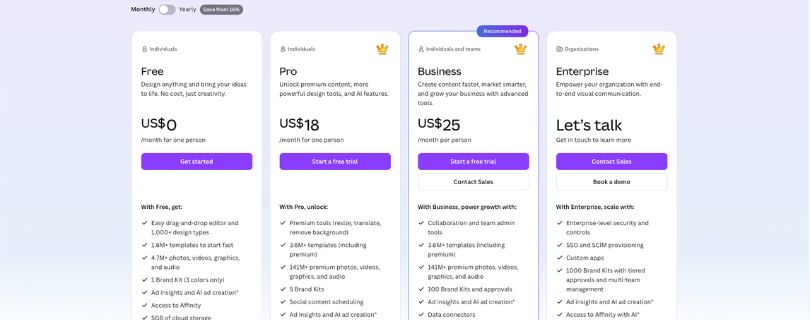
1. Canva Free – $0
Best for beginners and casual users.
You get:
- Drag-and-drop editor
- Free templates
- Free photos, graphics, and fonts
- Basic design exports
- 5GB cloud storage
2. Canva Pro – $18/Month
Best for solo creators, freelancers, bloggers, and small business owners.
You get:
- Premium templates and design assets
- Background Remover
- Magic Resize
- Brand Kit
- More AI tools
- 1TB cloud storage
You can also pay yearly at $120/year, which comes out cheaper than paying monthly. Canva lists Pro at $15/month or $120/year in the US.
3. Canva Business – $25/Month Per Person
Best for small teams and growing businesses.
You get:
- Shared workspace
- Team collaboration
- Brand management tools
- Higher AI access
- Marketing insights and analytics
- Admin controls
Canva’s current standard team/business pricing is $10/month per person, starting at three people.
4. Canva Enterprise – Custom Pricing
Best for larger companies that need more control.
You get:
- Advanced security
- SSO
- Enterprise-level admin controls
- Brand governance
- Scalable team management
- Custom support
For Enterprise pricing, you need to contact Canva’s sales team.
5. Canva Education and Nonprofits – Free for Eligible Users
Canva also offers free plans for eligible teachers, schools, and nonprofit organizations.
This is a great option if you qualify, because you can access many premium-style features without paying for Canva Pro.
What Are Users Saying About Canva?
Canva has mixed user reviews across G2, Trustpilot, and Reddit.
Most users have a positive experience with how easy Canva is to use, especially for creating social media posts, presentations, and quick designs without any design background.
Here is what users are saying about Canva on G2:
https://www.g2.com/products/canva/reviews
Many G2 reviewers mention that Canva saves time, feels beginner-friendly, and helps them create professional-looking designs without needing tools like Photoshop or Illustrator.
And here is how a Reddit user described their experience with Canva:
https://www.reddit.com/r/canva/comments/1da9sws/is_canva_really_that_good/
One Reddit user said Canva works really well for quick designs and social media content, but it is not the best option for advanced logo design or detailed creative work.
Another Reddit thread also highlights that Canva is great for beginners because of its drag-and-drop interface, but experienced designers often prefer more advanced tools.
That said, not every review is positive.
Some users complain about generic templates, limited design control, occasional bugs, and subscription-related issues. Trustpilot reviews also show a mix of good and bad experiences.
Pros and Cons of Using Canva
Pros
- Very easy to use, even if you are not a designer.
- The drag-and-drop editor makes design fast and simple.
- Comes with thousands of ready-made templates.
- Great for social media posts, presentations, thumbnails, flyers, and simple business graphics.
- Canva Free is useful enough for basic design work.
- Canva Pro gives you helpful tools like Brand Kit, Background Remover, and Magic Resize.
- Lets you collaborate with team members, clients, or classmates.
Cons
- Many templates can look generic if you do not customize them.
- Not ideal for advanced logo design or detailed vector work.
- The video editor is basic compared to dedicated video editing tools.
- Some of the best assets and features are locked behind Canva Pro.
- Large projects can sometimes feel slow or cluttered.
Final Verdict: Is Canva Truly Worth It?
Yes, Canva is worth it if you need a fast and simple way to create good-looking designs.
It is especially useful for social media posts, presentations, thumbnails, flyers, and basic business graphics.
I liked how quickly I could start with a template, edit it, and export a finished design.
For beginners, creators, students, and small business owners, that speed matters a lot.
Canva Pro is worth it if you use design tools regularly and need features like Brand Kit, Background Remover, and Magic Resize.
But if you only create a few designs now and then, the free plan is enough.
Canva is not perfect, though.
For advanced logo design, detailed photo editing, or serious video work, I would still use a dedicated professional tool.
Canva Review: FAQs
1. Is Canva Good for Beginners?
Yes, Canva is very beginner-friendly.
You can choose a template, edit the text, change images, adjust colors, and export your design without learning complex software.
2. Is Canva Free to Use?
Yes, Canva has a free plan.
It gives you access to basic templates, design tools, free elements, and standard export options.
3. Is Canva Pro Worth It?
Canva Pro is worth it if you create designs regularly.
Features like Brand Kit, Background Remover, Magic Resize, premium templates, and extra storage save a lot of time.
4. Can Canva Replace Photoshop?
Not completely.
Canva is great for quick designs, but Photoshop is still better for advanced photo editing, retouching, and detailed image work.
5. Can Canva Replace Illustrator?
No, not for serious vector work.
Canva can help with simple logos and graphics, but Illustrator is better for professional logo design, custom icons, and detailed vector files.
6. Is Canva Good for Social Media Posts?
Yes, this is one of Canva’s strongest use cases.
You can create Instagram posts, reels covers, YouTube thumbnails, Pinterest pins, Facebook graphics, and LinkedIn posts quickly.
7. Can I Use Canva for Business?
Yes, you can use Canva for business designs.
It works well for flyers, ads, presentations, social media graphics, pitch decks, lead magnets, and simple brand assets.
8. What Are the Best Canva Alternatives?
Some good Canva alternatives are Adobe Express, VistaCreate, Figma, Photoshop, Illustrator, Affinity Designer, and CapCut.
The best choice depends on whether you need quick design, advanced editing, vector work, or video editing.
9. What Is Canva’s Biggest Disadvantage?
The biggest drawback is limited control.
Canva is fast and easy, but it does not give you the same depth as professional tools like Photoshop, Illustrator, Figma, or InDesign.
10. Should I Use Canva Free or Canva Pro?
Use Canva Free if you only create basic designs once in a while.
Choose Canva Pro if you create content often and want premium templates, Brand Kit, Background Remover, Magic Resize, and better asset access.