Canva’s pricing might look simple at first glance.
But once you start using it, you quickly realize it’s not just about paying for templates, it’s about what you can actually create, export, store, and manage each month.
And that changes everything.
Most design tools charge for editing access, storage, or team seats.
Canva charges across plans based on premium features, AI limits, brand tools, team controls, and content access, which means the right plan depends on how you actually use it.
So if you’re creating social posts, presentations, ads, videos, or brand assets every week, you’ll feel those limits quickly.
And upgrading?
That’s where the details matter.
That’s why I’m breaking down exactly what each Canva plan costs in 2026, what you actually get, and whether it’s worth the investment.
Note:
- The Canva price mentioned is based on the USA country pricing.
- The price may be slightly lower or higher in your country, with an estimated difference of around 5–10%.
TL;DR: Canva Pricing at a Glance (Last verified date: April 29, 2026)
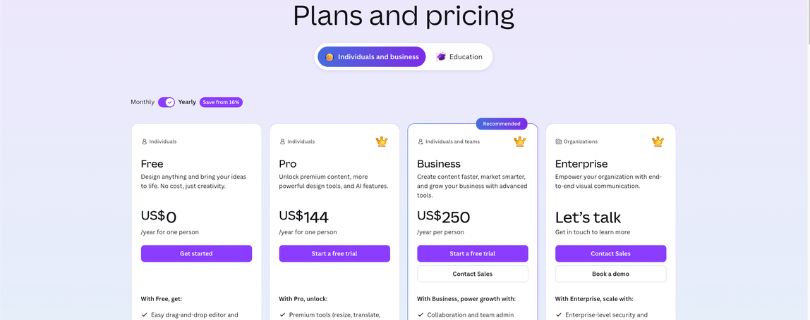
- Base Plans: Canva starts with a Free plan at US$0, then moves to Pro at US$144 per year for one person and Business at US$250 per year per person.
- The Catch: Canva pricing is not just about design access. The real difference comes down to premium content, AI features, storage, brand tools, team controls, and workflow limits.
- What’s Free: Canva Free gives you the drag-and-drop editor, basic templates, simple design tools, and enough access to create social posts, presentations, flyers, and quick visuals without paying.
- What Costs More: Premium templates, advanced resize tools, stronger AI features, brand kit features, team collaboration, admin controls, and business-level content tools sit behind paid plans.
- Best For: Canva Pro works best for solo creators, freelancers, marketers, teachers, and small business owners who create designs regularly and need premium assets.
- Not Great For: Canva Free can feel limited if you need brand consistency, high-volume content creation, premium stock assets, or a smoother social media design workflow.
- Canva Alternatives: Adobe Express, VistaCreate, Visme, Figma, and Adobe Creative Cloud are worth comparing if you need deeper editing, stronger team design systems, or a Canva alternative for design teams.
Canva keeps the entry point simple, but the real value depends on how often you design, how much premium content you use, and whether your team needs brand control.
How Much Does Canva CoHow Much Does Canva Cost Annually?
Canva uses a simple tier-based pricing system, but what you get depends heavily on features, not just access.
This is different from traditional design software.
You’re not paying for downloads or individual designs.
You’re paying for premium content, AI tools, storage, and brand control features.
The good news? You can design, export, and collaborate even on the Free plan without hitting hard usage walls right away.
The catch? Once you rely on premium templates, advanced editing tools, or AI features for regular work, the free plan starts to feel restrictive.
At that point, upgrading becomes less optional and more practical.
Here’s a quick look at what each plan includes:
| Plan Name | Pricing | Ideal For | Key Features |
| Free | $0/year | Beginners, students, casual users | • Drag-and-drop editor• Basic templates and assets• Limited storage• Basic AI tools |
| Pro | $144/year (1 user) | Creators, freelancers, marketers | • Premium templates & stock library• Background remover• Magic Resize• Brand kit features• 1TB storage |
| Business (Teams) | $250/year per user | Small teams, agencies, businesses | • Team collaboration tools• Shared brand kits• Approval workflows• Advanced admin controls |
| Enterprise | Custom pricing | Large organizations | • SSO & advanced security• Brand governance• Dedicated support• Scalable team management |
This setup works well if you know how often you design and how much premium content you actually use.
If you’re just creating occasional posts, Free is enough.
If you’re building content every week, running campaigns, or managing a brand, Pro or Business quickly makes more sense.
How Much Does Canva Cost Annually?
Canva uses a simple tier-based pricing system, but what you get depends heavily on features, not just access.
This is different from traditional design software.
You’re not paying for downloads or individual designs.
You’re paying for premium content, AI tools, storage, and brand control features.
The good news? You can design, export, and collaborate even on the Free plan without hitting hard usage walls right away.
The catch? Once you rely on premium templates, advanced editing tools, or AI features for regular work, the free plan starts to feel restrictive.
At that point, upgrading becomes less optional and more practical.
Here’s a quick look at what each plan includes:
| Plan Name | Pricing | Ideal For | Key Features |
| Free | $0/year | Beginners, students, casual users | • Drag-and-drop editor• Basic templates and assets• Limited storage• Basic AI tools |
| Pro | $144/year (1 user) | Creators, freelancers, marketers | • Premium templates & stock library• Background remover• Magic Resize• Brand kit features• 1TB storage |
| Business (Teams) | $250/year per user | Small teams, agencies, businesses | • Team collaboration tools• Shared brand kits• Approval workflows• Advanced admin controls |
| Enterprise | Custom pricing | Large organizations | • SSO & advanced security• Brand governance• Dedicated support• Scalable team management |
This setup works well if you know how often you design and how much premium content you actually use.
If you’re just creating occasional posts, Free is enough.
If you’re building content every week, running campaigns, or managing a brand, Pro or Business quickly makes more sense.
Canva Pricing Plans Breakdown
Let’s go through each Canva plan in detail so you know exactly what you’re paying for.
- Free Plan
- Pro Plan
- Business Plan
- Enterprise Plan
1. Free Plan
Canva’s Free plan is surprisingly useful.
You can create social media posts, presentations, flyers, resumes, simple videos, worksheets, and basic brand visuals without paying anything.
For casual users, this is more than enough.
You still get Canva’s drag-and-drop editor, free templates, free stock elements, basic export options, and enough tools to create clean designs quickly.
The problem starts when you need premium assets, brand consistency, or faster editing tools.
That’s when Canva Free begins to feel limited.
Features Provided:
- Free drag-and-drop design editor
- Free templates, photos, graphics, and fonts
- Basic AI design tools
- 5GB cloud storage
- Export options for common file types
- Access to social posts, presentations, documents, videos, and printable designs
Limitations:
- Premium templates and elements are locked
- No full Brand Kit access
- Limited AI usage
- No Magic Resize for quick format changes
- Less storage than paid plans
- Some advanced photo and video editing tools are unavailable
Who Should Choose This Plan?
This plan works best if you only create designs occasionally.
If you’re making a quick Instagram post, school presentation, event flyer, or simple business graphic, Canva Free can handle it.
But if you’re designing every week, building branded content, or creating marketing assets for clients, you’ll probably outgrow it fast.
2. Pro Plan
Canva Pro is where the platform becomes much more useful for serious creators.
At US$144 per year for one person, it’s built for people who create content regularly and want fewer limits.
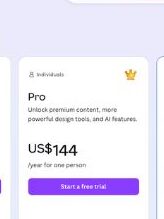
You get premium templates, premium stock assets, Brand Kit features, Background Remover, Magic Resize, more AI tools, and 1TB of storage.
This is the plan most freelancers, creators, marketers, coaches, and small business owners should look at first.
It saves time.
A lot of time.
Instead of rebuilding the same design in different sizes, you can resize it for Instagram, LinkedIn, Pinterest, YouTube thumbnails, and presentations in a few clicks.
Features Provided:
- Premium templates, images, videos, audio, fonts, and graphics
- 1TB cloud storage
- Brand Kit features for logos, colors, and fonts
- Background Remover
- Magic Resize
- More AI-powered design tools
- Content Planner
- Better export and editing flexibility
Limitations:
- Designed for one person
- No advanced team approval workflows
- Limited admin controls compared with Business
- Not ideal for larger teams managing multiple brands
- AI usage still has limits
Who Should Choose This Plan?
Canva Pro is the best fit if you create content often and want the premium library.
It’s especially useful for solo creators, YouTubers, marketers, bloggers, freelancers, and small business owners who need fast, polished designs without opening heavier design software.
If Canva is part of your weekly workflow, Pro usually pays for itself quickly.
3. Business Plan
This is where Canva starts to feel less like a personal design app and more like a team workspace.
The Business plan costs US$250 per year per person and is built for teams that need shared brand assets, collaboration, approval workflows, and admin controls.

This plan makes sense when more than one person is creating content for the same brand.
For example, a marketing manager, designer, social media assistant, and sales team can all work from the same templates and brand rules.
That reduces messy designs.
It also keeps everyone from using the wrong logo, font, or color palette.
Features Provided:
- Team collaboration tools
- Shared Brand Kits
- Brand templates and locked design elements
- Approval workflows
- Team folders
- Admin controls
- Premium Canva features
- Useful tools for social media video creation, ad creatives, and business content
Limitations:
- Costs more as your team grows
- May be too much for solo users
- Some larger security features are reserved for Enterprise
- Teams need setup time to organize folders, templates, and brand rules properly
Who Should Choose This Plan?
Choose Canva Business if your team creates marketing content together.
It works well for agencies, startups, small businesses, ecommerce brands, and content teams that need consistency across social media posts, presentations, ads, reports, and sales materials.
If you’re looking for a Canva alternative for design teams, compare this plan carefully before switching tools.
4. Enterprise Plan
Canva Enterprise is for large organizations that need more control.
There’s no public fixed price here.
Instead, Canva asks you to contact sales or book a demo.
That usually means custom pricing based on team size, security needs, admin setup, and support requirements.
This plan is less about basic design features and more about managing Canva at scale.
Think brand governance, advanced permissions, stronger security, centralized admin controls, and support for large teams.
Features Provided:
- Enterprise-level security
- Advanced admin controls
- Brand governance tools
- Scalable team management
- Centralized permissions
- Support for large organizations
- Sales-led onboarding and support
Limitations:
- No public pricing
- Overkill for small teams
- Requires a sales conversation
- Setup may take longer than Pro or Business
- Best value only appears when many people use Canva across the company
Who Should Choose This Plan?
Canva Enterprise is best for large companies, universities, franchises, and organizations where many teams create visual content.
If your main concern is brand control, user permissions, and keeping hundreds of people aligned, Enterprise makes sense.
If you just need premium templates and faster editing, Pro or Business is the better place to start.
Is Canva Worth the Price?
After looking at the plans, features, and limits, here’s my honest take.
Pros✅:
- Free Plan Is Actually Useful: Canva Free gives you enough tools to create social posts, presentations, flyers, and simple videos without paying.
- Pro Saves a Lot of Time: Magic Resize, Background Remover, premium templates, and brand kit features make regular content creation much faster.
- Huge Premium Library: Canva Pro gives you access to premium photos, videos, graphics, fonts, and templates.
- Great for Non-Designers: The editor is simple, clean, and easy to learn, even if you’ve never used design software before.
- Strong Team Features: Canva Business works well for shared templates, brand control, approvals, and collaboration.
Cons❌:
- Free Plan Gets Limiting Fast: Premium elements, brand tools, AI features, and resize options are restricted.
- Business Costs Add Up: At US$250 per year per person, team pricing can become expensive as more people join.
- Not a Full Adobe Replacement: Canva is great for fast design work, but not deep professional editing.
- AI Limits Can Be Frustrating: Heavy users may run into usage limits depending on the plan.
- Enterprise Pricing Isn’t Transparent: Large teams need to contact sales, which makes budgeting harder upfront.
Canva Pricing Compared With Alternatives
Canva is not the only design tool in this space, but it is still one of the easiest options for fast content creation.
The right alternative depends on what you care about most.
If you want quick social media graphics, Canva is hard to beat.
If you want stronger professional editing, Adobe Creative Cloud goes much deeper.
If you want presentations, reports, and interactive business content, Visme may feel more focused.
Here’s a compact comparison:
| Tool | Starting Price | Storage | Templates | AI Tools | Team Collaboration | Professional Design Depth |
| Canva | Free; Pro from US$144/year | 5GB on Free; 1TB on Pro | Very large template library for social posts, presentations, videos, ads, and print designs | Strong AI tools for writing, images, editing, resizing, and content creation | Good on Business plan with shared brand kits, approvals, and admin controls | Great for everyday design, but limited for advanced editing |
| Adobe Express | Free; Premium from around US$9.99/month | Cloud-based storage through Adobe account | Strong templates, especially for social media and quick marketing content | Good Firefly-powered AI tools for images, text effects, background removal, and quick edits | Useful for small teams, especially if already using Adobe tools | Better than basic design apps, but not as deep as Photoshop or Illustrator |
| VistaCreate | Free; Pro from around US$10/month annually | Good storage for brand assets and uploads | Strong social media and marketing templates | Basic-to-good AI tools, including image generation and background removal | Supports brand kits and simple team workflows | Good Canva alternative for simple branded content, but less polished overall |
| Visme | Free; paid plans vary by user type | Better suited for business assets, presentations, and reports | Strong for presentations, infographics, documents, and business visuals | Useful AI tools for presentations, writing, and design generation | Stronger for teams creating branded business content | Better for reports and presentations than casual social graphics |
| Adobe Creative Cloud | Higher-cost subscription plans | Adobe cloud storage varies by plan | Fewer ready-made beginner templates than Canva | Advanced Adobe Firefly tools across creative apps | Strong for professional teams using Adobe workflows | Best for deep professional editing, branding, illustration, video, and design control |
Canva wins when speed matters.
It’s the easiest choice for creators, marketers, teachers, and small businesses that need social posts, presentations, thumbnails, ads, and quick videos without a steep learning curve.
Adobe Express is the closest direct alternative if you want a simple AI graphic design tool for marketers with Adobe’s creative ecosystem behind it.
Also Read:
Best Adobe Express alternatives That Actually Work in 2026
VistaCreate is worth checking if you want a cheaper Canva-style editor.
Also Read:
I Tested 7 VistaCreate Alternatives to Find the Best Design Tool
Visme makes more sense for business presentations, infographics, and reports.
Adobe Creative Cloud is the serious option for designers who need full control, but it’s more expensive and takes longer to learn.
Is Canva Pro Worth It in 2026?
Yes, Canva Pro is worth it in 2026 if you create designs regularly.
It makes the most sense for creators, marketers, freelancers, small business owners, coaches, teachers, and anyone who needs polished content every week.
The biggest value is time savings.
With Pro, you get premium templates, stock photos, videos, fonts, Background Remover, Magic Resize, Brand Kit features, and more storage. That means you can create an Instagram post, resize it for LinkedIn, remove a product background, and keep your brand colors consistent without jumping between different tools.
That’s where Canva Pro earns its price.
It’s especially useful if you:
- Use premium templates or stock assets often
- Create social media posts, ads, thumbnails, presentations, or short videos every week
- Need brand kit features for logos, colors, and fonts
- Want faster editing tools like Background Remover and Magic Resize
- Prefer one simple design workspace instead of multiple apps
But Canva Pro is not necessary for everyone.
If you only make a birthday invite, school presentation, resume, or one-off flyer once in a while, the Free plan is probably enough.
So the simple answer is this:
Canva Pro is worth it if Canva is part of your regular creative workflow.
If you only design occasionally, save the money and stay on Free.
FAQs About Canva Pricing
How much is Canva Pro in 2026?
Canva Pro costs US$144 per year for one person. Canva may also offer monthly billing, but annual billing is usually the better value if you plan to use it long term.
Is Canva still free?
Yes. Canva still has a Free plan. You can use it to create social media posts, presentations, flyers, documents, basic videos, and other simple designs without paying.
Is Canva Pro billed monthly or yearly?
Canva Pro can usually be billed monthly or yearly. The yearly plan costs less over time, while the monthly plan gives you more flexibility if you only need Canva for a short project.
How much is Canva Teams for 3 users?
Based on Canva’s listed Business pricing of US$250 per year per person, 3 users would cost around US$630 per year. Pricing can vary by region, billing setup, and plan changes.
Does Canva offer student discounts?
Canva does not usually offer a standard student discount for every student. However, eligible teachers and students may get Canva for Education for free through a verified school or classroom account.
Is Canva free for nonprofits?
Yes, Canva offers free premium access to eligible nonprofit organizations. You’ll need to apply and meet Canva’s nonprofit eligibility requirements.
Can I use Canva Free commercially?
Yes, you can use many Canva Free designs commercially, but you should still check the license for specific elements, photos, videos, music, or templates before using them in paid client work or products for sale.
What are Canva AI limits?
Canva AI limits depend on your plan. Free users usually get fewer AI uses, while Pro, Business, and Enterprise users get higher limits for tools like Magic Write, Magic Media, image generation, and other AI features.
Can I cancel Canva anytime?
Yes. You can cancel Canva anytime from your account settings. If you’re on a paid plan, you normally keep access until the end of your current billing period.
What happens to designs after cancellation?
Your designs stay in your Canva account after cancellation. You can still access them, but paid features, premium assets, brand tools, and some exports may become limited once your subscription ends.