
A still image is easy to create with AI.
Making that image move without changing the face, product, lighting, or entire composition is where things get difficult.
I compared the leading AI image-to-video generators to find which ones produce usable motion instead of a five-second clip full of warping and random camera movement.
Five tools stood out: Google Veo, Runway, Kling AI, Luma Dream Machine, and Adobe Firefly.
They are not equally good at everything.
Some are better for cinematic shots. Others give you more control, preserve characters better, or fit professional workflows.
Here is the short version before we get into the details.
Still exploring the wider category? Check out my guide to the best AI video generator tools before choosing one.
TL;DR: Best AI Image-to-Video Generators at a Glance (2026)
After comparing the leading image-to-video AI tools, I would not choose one platform for every type of project.
Google Veo is my best overall pick when realism matters most.
Runway gives creators more control. Kling AI is especially strong for character-driven motion, while Luma makes it easy to create fast cinematic movement.
Adobe Firefly makes the most sense when your workflow already lives inside Adobe.
| Tool | Best For | Standout Strength | Free Option | Starting Price |
| 🏆 Google Veo | Best overall | Cinematic realism, camera movement, audio | Limited access | Google AI Pro: $19.99/mo |
| Runway | Creative control | Prompt control, camera direction, generative editing | Yes | Standard: $15/mo |
| Kling AI | Character consistency | Human motion and reference-image stability | Yes | Paid plans from about $10/mo |
| Luma Dream Machine | Fast cinematic motion | Depth, movement, quick iteration | Yes | Lite: $9.99/mo |
| Adobe Firefly | Commercial workflows | Adobe ecosystem and production handoff | Yes | Standard: $9.99/mo |
Google currently lists AI Pro at $19.99/month; Runway’s Standard monthly plan is $15; Luma lists its web Lite plan at $9.99/month; and Adobe Firefly Standard is $9.99/month. Kling pricing is more complicated because promotional and renewal prices vary.
If I had to narrow it down quickly: choose Veo for realism, Runway for control, Kling for people and characters, Luma for fast visual experiments, and Firefly for Adobe-heavy workflows.
Still deciding between Google and Kling? Read my full Kling vs Veo comparison to see which one fits your workflow better.
How I Compared These AI Image-to-Video Generators
A polished demo on a product homepage tells you almost nothing.
The real test is what happens when you upload an ordinary image and ask the model to create believable motion without destroying the details you wanted to keep.
That is why I compared these AI image-to-video generators around the things that actually affect the final clip:
- Motion realism: Do people, hair, water, fabric, and backgrounds move naturally?
- Source-image fidelity: Does the generated video still look like the image you uploaded?
- Character consistency: Do faces, clothing, products, and objects stay stable between frames?
- Prompt and camera control: Does the model actually follow instructions like “slow dolly in” or “keep the subject still”?
- Output quality: I looked at artifacts, flicker, resolution, clip duration, and audio support.
- Real cost: A cheap plan is not cheap if you need six rerolls before getting one usable video.
I also looked at how easy each AI video generator from image was to use.
Because a technically impressive model is not much help if every generation needs too much setup or burns through credits before you get something usable.
If budget matters more than premium features, check my guide to the best free AI animation tools for more no-cost options.
And if you are starting with an article rather than a single photo, these AI tools for turning blog posts into videos are a better fit for that workflow.
The 5 Best AI Image-to-Video Generators in 2026
Now let’s get into each tool, what it does best, where it struggles, and who should actually use it.
1. Google Veo — Best Overall AI Image-to-Video Generator
⭐ Best For: Cinematic realism, natural motion, and image-to-video clips that need synchronized audio
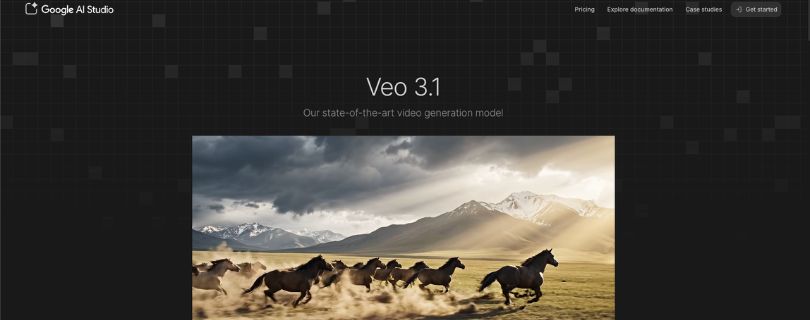
Google Veo takes the top spot because it does more than make a still image move.
It is especially good at preserving the look of the source image while adding camera movement, character motion, environmental effects, and sound that feel like they belong in the same shot.
Veo 3.1 also supports reference images, first-and-last-frame generation, native vertical video, and richer generated audio. Google says its newer image-to-video workflow improves character and background consistency while supporting 1080p and 4K upscaling.
That combination makes Veo one of the strongest options when you want a short AI-generated clip to feel cinematic instead of obviously animated.
Key Features
- Image-to-video generation with reference-image support
- Native generated dialogue, sound effects, and environmental audio
- First and last frame controls for planned transitions
- 9:16 vertical output for Shorts and social content
- 1080p and 4K upscaling for higher-quality exports
✅ What I Liked
- Motion feels more grounded than the exaggerated movement you often get from weaker models.
- Audio is generated inside the same workflow, so you do not always need another tool for sound.
- Reference controls make it easier to keep characters, objects, and backgrounds visually consistent.
❌ What I’d Improve
- Complex scenes with several people or actions can still need multiple generations.
- Higher-quality generations can use credits quickly when you are creating lots of variations.
Pricing
Google Flow currently includes free access with daily credits and Veo 3.1. Google AI Pro costs $19.99/month and adds 1,000 monthly Flow credits, while Ultra plans provide much higher generation allowances and quality options.
Curious how Google’s higher AI plan is priced? Read my full Google AI Ultra pricing breakdown before upgrading.
Who should use Google Veo: Filmmakers, ad creators, agencies, and creators who want realistic image animation with strong camera movement and built-in audio.
2. Runway — Best for Creative Control and Professional Editing
⭐ Best For: Creators who want more control over how an uploaded image moves
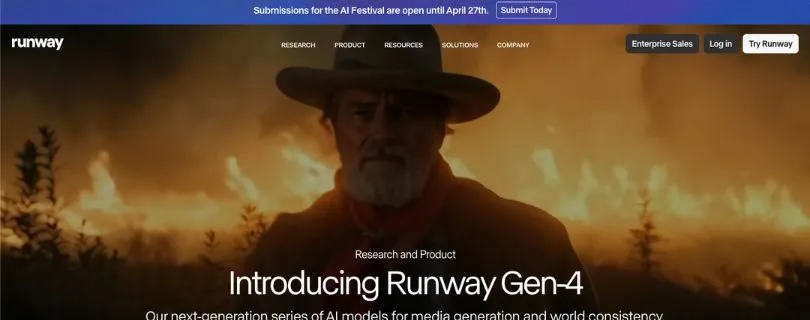
Runway is the option I would look at when simply getting a good-looking clip is not enough.
Its current Gen-4.5 model supports image-to-video and puts a lot of emphasis on prompt adherence, camera choreography, timing, and controlled motion.
With image-to-video, the uploaded image already defines the subject, composition, lighting, and style.
Your prompt can then focus almost entirely on what should move, how fast it should move, and what the camera should do.
That makes Runway particularly useful for shots where you already know the motion you want.
Key Features
- Gen-4.5 image-to-video generation
- Detailed camera and motion prompting
- Multiple aspect ratios for landscape, square, and vertical output
- 2- to 10-second generations
- Broader generative editing and workflow tools inside the same platform
✅ What I Liked
- It gives you more room to direct the shot instead of accepting whatever movement the model invents.
- The workflow makes sense for editors who want to generate, refine, and reuse clips in one place.
- Gen-4.5 handles detailed motion instructions better than older Runway models.
❌ What I’d Improve
- The platform has more controls and models to learn than simpler one-click generators.
- Gen-4.5 costs 12 credits per second, so repeated rerolls can eat through a smaller plan quickly.
Pricing
Runway’s Standard plan is $15/month when billed monthly and includes 625 monthly credits. Gen-4.5 uses 12 credits for each second of generated video.
Want the full plan-by-plan cost before subscribing? Read my Runway pricing explained guide.
I have also covered the platform in more depth in my Runway Gen-4 review.
Not sure Runway is the right fit? Compare the best Runway alternatives before choosing a paid plan.
And if Kling is also on your shortlist, my Runway vs Kling comparison breaks down the difference more directly.
Still considering Pika for shorter creative clips? See my Runway vs Pika comparison before deciding.
Who should use Runway: Filmmakers, editors, agencies, and creators who want to direct motion precisely and keep AI video generation inside a broader production workflow.
3. Kling AI — Best for Character Consistency and Natural Motion
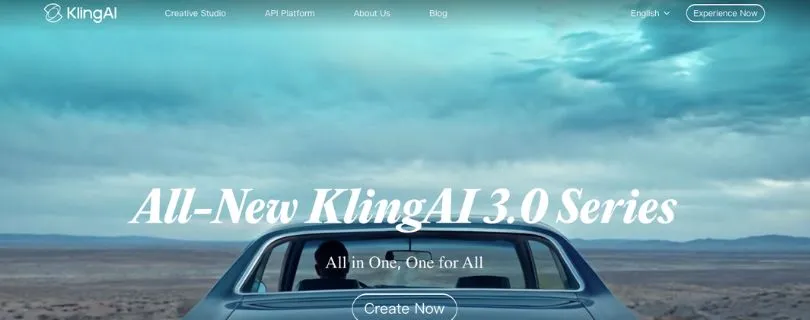
⭐ Best For: Animating people, characters, products, and reference images without losing their identity
Kling AI is the tool I would look at when keeping the original subject recognizable matters more than anything else.
Its current Kling Video 3.0 models put a heavy focus on reference consistency.
You can use images and other references to help preserve characters, objects, and scenes as the camera moves. Kling 3.0 also supports native audio, multi-shot generation, and clips up to 15 seconds.
That makes it especially useful for portraits, AI characters, product demonstrations, and short narrative scenes.
Key Features
- Image-to-video and reference-to-video generation
- Character and object consistency controls
- Native dialogue, sound effects, and ambience
- Multi-shot storytelling and camera control
- Video generation up to 15 seconds
✅ What I Liked
- Faces and important visual details can remain surprisingly stable during movement.
- Native audio makes talking-character workflows much easier.
- Longer 15-second generations give you more room than many short-clip generators.
❌ What I’d Improve
- The number of models and credit options can feel confusing at first.
- More complex scenes may still require rerolls before the movement looks natural.
Pricing
Kling uses a credit-based system, and generation cost changes with the model, resolution, duration, and whether native audio is enabled. Video 3.0 Omni, for example, charges different credits per second for 720p and 1080p output.
Want a deeper look at the platform before paying? Read my ful l Kling AI review.
Curious what the paid tiers actually cost? Check my Kling pricing explained guide.
Still comparing similar models? My Kling vs Hailuo comparison covers the differences more directly.
You can also see how it performs against another popular Chinese video model in my Kling vs Wan AI comparison.
Who should use Kling AI: Social creators, advertisers, AI filmmakers, and anyone who regularly turns portraits or character images into moving videos.
4. Luma Dream Machine — Best for Fast Cinematic Motion
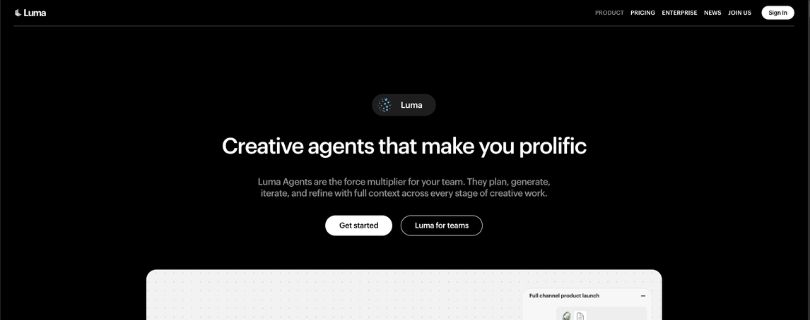
⭐ Best For: Creators who want fast image animation with cinematic camera movement
Luma Dream Machine is easier to recommend when speed and experimentation matter.
Its Ray3.14 model supports image-to-video, keyframes, native 1080p output, and stronger frame-to-frame consistency than earlier versions.
Luma says Ray3.14 is up to four times faster at 720p than Ray3, with better prompt adherence and fewer visual artifacts.
Image-to-video clips are currently five seconds, but you can extend generated videos to build longer sequences.
Key Features
- Ray3.14 image-to-video generation
- Native 1080p output
- Cinematic camera movement and keyframes
- Strong temporal and style consistency
- 4K upscaling for supported generations
✅ What I Liked
- It is fast enough to try several ideas without making iteration feel painful.
- Camera movement works particularly well for landscapes, artwork, and atmospheric B-roll.
- The interface is simpler than many professional AI video platforms.
❌ What I’d Improve
- Ray3.14 image-to-video is limited to five-second generations.
- Its latest model does not currently support Character Reference, so Kling is the better choice for consistency-heavy character work.
Pricing
Dream Machine’s web Lite plan starts at $9.99/month with 3,200 monthly credits. The $29.99 Plus plan adds 10,000 credits, no watermarks, and commercial usage rights.
Want the full credit breakdown? Read my Luma Dream Machine pricing explained guide.
I have also covered the platform in detail in my Luma Dream Machine review.
Still considering Pika? Check my Pika vs Luma Dream Machine comparison before choosing one.
Who should use Luma Dream Machine: Creators who need quick cinematic B-roll, atmospheric shots, and lots of fast image-to-video experimentation.
5. Adobe Firefly — Best for Commercial and Adobe Workflows
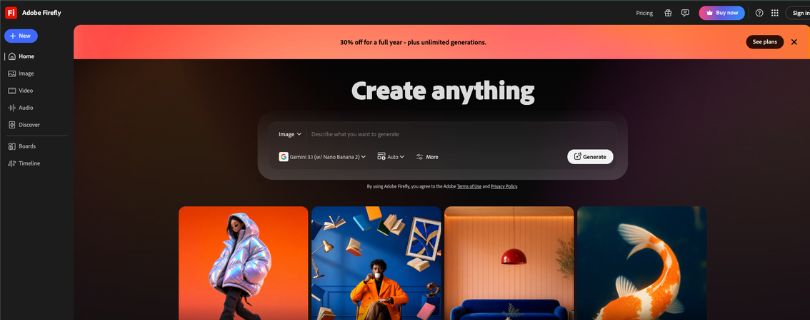
⭐ Best For: Designers, marketing teams, and creators already working inside Adobe
Adobe Firefly earns its place for a different reason.
It is less about winning every raw-generation benchmark and more about fitting AI video into an existing creative workflow.
Firefly lets you turn photos, illustrations, and product images into short videos while controlling pans, zooms, tilts, framing, and other camera movements.
It can generate output up to 4K depending on the model, and Adobe’s own Firefly Video Model is trained on licensed and public-domain material.
Firefly now also gives you access to partner models including Google, Runway, Kling, and Luma from the same environment.
Key Features
- Image-to-video generation
- Camera pan, zoom, tilt, and framing controls
- Up to 4K output on supported models
- Firefly and third-party AI video models
- Integration with Adobe’s wider creative workflow
✅ What I Liked
- It makes sense if you already create ads, social content, or brand assets in Adobe.
- You can generate B-roll and move it into a larger production workflow quickly.
- Having several leading video models in one interface reduces tool switching.
❌ What I’d Improve
- Five-second generations can feel restrictive for longer scenes.
- Premium video generation burns through credits much faster than standard image tools.
Pricing
Firefly Standard starts at $9.99/month with 2,000 generative credits. Adobe also offers a free tier with limited daily image, video, and audio generations.
Want a closer look before subscribing? Read my full Adobe Firefly review.
Not sure Firefly fits your workflow? Check my guide to the best Adobe Firefly alternatives before choosing a plan.
Who should use Adobe Firefly: Designers, agencies, marketing teams, and Adobe users who want AI image-to-video generation inside a familiar professional workflow.
How to Choose an AI Image-to-Video Generator
The best AI image-to-video generator is not necessarily the model that produces the prettiest demo.
It is the one that consistently gives you usable videos for your specific workflow.
Here are the five things I would check before paying.
1. Look at Source-Image Fidelity
Your video should still look like the image you uploaded.
Watch faces, logos, clothing, product shapes, and background details closely.
If those change every few frames, cinematic motion does not matter much.
If Kling interests you but you want more options, check my guide to the best Kling alternatives.
2. Test Motion Realism
Hands, hair, fabric, water, walking, and facial movement quickly expose weaker models.
For realistic people and characters, I would compare Kling and Veo first.
Still comparing character-focused generators? My Vidu vs Kling comparison goes deeper into that decision.
3. Check Camera and Prompt Control
Sometimes you don’t want “more motion.”
You want the right motion.
Runway is particularly useful when your prompt includes exact instructions for camera movement, timing, or scene behavior. Its Gen-4.5 model supports detailed camera choreography and 2–10 second image-to-video generations.
4. Compare Resolution, Audio, and Clip Length
Do not choose based on “4K” alone.
Check whether the tool generates audio, supports vertical video, extends clips, adds watermarks, and lets you control the first or final frame.
5. Calculate the Cost Per Usable Video
This matters more than the subscription price.
A cheap photo-to-video AI generator becomes expensive if you need five attempts to get one usable clip.
For example, Runway Gen-4.5 currently uses 12 credits per generated second.
Which AI Image-to-Video Generator Should You Choose?
If cinematic realism is your priority, start with Google Veo.
If you want to direct camera movement and refine shots, choose Runway.
For characters and natural human motion, Kling AI is the stronger starting point.
For quick cinematic experiments, I would go with Luma Dream Machine.
Not sure Luma is the right fit? Check the best Luma Dream Machine alternatives before subscribing.
And if you already work heavily with Photoshop, Premiere Pro, or other Adobe tools, Firefly fits naturally into that ecosystem.
Adobe also describes its own Firefly Video model as commercially safe for production workflows.
Curious where Adobe’s AI workflow is heading next? Read my guide to the Adobe Firefly Creative Agent.
The rule is simple: choose the tool that handles the type of image you animate most often.
Do not pay for five generators when one already solves 90% of your workflow.
Final Verdict
For most users, Google Veo is the best AI image-to-video generator overall.
Choose Runway for control, Kling for characters, Luma for fast cinematic motion, and Adobe Firefly for professional Adobe workflows.
Start with the tool that matches your most common shots.
Only add another when you find something your first choice cannot do well.
FAQs on AI Image-to-Video Generators
1. What Is the Best AI Image-to-Video Generator in 2026?
Google Veo is my best overall pick for cinematic realism, natural motion, and generated audio.
Runway is better when creative control matters more, while Kling is especially strong for character-focused videos.
2. What Is the Best Free AI Image-to-Video Generator?
Several tools offer limited free access, including Runway, Kling, Luma, and Adobe Firefly.
The catch is usually credits, slower queues, limited resolution, or fewer generations.
So I would use free plans for testing rather than high-volume production.
3. Which AI Image-to-Video AI Is Best for People?
I would start with Kling AI or Google Veo.
Kling 3.0 specifically focuses on stronger consistency, photorealistic output, reference-to-video, and clips up to 15 seconds.
4. Can AI Turn a Product Photo Into a Video?
Yes.
You can animate camera movement, backgrounds, lighting, or the product itself to create short ads and social clips.
If you also need to create better source visuals first, see my guide to AI graphic design generator tools.
5. Can I Use AI-Generated Videos Commercially?
Usually, but commercial rights depend on the platform, model, and subscription tier.
Always check the current terms before using generated footage in client work or paid advertising.
6. Are There Other Image-to-Video Tools Worth Trying?
Yes.
Pika is another creator-friendly option if you want short, stylized AI videos and effects.
Want to see how it works before trying it? Read my full Pika AI review.