I tested Vidu AI using text prompts, uploaded images, character references, templates, and a few different video styles.
My quick verdict: yes, I recommend Vidu AI, but mainly for creators who want fast, cinematic short videos without spending hours editing.
Vidu AI is best for social media creators, AI filmmakers, anime-style storytellers, marketers, and anyone who wants quick text-to-video or image-to-video results.
Its biggest strengths are speed, cinematic output, and reference consistency. When I used character references, Vidu did a solid job keeping the look and style more stable across clips.
But it’s not perfect.
You should avoid Vidu AI if you need frame-perfect control, complex scene direction, reliable customer support, or a tool that follows every tiny prompt detail exactly.
The biggest issues I noticed are inconsistent prompt following, credit costs that can add up quickly, strict moderation, and support concerns mentioned by some users online.
So, my honest take is simple: Vidu AI is great for quick creative videos, concept clips, anime visuals, and social content, but I wouldn’t rely on it alone for serious client work or detailed professional editing.
Vidu AI Review Summary
Here’s my quick scorecard after testing Vidu AI across text-to-video, image-to-video, character references, templates, speed, pricing, and overall usability.
| Category | Rating | Notes |
| Ease of use | 4.5/5 | The dashboard is simple, clean, and beginner-friendly. You don’t need editing experience to start generating clips. |
| Text-to-video quality | 4/5 | Vidu can create strong cinematic visuals, but prompt accuracy can be mixed when the scene gets too detailed. |
| Image-to-video quality | 4.2/5 | It’s good at animating still images, especially portraits, product shots, and stylized visuals. |
| Character consistency | 4.5/5 | This is one of Vidu AI’s strongest areas, especially when using reference images. |
| Speed | 4/5 | Generations are usually fast, though queues and higher-quality outputs can slow things down. |
| Sound/audio | 3.5/5 | The sound features are useful for quick clips, but I wouldn’t expect perfect audio timing every time. |
| Pricing/value | 3.8/5 | The free testing option is helpful, but credits can disappear quickly if you regenerate a lot. |
| Support/trust | 2.5/5 | This is the weakest area. Some user complaints around support, billing, and moderation need to be taken seriously. |
| Overall | 4/5 | Vidu AI is worth testing, especially for short creative videos, but it’s not flawless. |
Overall, Vidu AI feels like a strong AI video generator tool for creators who want quick, polished-looking clips without a steep learning curve.
The output quality can be impressive, especially for cinematic shots, anime-style videos, and image-to-video experiments.
That said, it still has the usual AI video problems.
Sometimes it misses parts of your prompt, sometimes the motion feels a little off, and sometimes you need to spend extra credits to get the result you actually wanted.
What Is Vidu AI?
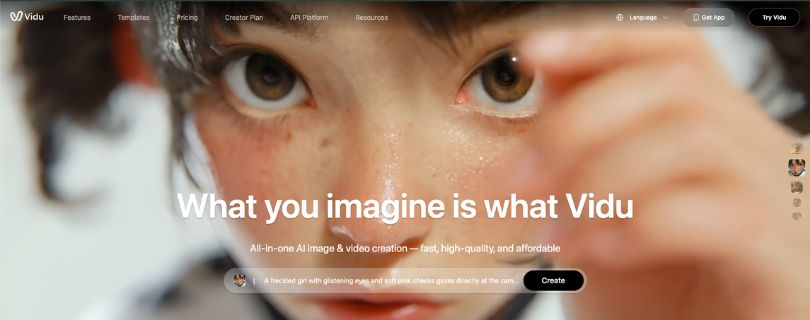
Vidu AI is an AI video generator that turns text prompts, images, and reference visuals into short videos.
It supports three main creation modes: Text to Video, Image to Video, and Reference to Video.
With Text to Video, you type a prompt and Vidu creates a video from it.
With Image to Video, you upload a still image and animate it with camera movement, motion, and style.
The Reference to Video feature is useful when you want to keep characters, objects, or scenes more consistent across different shots.
Vidu also offers templates, AI image animation, and AI sound effects for quick social media-style videos.
You can use Vidu on the web, and it also has a mobile app for creating videos on the go.
It’s mainly built for creators, social media editors, marketers, anime creators, storytellers, and anyone who wants fast AI-generated video clips without learning complex editing software.
Review of Vidu AI’s Features
You already know the quick pros and cons of Vidu AI.
But there’s more.
To give you a clear and practical review, I tested Vidu AI and listed the main features that actually matter when creating AI videos.
Here are the features I focused on:
- Text-to-Video
- Image-to-Video
- Reference-to-Video
- Templates and Effects
- AI Image Animation
- AI Sound Effects
- Upscaling and Export Options
1. Text-to-Video
Text-to-video is the feature most people will try first.
You type a prompt, choose your video settings, and Vidu AI turns your idea into a short video clip.
For example, you can use prompts like:
- An anime girl walking through a neon city at night
- A cinematic shot of a luxury car in the rain
- A product video for a skincare bottle on a white background
- A fantasy warrior standing in front of a burning castle
The best part? You don’t need editing skills to create something that looks polished.
Vidu does a good job with:
- Cinematic lighting
- Anime-style visuals
- Character-focused scenes
- Product-style shots
- Short social media clips
There’s a small limitation here.
Vidu doesn’t always follow every detail in your prompt.
For example, if your prompt includes too many actions, the result can miss one or two things.
This usually happens when you ask for:
- Specific hand movements
- Multiple characters doing different actions
- Complex camera movement
- Exact facial expressions
- Detailed background changes
So, I’d say Vidu’s text-to-video workflow is great for quick ideas and short creative clips.
But for detailed professional scenes, you may need a few retries.
One tip: keep your prompt simple.
Use this basic structure:
- Subject
- Action
- Style
- Camera movement
- Mood or lighting
That gives Vidu a much better chance of creating a clean result.
2. Image-to-Video
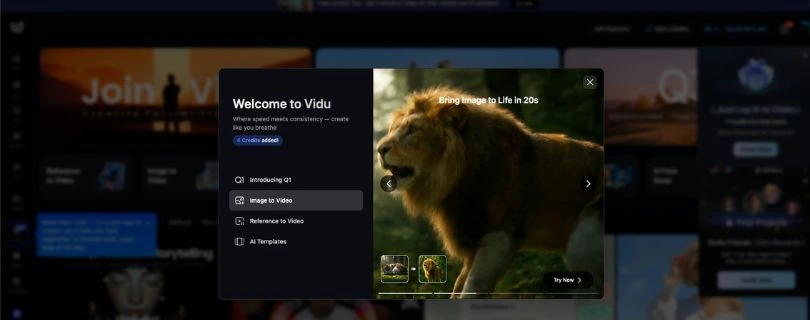
Image-to-video is one of the most useful parts of Vidu AI.
Instead of creating a video from only text, you upload an image and ask Vidu to animate it.
This works well for:
- Portraits
- Anime characters
- Product photos
- Fashion images
- AI-generated artwork
- Fantasy scenes
- Social media visuals
The workflow is simple.
You just need to:
- Upload your image
- Add a short motion prompt
- Choose your video settings
- Generate the clip
For example, I uploaded a still character image and asked Vidu to add slow camera movement and subtle facial motion.
The result looked more interesting than a basic zoom effect.
It added depth, movement, and a more cinematic feel.
But image quality matters a lot.
Vidu works better when your uploaded image has:
- Clear lighting
- Sharp details
- A clean subject
- Less background clutter
- A high-resolution file
If the image is blurry, messy, or too detailed, the output can look unstable.
You may notice:
- Face shifts
- Warped backgrounds
- Strange hand movement
- Objects changing shape
- Soft or blurry details
So yes, Vidu’s image-to-video quality is strong, but only when you give it a good starting image.
3. Reference-to-Video
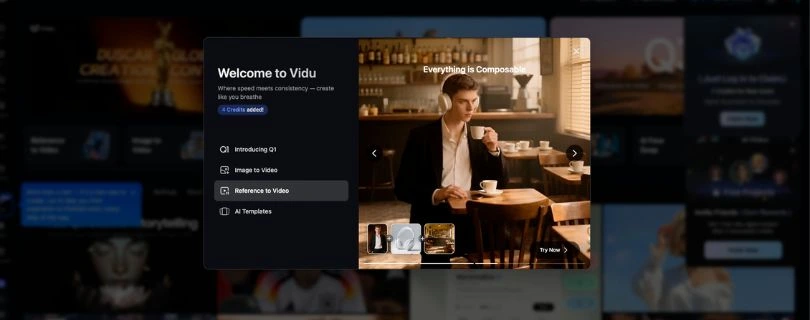
Reference-to-video is the feature that stood out the most to me.
This feature lets you use reference images to guide the character, object, or scene in your video.
Why does this matter?
Because AI video tools often struggle with consistency.
One clip looks great.
Then the next clip changes the face, outfit, hairstyle, or overall style.
Reference-to-video helps reduce that problem.
This feature is useful for creators who want to make:
- AI influencers
- Anime stories
- Brand mascots
- Product videos
- Character-based ads
- Short film concepts
- Consistent social media characters
The best part? It makes the result feel less random.
Instead of hoping Vidu understands your character, you give it a visual reference.
That makes the video easier to control.
Still, it’s not perfect.
Vidu can keep the general look consistent, but small details may still change.
For example:
- Hair may shift slightly
- Clothing details can change
- Accessories may disappear
- Facial details may soften
- Background elements can look different
So, I wouldn’t call it perfect character locking.
But compared to basic text-to-video, reference-to-video gives you much better consistency.
For me, this is one of the strongest reasons to try Vidu AI.
4. Templates and Effects
Templates are helpful when you don’t want to start from scratch.
Vidu gives you ready-made effects and styles that make video creation faster.
This is useful if you’re creating quick content for:
- TikTok
- Instagram Reels
- YouTube Shorts
- Anime edits
- Character videos
- Fun AI experiments
- Social media campaigns
The process is simple.
You choose a template, upload your image or enter your prompt, and Vidu creates the video based on that style.
This saves time because you don’t have to think too much about prompt structure.
Templates are especially useful for beginners.
They help you understand what Vidu can do before you start writing your own detailed prompts.
But there’s one limitation.
Templates can feel repetitive.
If many creators use the same effect, your video may not look very original.
So I’d use templates for:
- Fast testing
- Fun social posts
- Trend-based videos
- Quick creative ideas
For serious brand work, I’d customize the prompt instead.
5. AI Image Animation
AI image animation is useful when you already have a good still image.
You can take that image and add motion, depth, expression, or camera movement.
This works well if you create visuals in tools like:
- Midjourney
- Leonardo AI
- Ideogram
- Canva
- Photoshop
- Other AI image generators
For example, you can upload:
- A character portrait
- A product mockup
- A fantasy scene
- A fashion photo
- A poster-style image
Then Vidu can turn it into a short animated clip.
This makes Vidu useful as part of a bigger creative workflow.
You don’t have to create everything inside Vidu.
You can design the image somewhere else, then use Vidu to animate it.
That said, motion control is still limited.
You can guide the animation, but you can’t control every frame like you would in:
- After Effects
- CapCut
- Premiere Pro
- Final Cut Pro
So, Vidu is great for quick movement.
But it’s not the right tool for frame-perfect animation.
6. AI Sound Effects
Vidu also offers AI sound features to make videos feel more complete.
This is helpful because silent AI videos can feel unfinished.
A little sound can make the clip feel more natural.
AI sound effects can help with:
- Background atmosphere
- Movement sounds
- Cinematic effects
- Action sounds
- Short social media clips
The good thing is convenience.
You don’t have to generate the video, download it, open another editor, and manually add sound effects.
Vidu can handle some of that inside the workflow.
But I wouldn’t rely on it for final audio every time.
Sometimes the sound can feel:
- Too generic
- Slightly mistimed
- Too simple
- Not dramatic enough
- Unmatched with the scene
So, I see Vidu’s AI sound effects as a helpful bonus.
They’re good for drafts, quick clips, and casual videos.
For ads, YouTube videos, or client projects, I’d still polish the audio in a proper editor.
7. Upscaling and Export Options
Export quality matters a lot with AI videos.
A video can have a great idea, but if it looks blurry, compressed, or low-resolution, it won’t feel professional.
Vidu gives you quality and export options to improve the final result.
This is useful when you want to use your video for:
- Social media posts
- Product promos
- Presentations
- YouTube Shorts
- Reels
- Client drafts
- Creative portfolios
But there’s a trade-off.
Higher-quality exports can take more time and may use more credits.
So I wouldn’t generate every rough idea at the highest setting.
A better workflow is:
- Test your idea with basic settings
- Check if the prompt works
- Fix the prompt if needed
- Generate again only when the direction looks right
- Use higher-quality settings for the final version
This helps you save credits.
It also stops you from wasting high-quality generations on weak prompts.
For casual creators, Vidu’s export quality is good enough for short-form content.
For professional work, I’d still check the final video carefully before using it in ads, client projects, or branded campaigns.
Vidu AI Pricing – Good Free Start, But Credits Can Go Fast
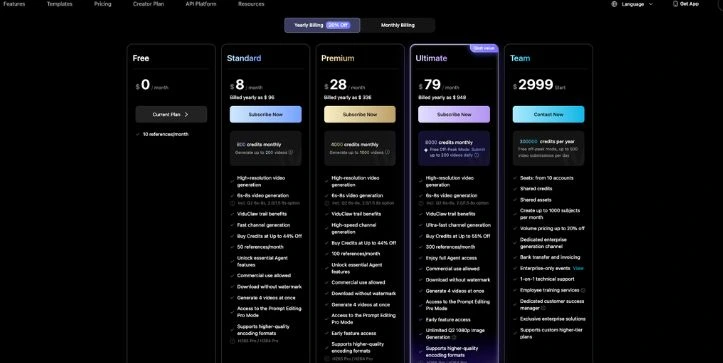
At first glance, Vidu AI’s pricing looks pretty simple.
You get a free plan, and then you can upgrade based on how many videos you want to generate every month.
But here’s the catch.
Vidu runs on credits, so your actual cost depends on how often you generate, regenerate, upscale, or test different versions of the same video.
From the pricing page shown, these are the main Vidu AI plans:
- Free Plan – $0/month
- Standard Plan – $8/month
- Premium Plan – $28/month
- Ultimate Plan – $79/month
- Team Plan – starts at $2,999
Note: These prices are shown with yearly billing, so monthly billing may cost more.
Vidu AI Free Plan – $0/month
Best for: Beginners who want to test Vidu before paying.
The free plan is good if you only want to explore the interface, test a few prompts, and see whether Vidu’s video style works for you.
You also get limited references per month, which is helpful for trying character consistency.
But don’t expect this plan to support regular content creation.
You’ll run into limits quickly, especially if you test multiple text-to-video or image-to-video prompts.
Also, free outputs may come with restrictions like watermarks, lower limits, or fewer export options.
Vidu AI Standard Plan – $8/month
Best for: Casual creators who make short videos occasionally.
The Standard plan gives you 800 credits per month, which Vidu says can generate up to 200 videos.
This plan makes sense if you create AI videos for fun, social media posts, simple story clips, or quick creative experiments.
But there’s one thing to keep in mind.
If you regenerate often, those 800 credits can disappear faster than expected.
So I’d only choose this plan if you already know what kind of videos you want to make.
Vidu AI Premium Plan – $28/month
Best for: Creators who make AI videos more regularly.
The Premium plan gives you 4,000 credits per month, which Vidu says can generate up to 1,000 videos.
This is the plan that feels more practical for serious creators.
You get more room to test prompts, create image-to-video clips, use references, and generate different versions without worrying too much after every click.
Still, I wouldn’t waste credits on random prompts.
A better workflow is to test simple prompts first, then use higher-quality settings only when the result looks promising.
Vidu AI Ultimate Plan – $79/month
Best for: Heavy users, AI video creators, and small teams.
The Ultimate plan gives you 8,000 credits per month, and it’s clearly built for people who generate videos often.
You also get more references per month, faster channel generation, full agent access, and commercial use support.
This plan is useful if Vidu is already part of your content workflow.
For example, if you create videos for clients, social media campaigns, AI storytelling, or ad concepts, the extra credits can help.
But for casual users, this plan may be too much.
Only go for it if you’re sure you’ll use Vidu consistently.
Vidu AI Team Plan – Starts at $2,999
Best for: Agencies, production teams, and businesses.
The Team plan is not really made for casual creators.
It gives shared credits, shared assets, multiple seats, enterprise support, invoicing, and large credit limits.
This makes sense for agencies or companies that need to create AI videos at scale.
But if you’re a solo creator, marketer, or beginner, this plan is probably overkill.
Is Vidu AI Worth Paying For?
Yes, but only after testing the free plan first.
If you like Vidu’s cinematic style, reference-to-video quality, and fast generation speed, then the Standard or Premium plan can be worth it.
But if your prompts need multiple retries, the credit system can get expensive quickly.
My suggestion is simple.
Start free, test your exact video style, check the watermark and export limits, then upgrade only when you’re sure Vidu fits your workflow.
Also, verify Vidu’s pricing before publishing because AI video pricing and credit rules change often.
Who Should Use Vidu AI?
Vidu AI is a good fit if you want to create short videos quickly without learning complex editing tools.
It works best for:
- AI filmmakers testing short scenes
- Anime creators making character-based clips
- Social media creators making Reels, Shorts, or TikToks
- Marketers creating quick concept videos
- Storyboard artists testing visual ideas
- Creators who need more consistent characters
- Beginners who want fast AI video generation
If your goal is quick visual output, Vidu makes sense.
It’s especially useful when you want cinematic clips, stylized videos, or image-to-video results without spending hours editing.
Who Should Avoid Vidu AI?
Vidu AI is not the right tool for everyone.
You should avoid it, or at least be careful, if:
- You need frame-perfect video control
- You need reliable support for client work
- You dislike credit-based pricing
- You need long-form professional editing
- You expect perfect prompt accuracy every time
- You are sensitive to strict moderation filters
- You plan to buy an annual plan without testing first
Vidu is strong for short creative videos, but it’s not a full replacement for tools like Premiere Pro, After Effects, CapCut, or Runway.
Tips to Get Better Results from Vidu AI
A few small changes can make your Vidu results much better.
Use these tips before wasting credits:
- Use short, specific prompts.
- Don’t overload one prompt with too many actions.
- Use reference images for recurring characters.
- Upload high-resolution images for image-to-video.
- Generate rough drafts before using high-quality settings.
- Test motion amplitude carefully.
- Describe camera movement clearly.
- Avoid too many object changes in one clip.
- Save prompts that give good results.
- Compare the web and app versions before paying.
A good prompt is usually simple.
For example, instead of writing a long scene, describe one subject, one action, one style, and one camera movement.
That gives Vidu a better chance of following your idea.
My Final Verdict — Is Vidu AI Worth It?
Yes, Vidu AI is worth trying if you want fast, cinematic AI videos.
It is strongest for short clips, anime-style visuals, social media content, image animation, and visual storytelling.
The reference-to-video feature is one of its best parts because it helps keep characters and styles more consistent.
But I wouldn’t treat Vidu as a complete professional editing replacement.
Prompt accuracy can be mixed, credits can run out quickly, and support concerns are worth keeping in mind.
My advice is simple: start with the free credits, test your exact use case, and only upgrade if Vidu fits your workflow.
FAQ
What is Vidu AI?
Vidu AI is an AI video generator that turns text prompts, images, and references into short videos.
It is mainly used for text-to-video, image-to-video, anime clips, cinematic shots, and social media videos.
Is Vidu AI free?
Yes, Vidu AI has a free option.
Vidu’s official page says users get 40 free credits per month to test the AI video generator.
Does Vidu AI add a watermark?
Free outputs may include a watermark.
If you want cleaner exports for brand work, client videos, or social media posts, a paid plan is usually the better option.
How much does Vidu AI cost?
Vidu has a free plan and paid plans like Standard, Premium, Ultimate, and Team.
The pricing page can change, so I’d always check the latest price before subscribing.
Is Vidu AI good for text-to-video?
Yes, Vidu AI is good for quick text-to-video clips.
It works best when your prompt is short, clear, and visual.
Is Vidu AI good for image-to-video?
Yes, this is one of its better features.
Upload a clean image, add a simple motion prompt, and Vidu can turn it into a short animated clip.
Can Vidu AI keep characters consistent?
Yes, Vidu’s Reference-to-Video feature is designed to help keep characters, objects, and scenes more consistent across shots.
It’s not perfect, but it works better than relying on text prompts alone.
Does Vidu AI work for anime videos?
Yes, Vidu is strong for anime-style videos.
It works well for anime characters, fantasy scenes, stylized movement, and short storytelling clips.
Can I use Vidu AI for TikTok, Reels, and YouTube Shorts?
Yes, Vidu is a good fit for short-form content.
It works best for:
- TikTok clips
- Instagram Reels
- YouTube Shorts
- AI character videos
- Product concept videos
- Anime edits
Does Vidu AI have a mobile app?
Yes, Vidu is available as a mobile app, and its App Store page describes it as an AI video creator for turning words or images into HD videos.
Is Vidu AI better than Runway or Kling AI?
It depends on your use case.
Vidu is better if you want fast results and reference-based consistency.
Runway or Kling may be better if you need more advanced controls, realism, or professional editing workflows.
Why does Vidu AI not follow my prompt properly?
This usually happens when the prompt is too complex.
Vidu can struggle with:
- Too many actions
- Multiple characters
- Exact hand movements
- Detailed camera directions
- Small object changes
- Long scene descriptions
How do I get better results from Vidu AI?
Keep your prompt simple.
Use this structure:
- Subject
- Action
- Style
- Camera movement
- Lighting or mood
For example: “A cyberpunk woman walking through a rainy neon street, cinematic lighting, slow camera pan.”
Why are my Vidu AI videos blurry?
Blurry results can happen because of low-quality input images, weak prompts, or lower export settings.
Use high-resolution images and avoid cluttered scenes when using image-to-video.
Can Vidu AI generate sound effects?
Yes, Vidu includes AI sound features, but I’d treat them as a bonus.
They’re useful for quick clips, but for polished ads or client videos, I’d still edit the audio separately.
Is Vidu AI safe to use?
Vidu is a real AI video platform, but I’d still be careful with billing, subscriptions, and sensitive uploads.
Start with the free plan before paying.
Can I use Vidu AI videos commercially?
Some paid plans mention commercial use, but always check the plan details before using the videos for ads, client work, or brand campaigns.
Rules can change depending on the subscription.
Is Vidu AI worth paying for?
Yes, but only if you use it regularly.
If you only want to test AI video generation, start with the free credits.
If you create social media videos, anime clips, or concept videos often, the Standard or Premium plan may make more sense.
What is the biggest problem with Vidu AI?
The biggest issue is inconsistency.
Some outputs look great, while others need retries because the motion, prompt accuracy, or details are not quite right.
Who is Vidu AI best for?
Vidu AI is best for:
- Social media creators
- Anime creators
- AI filmmakers
- Marketers
- Storyboard artists
- Beginners
- Creators who need consistent characters
Should beginners use Vidu AI?
Yes, beginners can use Vidu AI easily.
The workflow is simple: enter a prompt, upload an image, choose settings, and generate a video.