
Vyond is one of the better-known tools for creating animated explainers, training videos, and character-based business content.
And over the years, it has expanded well beyond basic cartoon animation.
You now get AI avatars, text-to-video tools, screen and webcam recording, AI voices, and other features designed to speed up business video creation.
But there is one problem.
Vyond can get expensive, especially if you are an individual creator, educator, freelancer, or small team.
Its Starter plan currently costs $99/month when paid monthly, or $699 annually, which works out to about $58/month.
And price isn’t the only reason you might look for Vyond alternatives.
You may also want:
- More affordable character animation
- Faster presentation-style video creation
- AI presenters instead of cartoon characters
- Better whiteboard animation
- A different balance between automation and manual editing
Luckily, Vyond isn’t your only option.
I compared the most relevant Vyond competitors based on their animation capabilities, AI features, ease of use, pricing, and the type of videos they’re actually best suited for.
After narrowing down the options, these are the 5 best Vyond alternatives I would consider in 2026.
Already considering Vyond itself? Read my full Vyond review to see what it does well and where it may fall short for your workflow.
Best Vyond Alternatives: TOC
Here are the five alternatives to Vyond I’ll cover:
- Animaker – Best overall Vyond alternative
- Powtoon – Best for animated presentations and explainers
- Synthesia – Best for AI avatar training videos
- CreateStudio – Best for 2D and 3D desktop animation
- VideoScribe – Best for whiteboard animation
Before going into each tool individually, here’s the short version.
TLDR: Top 3 Vyond Alternatives Compared
I’ll break down all five tools in detail below.
But if you don’t want to compare every feature and pricing plan, these are the three Vyond alternatives I’d look at first.
Animaker – Best Overall Vyond Alternative
Animaker is my first pick if you want something that still feels like a direct alternative to Vyond.
It offers character animation, whiteboard videos, templates, AI video features, and a large collection of visual assets.
More importantly, its entry price is considerably lower.
Animaker currently has a free plan, while its Basic plan starts at $15/month when billed annually. Its higher plans add features such as Full HD or 2K exports, whiteboard animation, AI tools, commercial rights, and additional downloads.
So, if you’re comparing Vyond vs Animaker mainly because Vyond feels expensive, Animaker is one of the first alternatives worth checking.
Powtoon – Best for Animated Presentations
Powtoon makes more sense if you don’t need highly detailed character animation.
Its workflow sits closer to presentation creation mixed with animation, which can make it easier for marketers, teachers, trainers, and small businesses creating straightforward explainer videos.
Powtoon also offers a free plan.
Its current Lite plan starts at $15/month when billed yearly and includes watermark removal, MP4 downloads, HD exports, and videos up to 10 minutes.
That makes the Vyond vs Powtoon decision fairly simple.
Go with Vyond when character-driven animation is the priority.
Look at Powtoon when speed, templates, and presentation-style storytelling matter more.
Synthesia – Best for AI Avatar Training Videos
Synthesia is different from the other two.
Instead of trying to recreate Vyond’s cartoon animation workflow, it replaces animated characters with AI presenters.
That’s why I think it’s one of the more interesting Vyond competitors for corporate training, onboarding, internal communication, and multilingual business videos.
Synthesia currently offers a free Basic plan, while Starter costs $29/month and Creator costs $89/month when paid monthly.
So, in a Vyond vs Synthesia comparison, the real question isn’t just which software has more features.
It’s what kind of video you want to make.
If you want animated characters acting through a scene, Vyond or Animaker makes more sense.
If you want an AI presenter delivering your training content, Synthesia is the better fit.
Vyond vs Top Alternatives: Quick Comparison
| Tool | Best For | Main Video Style | Free Plan | Starting Paid Price* |
| Vyond | Business animation & training | Character animation + AI video | Free trial | $58/mo billed annually |
| Animaker | Overall Vyond replacement | Character & whiteboard animation | Yes | $15/mo billed annually |
| Powtoon | Presentations & explainers | Presentation-style animation | Yes | $15/mo billed annually |
| Synthesia | Training & localization | AI avatar videos | Yes | $29/mo monthly |
*Pricing checked in August 2026. Vyond, Animaker, Powtoon, and Synthesia can change their plans, discounts, or billing structure over time. Current figures come from their official pricing pages.
Still comparing different ways to create videos with AI? Check out my guide to the best AI video generator tools before choosing a platform.
How I Evaluated These Vyond Alternatives
Not every tool on this list tries to do the same thing as Vyond.
And that’s important.
Someone creating animated employee training has very different requirements from someone who only needs a quick whiteboard explainer.
So, instead of simply listing popular animation software like Vyond, I compared each option using six factors.
- Animation and character customization: How much control you get over characters, scenes, props, movement, and visual styling.
- Video styles: Whether the platform supports character animation, whiteboard videos, presentations, AI avatars, 2D or 3D content.
- AI features: I looked at features such as text-to-video, AI voices, avatars, translation, and generative video tools.
- Ease of use: A good Vyond alternative should not require professional animation experience just to produce a usable video.
- Training and business use: I also considered branding, localization, collaboration, exports, and features useful for creating repeatable business content.
- Pricing and overall value: Finally, I compared what you actually receive for the money rather than judging the tools only by their cheapest advertised plan.
This is also why I haven’t filled the list with five nearly identical character-animation platforms.
The best Vyond alternative for training videos may be Synthesia.
The best option for whiteboard content may be VideoScribe.
And if you specifically want animation software like Vyond, Animaker is likely to make much more sense.
That distinction will become clearer as we go through each tool individually.
Want to experiment with animation before paying for another subscription? See my guide to the best free AI animation tools.
Top 5 Vyond Alternatives
Now that you know how I evaluated the tools, let’s get into the individual Vyond alternatives.
I’m starting with the option that comes closest to Vyond’s character-animation workflow.
1. Animaker — Best Overall Vyond Alternative
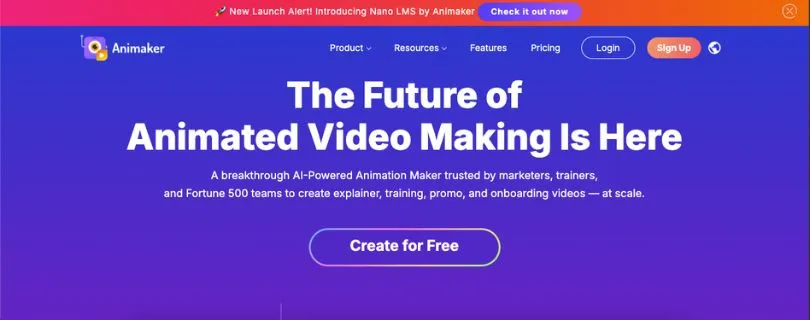
Best for: Creators, educators, marketers, and smaller teams that want customizable character animation without paying Vyond-level prices.
Animaker is probably the first tool I would look at if I wanted to replace Vyond without completely changing the way I create videos.
You still get animated characters, editable scenes, templates, voiceovers, whiteboard animation, and plenty of drag-and-drop assets.
But Animaker has also added AI video generation, AI presenters, infographic videos, subtitles, translation, and other AI-assisted tools around that traditional animation workflow.
That combination makes it one of the closest animation software alternatives to Vyond on this list.
Screenshot placement: Add a screenshot of the Animaker editor/character builder here.
What Makes Animaker a Better Alternative Than Vyond?
The biggest reason to consider Animaker is that you don’t have to give up character-based animation just to find something more affordable.
Its custom character builder lets you create characters for different stories, industries, and audiences, while the platform also supports animated videos, whiteboard videos, AI avatars, infographic videos, and generative AI video.
So, the Vyond vs Animaker comparison is much closer than something like Vyond vs Synthesia.
Both can handle animated explainers and character-led business content.
The difference is that Animaker gives you a lower-cost entry point.
Its current annual plans start at $15/month for Basic, followed by Starter at $25/month and Pro at $43/month. There is also a free plan.
I also like that Animaker doesn’t force you into one video style.
For example, if one training module needs cartoon characters but another works better as a whiteboard explainer, you can create both without moving to another platform.
The Starter plan currently includes whiteboard animation, Full HD video, premium music, AI subtitles, and additional AI tools. The Pro tier adds features including 2K video quality, commercial rights, custom fonts, and more downloads.
That flexibility is one of the main reasons I put Animaker at the top of these Vyond alternatives.
New to the platform? Read my guide on what Animaker AI is to understand how its animation and AI workflow works before creating your first video.
Key Features
- Customizable animated characters
- Drag-and-drop animation editor
- Whiteboard animation
- AI video generation
- AI presenters and avatars
- AI voiceovers, subtitles, and translation
- Templates and stock assets
- Infographic video creation
Animaker currently advertises 1,000+ templates along with AI voice, translation, avatar, whiteboard, and generative-video functionality.
Limitations
Animaker isn’t perfect.
- The free plan limits what you can export and includes restrictions around premium assets.
- Complex projects with a lot of assets can sometimes feel slower inside the browser-based editor.
- Some of the features you’ll probably want for serious work are reserved for higher paid plans.
Those aren’t just theoretical drawbacks.
Recent G2 reviews repeatedly mention limitations in the free tier, while some users report slower loading or rendering when projects become more complex.
What Users Have to Say About Animaker
One recent G2 reviewer summed up Animaker’s main attraction nicely:
“I can create high-quality animated videos quickly using their drag-and-drop interface and vast library of templates.” —source
That same reviewer noted that complex projects with many assets can occasionally make the platform slower to load.
Another user specifically praised how approachable the software is for people who haven’t created animations before.
So, user feedback lines up pretty well with Animaker’s positioning.
It’s easy to get started with, but you’ll probably notice more of its limits as your projects become bigger and more advanced.
Animaker Pricing
Animaker has a Free plan, so you can try the basic workflow before paying.
Its current annual pricing is:
- Basic: $15/month
- Starter: $25/month
- Pro: $43/month
- Enterprise: Custom pricing
Animaker says annual billing can save up to 45% compared with its other billing options.
If your main reason for searching for a Vyond alternative is price, that makes Animaker particularly compelling.
But I wouldn’t choose it only because it’s cheaper.
Choose it if you specifically want to keep the characters + scenes + animation workflow that made you interested in Vyond in the first place.
If Animaker looks like your top pick, check out the best Animaker alternatives before committing to a paid plan.
2. Powtoon — Best for Animated Presentations and Explainer Videos

Best for: Educators, marketers, L&D teams, and businesses that want to turn presentation-style content into animated videos quickly.
Powtoon takes a slightly different approach.
It combines the familiarity of presentation software with animated characters, scenes, templates, stock media, voiceovers, and AI video tools.
That’s what makes it especially useful when you don’t need every scene to behave like a full animation production.
You can start from a template, replace the content, adjust the timing, add characters or narration, and get something usable relatively quickly.
Powtoon currently provides hundreds of templates, a character builder, screen and camera recording, AI scriptwriting, text-to-speech, AI avatars, translation, and other video-generation tools.
Screenshot placement: Add a screenshot of the Powtoon Studio/timeline editor here.
What Makes Powtoon a Better Alternative Than Vyond?
For me, the biggest difference in a Vyond vs Powtoon comparison is how you approach the project.
Vyond makes more sense when animation itself is central to the video.
Powtoon makes more sense when your starting point is closer to:
“I have information to present. How can I make it more visual and engaging?”
That makes Powtoon particularly useful for presentations, classroom content, internal communication, marketing explainers, and straightforward training videos.
You can still create animated characters.
Powtoon’s character builder lets you customize elements such as facial features, hairstyles, clothing, accessories, expressions, gestures, and brand-related details.
But you don’t have to build every project around characters.
You can mix text, stock media, animation, voiceovers, screen recordings, and presentation-style scenes instead.
That gives Powtoon a lower-friction feel for people coming from PowerPoint or other slide-based tools.
Its newer AI tools also make the platform broader than a traditional animation maker.
Powtoon currently supports AI scriptwriting, text-to-video, text-to-speech, AI images, AI avatars, captions, and translation.
So if you’re looking for alternatives to Vyond because you want faster content creation rather than deeper animation controls, Powtoon deserves a spot near the top of the list.
Key Features
- Animated presentation templates
- Character builder
- Cartoon and explainer video creation
- Drag-and-drop video editing
- AI text-to-video
- AI avatars
- AI text-to-speech
- Screen and webcam recording
- Stock video, images, music, and other assets
Powtoon also lets you combine cartoon characters with templates or start from a blank project, then add voiceovers, music, backgrounds, props, and branded elements.
Limitations
There are a few trade-offs.
- Editing controls can feel limited if you’re used to professional video editors.
- Some customization and advanced features sit behind more expensive plans.
- Rendering may take longer on certain projects.
- Character customization isn’t necessarily as deep as you’d want for highly specific animation work.
A recent G2 reviewer who uses Powtoon for LMS lessons said that rendering can sometimes take longer than expected and that the editing controls feel limited compared with professional video software.
Another reviewer highlighted limitations around character appearance and personalization, which is worth considering if representation or very specific character designs are important to your project.
What Users Have to Say About Powtoon
A recent G2 reviewer described one of Powtoon’s biggest strengths simply:
“Powtoon makes it quick and easy to create simple explainer and animated videos.” —source
That is basically where I see Powtoon fitting into this comparison too.
Another L&D user praised the platform’s templates and ease of use, while noting:
“Rendering can sometimes take longer than I’d like.” —source
They also said they sometimes export projects to another editor for final polishing because Powtoon’s editing controls can feel restrictive.
So, Powtoon is less about giving professional animators maximum control.
It’s about helping non-specialists create attractive explainers and presentations without turning every video into a major production.
Powtoon Pricing
Powtoon has a Free plan, which includes 720p video, videos up to three minutes, screen recording, basic templates and characters, and Powtoon branding.
The current Lite plan starts at $15/month when billed yearly.
It removes the watermark for five exports per month, adds MP4 downloads in 1080p, allows videos up to 10 minutes long, and includes AI credits.
More advanced plans unlock a larger content library, additional exports, stronger brand controls, character customization, longer videos, and more AI credits.
If you mainly produce training presentations, classroom videos, explainers, or marketing content, I think Powtoon is one of the easier Vyond competitors to justify.
But if detailed character animation is your priority, Animaker remains the stronger direct replacement.
Want to move beyond presentation-style animation entirely? Compare the best AI video generator tools to see which platforms can automate more of the video creation process.
3. Synthesia — Best for AI Avatar Training Videos
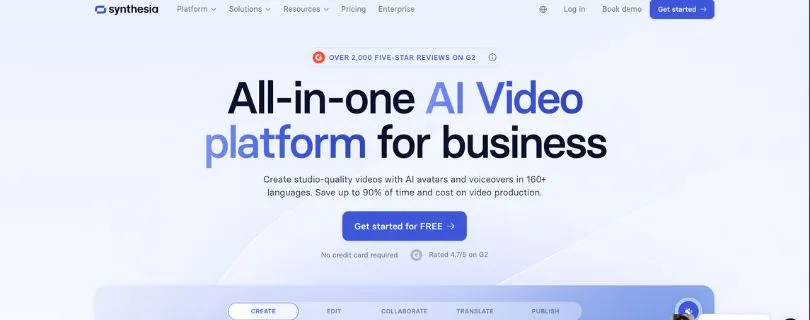
Best for: L&D teams, businesses, educators, and organizations that want AI presenters instead of cartoon-style characters.
Synthesia is the most different Vyond alternative on this list.
And that’s exactly why I included it.
Instead of building scenes around animated cartoon characters, Synthesia lets you type a script and have an AI avatar present it on screen.
That makes it particularly useful for employee training, onboarding, compliance videos, product explainers, and internal communications where you need a presenter but don’t want to record someone every time the script changes. Synthesia currently supports 240+ avatars and video creation in 160+ languages.
Screenshot placement: Add a screenshot of the Synthesia editor showing an AI avatar and script panel here.
What Makes Synthesia a Better Alternative Than Vyond?
The Vyond vs Synthesia comparison really comes down to one question:
Do you want characters acting out your message, or do you want someone presenting it?
Vyond makes more sense for storytelling.
You can build animated scenes, put characters in different situations, and visually demonstrate conversations or workplace scenarios.
Synthesia takes another route.
You select an AI presenter, add your script, customize the scene, and generate the video without a camera, microphone, actor, or traditional filming setup.
For corporate training, that can be a big advantage.
For example, if you need to update one section of an onboarding video after a company policy changes, you don’t need to bring the presenter back and film the entire section again.
You update the content and regenerate it.
Localization is another area where Synthesia stands out.
The platform can translate video content into 160+ languages, which makes it a much stronger Vyond alternative for training videos when the same course needs to reach employees across different countries.
Synthesia also supports personal avatars, ready-made avatars, custom branding, collaboration, analytics, AI-generated visuals, and interactive video functionality.
So, I wouldn’t call Synthesia a direct replacement for Vyond’s animation tools.
I would call it an alternative to the video production workflow itself.
Want to see how the platform performs beyond its AI avatars? Read my complete Synthesia review before deciding whether it fits your workflow.
Key Features
- 240+ AI avatars
- Personal and custom avatars
- Text-to-video generation
- Video creation in 160+ languages
- AI voiceovers and voice cloning
- Video translation
- Brand customization
- Templates and AI-generated visuals
- Collaboration and analytics
- Training and interactive-video tools
You can also turn existing content such as PowerPoint presentations, PDFs, webpages, and written scripts into video drafts, which can save time if your training material already exists in another format.
Limitations
Synthesia’s biggest strength can also be its biggest limitation.
- It isn’t a direct replacement for detailed cartoon or character animation.
- AI presenters can still feel less natural than a real person in some situations.
- Customization may feel limiting for highly creative or cinematic projects.
- Usage is credit-based, so producing a large volume of videos can push you toward a higher plan.
Recent G2 feedback follows a similar pattern.
Users consistently praise Synthesia for ease of use and fast video creation, but limitations around avatars, customization, and AI output remain among the commonly mentioned drawbacks.
A 2026 enterprise learning reviewer also liked the time savings for eLearning, while another training lead noted that generated videos can sometimes feel less natural than live recordings.
What Users Have to Say About Synthesia
One G2 reviewer who uses Synthesia for training explained the main trade-off well:
“The videos can sometimes feel a bit scripted or less natural compared to live-recorded content.” —source
At the same time, that reviewer praised the ability to produce and update professional training content quickly and consistently.
Another 2026 reviewer described localization as a major advantage because the same material can be adapted for global teams without traditional filming.
That’s why I think Synthesia works best when speed, consistency, and localization matter more than expressive character animation.
Synthesia Pricing
Synthesia currently offers four main workspace options.
- Basic: $0/month
- Starter: $29/month
- Creator: $89/month
- Enterprise: Custom pricing
The Basic plan currently includes 1,200 monthly credits, which can be used for up to 10 minutes of video each month, along with other AI features.
That free plan is useful because you can see whether the avatar-based workflow works for you before switching away from Vyond.
But pay attention to video and AI usage limits if you’re planning to create training content regularly.
Curious what you’ll actually pay as your video output grows? Check my full Synthesia pricing breakdown before choosing a plan.
Your dedicated Synthesia pricing guide is also available for this internal-link placement.
If realistic AI presenters are what attracted you to Synthesia, there is another platform worth comparing too.
Still comparing AI avatar tools? See the best HeyGen alternatives before deciding which AI presenter platform to use.
4. CreateStudio — Best for 2D and 3D Desktop Animation
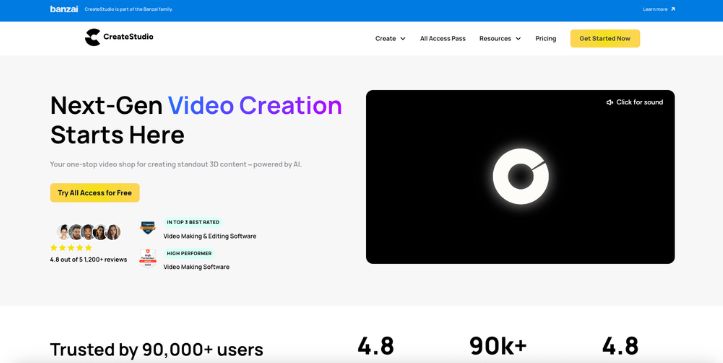
Best for: Creators, marketers, trainers, and freelancers who want a desktop animation tool with customizable 3D characters and stronger visual-animation controls.
CreateStudio feels much closer to traditional animation software than Synthesia does.
You install it on your computer and build videos using a timeline, characters, templates, effects, motion graphics, stock media, and drag-and-drop editing tools.
What makes it particularly interesting as one of the Vyond competitors is its focus on both 2D and 3D animation.
CreateStudio currently includes customizable 3D characters, automatic lip-syncing, AI video generation, templates, brand controls, stock assets, and more advanced animation/editing tools.
Screenshot placement: Add a screenshot of CreateStudio showing a customizable 3D character inside the editor here.
What Makes CreateStudio a Better Alternative Than Vyond?
CreateStudio makes the most sense if you like Vyond’s character-animation concept but want to experiment with a more three-dimensional visual style.
Its 3D Creator lets you customize elements such as:
- Skin color
- Hair
- Clothing
- Accessories
You can also rotate supported characters in 3D space and use automatic lip-sync with voice recordings or generated voiceovers.
That opens up a different visual direction from the flatter cartoon scenes people usually associate with traditional explainer-video software.
And CreateStudio isn’t limited to characters.
It also includes templates for explainers, social content and ads, plus motion graphics, masking, track mattes, blend modes, stock media, animations, and other editing tools.
Its more recent versions have also added AI functionality.
Current tools include AI video generation, text-to-speech, background removal, image generation, an AI Explainer Video Builder, an AI Shorts Builder, and other AI-assisted features.
For me, that gives CreateStudio an interesting position in this list.
Animaker is the closest browser-based character-animation alternative.
Synthesia is the strongest AI-presenter option.
CreateStudio makes more sense when you want 2D and 3D animation inside a desktop editing environment.
Key Features
- Drag-and-drop desktop video editor
- Customizable 3D characters
- 2D and 3D animation assets
- Automatic lip-sync for customizable 3D characters
- AI video generation
- AI text-to-speech
- Templates and premade scenes
- Brand controls
- Stock videos, images, icons, and GIFs
- Motion graphics and advanced editing effects
CreateStudio also lets you import your own images and videos and place characters over them, which can be useful when you want to combine live-action or existing footage with animated elements.
Limitations
There are some important limitations to understand before choosing it over Vyond.
- You can’t import an externally created character and then give it CreateStudio’s built-in character actions.
- Some regular characters are not customizable; the deeper customization applies to its supported 3D Creator characters.
- Advanced editors may still find some video-editing controls limiting.
- Some AI features consume credits.
- Because it is desktop software, it may be less convenient for teams that prefer entirely browser-based workflows.
CreateStudio’s own documentation confirms that imported character artwork remains essentially static unless you bring it in as previously animated video, while its customizable 3D characters are the ones that support features such as rotation and lip-sync.
G2 users also generally praise its ease of use and asset library while noting that advanced editing or very specific character movement can be more limited.
What Users Have to Say About CreateStudio
One G2 reviewer who uses the software for explainers and training videos pointed out this limitation:
“The preset actions cover the basics, but there’s not much flexibility to design more specific or expressive character movements.” —source
The same reviewer praised the custom 3D character builder, asset library, smooth workflow, and automatic lip-sync.
Another reviewer said CreateStudio helped reduce the need to move between several different apps when producing client videos.
So, CreateStudio gives you quite a lot in one application.
Just don’t confuse that with unlimited animation control.
CreateStudio Pricing
One thing you should not rely on from older CreateStudio comparisons is the frequently mentioned $67 lifetime deal.
That offer officially ended on July 15, 2026. CreateStudio also confirms that a previous $499 Lifetime All Access offer is no longer available for purchase.
Its current subscription pricing is:
- Standard: $27/month or $199/year
- Platinum: $37/month or $249/year
- All Access: $47/month or $299/year
CreateStudio states that these are subscription plans and require an active monthly or annual subscription.
That matters because some older articles and search results can make CreateStudio look like a one-time-purchase alternative to Vyond.
That’s no longer the case for new customers.
Still, its annual Standard price works out considerably below Vyond’s current annual Starter price, so CreateStudio remains worth considering if its desktop and 3D workflow fits your projects.
If you want more automated text-to-video creation rather than manual 2D or 3D animation, compare the best InVideo AI alternatives.
And if you’re leaning more toward editing existing footage than creating animated characters:
Prefer a traditional browser-based video editor? Check out the best VEED alternatives before choosing an animation-first tool.
5. VideoScribe — Best for Whiteboard Animation
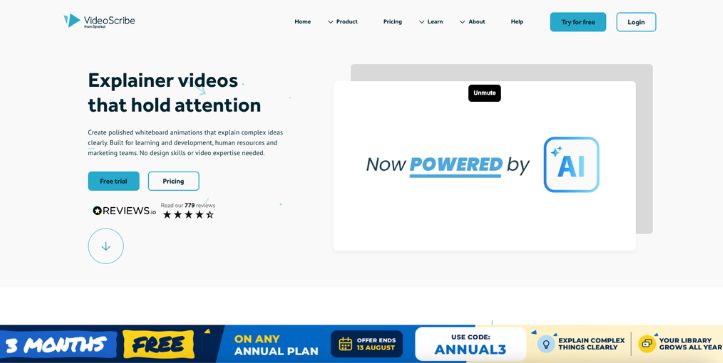
Best for: Educators, trainers, instructional designers, and businesses that mainly want hand-drawn whiteboard explainers.
VideoScribe is more specialized than the other Vyond alternatives on this list.
Instead of trying to compete with Vyond across every type of animation, it focuses heavily on visual storytelling where images, icons, text, and illustrations appear as though they are being drawn onto the screen.
That makes it particularly useful for educational videos, process explanations, training material, SOPs, and concepts that are easier to understand when they’re explained visually.
VideoScribe also now includes AI-assisted image generation, script generation, and AI voiceovers alongside its traditional whiteboard-animation tools.
Screenshot placement: Add a screenshot of the VideoScribe editor showing a whiteboard scene with the drawing hand here.
What Makes VideoScribe a Better Alternative Than Vyond?
VideoScribe isn’t the best replacement if you want animated characters walking around, talking to each other, and acting out workplace scenarios.
But that’s not really what it’s trying to be.
Its advantage is simplicity.
If your entire project revolves around explaining an idea using drawings, text, arrows, icons, diagrams, and narration, you may not need all the character-animation controls that come with Vyond.
VideoScribe gives you different drawing hands, pens, erasers, camera pan and zoom controls, templates, audio tools, and a library containing millions of images and illustrations on its higher plans.
You can also upload your own visual assets.
That can be especially useful for educators and businesses that already have custom diagrams, illustrations, or branded graphics they want to animate.
For me, this is where VideoScribe earns its place among the best Vyond alternatives.
It doesn’t try to do everything.
It gives you a more focused workflow when whiteboard animation is actually the style you want.
Key Features
- Whiteboard-style animation
- Drawing-hand animations
- Camera zoom and pan controls
- Custom image and illustration uploads
- Video templates
- AI image generation
- AI script generation
- AI voiceovers
- Music and audio editing
- Full HD MP4 exports
VideoScribe’s current paid subscriptions support 1080p MP4 exports, while Core and Max plans expand the available media library, download limits, and maximum video length.
Limitations
The specialization also creates some obvious trade-offs.
- The whiteboard aesthetic is much narrower than Vyond’s broader animation styles.
- It isn’t designed for sophisticated character-driven storytelling.
- Processing and rendering can sometimes feel slow.
- Download and video-length limits depend on the plan you choose.
- AI-generation allowances also vary between plans.
For example, Lite currently allows five video downloads per month and videos up to five minutes, while Core raises that to 30 downloads and 10-minute videos. Max provides unlimited monthly downloads with videos up to 20 minutes.
What Users Have to Say About VideoScribe
One verified G2 reviewer liked how easy VideoScribe was to learn and how quickly its templates could turn an idea into finished content.
But they also pointed out a practical downside:
“The various processing times can feel slow at times, which can be a bit frustrating.” —source
That reviewer was using VideoScribe to turn text-heavy SOPs into multilingual training videos, which is a good example of where this style of visual explanation can work particularly well.
Another education-focused reviewer praised the ability to upload custom SVG and vector graphics for more personalized instructional content.
So, if your priority is explaining rather than entertaining with character animation, VideoScribe has a pretty clear use case.
VideoScribe Pricing
VideoScribe currently offers a 7-day free trial, with no credit card required. Trial videos are watermarked.
Its annual plans currently cost:
- Lite: $12.50/month, billed $150 annually
- Core: $18.75/month, billed $225 annually
- Max: $23.33/month, billed $280 annually
The Max plan is particularly relevant to freelancers and agencies because it includes reseller rights, while Lite and Core provide commercial rights for videos used to promote your own business or product.
That makes VideoScribe substantially cheaper at the entry level than Vyond’s current $699-per-year Starter plan.
But remember what you’re paying for.
VideoScribe is the stronger choice when you specifically need whiteboard content.
If you want a broader character-animation platform, I’d choose Animaker instead.
If your workflow begins with articles or written material rather than animation, check out these AI tools for turning blog posts into videos to see other ways to repurpose your content.
Need templates, branded videos, intros, and promotional content instead? Compare the best Renderforest alternatives before choosing a whiteboard-only workflow.
Choose the Best Vyond Alternative
There isn’t one Vyond alternative that makes sense for everyone.
The right choice depends much more on the type of video you’re trying to create.
Choose Animaker if you want the closest overall alternative to Vyond.
It keeps the character-animation approach while offering a free plan and paid plans starting at $15/month when billed annually.
Choose Powtoon if your projects feel more like animated presentations, classroom content, or simple explainers.
Its template-driven workflow should make more sense if you care about getting information onto the screen quickly rather than controlling every detail of an animated scene. Powtoon’s Lite plan currently starts at $15/month billed annually.
Choose Synthesia if you want to replace cartoon characters with AI presenters.
I think it’s the strongest option here for presenter-led training, onboarding, and business videos where localization matters more than traditional animation. Synthesia offers a free Basic plan, with Starter currently at $29/month.
Choose CreateStudio if you want 2D and 3D animation in a desktop application.
Its Standard subscription currently costs $27/month or $199/year.
And choose VideoScribe if hand-drawn whiteboard explainers are your main goal.
Its narrower focus can actually be an advantage when you don’t need all the extra animation tools Vyond provides.
If I had to pick only one for someone specifically searching for animation software like Vyond, I’d start with Animaker.
It’s the closest match in terms of character-based video creation while giving you a much lower entry point.
Still considering a design-first tool instead of dedicated animation software? Compare the best Canva alternatives to see what else you can use for visual and video content.
Want to see whether Canva could handle your simpler animation projects? Read my Canva review before adding another video subscription.
Top Vyond Alternatives: FAQs
1. What Is the Best Vyond Alternative Overall?
Animaker is the best overall Vyond alternative if you want something that stays close to Vyond’s character-animation workflow.
It combines customizable animation, whiteboard videos, templates, AI features, and a free plan. Paid plans currently start at $15/month when billed annually.
However, I’d choose Synthesia instead if AI presenters and corporate training are more important than cartoon animation.
So the “best” option really depends on whether you’re replacing Vyond’s animation capabilities or the broader process of creating business videos.
2. Is There a Free Alternative to Vyond?
Yes.
Animaker, Powtoon, and Synthesia all currently offer free options, although each places limits on exports, features, quality, usage, or branding.
Vyond itself offers a free trial rather than an ongoing free plan, and trial exports include a watermark.
VideoScribe also offers a seven-day free trial rather than a permanent free tier.
So, if you’re specifically searching for free Vyond alternatives, I’d start with Animaker if you want animation or Synthesia if you want AI-avatar videos.
Want more options you can experiment with before spending anything? See my complete guide to the best free AI animation tools.
3. Which Vyond Alternative Is Best for eLearning and Training Videos?
For a Vyond alternative for eLearning, I’d choose based on how the lesson needs to be presented.
Animaker makes sense for animated scenarios and character-based learning.
Synthesia is the stronger choice for presenter-led corporate training, especially when you need AI avatars, easy updates, or multilingual versions.
Powtoon works well for presentation-style lessons.
And VideoScribe is worth considering when diagrams, concepts, or processes are easier to explain using whiteboard animation.
There isn’t one winner here.
For large-scale corporate training, I’d lean toward Synthesia. For animated storytelling and scenarios, I’d lean toward Animaker.
If you’re considering AI presenters for training, check my Synthesia pricing guide to see what the different usage limits will actually cost.
4. Which Vyond Alternative Is Cheaper Than Vyond?
Several of them are cheaper at their entry level.
Vyond Starter currently costs $699 per year, equivalent to about $58/month when billed annually.
By comparison, current annual entry pricing is $15/month for Animaker Basic, $15/month for Powtoon Lite, $199/year for CreateStudio Standard, and $150/year for VideoScribe Lite.
Synthesia is also cheaper to enter at $29/month on Starter, and it has a free Basic plan, although it solves a different problem with AI presenters rather than traditional cartoon animation.
So, if budget is the main reason you’re searching for Vyond competitors, Animaker is probably the first one I’d compare.
It gives you one of the closest Vyond-style workflows without requiring Vyond’s starting subscription price.
Still not sure whether dedicated animation software is worth paying for? My Canva pricing breakdown can help you compare it with a broader all-in-one design platform.