I’ve tested and compared a lot of design tools with creators, marketers, and small business teams.
And Canva comes up in almost every conversation.
It’s a strong platform.
Templates, drag-and-drop editing, brand kits, stock assets, AI tools, social media graphics, presentations, and quick video designs.
For solo creators and teams that need fast content, it works.
But here’s what I keep hearing from users who’ve started looking for Canva alternatives:
- Premium assets can get expensive if you need them often
- The best brand kit features sit behind paid plans
- Template results can feel repetitive when everyone uses the same layouts
- Advanced photo editing still feels limited compared with dedicated editors
- Data-heavy designs like reports, charts, and infographics need more control
- Team workflows can get messy when you need deeper approvals or collaboration
- Some users just want a cheaper, simpler tool for quick social media posts
That’s a lot of friction for a tool that’s supposed to make design feel easy.
I have listed 5 alternatives for it.
Let’s get into detail!
Quick Comparison: Best Canva Alternatives at a Glance
Not every Canva alternative is trying to solve the same problem.
Some tools are better for quick Instagram posts. Some are stronger for reports and infographics. Others make more sense if you already use Adobe apps, need better photo editing, or want a simpler design tool without so many menus.
Here’s a quick side-by-side look before we get into the details:
| Tool | Best For | Free Plan | Main Strength | Main Limitation |
| Adobe Express | Best overall Canva alternative | Yes | Adobe ecosystem, templates, AI tools, and stock assets | Fewer templates than Canva |
| Visme | Infographics, reports, and data visuals | Yes | Charts, presentations, and business content | Steeper learning curve |
| VistaCreate | Most Canva-like experience | Yes | Templates, social media graphics, and print designs | Less flexible than Canva or Adobe Express |
| Snappa | Fast social media graphics | Yes | Simple, quick, and beginner-friendly design workflow | Limited free downloads |
| BeFunky | Photo editing and collages | Limited/free | Photo editor, collage maker, and quick image edits | Not as strong for full design workflows |
How I Evaluated These Canva Alternatives
To find useful replacements, I prioritized the following:
- Ease of use — Can a beginner create a clean design without watching five tutorials?
- Template quality — Are the templates modern, flexible, and actually usable for social posts, ads, presentations, or brand visuals?
- Free plan value — Can you make and export real designs without hitting a paywall too quickly?
- Branding features — Does it support brand kits, fonts, logos, colors, and repeatable design workflows?
- Best-fit use case — Is it better than Canva for something specific, like photo editing, infographics, team design, or fast social graphics?
Now, let me break down each alternative in detail.
5 Best Canva Alternatives (In-Depth Review)
Here are the five Canva alternatives discussed in detail based on features, pros and cons, pricing, and practical use cases.
- Adobe Express
- Visme
- VistaCreate
- Snappa
- BeFunky
1. Adobe Express
G2 Rating: ★★★★☆ 4.5/5 — 809+ reviews
Best for: Creators, marketers, students, and small businesses that want the best overall Canva alternative with AI tools, templates, brand assets, and Adobe ecosystem support.
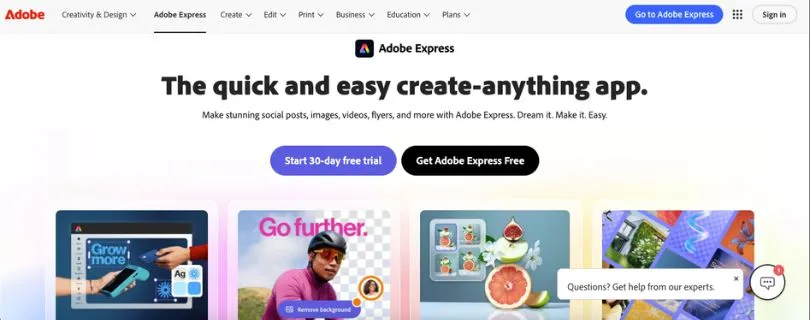
If Canva is the tool most people start with, Adobe Express is the one they usually test when they want something a little more polished.
And honestly, it makes sense.
Adobe Express gives you social media templates, flyers, posters, thumbnails, short videos, background removal, brand assets, Adobe Stock photos, and Firefly-powered AI features in one workspace. It feels lighter than Photoshop but more connected to professional creative tools than most browser-based design apps.
Adobe Express works best when you want quick designs without fully leaving the Adobe world.
You can start with a template, resize it for different platforms, remove a background, add brand colors, and export a clean visual for Instagram, LinkedIn, YouTube, or a client campaign.
Where it stands apart from Canva is the Adobe ecosystem.
If you already use Photoshop, Illustrator, Lightroom, Premiere Pro, Adobe Fonts, or Adobe Stock, Express feels like a natural add-on instead of a totally separate design tool. Adobe’s pricing page also lists a free plan with basic templates, design tools, and 5GB cloud storage, while Premium adds more templates, Adobe Stock assets, multiple brand kits, advanced editing, and 100GB storage.
Put simply, Canva is easier for total beginners.
Adobe Express is better when you want simple design with more professional creative backing.
What I liked most is how fast it feels for everyday design work. You can make a YouTube thumbnail, social post, flyer, or quick video without opening a heavy Adobe app.
The trade-off?
The template library still doesn’t feel as wide or familiar as Canva’s. Some layouts look great, but Canva still wins when you want endless template options for every tiny niche.
Key Features:
- Drag-and-drop editor for social posts, flyers, posters, logos, thumbnails, and short videos.
- Adobe Firefly AI tools for generating and editing creative assets.
- Adobe Stock, Adobe Fonts, and Creative Cloud connections.
- Brand kit features for logos, fonts, colors, and repeatable designs.
- Background remover and quick image editing tools.
- Resize tools for turning one design into multiple social media formats.
- Mobile and web apps for creating content across devices.
Pros:
- Best all-around Canva alternative for most users.
- Great choice if you already use Adobe tools.
- Strong AI features for quick creative work.
- Good for social media graphics, simple videos, ads, and branded content.
- Free plan is useful for basic design needs.
Cons:
- Canva still has a larger and more familiar template library.
- Some users may need time to adjust if they’re used to Canva’s layout.
- The best stock assets, brand kit features, and advanced tools sit behind paid plans.
- Not a full replacement for Photoshop, Illustrator, or Premiere Pro.
Pricing:
- Free Plan: Available.
- Premium Plan: $9.99/month.
- Teams: Starts at $4.99/month according to G2 pricing information.
2. Visme
G2 Rating: ★★★★☆ 4.5/5 — 480+ reviews
Best for: Marketers, educators, business teams, and founders who need infographics, presentations, reports, charts, and data-heavy visual content.
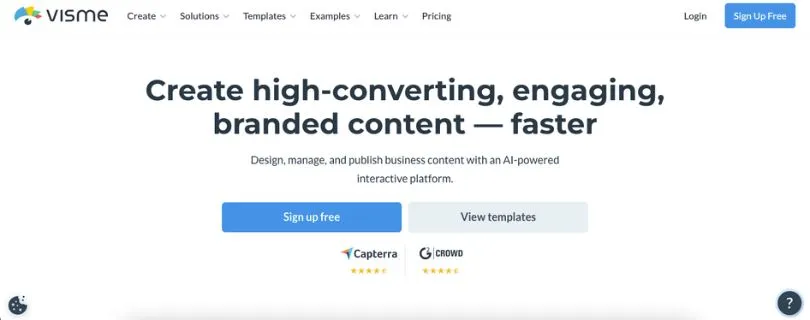
Visme is not just another Canva clone.
It feels more like a business content studio.
If you’re making Instagram posts all day, Canva or VistaCreate may feel faster. But if your work includes reports, pitch decks, infographics, proposals, charts, training materials, or internal documents, Visme starts to make a lot more sense.
This is where Visme beats Canva.
It gives you more control over business visuals. You can create charts, data widgets, presentations, interactive documents, branded reports, and visual assets that feel more professional than a basic social media template.
For example, if you need to turn survey results into a clean infographic, build a sales report for leadership, or create a pitch deck with charts and visual storytelling, Visme gives you more room to work.
Canva can do these things too.
But Visme feels more focused on business communication.
Its interface is still beginner-friendly, but there is more going on. That’s good if you need control. It’s not as good if you just want to make one quick Instagram carousel and move on.
The free plan is useful for testing the editor, but Visme’s own support page says downloads, premium assets, and advanced sharing features are available on paid plans.
So don’t judge Visme only by the free plan.
The real value appears when you use it for reports, presentations, interactive content, and branded business assets.
Also Read:
Visme Alternatives for Smarter, Faster Visual Content Creation
Key Features:
- Presentation builder for pitch decks, reports, and training content.
- Infographic templates and data visualization tools.
- Charts, graphs, maps, and visual data widgets.
- Interactive documents and clickable content.
- Brand assets for fonts, colors, logos, and team consistency.
- AI presentation and content creation tools.
- Sharing, embedding, analytics, and download options on paid plans.
Pros:
- Better than Canva for infographics, reports, and data visuals.
- Strong option for business teams and educators.
- Good balance between templates and customization.
- Useful for creating branded content at scale.
- Great for users who need more than social media graphics.
Cons:
- Takes longer to learn than Canva.
- Free plan is limited, especially for downloads and premium assets.
- Can feel heavier if you only need quick social posts.
- Not the best choice for photo-first editing.
Pricing:
- Basic: Free.
- Starter: $12.25/month.
- Pro: $24.75/month.
- Enterprise: Custom pricing.
See how Visme pricing works across plans:
Visme Pricing Explained
3. VistaCreate
G2 Rating: ★★★★☆ 4.5/5 — 171+ reviews
Best for: Creators, bloggers, small businesses, and social media managers who want the most Canva-like experience without a steep learning curve.
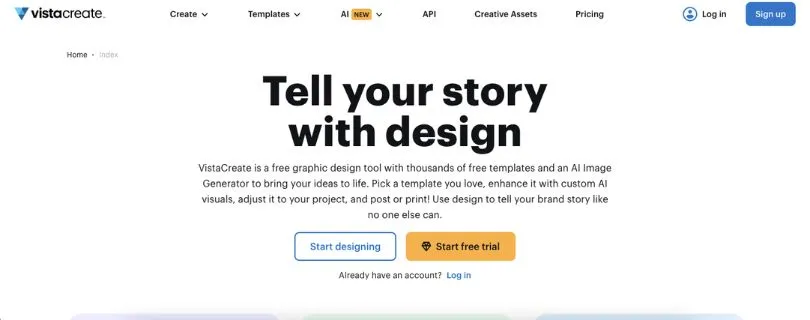
VistaCreate is the Canva alternative I’d recommend to someone who says, “I like Canva, but I want to try something similar.”
It has the same kind of easy design flow.
Pick a template, change the text, swap the image, adjust the colors, resize it, and export. You don’t need to be a designer. You don’t need to understand layers, grids, or typography rules before you start.
That’s the whole appeal.
VistaCreate is strong for social media graphics, flyers, ads, posters, print designs, simple videos, and quick branded visuals. Its G2 profile mentions 150K+ professionally designed templates and a large creative asset library, including images, videos, and vectors.
For small businesses, that matters.
You can create a restaurant promo, Instagram story, product announcement, event flyer, Facebook cover, or Pinterest graphic without starting from a blank page.
What I like about VistaCreate is that it doesn’t try too hard to be advanced.
It stays simple.
That makes it useful for people who want an AI graphic design tool for marketers, creators, and business owners who need clean designs fast.
The free Starter plan is also better than many people expect. VistaCreate says its free Starter plan includes thousands of templates, basic photo and video editing, unlimited downloads of included content, and the ability to upload images, videos, fonts, and other files.
The limitation is flexibility.
If you want deeper editing, more advanced brand controls, or tighter creative workflows, Adobe Express and Canva feel stronger. VistaCreate is great for quick production, but it may feel smaller once your design needs become more complex.
Key Features:
- Drag-and-drop design editor.
- Social media, marketing, advertising, print, and blog templates.
- Large library of photos, videos, vectors, and design assets.
- Basic photo and video editing tools.
- Brand kit functionality for colors, logos, and fonts.
- Background remover and resizing tools.
- Free Starter plan with useful template and export access.
Pros:
- Closest Canva-like experience on this list.
- Very easy for beginners.
- Strong free plan for basic content creation.
- Great for social media posts, flyers, ads, and print materials.
- Good choice for small businesses that need fast branded visuals.
Cons:
- Less advanced than Adobe Express.
- Not as strong as Visme for reports, infographics, or data visuals.
- Collaboration and workflow features are more limited.
- Some users may still prefer Canva’s larger template ecosystem.
Pricing:
- Starter: Free.
- Pro: Paid plan available, with pricing depending on region and current offers.
- A 14-day Pro trial is commonly available through VistaCreate’s plan information.
You will find it helpful:
7 VistaCreate Alternatives to Find the Best Design Tool
4. Snappa
G2 Rating: ★★★★☆ 4.6/5 — 39+ reviews
Best for: Bloggers, creators, solopreneurs, and small businesses that need fast social media graphics without a complicated design workflow.
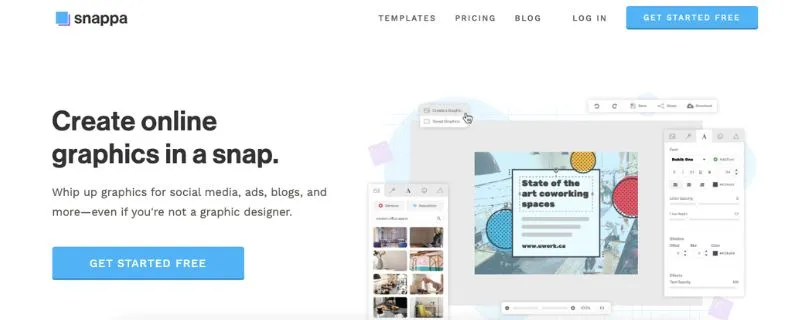
Snappa is the simplest tool on this list.
And that’s not a bad thing.
Some Canva alternatives try to do everything: videos, whiteboards, AI images, websites, brand systems, presentations, documents, and team approvals.
Snappa takes the opposite route.
It focuses on quick online graphics.
You open the editor, choose a size, pick a template, adjust the text and visuals, and export. It’s built for people who need blog images, YouTube thumbnails, Facebook ads, LinkedIn posts, banners, and simple social media graphics.
No long learning curve.
No overloaded dashboard.
Just fast design.
That makes Snappa a strong social media video creation tool alternative only if your content is mostly static graphics, not full video editing. For quick visuals, though, it does the job well.
Snappa’s own pricing page says the free plan includes 1 user, 6,000+ templates, 5,000,000+ HD photos and graphics, and 3 downloads per month. Paid plans unlock unlimited downloads, custom font uploads, background removal, and social media integrations.
That free download limit is the big catch.
If you create only a few graphics per month, it’s fine.
If you publish daily, you’ll hit the limit almost immediately.
Still, I like Snappa for people who feel Canva has become too busy. It’s not the most powerful Canva alternative, but it may be the fastest.
See how Snappa Alternatives works:
[Snappa Alternatives]
Key Features:
- Simple graphic design editor for social media, ads, blogs, and banners.
- Ready-made templates for major online platforms.
- Large library of HD photos and graphics.
- Automatic image sizing for common content formats.
- Background remover on paid plans.
- Custom font uploads on paid plans.
- Team plan for small collaboration needs.
Pros:
- Very fast to learn.
- Great for simple social media graphics.
- Less overwhelming than Canva.
- Good for bloggers and solo creators.
- Transparent pricing.
Cons:
- Free plan only allows 3 downloads per month.
- Not ideal for presentations, reports, or complex brand systems.
- Template library is smaller than Canva’s.
- Limited advanced editing features.
Pricing:
- Starter: Free.
- Pro: $15/month, or $10/month billed yearly.
- Team: $30/month, or $20/month billed yearly for 5 users.
5. BeFunky
G2 Rating: ★★★★☆ 4.3/5 — 102+ reviews
Best for: Creators, bloggers, ecommerce sellers, photographers, and small businesses that care more about photo editing and collages than full design workflows.
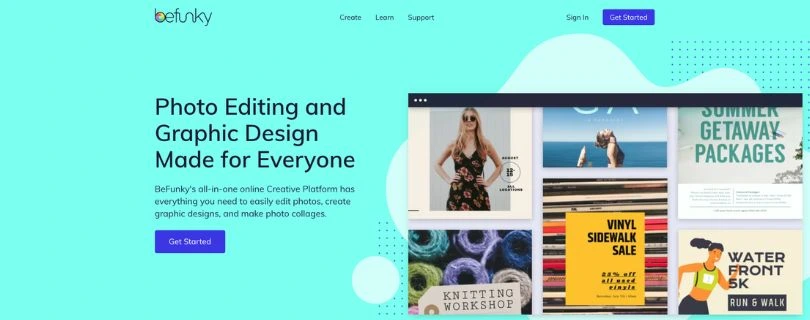
BeFunky is different from the other Canva alternatives here.
It’s not trying to be the best all-in-one design platform.
It’s better described as a photo editor, collage maker, and simple graphic design tool in one browser-based workspace.
That makes it useful if your main problem is image editing.
Maybe you need to crop product photos, clean up a portrait, remove a background, make a collage, resize images for a website, or add filters before posting on social media.
For that kind of work, BeFunky feels faster than Canva.
You don’t have to dig through hundreds of templates. You open the photo editor, make the edit, and move on.
Its G2 profile describes BeFunky as a platform that combines photo editing, collage making, and graphic design, with tools for cropping, resizing, exposure changes, filters, collage layouts, background removal, image upscaling, portrait enhancement, and artsy effects.
That’s the sweet spot.
If you’re building brand templates, pitch decks, team presentations, or ad campaigns, BeFunky is not the best pick.
But if you mostly use Canva to edit images, make collages, and create simple visuals, BeFunky is easier to live with.
The free version is useful for basic edits, but users often mention that many of the better tools sit behind the Plus plan. BeFunky’s pricing page lists Plus at $6.99/month when billed annually.
So think of it this way:
Canva is better for layout design.
BeFunky is better for quick photo edits.
Key Features:
- Browser-based photo editor.
- Collage maker with layouts and templates.
- Graphic designer for simple banners, flyers, invitations, and social posts.
- Background remover and AI-powered image tools.
- Image upscaling, portrait enhancement, and touch-up tools.
- Filters, effects, textures, overlays, and artsy photo styles.
- Basic free plan with paid upgrades for advanced tools.
Pros:
- Best Canva alternative for photo editing and collages.
- Easy to use, even for non-designers.
- Good for quick image cleanup and social visuals.
- Works directly in the browser.
- Affordable paid plan compared with many design tools.
Cons:
- Not strong enough for full design workflows.
- Free version can feel limited.
- Not ideal for presentations, reports, or brand systems.
- Less template depth than Canva, Adobe Express, or VistaCreate.
Pricing:
- Free version: Available with limited features.
- BeFunky Plus: $6.99/month when billed annually.
- Monthly billing is also available.
Which Canva Alternative Should You Choose?
The best Canva alternative depends on what you’re actually trying to create.
If you only need quick social media graphics, you don’t need a heavy design platform. If you’re building reports, pitch decks, and data visuals, a simple template editor may feel too limited. And if your team needs brainstorming, diagrams, or workshop boards, you’re probably looking for something beyond traditional graphic design software.
Here’s the easiest way to decide:
| Choose this tool | If you want |
| Adobe Express | The best all-around Canva replacement |
| Visme | Reports, infographics, presentations, and business visuals |
| VistaCreate | A Canva-like editor with strong templates |
| Snappa | Quick social media graphics without complexity |
| BeFunky | Photo editing, filters, and collages |
| Desygner | Affordable design features for small teams |
| Miro | Brainstorming, diagrams, workshops, and collaboration |
Free Canva Alternatives: Best Options for Beginners
If you’re looking for free Canva alternatives, start with the tool that matches your main workflow.
Adobe Express is the best free all-rounder for social posts, flyers, simple videos, and quick branded designs.
VistaCreate is the best Canva-like free plan if you want templates, drag-and-drop editing, and easy social media graphics.
Snappa works well for occasional social graphics, especially if you only need a few downloads per month.
BeFunky is the best free or low-cost option for photo editing, filters, collages, and quick image cleanup.
Visme is the best free option to test business visuals like presentations, reports, infographics, and charts.
Just remember: free plans usually come with limits. You may run into paywalls for premium templates, stock assets, exports, storage, downloads, brand kits, background remover, or AI credits.
Final Verdict: Best Canva Alternative for Most People
What I found is that Adobe Express is the best overall Canva alternative for most users in 2026.It gives you templates, AI tools, Adobe assets, and a familiar design workflow without feeling too complex.
But the best choice depends on what you create most often.
A social media manager, business team, and photo editor won’t need the same tool.
Here’s the quick pick:
- Adobe Express — best overall Canva replacement
- Visme — best for business visuals, reports, and infographics
- VistaCreate — best Canva-like editor
- Snappa — best for fast social media graphics
- BeFunky — best for photo editing and collages
FAQs About Canva Alternatives
What is the best Canva alternative?
Adobe Express is the best overall Canva alternative for most users. It has templates, AI tools, stock assets, brand kit features, and a simple design workflow.
If you need something more specific, choose Visme for business visuals, VistaCreate for Canva-style templates, Snappa for quick graphics, and BeFunky for photo editing.
Is there a free alternative to Canva?
Yes. Adobe Express, VistaCreate, Snappa, Visme, and BeFunky all offer free or limited free plans.
Just remember that free plans usually limit premium templates, downloads, brand kits, background remover, AI credits, storage, or export options.
What is the closest alternative to Canva?
VistaCreate is one of the closest Canva alternatives because it has a similar drag-and-drop editor, ready-made templates, social media designs, and print design options.
It’s a good choice if you like Canva’s workflow but want to try something similar.
Is Adobe Express better than Canva?
Adobe Express can be better if you already use Adobe tools or want access to Adobe Fonts, Adobe Stock, Firefly AI features, and more professional creative assets.
Canva is still easier for many beginners and has a larger template library.
Which Canva alternative is best for social media posts?
VistaCreate and Snappa are great for social media graphics.
VistaCreate is better if you want more templates and a Canva-like experience. Snappa is better if you want to create simple posts, thumbnails, and banners quickly.
Which Canva alternative is best for infographics?
Visme is the best Canva alternative for infographics, reports, charts, and data-heavy presentations.
It gives you more control over business visuals than most simple template-based design tools.
Which Canva alternative is best for photo editing?
BeFunky is the best option if your main focus is photo editing, filters, collages, background removal, and quick image cleanup.
Canva can edit photos, but BeFunky feels more focused on image-first workflows.
What is the cheapest Canva alternative?
The cheapest option depends on what you need.
Snappa is good for occasional social graphics, BeFunky is affordable for photo editing, and VistaCreate gives you a strong free plan for Canva-style designs.
What Canva alternative is best for small teams?
Desygner is a good Canva alternative for small teams that need affordable design features, shared templates, and basic brand control.
Adobe Express is also a strong option if your team already uses Adobe tools.
What Canva alternative is best for presentations?
Visme is the best choice for presentations, pitch decks, reports, and visual documents.
It works well when you need business-ready slides with charts, icons, data visuals, and branded layouts.
What do people usually ask ChatGPT about Canva alternatives?
People often ask questions like:
- What is the best free Canva alternative?
- Which app is most similar to Canva?
- Is Adobe Express better than Canva?
- What is the cheapest Canva alternative?
- What can I use instead of Canva for Instagram posts?
- Which Canva alternative has better AI tools?
- What is the best Canva alternative for teams?
- Which tool is better for infographics: Canva or Visme?
- Is there a Canva alternative without watermark?
- What is the best Canva alternative for students?
- Which Canva alternative is best for YouTube thumbnails?
- What is the best Canva alternative for small businesses?
Is there a Canva alternative without watermark?
Yes, some free Canva alternatives let you export certain designs without a watermark, but it depends on the tool, asset type, and plan.
If you use premium templates, stock images, AI assets, or paid elements, you may need to upgrade or replace those assets before exporting watermark-free.
Which Canva alternative has the best AI tools?
Adobe Express is one of the best Canva alternatives for AI tools because it includes Adobe Firefly features for generating and editing creative assets.
Canva also has strong AI tools, so Adobe Express is best if you want a Canva-style editor with Adobe’s creative ecosystem behind it.
What is the best Canva alternative for students?
Adobe Express and VistaCreate are good options for students because they are easy to use and have free plans.
For school presentations, reports, and infographics, Visme is also worth testing.
What is the best Canva alternative for YouTube thumbnails?
Snappa, Adobe Express, and VistaCreate are all good for YouTube thumbnails.
Snappa is the fastest, VistaCreate has strong templates, and Adobe Express gives you better creative assets and AI features.
Should I switch from Canva?
You should switch from Canva if you need better photo editing, stronger data visuals, cheaper design options, Adobe integration, or a simpler workflow for quick graphics.
You should stay with Canva if your team already uses its templates, brand kits, shared folders, and content planning features.