Snappa has quietly carved out a loyal following among marketers, content creators, and small business owners, and in 2026, it’s more relevant than ever. Whether you’re a solo entrepreneur trying to keep up with social media demands, a blogger tired of chasing Canva templates, or a lean marketing team that just needs graphics fast, Snappa makes a bold promise: design professional-quality visuals in minutes, no design degree required.
But here’s the real question. What is Snappa actually like to use? What does it offer beyond the usual drag and drop hype? And with so many tools flooding the market, does Snappa still hold up in terms of value, features, and speed?
This hands-on guide breaks it all down: what Snappa is, how it works, what you can really do with it, how it compares to other design tools, and whether it’s worth your time (and budget) in 2026.
What is Snappa?
Snappa is a cloud-based graphic design tool built for speed, simplicity, and everyday content needs. It’s not aiming to replace Photoshop or overwhelm you with features you’ll never use. Instead, Snappa focuses on helping non-designers create high-quality visuals for social media, blogs, ads, emails, and more without the learning curve.
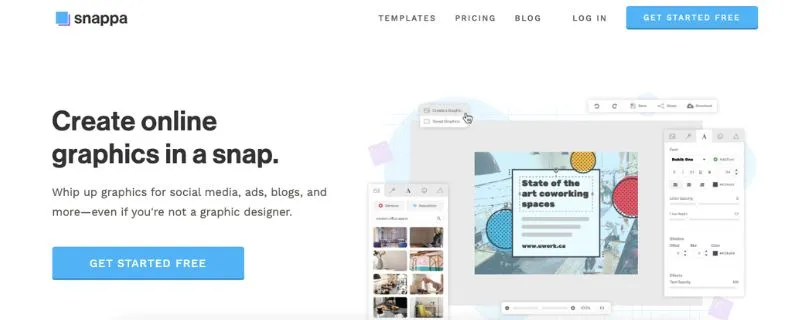
You start by picking a pre-sized template, like an Instagram post or blog header, then customize it using Snappa’s drag and drop editor. No blank canvases or complex layers. Just choose a layout, swap in your text, pick from millions of royalty-free photos, and you’re good to go.
Here’s what Snappa helps you create:
- Social media graphics (Instagram, Facebook, X, LinkedIn, Pinterest)
- Blog headers and feature images
- Display ads and promo banners
- Email headers and thumbnail visuals
- YouTube thumbnails and channel art
- Infographics and custom dimensions
This focus on speed and ease is why Snappa is a favorite among marketers, solopreneurs, and small teams who need graphics quickly but don’t want to hire a designer or deal with complicated tools.
Key highlights:
- No design experience needed
- Templates for every major platform and use case
- Built-in library of 5 million+ free stock photos and graphics
- One-click resizing to repurpose content for different platforms
- Automatic background remover (Pro feature)
- Direct social sharing and cloud-based storage
- Minimal learning curve with a clean, intuitive interface
How Snappa Works (Step-by-Step)
Snappa keeps the design process simple and fast without cutting corners. Here’s what using it actually looks like, from opening the dashboard to exporting your final graphic.
Step 1: Choose your graphic type
Once you log in, Snappa drops you into a clean, distraction-free dashboard. Right away, you’ll see the most common design formats front and center. Think Instagram posts, YouTube thumbnails, Facebook ads, or blog featured images.
You pick the format you need, and Snappa automatically sets the correct canvas size. No guessing. No manual resizing. You start on the right footing from the first click.
Step 2: Start with a template or a blank canvas
After choosing your graphic type, Snappa gives you two paths. You can start from a blank canvas or browse through a library of ready-made templates.
The templates are organized by use case, like promotions, quotes, announcements, or events. When you click one, it opens instantly in the editor with placeholder text and visuals you can swap out. It feels more like editing than designing from scratch.
Step 3: Customize your design
This is where everything comes together. Inside the editor, you can tweak every part of your design without friction. Add or edit text, upload your own images, or pull from Snappa’s built-in stock photo library. You can drop in icons, shapes, and simple effects, then adjust colors, fonts, and spacing to match your brand.
Everything updates in real time. You drag elements where you want them. You resize with a click. If you’re on a Pro plan, you can remove image backgrounds instantly, which saves a surprising amount of time.
Step 4: Resize and repurpose
Once your design looks good, Snappa makes it easy to reuse it across platforms. Say you created a Facebook post and now need the same design for Instagram or LinkedIn. You choose a new format, and Snappa resizes the layout for you.
You might need a quick tweak here or there, but the heavy lifting is already done. This step alone can cut your design time in half.
Step 5: Download or share
When you’re finished, you can download your design as a PNG or JPG, save it to your Snappa workspace, or share it directly to social platforms. You can also duplicate the design if you want to create variations later.
Use Cases for Snappa AI
Snappa is built for people who need high-quality visuals without the hassle of complex design tools. It’s perfect for everyday marketing tasks, content creation, and brand communication when speed matters more than pixel-perfect precision.
Great fit for:
✔ Marketers and social media managers creating daily content
✔ Bloggers who need quick featured images and visuals
✔ Small business owners building brand graphics without hiring a designer
✔ YouTubers designing thumbnails and channel art
✔ Email marketers looking to add clean, eye-catching visuals
✔ Startup teams launching fast campaigns and ads
✔ Virtual assistants handling client social posts and promos
Not ideal for:
✖ Professional designers needing advanced control and custom layouts
✖ Teams building large-scale brand kits or design systems
✖ Users looking for video editing or animation tools
✖ Offline use or heavy customization outside of web-based workflows
Limitations of Snappa
Snappa is great for speed and simplicity, but like any tool, it comes with trade-offs. Here are a few things worth knowing before you rely on it day to day.
1. Free plan limits can feel restrictive
This is one of the most common frustrations, especially for new users.
The free plan limits how many graphics you can download each month. Features like background removal and direct social sharing are locked behind the Pro plan. If you publish content regularly, those limits show up fast.
Many users mention that Snappa works well at first, but the free tier runs out quickly once you start posting consistently. The Pro plan is reasonably priced, but the jump from free to paid feels unavoidable for active users.
2. Limited customization for advanced users
Snappa keeps things simple on purpose, but that simplicity has a downside.
You do not get deep design control like you would in advanced tools such as Adobe Illustrator or Photoshop. There are no complex layer systems, vector path editing, or fine-grained spacing controls. You work within the structure Snappa gives you.
For quick marketing graphics, that is usually fine. For highly detailed or custom designs, it can feel limiting.
3. No mobile app or offline use
Snappa is fully browser-based. There is no mobile app and no offline mode.
If you like designing on a tablet, phone, or while traveling without reliable internet, Snappa will not fit that workflow. You need a stable connection and a desktop browser to use it comfortably.
4. Collaboration tools are minimal
Snappa is not built for large teams.
There is no real-time collaboration, no commenting system, and no version history. Working with others usually means sharing files after download rather than collaborating inside the tool. That works for solo creators, but it can slow things down for teams.
5. No support for video or animation
Snappa focuses entirely on static images.
You cannot create videos, animated graphics, or GIFs inside the platform. If your content strategy includes motion graphics or short videos, you will need a separate tool for that.
Snappa Pricing (Updated for April 2026)
Here’s a clear look at what Snappa costs in dollars so you can decide which plan fits your needs best. Snappa keeps things pretty straightforward with a free tier and a couple of paid options.
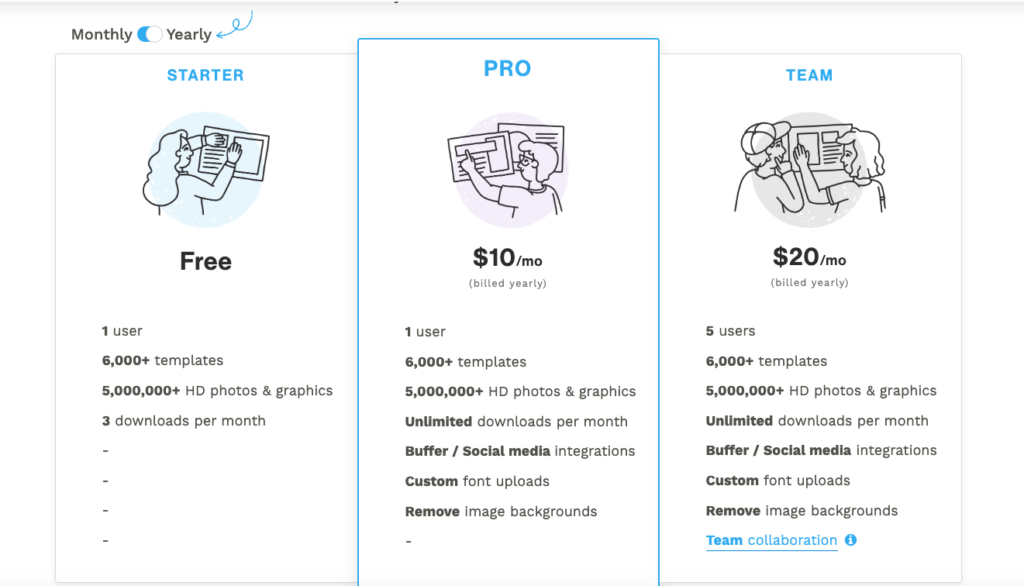
Free Plan – $0/month
This is where everyone starts. You get access to templates, millions of HD photos and graphics, and basic editing tools without paying. You’re limited to three downloads per month, but it’s enough to test the tool and make occasional posts.
Great for solo creators, bloggers, or anyone who just wants to try Snappa out without committing.
Pro Plan – $15/month
This is the most popular choice for individuals who create content regularly. With Pro, you unlock unlimited downloads, access to social media integrations like Buffer, custom font uploads, and background removal tools. You’ll also get all templates and graphics included with no download limits.
If you publish daily posts, stories, ads, or visuals for clients, this plan usually delivers the biggest value.
Team Plan – $30/month
Designed for small teams and agencies, this tier includes everything in Pro but adds multi-user access and collaboration features. You can invite up to five users, share designs, and manage assets together in one workspace.
Perfect for marketing teams, agencies, or groups that work together on brand visuals often.
Pricing Summary
Snappa’s pricing is easy to understand and keeps the barrier low for getting started, but the free plan’s download limits can feel tight once you start posting content regularly. The Pro and Team plans give you unlimited downloads and extra tools that make creating visuals smoother and faster.
Snappa AI Alternatives (2026 state)
Snappa does a solid job for fast, no-friction graphic design. Still, depending on how you work and what you need to create, other tools may fit better. Here are three strong alternatives worth considering in 2026.
1. Canva – best for versatility and team collaboration
Canva is the most common Snappa alternative, and for good reason. It covers a much wider range of use cases, from social media graphics to presentations, videos, and even basic websites.
It works well if you need:
- A massive template library across many formats
- Real-time collaboration with teammates
- Simple video and animated designs
- Brand kits and shared asset libraries
The trade-off is complexity. Canva offers more features, but that can slow you down if you just want quick, lightweight graphics without distractions.
2. Adobe Express – best for Adobe ecosystem users
Adobe Express sits between Snappa and full Adobe tools like Photoshop. It keeps things relatively simple while offering tighter design control than Snappa.
It’s a good fit if you want:
- Cleaner typography and layout control
- Easy access to Adobe fonts and assets
- Quick designs that still feel polished
- Light motion and animation support
- Effective plans and pricing
If you already use Adobe products, Express fits naturally. If not, it can feel a bit less intuitive than Snappa at first.
Also Read:
Best Alternatives to Adobe Express for Creating Amazing Visuals
3. VistaCreate – best for social-first visuals
VistaCreate focuses heavily on social media and marketing graphics. The editor feels familiar to Snappa users, but with a slightly broader creative range.
It works well for:
- Social posts, stories, and ads
- Animated templates and short motion graphics
- Brand styles and reusable designs
- Affordable pricing for frequent posting
It offers more visual flair than Snappa, though the interface can feel busier and less minimal.
Is Snappa AI Worth It?
Snappa shines when you need to create clean, professional graphics without wasting time or energy. It’s ideal for:
- Daily social media content
- Blog visuals and headers
- Ad creatives for quick campaigns
- YouTube thumbnails and channel branding
- Email graphics that don’t require a designer
- Fast turnaround projects for clients or internal use
If your focus is speed, simplicity, and consistent output, Snappa is a strong pick—especially for solo creators, marketers, and small teams without access to full design departments.
But Snappa might not be the right fit if:
- You need full creative control with advanced design tools
- Your team requires real-time collaboration or design versioning
- You want to create motion graphics, videos, or interactive content
- You work offline or on mobile devices regularly
- You’re managing large-scale design systems or complex brand assets
FAQ
Can Snappa create graphics from scratch?
Yes. You can start with a blank canvas or choose from thousands of ready-made templates, then customize everything using drag and drop tools.
Does Snappa support team collaboration?
To a degree. The Team plan allows up to five users to share a workspace, but there’s no real-time editing or commenting like you’d find in more advanced design platforms.
Is Snappa suitable for non-designers?
Absolutely. Snappa is built for non-designers who need polished visuals quickly. The interface is simple, and there’s no steep learning curve.
Is Snappa free?
There’s a Free plan, but it comes with a limit of three downloads per month. If you’re creating content regularly, you’ll likely need the Pro or Team plan.
Can Snappa be used for professional marketing graphics?
Yes. Many marketers, small businesses, and creators use Snappa for social media posts, ads, email graphics, and branded visuals. It’s a solid fit for professional use, as long as your needs stay within static image design.