Adobe Photoshop is one of the most popular photo editing and design tools.
It offers features like layer-based editing, advanced retouching,
AI-powered tools, and professional PSD workflows.
However, not everyone needs such a heavy and expensive tool.
Many users look for Photoshop alternatives because:
- It can feel costly for casual users
- The learning curve is high
- Some tools feel too advanced for beginners
- It needs a strong device for smooth editing
Add to that a subscription-based pricing model,
That can feel frustrating if you only edit photos, create social media graphics, or design occasionally.
All of this makes Photoshop powerful, but not always the most practical option.
Luckily, there are several Adobe Photoshop alternatives that are easier to use,
more affordable, and even free in some cases.
So, I decided to test and compare 6 of the best free and paid Photoshop alternatives and rank them based on ease of use, editing features, PSD support, and overall value.
Quick Comparison Table: Best Photoshop Alternatives at a Glance
Before we go deeper into each tool, here’s a quick side-by-side look.
This should help you quickly spot which Photoshop alternative makes the most sense for your work, whether you need a free PSD editor, an AI photo editing tool, a Canva-style design platform, or a serious desktop editor.
| Tool | Best For | Free or Paid | Platform | PSD Support | Layers | AI Tools | Best User Type | Main Limitation |
| Affinity by Canva | Best overall Photoshop alternative | Free, with Canva premium AI features | Windows, Mac | Strong | Yes | Yes, with Canva premium | Designers, photographers, freelancers, and advanced creators | AI tools are not fully free, and some Adobe files may not open perfectly |
| Photopea | Best free online Photoshop-like editor | Free, with optional paid plan | Browser-based | Excellent | Yes | Yes | Students, quick editors, freelancers, and users who need PSD editing without installing software | Can feel slower with large files and shows ads on the free version |
| GIMP | Best open-source Photoshop alternative | Free | Windows, Mac, Linux | Basic to good | Yes | Limited | Open-source users, Linux users, hobbyists, and technical editors | Interface feels less modern and has a steeper learning curve |
| Luminar Neo | Best paid AI photo editor | Paid | Windows, Mac | Limited | Basic | Strong | Photographers, content creators, and beginners who want fast AI edits | Not built for advanced graphic design or full PSD workflows |
| Canva | Best for social media and quick design | Free, with paid Pro plan | Browser, desktop, mobile | Limited PSD import | Basic design layers | Strong | Marketers, small businesses, creators, students, and social media managers | Not ideal for detailed photo retouching or advanced pixel-level editing |
| Krita | Best free Photoshop alternative for digital painting | Free | Windows, Mac, Linux | Good for artwork files | Yes | Limited | Digital artists, illustrators, comic artists, and concept designers | Better for painting than photo editing or marketing designs |
How I Chose These Photoshop Alternatives
I didn’t want to make this another random list of photo editing tools.
A lot of Photoshop alternative articles simply mention popular names, add a few features, and call it a day. But that doesn’t really help if you’re trying to choose the right tool for your actual work.
So, I looked at these tools from a real user’s point of view.
I checked whether each tool can handle the things people usually expect from a good Adobe Photoshop alternative, such as:
- Photoshop-like workflow
- Layer and mask support
- PSD compatibility
- Ease of use
- AI and automation tools
- RAW/photo editing features
- Platform availability
- Free vs paid value
- Best use case
- Biggest drawbacks
I also paid attention to who each tool is actually made for.
For example, a photographer may care more about RAW editing and AI photo enhancement. A designer may need clean layers, PSD support, and export options. A social media manager may just want fast templates, background removal, and easy brand designs.
That’s why I ranked these Photoshop alternatives based on real use cases, not just feature counts.
No single app replaces every Photoshop feature perfectly, so the best choice depends on what you actually create.
In-depth Review of 6 Best Adobe Photoshop Alternatives
Here are the 6 alternatives that made the cut.
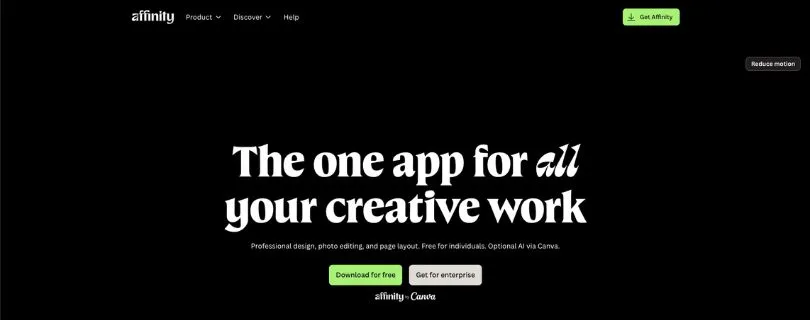
1. Affinity by Canva
Editor Rating: ★★★★★ 4.8/5
Best for:
Designers, photographers, freelancers, and creators who want the closest overall Photoshop alternative without paying for a monthly Adobe subscription.
Affinity by Canva is the strongest Photoshop alternative on this list if you want serious editing power without the usual software cost.
It gives you photo editing, vector design, and layout tools in one app. That means you can edit photos, create graphics, work with layers, design social media visuals, and build print-ready layouts without jumping between multiple apps.
If you’ve used Photoshop before, Affinity will feel familiar in many ways.
You get layer-based editing, masks, adjustment layers, filters, selection tools, retouching tools, blending options, and support for professional file formats. It’s not just a basic photo editor pretending to be a Photoshop replacement.
This is a real creative tool.
Where Affinity Works Better Than Photoshop
The biggest advantage is simple: price.
Affinity is free for individual users, while Photoshop still depends on Adobe’s subscription model. That alone makes it a strong choice for creators who don’t want another monthly bill.
But price isn’t the only reason I like it.
Affinity also feels cleaner if you want one focused creative workspace. Instead of managing different Adobe apps for photo editing, illustration, and layout, Affinity brings those workflows together in one place.
This is useful if you create:
- YouTube thumbnails
- Product images
- Website graphics
- Social media posts
- Posters and flyers
- Client design assets
- Photo edits and composites
The photo editing tools are strong enough for most creators and freelancers. You can remove objects, work with masks, adjust colors, retouch portraits, and build layered compositions without feeling like you’re using a watered-down editor.
I also like that it doesn’t feel too beginner-focused.
Tools like Canva are easier, but Affinity gives you more control. If you want to grow from basic editing into more professional design work, this gives you room to improve.
That said, it’s not perfect.
Some Adobe-specific files may not transfer perfectly. If your Photoshop workflow depends heavily on smart objects, Adobe fonts, plugins, or very complex PSD files, you may notice issues.
Also, the AI tools are not fully part of the free Affinity experience. Canva’s premium AI features are connected to paid Canva plans, so you shouldn’t expect every AI feature to be free just because Affinity itself is free.
What I Liked
- Free for individual users
- Strong layer-based photo editing workflow
- Good option for designers, photographers, and freelancers
- Combines photo editing, vector design, and layout tools
- Feels more professional than most free Photoshop alternatives
- Good PSD support for many everyday design workflows
- No monthly Photoshop-style subscription required
- Useful for thumbnails, ads, product images, posters, and client graphics
- Clean interface once you understand the workspace
Limitations I Faced
- Not as beginner-friendly as Canva or Photopea
- Some complex PSD files may not import perfectly
- Adobe plugins and Photoshop-specific features may not carry over
- AI features depend on Canva’s premium plans
- Can feel heavy if you only need quick social media designs
- Not ideal if your team is fully locked into Adobe Creative Cloud
Affinity by Canva Pricing
Affinity by Canva is free for individual users.
Core Affinity app: $0
Optional Canva premium AI features may require a paid Canva plan.
If you want the best overall Photoshop alternative without paying for Photoshop, Affinity should be the first tool you try.
2. Photopea
Editor Rating: ★★★★★ 4.7/5
Best for:
Students, quick editors, freelancers, and anyone who wants a free online Photoshop alternative that opens PSD files directly in the browser.
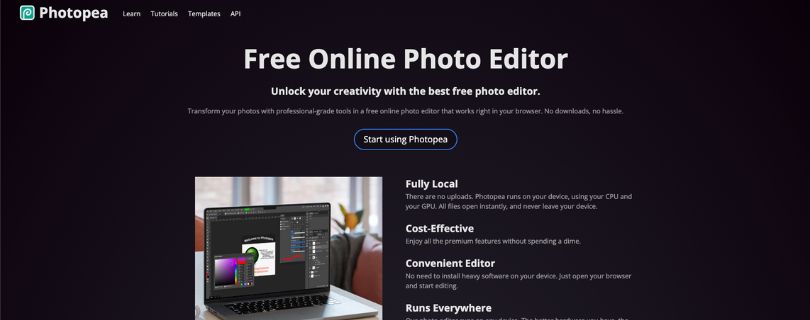
Photopea is probably the closest free online Photoshop alternative you’ll find.
The moment you open it, you’ll notice the interface looks very familiar. The toolbar, layers panel, menus, masks, adjustment layers, and overall layout feel a lot like Photoshop.
That’s exactly why many people like it.
You don’t need to download anything. You don’t need a powerful desktop setup. You just open it in your browser, upload your file, and start editing.
For quick edits, PSD fixes, social media graphics, banners, thumbnails, and simple client revisions, Photopea is surprisingly capable.
It supports PSD files, layers, masks, smart objects, adjustment layers, RAW files, vector files, and many common export formats. That’s a lot for a free browser-based editor.
Where Photopea Works Better Than Photoshop
Photopea wins when you need speed and access.
Let’s say a client sends you a PSD file, but you’re not on your main computer. Or maybe you’re using a Chromebook, school laptop, office computer, or borrowed device.
With Photoshop, you need the app installed and an active Adobe plan.
With Photopea, you just open the website.
That makes it very useful for:
- Opening PSD files quickly
- Editing graphics on a shared computer
- Making small client changes
- Creating social media posts
- Resizing images
- Removing backgrounds
- Exporting files in different formats
- Editing without installing software
The PSD support is the main reason it stands out.
A lot of free Photoshop alternatives claim to support PSD files, but the experience is often messy. Photopea handles them better than most free tools, especially for common layer-based designs.
It also includes AI features like background removal and image replacement, which is helpful if you create product images, marketing graphics, or quick social media visuals.
But you do need to keep expectations realistic.
Photopea runs inside your browser, so performance depends on your device and file size. If you open a huge PSD with dozens of layers, high-resolution photos, and effects, it can slow down.
The free version also has ads, which can be distracting if you use it every day.
What I Liked
- Works directly in the browser
- Very familiar Photoshop-like interface
- Free to use
- Excellent PSD support for an online editor
- Supports layers, masks, smart objects, and adjustment layers
- Opens many file formats, including RAW files
- Useful for students, freelancers, and quick edits
- No installation needed
- Great for editing on low-commitment or shared devices
Limitations I Faced
- Free version includes ads
- Can slow down with large PSD files
- Browser-based editing is not ideal for heavy professional workflows
- Interface may feel crowded for beginners
- Premium plan removes ads but doesn’t turn it into a full desktop app
- Not the best choice for long retouching sessions or huge client projects
Photopea Pricing
Photopea has a free plan.
Free plan: $0
Premium plan: $5/month
Self-hosted version: $500 to $2,000/month, paid yearly
For most users, the free plan is enough. The premium plan mainly makes sense if you use Photopea often and want to remove ads.
If you want a free Photoshop-like editor that works online and handles PSD files well, Photopea is the easiest tool to recommend.
Not fully sold on Photopea? Compare more browser-based editors here:
5 Best Photopea Alternatives for Online Photo Editing in 2026
3. GIMP
Editor Rating: ★★★★☆ 4.4/5
Best for:
Open-source users, Linux users, hobbyists, and technical editors who want a completely free desktop Photoshop alternative.
GIMP has been one of the most popular free Photoshop alternatives for years.
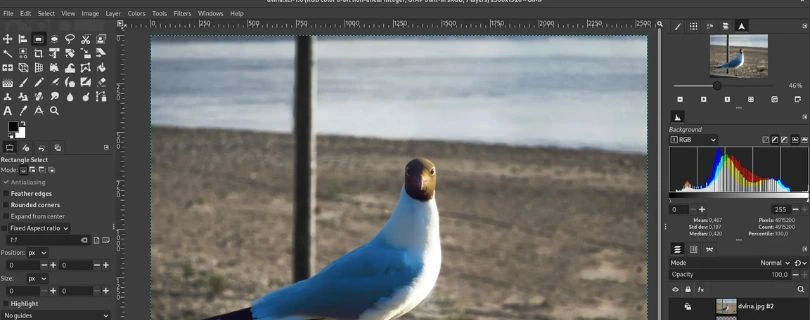
It’s open-source, cross-platform, and powerful enough for serious image editing. You can use it for retouching, photo manipulation, graphic design elements, artwork, and custom editing workflows.
Unlike Photopea, GIMP is a desktop app.
That means you install it on your computer and use it like traditional software. It works on Windows, macOS, and Linux, which makes it especially useful for Linux users who don’t have access to Photoshop.
GIMP gives you many of the editing tools people expect from a Photoshop alternative, including selections, layers, masks, filters, brushes, color correction, cloning, healing, and plugin support.
It’s not the prettiest tool on this list.
But it’s powerful.
Where GIMP Works Better Than Photoshop
GIMP’s biggest strength is freedom.
You don’t pay for it. You don’t need a subscription. You don’t need to create a paid account. You can download it, install it, and use it for personal or commercial work.
That makes it a great option for:
- Students
- Hobby photographers
- Linux users
- Open-source software fans
- People learning image editing
- Creators who want full desktop software for free
Another strong point is customization.
GIMP supports plugins, scripts, and community-made add-ons. If you like tweaking your tools and building your own workflow, GIMP gives you more flexibility than most beginner-friendly editors.
It’s also useful for technical users who don’t mind spending time learning.
You can do detailed retouching, restore old photos, create composites, design simple graphics, and prepare images for websites or marketing content.
The problem is the learning curve.
GIMP doesn’t feel as smooth as Photoshop, Affinity, or Canva. Some tools work differently, the interface can feel dated, and beginners may need tutorials before they feel comfortable.
PSD support is available, but it’s not always perfect. Complex Photoshop files with smart objects, effects, or advanced layer styles may not behave exactly the same.
What I Liked
- Completely free and open-source
- Works on Windows, Mac, and Linux
- Strong desktop photo editing features
- Good for retouching, restoration, and image manipulation
- Supports layers, masks, filters, and plugins
- Great for users who want control and customization
- No subscription or paid upgrade pressure
- Helpful community and lots of tutorials online
Limitations I Faced
- Interface feels less modern than other Photoshop alternatives
- Steeper learning curve for beginners
- PSD compatibility is not always smooth
- Limited built-in AI tools
- Not ideal for quick social media design
- Some workflows feel slower compared to Photoshop or Affinity
- Plugin setup may feel confusing for non-technical users
If you’re mainly comparing free editors first, you may also like this guide:
GIMP Alternatives: 5 Photo Editing Tools You Should Try in 2026
GIMP Pricing
GIMP is completely free.
GIMP download: $0
There are no paid plans, no monthly fees, and no premium version.
If you want a free open-source Photoshop alternative for desktop editing, GIMP is still one of the best choices. Just be ready to spend a little time learning how it works.
4. Luminar Neo
Editor Rating: ★★★★☆ 4.5/5
Best for:
Photographers, content creators, and beginners who want fast AI photo editing without learning every advanced Photoshop tool.
Luminar Neo is not trying to be a full Photoshop clone.
And honestly, that’s what makes it useful.
Instead of giving you hundreds of tools and expecting you to figure everything out yourself, Luminar Neo focuses on quick AI-powered photo editing. You can enhance portraits, replace skies, remove objects, fix lighting, sharpen images, clean up noise, and improve colors with far less manual work.
If Photoshop feels too technical, Luminar Neo feels more guided.
You open a photo, choose an enhancement, move a few sliders, and get a polished result faster than you would with a traditional editor.
That makes it a strong paid Photoshop alternative for photographers who care more about improving photos than building complex graphic designs.
Where Luminar Neo Works Better Than Photoshop
Luminar Neo works better when speed matters more than full control.
Photoshop gives you deeper editing power, but it also expects you to know layers, masks, selections, curves, blending modes, retouching tools, and a lot more.
Luminar Neo handles many common photo edits with AI tools.
This is helpful for:
- Portrait retouching
- Background cleanup
- Sky replacement
- Product photo enhancement
- Travel photo editing
- Landscape color correction
- Noise removal
- Sharpening soft images
- Quick before-and-after edits for social media
The AI tools are especially useful if you edit photos in batches.
For example, if you shoot portraits, real estate images, product shots, or travel photos, you can get a clean first edit quickly and then fine-tune from there.
I also like that Luminar Neo can work as a standalone app or as a plugin with Photoshop and Lightroom. So if you already use Adobe tools, you don’t have to fully replace them right away.
But there’s a clear limit.
Luminar Neo is not the tool I would choose for advanced graphic design, detailed PSD editing, heavy compositing, typography work, or social media templates.
It’s a photo editor first.
So if your main work is editing images, it can save you a lot of time. If your main work is designing thumbnails, posters, ads, or layered graphics, Affinity, Photopea, or Canva will make more sense.
What I Liked
- Very beginner-friendly for photo editing
- Strong AI tools for portraits, skies, lighting, and object removal
- Good for fast photo enhancement
- Useful for creators who edit images for Instagram, websites, and portfolios
- Works as a standalone app
- Can also work as a Photoshop and Lightroom plugin
- Supports RAW photo editing
- Great for photographers who want polished edits without a long learning curve
- One-time purchase options are available
Limitations I Faced
- Not a full Photoshop replacement for design work
- Limited PSD workflow compared to Photopea or Affinity
- Less control for advanced compositing
- AI edits can sometimes look too strong if you don’t adjust them
- Paid tool, so it’s not ideal if you only need occasional edits
- Some updates or future upgrades may cost extra depending on the plan
- Not built for social media templates, typography-heavy designs, or digital painting
Luminar Neo Pricing
Luminar Neo offers one-time license options.
Perpetual Desktop License: $119 one-time payment
Cross-device Perpetual License: $159 one-time payment
Perpetual Max License: $179 one-time payment
If you want a paid Photoshop alternative mainly for photo editing, Luminar Neo is one of the easiest tools to recommend.
It won’t replace Photoshop for every creative workflow, but for quick AI-powered photo edits, it does the job really well.
5. Canva
Editor Rating: ★★★★☆ 4.4/5
Best for:
Social media managers, creators, small business owners, marketers, students, and beginners who need quick designs more than advanced photo editing.
Canva is not a traditional Photoshop alternative.
But for many people, it’s actually the better choice.
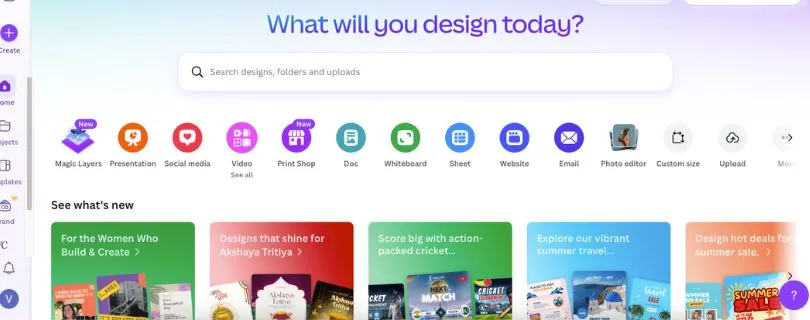
If your main goal is to create Instagram posts, YouTube thumbnails, presentations, ads, flyers, posters, product promos, Pinterest pins, LinkedIn graphics, or simple brand visuals, Canva is much faster than Photoshop.
You don’t need to understand layers, masks, export settings, or complex design rules.
You choose a template, edit the text, change the colors, add your brand assets, and export.
That’s why Canva is so popular with non-designers.
It removes the scary part of design.
Want to see how Canva performs as a full design tool?
Read: I Tried Canva: Honest Review + Pros, Cons & Pricing
Where Canva Works Better Than Photoshop
Canva works better when you need finished content quickly.
Photoshop gives you more control, but it also takes more time. Canva gives you templates, drag-and-drop editing, stock assets, brand kits, background remover tools, Magic Resize, AI writing tools, image generation, and easy export options in one place.
That makes it useful for:
- Social media posts
- YouTube thumbnails
- Instagram Reels covers
- Facebook ads
- LinkedIn carousels
- Presentation slides
- Posters and flyers
- Simple product graphics
- Brand kits for small businesses
- Marketing content calendars
The biggest advantage is speed.
A beginner can open Canva and create something decent in 10 minutes. With Photoshop, that same person may spend the first 10 minutes just trying to find the right tool.
Canva also has strong collaboration features.
If you work with a team, client, VA, social media manager, or content creator, you can share designs, leave comments, reuse templates, and keep brand colors and fonts in one place.
That said, Canva has limits.
It’s not built for deep photo retouching, advanced masking, detailed compositing, professional PSD workflows, or pixel-level editing.
You can import PSD files into Canva, but it’s not the same as working inside Photoshop. Complex files may not convert perfectly, especially if they have lots of layers, effects, fonts, or advanced Photoshop-only features.
So I would not call Canva the best Photoshop alternative for professional photo editors.
But for creators and marketers, it may be the most practical one.
What I Liked
- Very easy for beginners
- Huge library of templates for social media, ads, presentations, and marketing
- Great for YouTube thumbnails, Instagram posts, and quick brand graphics
- Free plan is useful for basic design work
- Canva Pro adds background remover, Brand Kit, Magic Resize, and premium assets
- Strong AI features for fast content creation
- Works in the browser, desktop app, and mobile app
- Easy collaboration for teams and clients
- Much faster than Photoshop for simple marketing designs
Limitations I Faced
- Not ideal for advanced photo editing
- Limited control compared to Photoshop, Affinity, or Photopea
- PSD import is useful but not perfect
- Many best assets and tools are locked behind Canva Pro
- Designs can look template-based if you don’t customize them enough
- Not suitable for complex compositing or professional retouching
- Internet connection matters if you use the browser version
Still comparing design tools before choosing Canva?
Explore: 5 Best Canva Alternatives for Creators & Teams
Canva Pricing
Canva has a free plan and paid plans.
Canva Free: $0
Canva Pro: $15/month or $120/year for one person
Canva Business or team pricing may vary depending on users and region.
If you mainly create social media graphics, marketing designs, presentations, thumbnails, or brand content, Canva is one of the most useful Photoshop alternatives.
It’s not the most advanced editor.
But for everyday content creation, it’s probably the fastest.
Before choosing a paid plan, you can read the full breakdown here:
Canva Pricing 2026: Plans, Costs, Features & Free vs Pro Guide
6. Krita
Editor Rating: ★★★★☆ 4.3/5
Best for:
Digital artists, illustrators, concept artists, comic creators, and anyone who uses Photoshop mainly for drawing or painting.
Krita is different from most tools on this list.
It’s not built mainly for photo editing, marketing graphics, or social media design.
It’s built for artists.
If you use Photoshop mostly for digital painting, illustration, sketching, comics, texture work, or concept art, Krita is one of the best free Photoshop alternatives you can try.
The brush engine is the real highlight.
You get a large collection of brushes, brush customization, stabilizers, layers, masks, blending modes, animation tools, and drawing-focused features that feel made for artists rather than marketers.
And the best part?
It’s completely free.
Where Krita Works Better Than Photoshop
Krita works better when your main focus is drawing.
Photoshop can handle digital art, but it was never only a painting app. Krita feels more focused. The tools, brushes, panels, and workflow are clearly made for illustrators and painters.
This makes it useful for:
- Digital painting
- Concept art
- Comic panels
- Character design
- Storyboarding
- Matte painting
- Texture painting
- Illustration practice
- Drawing with a tablet
The brush customization is excellent.
You can tweak how brushes respond to pressure, texture, blending, smoothing, and speed. If you use a drawing tablet, Krita feels much more natural than most free editors.
It also supports layers, masks, PSD files, and professional color workflows, which makes it flexible enough for serious art projects.
But Krita is not the best choice for everyone.
If you want to edit portraits, remove backgrounds, create Instagram posts, or design business graphics, Krita will feel like the wrong tool.
It can technically do some of those things, but that’s not where it shines.
For photo editing, GIMP or Photopea makes more sense. For social media graphics, Canva is faster. For professional design and layout, Affinity is stronger.
Krita is the tool you choose when you want to draw.
What I Liked
- Completely free and open-source
- Excellent brush engine for digital artists
- Great for illustration, comics, concept art, and painting
- Supports layers, masks, blending modes, and PSD files
- Works well with drawing tablets
- Strong community and learning resources
- Good animation and storyboard tools for artists
- Available on Windows, Mac, and Linux
- No subscription or paid upgrade pressure
Limitations I Faced
- Not made for traditional photo editing
- Not ideal for social media graphics or marketing designs
- Interface can feel overwhelming for non-artists
- Limited built-in AI tools
- PSD support is useful, but not perfect for complex Photoshop files
- Fewer business and brand design features than Canva
- Not the best option if you only need quick edits
Krita Pricing
Krita is free.
Krita download: $0
There are no monthly fees, no paid Pro plan, and no subscription.
If you’re an artist looking for a free Photoshop alternative for digital painting, Krita is easily one of the best options.
Want to compare more drawing-focused tools? Read:
Top Krita Alternatives I Tested & Ranked for Digital Artists
It won’t replace Photoshop for every type of design work, but for drawing and illustration, it gives you a lot without asking for anything in return.
Side-by-Side: Which Photoshop Alternative Should You Choose?
If you’re still not sure which tool fits your work, this table should make the decision easier.
Each Photoshop alternative has a different strength. Some are better for PSD editing. Some are better for social media graphics. Some are better for artists, photographers, or beginners who just want clean results without learning a complicated tool.
| What You Need | Best Photoshop Alternative | Why It Makes Sense |
| Closest overall Photoshop replacement | Affinity | It gives you professional photo editing, layers, masks, design tools, and a serious desktop workflow without the usual Adobe subscription. |
| Best free online editor | Photopea | It runs in your browser, feels similar to Photoshop, and handles PSD files surprisingly well. |
| Best open-source editor | GIMP | It’s completely free, works on all major desktop platforms, and gives you strong image editing tools. |
| Best AI photo editor | Luminar Neo | It’s built for fast AI-powered photo enhancements, portrait edits, sky replacement, and quick image cleanup. |
| Best for social media graphics | Canva | It’s faster than Photoshop for Instagram posts, YouTube thumbnails, ads, presentations, and simple brand designs. |
| Best for drawing and painting | Krita | It has excellent brushes, drawing tools, and a workflow made for illustrators and digital artists. |
| Best for PSD files without installing software | Photopea | You can open and edit PSD files directly in your browser without downloading a desktop app. |
| Best for professional desktop editing without Adobe | Affinity | It gives advanced creators more control than basic editors while staying outside the Adobe ecosystem. |
| Best for total beginners | Canva or Luminar Neo | Canva is easier for design work, while Luminar Neo is easier for photo editing. |
| Best for Linux users | GIMP or Krita | Both are free, open-source, and work well on Linux machines. |
Free vs Paid Photoshop Alternatives: Which Is Better?
This depends on what you’re creating.
A free Photoshop alternative is enough for many people, especially if you only edit images occasionally or create simple graphics for personal projects, school, social media, or a small business.
But if you work with client projects, large image files, RAW photos, or advanced editing workflows, a paid tool can save time and feel more reliable.
Choose a free Photoshop alternative if:
- You are a student, beginner, hobbyist, or occasional editor
- You need basic editing, layers, cropping, retouching, and social graphics
- You want to avoid subscriptions completely
- You don’t mind a learning curve in tools like GIMP or Krita
- You mostly create simple edits, artwork, or browser-based designs
Free tools have come a long way.
Photopea can handle PSD files online. GIMP gives you serious desktop editing for free. Krita is excellent for digital painting. Canva’s free plan is enough for many basic designs.
So if your needs are simple, you don’t have to pay right away.
Choose a paid Photoshop alternative if:
- You need a more reliable professional workflow
- You work with large files, RAW photos, or client projects
- You want AI tools, support, updates, or advanced automation
- You need a polished interface and faster workflow
- You want fewer workarounds and smoother exports
Paid tools usually make sense when time matters.
For example, Luminar Neo can speed up photo editing with AI tools. Canva Pro can save a lot of time with Brand Kit, background remover, Magic Resize, and premium templates. Paid creative tools often feel smoother when you’re using them every day for business or client work.
Best Photoshop Alternative by Use Case
Not every Photoshop alternative is made for the same person.
A photographer, designer, student, marketer, and digital artist will all care about different things. So instead of picking one “best” tool for everyone, here’s how I would choose based on your actual use case.
Best for photographers
Affinity or Luminar Neo
Affinity is better if you want more manual editing control, layers, masking, and professional image work.
Luminar Neo is better if you want fast AI photo editing, portrait enhancement, sky replacement, relighting, and quick polished results without spending hours inside a complex editor.
Best for designers
Affinity or Canva
Affinity is the better pick for designers who need more control over layouts, layers, exports, and professional design work.
Canva is better if you create social media posts, ads, thumbnails, presentations, and brand visuals quickly. It’s not as advanced as Affinity, but it’s much faster for everyday marketing designs.
Best for PSD editing
Photopea or Affinity
Photopea is the easiest choice if you need to open a PSD file quickly without installing software.
Affinity is better if you want a more serious desktop editing workflow. Just remember that complex Photoshop files with Adobe-specific features may not always transfer perfectly.
Best for Linux users
GIMP or Krita
GIMP is the better option for photo editing, retouching, and image manipulation.
Krita is the better option for digital painting, illustration, and drawing tablet workflows.
Both are free, open-source, and strong options if you don’t use Windows or macOS.
Best for students
Photopea, GIMP, Canva, or Krita
Students usually need something free, easy to access, and flexible.
Photopea is great for browser-based PSD editing. GIMP is good for learning traditional image editing. Canva is useful for presentations and social media graphics. Krita is perfect for students focused on art and illustration.
Best for artists
Krita
Krita is the clear winner if your main work is drawing, painting, comics, concept art, or illustration.
It has better artist-focused tools than most general photo editors, and the brush engine feels made for creative work.
Best for quick edits
Canva or Photopea
Canva is best when you want to create something polished quickly, like a thumbnail, post, ad, flyer, or presentation slide.
Photopea is better when you need a Photoshop-like editor for quick image edits, PSD changes, resizing, or exports.
Best for no-subscription editing
Affinity, GIMP, Krita, Photopea, or Luminar Neo lifetime license
If you’re trying to avoid Adobe-style monthly payments, you have several good options.
Affinity is the strongest overall choice. GIMP and Krita are free forever. Photopea can be used for free in the browser. Luminar Neo also offers lifetime license options if you prefer paying once instead of subscribing.
Tools That Did Not Make the Top 6
There are many other Photoshop alternatives worth knowing about.
I didn’t include these in the main list because they either focus on a narrower use case, feel less complete, or work better as Lightroom alternatives than true Photoshop replacements.
Still, they may be useful depending on what you need.
Pixlr
Pixlr is good for quick browser-based edits.
It’s simple, fast, and useful if you want to crop images, add text, remove backgrounds, or make basic graphics without installing anything.
But compared to Photopea, it doesn’t feel as complete for serious PSD editing or Photoshop-style workflows.
If Pixlr is still on your shortlist, compare it properly here:
Top 5 Pixlr Alternatives for Photo Editing in 2026
Fotor
Fotor is useful for basic online photo editing, filters, beauty edits, and quick design templates.
It works well if you want simple enhancements without learning a complex editor.
But it’s not a full Photoshop replacement. If you need detailed layers, masks, advanced retouching, or professional compositing, you’ll hit limits quickly.
Also Read:
Fotor Alternatives
Capture One
Capture One is excellent for RAW photo editing and studio photography.
Many professional photographers like it for color control, tethered shooting, and image organization.
But it’s closer to a Lightroom alternative than a Photoshop alternative. It’s great for photo processing, but not the best tool for layered graphic design or complex image manipulation.
DxO PhotoLab
DxO PhotoLab is another strong RAW processing tool.
It’s especially good for lens correction, noise reduction, and improving image quality from camera files.
But like Capture One, it’s not really built to replace Photoshop. It works better as a professional photo enhancement tool than a full design or compositing app.
Pixelmator Pro
Pixelmator Pro is a polished Photoshop alternative for Mac users.
It has a clean interface, AI-powered tools, photo editing features, and a beginner-friendly feel.
The main reason it didn’t make the top 6 is platform support. Since it’s only available for Apple users, it’s not the best recommendation for everyone.
Paint.NET
Paint.NET is simple, lightweight, and easy to use.
It can be a nice option for basic edits, screenshots, resizing, and quick image adjustments on Windows.
But it’s much less advanced than Photoshop, Affinity, GIMP, or Photopea. It’s better for casual edits than professional creative work.
Final Recommendation: The Best Photoshop Alternative for Most People
If you want the safest overall pick, go with Affinity.
It gives you the closest mix of professional photo editing, layer-based design, masking, PSD support, and desktop performance without feeling like a basic editor. For photographers, designers, freelancers, and serious creators, it’s the best Photoshop alternative for most people.
But the right choice still depends on what you actually create.
- Best overall: Affinity
- Best free online: Photopea
- Best free open-source: GIMP
- Best for AI photo editing: Luminar Neo
- Best for design templates: Canva
- Best for digital painting: Krita
If you want one serious Photoshop replacement, start with Affinity.
If you want a free online Photoshop-like tool, use Photopea. If you want open-source software, try GIMP. If you mainly create social media graphics, Canva will be faster. And if you draw or paint, Krita is the best free choice.
For AI-powered photo editing, Luminar Neo is the better pick because it helps you clean up, enhance, and improve photos without spending hours learning advanced Photoshop tools.
FAQ Section
What is the best Adobe Photoshop alternative overall?
Affinity is the best overall Photoshop alternative for most people.
It gives you a professional editing workflow, strong layer support, masking tools, photo editing features, and design flexibility without forcing you into the full Adobe ecosystem.
What is the best free Photoshop alternative?
Photopea is the best free online Photoshop alternative, especially if you want something that looks and feels similar to Photoshop.
GIMP is the better choice if you want a free desktop app.
So the simple answer is:
- Best free online option: Photopea
- Best free desktop option: GIMP
- Best free digital painting option: Krita
- Best free design option for beginners: Canva
Is Photopea a good Photoshop alternative?
Yes, Photopea is one of the best Photoshop alternatives if you need a free browser-based editor.
It supports PSD files, layers, masks, smart objects, and many common editing tools. That makes it very useful for students, freelancers, and quick design edits.
It can slow down with large files though, so it’s not always the best choice for heavy professional work.
Is GIMP better than Photoshop?
GIMP is not better than Photoshop for most professional workflows.
But it is completely free, open-source, and powerful enough for photo editing, retouching, basic design, and image manipulation.
If you don’t want to pay for Photoshop and you don’t mind learning a different interface, GIMP is a strong option.
Is there a free online Photoshop alternative?
Yes. Photopea is the best free online Photoshop alternative.
You can open it in your browser, edit PSD files, work with layers, resize images, remove backgrounds, and export designs without installing anything.
That makes it useful if you’re using a Chromebook, school computer, office laptop, or shared device.
Which Photoshop alternative is best for beginners?
Canva is best for beginners who want to create social media posts, YouTube thumbnails, flyers, presentations, and simple graphics.
Luminar Neo is better for beginners who mainly want to edit photos.
If you want something that feels closer to Photoshop, Photopea is beginner-friendly enough for basic edits, but the interface can still feel a little crowded at first.
What is the closest free Photoshop clone?
Photopea is the closest free Photoshop clone because its interface, menus, toolbar, and layer workflow feel very similar to Photoshop.
It also opens PSD files directly in the browser, which is a big reason many users choose it.
Can Canva replace Photoshop?
Canva can replace Photoshop for simple design work, but not for advanced photo editing.
It’s great for:
- Instagram posts
- YouTube thumbnails
- Presentations
- Posters and flyers
- Facebook ads
- LinkedIn graphics
- Simple brand designs
But if you need detailed retouching, complex masking, advanced PSD editing, or pixel-level control, Canva will feel limited.
Which Photoshop alternative is best for AI photo editing?
Luminar Neo is the best Photoshop alternative for AI photo editing.
It’s made for quick photo enhancement, sky replacement, portrait retouching, background cleanup, noise reduction, and lighting fixes.
It’s not the best tool for graphic design, but for photographers and content creators who want faster edits, it’s very practical.
Which Photoshop alternative is best for digital art?
Krita is the best free Photoshop alternative for digital art.
It’s built for drawing, painting, comics, concept art, illustration, and tablet-based workflows.
The brushes are excellent, and the tool feels more focused on artists than general photo editors.
Which Photoshop alternative is best for PSD files?
Photopea is the best option if you want to open PSD files without installing software.
Affinity is better if you want a more professional desktop workflow.
Just keep in mind that no Photoshop alternative handles every PSD file perfectly. Complex smart objects, effects, fonts, and Adobe-only features may not always transfer cleanly.
What is the best Photoshop alternative for Linux?
GIMP and Krita are the best Photoshop alternatives for Linux users.
GIMP is better for photo editing and image manipulation.
Krita is better for digital painting, sketching, comics, and illustration.
Both are free and open-source, so you can try them without spending anything.
Should I choose a free or paid Photoshop alternative?
Choose a free Photoshop alternative if you’re a student, beginner, hobbyist, or occasional editor.
Free tools like Photopea, GIMP, Krita, and Canva can handle a lot of everyday design and editing tasks.
Choose a paid tool if you work with client projects, large files, RAW photos, AI editing, or professional design workflows where speed and reliability matter more.
What is the best Photoshop alternative for social media graphics?
Canva is the best Photoshop alternative for social media graphics.
It’s much faster for Instagram posts, YouTube thumbnails, Reels covers, LinkedIn carousels, ads, banners, and simple branded content.
Photoshop gives more control, but Canva helps you create finished designs faster.
Can I use Photoshop alternatives for professional work?
Yes, you can use Photoshop alternatives for professional work.
Affinity, Photopea, GIMP, Luminar Neo, Canva, and Krita can all be used professionally depending on the type of work you do.
For example, Affinity is better for professional editing and design, Canva is better for fast marketing content, Luminar Neo is better for AI photo edits, and Krita is better for digital art.
What is the best no-subscription Photoshop alternative?
Affinity is the best no-subscription Photoshop alternative for most professional users.
GIMP and Krita are also great if you want completely free desktop software.
Photopea is useful if you want a free browser-based editor, while Luminar Neo makes sense if you prefer a lifetime license for AI photo editing.
Is there a Photoshop alternative that works in the browser?
Yes, Photopea and Canva both work in the browser.
Photopea is better if you want a Photoshop-like editor with PSD support.
Canva is better if you want templates, social media graphics, presentations, and beginner-friendly design tools.
Which Photoshop alternative should I use for YouTube thumbnails?
Canva is the easiest choice for YouTube thumbnails.
It has ready-made thumbnail templates, text effects, stock graphics, background remover tools, and simple drag-and-drop editing.
If you want more manual control over layers and effects, Photopea or Affinity will be better.
Is Affinity better than Photoshop?
Affinity is not better than Photoshop in every area.
Photoshop still has stronger industry adoption, Adobe integrations, plugins, AI tools, and professional team workflows.
But Affinity is a better choice if you want a serious Photoshop alternative without paying for Adobe every month.
For many creators, freelancers, and small businesses, that trade-off makes sense.
What is the easiest Photoshop alternative to learn?
Canva is the easiest Photoshop alternative to learn.
You can open a template, change the text, upload your images, adjust colors, and export a finished design without watching hours of tutorials.
For photo editing, Luminar Neo is also easy because its AI tools guide you through common edits.
Can I replace Photoshop completely?
You can replace Photoshop completely if your workflow is simple or flexible.
For social media graphics, Canva may be enough. For PSD editing, Photopea can work well. For photo editing, Affinity or Luminar Neo may cover most needs. For drawing, Krita is excellent.
But if you rely on advanced Photoshop features, plugins, smart objects, Adobe fonts, or agency workflows, test the alternative first before switching fully.