Krita is a free digital painting tool that gives artists a lot of power without charging anything.
In my testing, it still felt like one of the best free drawing apps out there.
It gave me useful features like customizable brushes, layer controls, animation tools, and solid tablet support.
But I still understand why some artists look for alternatives, mainly because of one problem: the workflow.
You see, Krita can feel heavy, confusing, or slow depending on your device and drawing style.
This means the more you care about smoother brushes, simpler tools, comic features, or iPad support = the more you may want another option.
So I tested and researched the best Krita alternatives.
I then ranked them based on brush feel, performance, ease of use, pricing, platform support, and overall creative value.
You can read about that in this blog.
Quick Verdict — The Best Krita Alternatives
If you want the fastest answer, these are the five Krita alternatives I’d recommend after testing and comparing them.
Some are better for serious comic work. Some are better for quick sketching. And a few make more sense if Krita feels too heavy or too complicated on your device.
| Rank | Krita Alternative | Best For | Free/Paid | Main Reason to Pick It |
| 1 | Clip Studio Paint | Comics, manga, illustration | Paid | Best all-round Krita replacement |
| 2 | Procreate | iPad artists | Paid, one-time | Smoothest mobile drawing experience |
| 3 | FireAlpaca | Free lightweight desktop drawing | Free | Simple, fast, beginner-friendly |
| 4 | Adobe Fresco | Free stylus drawing on iPad/Windows | Free | Live brushes, vector + raster tools |
| 5 | Sketchbook | Clean sketching workflow | Free/paid depending on platform | Minimal UI, strong drawing feel |
Clip Studio Paint came out on top because it feels like the most complete Krita replacement, especially if you draw comics, manga, webtoons, or polished illustrations.
Procreate is the better choice if you mainly draw on an iPad.
FireAlpaca is the one I’d pick if you want something free, light, and much easier to learn than Krita.
Adobe Fresco works well if you want a modern stylus-first drawing app with live brushes.
And Sketchbook is best for artists who just want a clean space to sketch without fighting through too many menus.
5 Best Krita Alternatives
I have ranked all the Krita alternatives based on brush feel, performance, ease of use, platform support, pricing, and overall creative value.
For each tool, you will see who it is best for, why it beats Krita, key features, limitations, and pricing.
Here is my final list of the best digital painting apps that can replace Krita depending on how and where you like to draw:
- Clip Studio Paint
- Procreate
- FireAlpaca
- Adobe Fresco
- Sketchbook
1. Clip Studio Paint
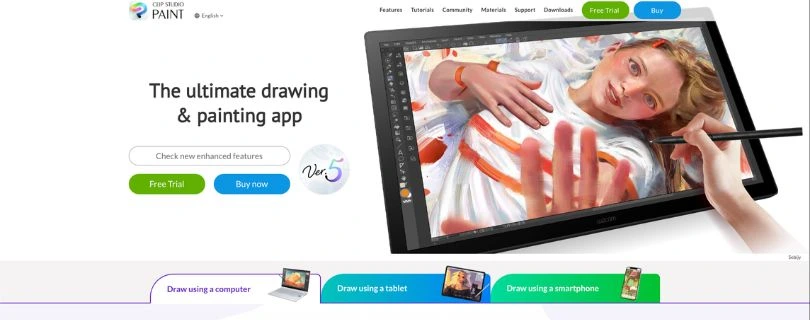
I rank Clip Studio Paint as the best Krita alternative for serious digital artists, comic creators, manga artists, and illustrators.
It feels like the closest full replacement for Krita, especially if your work involves polished line art, panels, speech bubbles, character illustrations, or webtoon-style projects.
Best for: Artists who want a more complete comic, manga, and illustration workflow than Krita.
Why Clip Studio Paint Is Better Than Krita?
Krita is powerful, but Clip Studio Paint feels more focused when you move from general painting into comic and manga production.
The biggest difference I noticed is the workflow.
In Krita, you can create comics, but you may need to set up more things manually. In Clip Studio Paint, the app already feels built around that kind of work.
You get better tools for panels, speech bubbles, 3D references, pose models, materials, and comic page management.
That makes it easier to go from rough sketch to finished artwork without constantly fighting the interface.
Clip Studio Paint Workspace
The brush engine also felt smooth and predictable in my testing.
Line art felt especially good. I could sketch, ink, resize brushes, and use stabilizers without the app feeling too heavy.
Clip Studio Paint is not free like Krita, but if you create comics, manga, webtoons, or professional illustrations, the paid upgrade makes sense.
Overall, I would rank Clip Studio Paint as the best all-round Krita replacement.
Key Features
- Strong brush engine for sketching, painting, and inking
- Excellent comic and manga tools
- 3D pose models and drawing references
- Speech bubbles, panels, rulers, and perspective tools
- Huge asset and material library
- Works across desktop, tablet, and mobile devices
- Better workflow for webtoon and comic creators
Limitations
- Not free like Krita
- Pricing can feel confusing because it depends on device and plan
- Beginners may need time to learn all the tools
Pricing
Clip Studio Paint offers monthly and annual plans, with plans starting from $0.99/month depending on the device and license type. It also offers desktop-focused purchasing options for Windows and macOS.
| Use Case | Best Plan Type | Cost Notes |
| Casual drawing | Monthly plan | Cheapest way to start |
| Desktop illustration | Desktop license or plan | Better for Windows/macOS users |
| Comics and manga | PRO or EX | EX is better for advanced comic workflows |
| Multi-device use | Subscription plan | Better if you draw across tablet and desktop |
You can check the official pricing page before buying because the final price depends on your device, region, and whether you choose PRO or EX.
2. Procreate
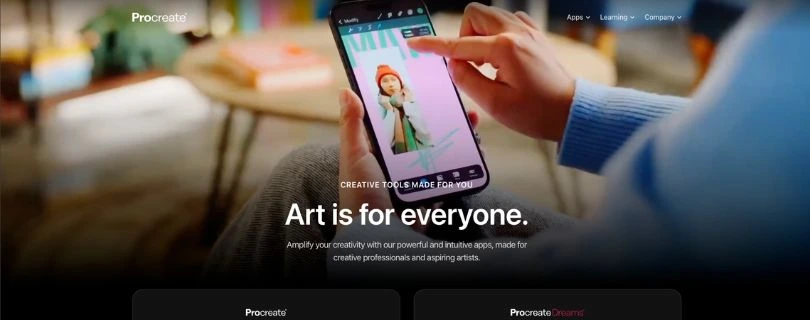
Procreate is the best Krita alternative if you draw on an iPad.
I put it in 2nd position because it is not available for desktop users, but for iPad artists, it is easily one of the smoothest drawing apps I tested.
It does not try to copy Krita.
Instead, it gives you a faster, cleaner, more touch-friendly drawing experience.
Best for: iPad artists who want a smooth, simple, and portable digital painting app.
Why Procreate Is Better Than Krita?
Krita gives you a desktop-style workspace with many tools, panels, and settings.
Procreate does the opposite.
It keeps the interface clean, hides the clutter, and lets you focus on drawing.
That made a big difference during testing. I could open a canvas, pick a brush, sketch quickly, adjust layers, and export the artwork without feeling like I had to manage too many menus.
Procreate also feels better optimized for Apple Pencil.
Brush strokes felt smooth, pressure response felt natural, and zooming or rotating the canvas felt very fluid.
Procreate Drawing Workspace
Krita still wins if you want a free desktop painting program.
But if you already own an iPad, Procreate is much easier to recommend for daily drawing, sketching, illustration, and social media art.
The one-time pricing also makes it feel more affordable than most paid drawing apps.
Key Features
- Smooth Apple Pencil drawing experience
- Clean and beginner-friendly interface
- Strong brush library
- Good layer and blend mode support
- Built-in animation and timelapse recording
- Fast export options
- Great for sketching, painting, and finished illustrations
Limitations
- Only available for iPad
- No Windows, macOS desktop, Android, or Linux version
- Not ideal if you need a traditional desktop workflow
- Layer limits depend on canvas size and iPad model
Pricing
Procreate is a one-time purchase for iPad and does not use a subscription model. The official Procreate site lists it at $12.99 USD.
| Use Case | Cost | Notes |
| iPad drawing | $12.99 one-time | Best value if you already own an iPad |
| Desktop drawing | Not available | Use Clip Studio Paint, Krita, or FireAlpaca instead |
| Android drawing | Not available | Consider Adobe Fresco, ibis Paint X, or Infinite Painter |
Procreate is not the closest Krita clone, but it is the best Krita alternative for iPad users.
3. FireAlpaca
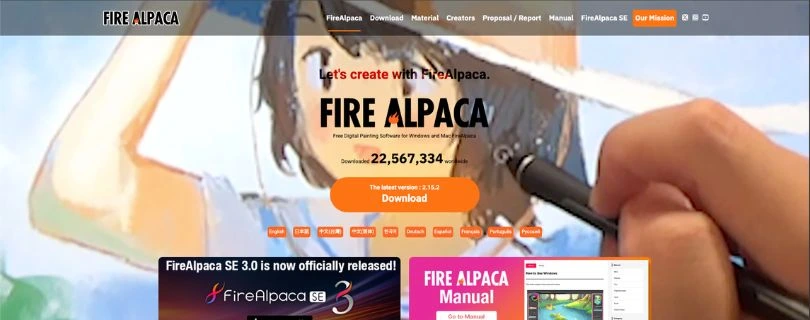
FireAlpaca is the best free lightweight Krita alternative.
I ranked it in 3rd position because it does not have the same depth as Krita, but it solves one of Krita’s biggest problems for many users: performance.
It feels faster, lighter, and easier to understand.
Best for: Beginners, students, and artists using low-end Windows or Mac devices.
Why FireAlpaca Is Better Than Krita?
Krita can feel heavy on some computers, especially when you work with larger canvases, bigger brushes, or many layers.
FireAlpaca feels much lighter.
In my testing, it opened quickly, the interface was easier to understand, and basic sketching felt smooth without much setup.
That makes it a good choice if you just want to draw without learning a full professional painting suite.
FireAlpaca Drawing Workspace
I also liked how simple the tool layout felt.
You still get layers, brushes, selection tools, comic templates, and basic drawing features, but the app does not overwhelm you with too many panels.
Krita is better for advanced digital painting.
But if Krita feels slow, confusing, or too large for your needs, FireAlpaca is one of the easiest free alternatives to try.
Key Features
- Free to use
- Lightweight interface
- Works on Windows and Mac
- Good for sketching, line art, and simple coloring
- Supports layers and basic comic tools
- Easy learning curve for beginners
- Custom brush options
Limitations
- Not as advanced as Krita
- Brush customization is more limited
- Not ideal for complex professional painting workflows
- No Linux version
Pricing
FireAlpaca is free digital painting software for Windows and Mac. Its official website also says it supports multiple languages and is used worldwide.
| Use Case | Cost | Notes |
| Beginner drawing | Free | Great first Krita alternative |
| Low-end PC drawing | Free | Lightweight and simple |
| Professional painting | Free | Usable, but less advanced than Krita |
| Comic basics | Free | Good for simple comic work |
If your main issue with Krita is lag, complexity, or a slow computer, FireAlpaca is the free alternative I would test first.
4. Adobe Fresco
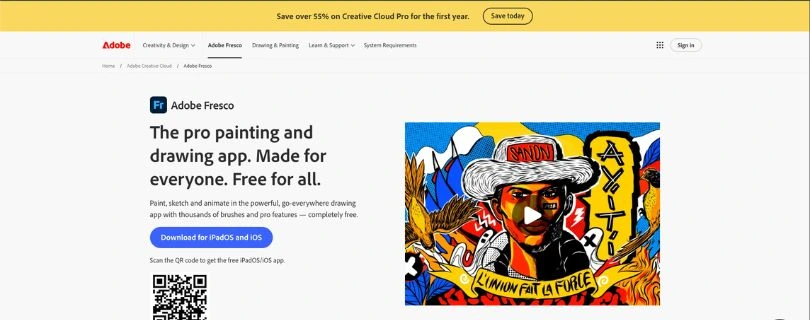
Adobe Fresco is another strong Krita alternative, especially if you like drawing with a stylus on iPad or Windows.
I placed it in 4th position because it is smooth, modern, and easy to use, but it may not feel as complete as Krita for desktop artists.
Still, the live brushes are genuinely fun to use.
Best for: Artists who want free stylus drawing with realistic watercolor, oil, raster, and vector brushes.
Why Adobe Fresco Is Better Than Krita?
Krita gives you more control, but Adobe Fresco feels more natural for quick stylus-based drawing.
The biggest thing that stood out to me was the brush experience.
Fresco’s live brushes make watercolor and oil-style strokes feel more realistic than what you usually get in basic drawing apps.
You can also mix raster and vector brushes in the same workflow, which is helpful if you create illustrations, lettering, icons, or clean social media graphics.
Adobe Fresco Drawing Workspace
The interface also feels cleaner than Krita.
I did not have to spend much time arranging panels or searching through settings. It felt more like a modern drawing app made for touchscreens.
Krita still gives you a deeper desktop painting setup.
But if you want a free app that feels polished on iPad or Windows stylus devices, Adobe Fresco is worth testing.
Key Features
- Free professional drawing and painting app
- Live watercolor and oil brushes
- Raster and vector brushes
- Unlimited layers
- Motion tools and animation features
- Good stylus and touch support
- Works well for sketching, painting, and clean illustration
Limitations
- Not open source
- Best experience depends on supported touch or stylus devices
- Less flexible than Krita for advanced desktop workflows
- Adobe account may be required for full use
Pricing
Adobe Fresco is currently free. Adobe says Fresco includes unlimited layers, thousands of vector, raster, and live brushes, motion presets, and more in the same app.
| Use Case | Cost | Notes |
| iPad drawing | Free | Strong Procreate-style alternative |
| Windows stylus drawing | Free | Good for touch and pen devices |
| Vector + raster art | Free | Useful for mixed illustration work |
| Desktop painting replacement | Free | Good, but not as deep as Krita |
Adobe Fresco is not the best Krita replacement for every artist, but it is one of the best free options for stylus-first drawing.
5. Sketchbook
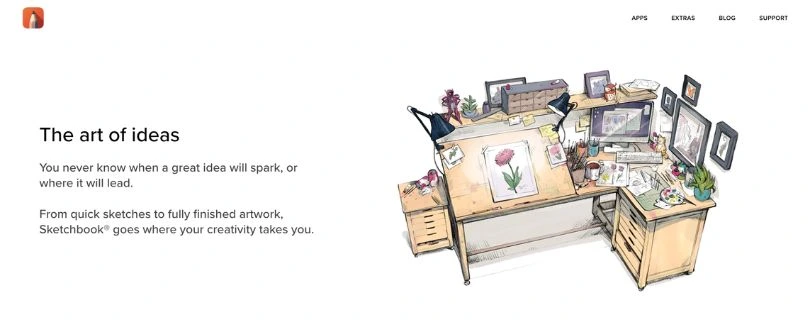
Sketchbook is the best Krita alternative for clean sketching.
I put it last on this list not because it is bad, but because it is more focused.
It does not try to be a full Krita replacement for every type of artist. Instead, it gives you a simple, distraction-free place to sketch, paint, and develop ideas.
Best for: Artists who want a clean sketching app with a natural drawing feel.
Why Sketchbook Is Better Than Krita?
Krita has more tools, but Sketchbook feels easier to sit down with.
That is the main reason I liked it during testing.
The interface gets out of the way. You can sketch thumbnails, draw studies, block out ideas, and paint casually without feeling buried under menus.
For beginners, that matters a lot.
Sketchbook Drawing Workspace
Sketchbook also has a good brush feel.
Pencils, markers, airbrushes, and paint brushes felt easy to control, and the drawing space felt less crowded than Krita.
It is not the app I would choose for advanced comic pages, heavy editing, or professional animation.
But for sketching and quick digital art practice, it feels very comfortable.
Key Features
- Clean and simple drawing interface
- Good brush library
- Layers and blend modes
- Guides, rulers, and stroke tools
- Works on desktop, mobile, and tablet devices
- Premium mobile bundle adds extra brush, color, and layer tools
- Great for fast sketching and idea development
Limitations
- Less powerful than Krita
- Advanced tools may require paid upgrades depending on platform
- Not ideal for complex comic or animation workflows
- Desktop and mobile pricing are different
Pricing
Sketchbook is available on desktop, mobile, and tablet devices. Its official site says Sketchbook Pro is available for desktop, while Sketchbook is available for mobile devices.
The mobile Premium Bundle is a one-time in-app purchase that unlocks extra tools for brushes, colors, layer management, clipping masks, alpha masks, canvas size control, adjustments, and PDF export.
| Use Case | Cost | Notes |
| Mobile sketching | Free with optional premium upgrade | Good for casual drawing |
| Desktop sketching | Paid desktop app | Better for Windows/macOS users |
| Beginner sketching | Free/paid depending platform | Simple and clean |
| Advanced painting | Paid options available | Still less deep than Krita |
Sketchbook is the one I would choose if Krita feels too busy and you mainly want a calm space to draw.
Apps I Tested But Did Not Rank in the Top 5
Not every popular Krita alternative made it into my final list.
Some tools are useful, but they either felt too limited, too different from Krita, or better suited for another type of creative work.
GIMP
GIMP is a great free and open-source image editor.
But I see it more as a photo editing and image manipulation tool, not a direct Krita replacement for drawing and painting.
It is useful if you edit images often, but Krita still feels better for digital artists.
Want to compare GIMP with other image editors?
Best GIMP Alternatives
MyPaint
MyPaint is simple, open-source, and great for distraction-free painting.
I liked its infinite canvas and natural brush feel.
But compared to Krita, it feels too limited if you need layers, editing tools, comic features, or a more complete art workflow.
ibis Paint X
ibis Paint X is a strong mobile drawing app, especially for anime-style art.
It gives you tons of brushes and works well for phone or tablet sketching.
I did not rank it in the top 5 because it feels more mobile-focused than a full Krita replacement.
Infinite Painter
Infinite Painter is another good tablet drawing app.
The brushes feel natural, blending works well, and the perspective tools are useful.
But like ibis Paint X, it makes more sense as a mobile drawing app than a full desktop Krita alternative.
Photopea
Photopea is useful if you want a free Photoshop-like editor in your browser.
But it is not really built for digital painting in the same way Krita is.
I would use it for quick edits, PSD files, and design work, not serious drawing.
Want to compare Photopea with other browser-based editors?
Best Photopea Alternatives
Inkscape / Illustrator / Affinity Designer
These are better for vector design, logos, icons, and layout work.
They appear in many Krita alternative lists, but I would not call them direct Krita replacements.
Use them if you need clean vector graphics, not if your main goal is sketching, painting, or illustration.
Krita Alternatives Compared by Use Case
Different artists need different tools.
So instead of choosing one “perfect” Krita alternative for everyone, here’s how I would pick based on your actual workflow.
Best Krita Alternative for Comics and Manga
Clip Studio Paint
Clip Studio Paint is the best choice if you create comics, manga, or webtoons.
It gives you better panel tools, speech bubbles, 3D pose references, rulers, and page management than Krita.
Best Free Krita Alternative
FireAlpaca
FireAlpaca is the best free Krita alternative if you want something simple and lightweight.
It is not as advanced as Krita, but it feels easier to use and runs better on slower devices.
Best Open-Source Krita Alternative
MyPaint or GIMP
Choose MyPaint if you want a simple open-source painting app.
Choose GIMP if you need more photo editing, image manipulation, and design tools.
Best Krita Alternative for iPad
Procreate
Procreate is the best Krita alternative for iPad users.
It feels smooth, clean, and very natural with the Apple Pencil.
Best Krita Alternative for Android
ibis Paint X or Infinite Painter
ibis Paint X is better if you want lots of brushes, anime tools, and mobile drawing features.
Infinite Painter is better if you want natural brushes, blending, and strong perspective tools.
Best Krita Alternative for Low-End PCs
FireAlpaca
FireAlpaca is the easiest recommendation for low-end PCs.
It launches fast, feels light, and does not overwhelm you with too many tools.
Best Krita Alternative for Beginners
Sketchbook or FireAlpaca
Sketchbook is better if you want a clean sketching space.
FireAlpaca is better if you want a free desktop drawing app that is simple but still useful.
Here is My Final Ranking
After testing these tools, here is how I would rank the best Krita alternatives and competitors:
- Clip Studio Paint — Best overall Krita alternative
- Procreate — Best for iPad artists
- FireAlpaca — Best free lightweight alternative
- Adobe Fresco — Best free stylus-first alternative
- Sketchbook — Best simple sketching alternative
If I had to replace Krita for serious illustration, I’d choose Clip Studio Paint. If I only worked on iPad, I’d choose Procreate. If I wanted a free lightweight desktop app, I’d choose FireAlpaca.
FAQs About Krita Alternatives
What is the best Krita alternative overall?
Clip Studio Paint is the best overall Krita alternative.
It is better if you want:
- Comic and manga tools
- Smoother line art workflow
- 3D pose references
- Better page and panel management
What is the best free Krita alternative?
FireAlpaca is the best free Krita alternative for most users.
It is simple, lightweight, and easier to learn than Krita.
Is there an open-source alternative to Krita?
Yes. The best open-source Krita alternatives are:
- MyPaint — better for simple painting and sketching
- GIMP — better for photo editing and image manipulation
But Krita is still the stronger open-source choice for full digital painting.
Is GIMP better than Krita?
Not for drawing.
GIMP is better for:
- Photo editing
- Image manipulation
- Basic graphic design
Krita is better for:
- Digital painting
- Illustration
- Brush customization
- Drawing tablets
Is Procreate better than Krita?
Procreate is better if you draw on an iPad.
Krita is better if you want a free desktop painting app for Windows, macOS, or Linux.
What is the closest app to Krita?
Clip Studio Paint is the closest premium alternative to Krita.
For free options, FireAlpaca is easier to use, while MyPaint is better for simple open-source painting.
What is the best Krita alternative for beginners?
Sketchbook and FireAlpaca are the best Krita alternatives for beginners.
- Choose Sketchbook if you want a clean sketching app
- Choose FireAlpaca if you want a free desktop drawing app
What is the best Krita alternative for low-end PCs?
FireAlpaca is the best Krita alternative for low-end PCs.
It is lighter, faster, and less demanding than Krita.
What is the best Krita alternative for Android?
The best Android Krita alternatives are:
- ibis Paint X — best for anime-style drawing and lots of brushes
- Infinite Painter — best for natural brushes and realistic blending
What is the best Krita alternative for iPad?
Procreate is the best Krita alternative for iPad.
It feels smooth, simple, and very natural with Apple Pencil.
Is Krita still worth using?
Yes, Krita is still worth using.
It is one of the best free digital painting apps, especially if you want:
- Advanced brushes
- Layer tools
- Animation features
- Open-source software
- Desktop drawing support
Why do artists look for Krita alternatives?
Most artists look for Krita alternatives because of:
- Brush lag
- Heavy performance on low-end PCs
- Complicated interface
- Lack of iPad support
- Need for better comic or manga tools
Which Krita alternative is best for comics?
Clip Studio Paint is the best Krita alternative for comics, manga, and webtoons.
It gives you better tools for panels, speech bubbles, rulers, page layouts, and character references.