Vector graphics software can make or break your design workflow.
Whether you are creating a logo, editing SVG icons, building brand assets, or preparing artwork for print, the wrong tool can slow everything down.
A design may look clean on screen, but if your software struggles with exports, file compatibility, or precise path editing, you will feel it fast.
The tricky part? Most vector tools look similar from the outside.
But a basic SVG editor is not the same as a professional vector design app. Some tools are built for illustrators, some are better for UI teams, and others work best for beginners who just need quick graphics.
I have spent years reviewing creative software, design platforms, and AI-powered tools used by freelancers, marketers, agencies, and small businesses.
In this guide, I have reviewed the 5 best vector graphics software in 2026 across logo design, illustration, SVG editing, UI/UX design, print production, and everyday brand design.
I compared their features, ease of use, pricing, export options, learning curve, and real workflow value so you can choose the right tool without wasting time on the wrong one.
Let’s get into it.
Quick Comparison: Best Vector Graphics Software in 2026
Before we break down each tool, here’s a quick side-by-side look at the best vector graphics software in 2026.
This table will help you spot the right option faster, especially if you already know what you need it for. A logo designer, a print shop, a UI team, and a beginner editing SVG icons will not always need the same software.
| Software | Best For | Platform | Free Plan | Main Strength | Main Limitation |
| Adobe Illustrator | Professionals | Windows, macOS | No | Industry-standard vector tools and AI features | Subscription cost |
| Affinity | Freelancers and Adobe alternatives | Windows, macOS | Yes | Pro vector, photo, and layout tools in one app | New ecosystem still evolving |
| CorelDRAW | Print, signage, and packaging | Windows, macOS, web | Trial | Strong layout, typography, and production tools | Less common in some agency workflows |
| Inkscape | Open-source users | Windows, macOS, Linux | Yes | Free, powerful SVG editing | Interface and workflow feel less polished |
| Figma | UI/UX teams | Browser, desktop | Yes | Real-time collaboration and prototyping | Not ideal for advanced illustration or print |
How I Chose the Best Vector Graphics Software
I chose these tools based on how useful they are in real design work, not just how many features they list on a pricing page.
A good vector graphics app should help you draw clean shapes, edit paths precisely, export files without problems, and fit the type of work you actually do.
My Evaluation Criteria
Here’s what I looked at while comparing each tool:
- Vector drawing and path editing: How easy it is to create, edit, combine, and refine shapes.
- Typography and logo design tools: How well it handles text, branding, icons, and logo workflows.
- Export support: Support for formats like SVG, PDF, EPS, AI, and other common design files.
- Ease of use: How beginner-friendly the interface feels and how long it takes to learn.
- Platform support: Availability on Windows, Mac, Linux, browser, and iPad where relevant.
- Collaboration features: How well teams can share, review, and work together.
- AI and automation: Helpful features like vector generation, tracing, smart editing, or design automation.
- Pricing: Free plans, trials, subscriptions, and overall value for the money.
- Real use cases: Logos, icons, UI design, print files, illustrations, and marketing graphics.
1. Adobe Illustrator — Best Vector Graphics Software Overall
Why Adobe Illustrator Is Still #1 in 2026
Adobe Illustrator is still the tool I think of first when someone says “professional vector design.”
It is not the cheapest option. It is not the easiest tool for beginners either. But when I need clean logo files, detailed vector illustrations, packaging artwork, icons, typography work, or print-ready graphics, Illustrator still feels like the safest choice.
The biggest reason is control.
You can adjust anchor points, curves, shapes, strokes, gradients, type, layers, and artboards with a level of precision that most vector tools still do not match. I also like that Adobe has pushed more AI features into Illustrator, including Text to Vector Graphic, Text to Pattern, Generative Shape Fill, Generative Recolor, and Generative Expand. These features create editable vector results, which makes them more useful than basic AI image generation for real design work.
What I don’t love is the subscription. If you only design once in a while, Illustrator can feel expensive fast. But for professional designers, agencies, brand teams, and anyone working with print shops or Adobe files, it is still the most reliable vector graphics software in 2026.
Best For
Adobe Illustrator is best for professional graphic designers, brand designers, illustrators, agencies, packaging designers, logo designers, and anyone already using Adobe Creative Cloud.
If clients regularly send you AI, EPS, PDF, or SVG files, Illustrator makes life easier.
Key Features
- Pen, pencil, and curvature tools for precise vector drawing
- Pathfinder and Shape Builder for creating complex shapes
- Advanced typography and text controls
- Image Trace for turning raster images into vectors
- Multiple artboards for brand systems, icons, and layout variations
- Strong SVG, PDF, EPS, and AI file support
- Generative vector AI tools powered by Adobe Firefly
- Smooth integration with Photoshop, InDesign, Adobe Fonts, and Creative Cloud
Pros
Adobe Illustrator gives you the best overall professional vector workflow.
The path editing is excellent, the export options are dependable, and the tool works well across logo design, illustration, packaging, icons, and print projects. It also has a huge tutorial ecosystem, so even when you get stuck, finding help is easy.
The AI tools are also more practical than I expected. I would not use them to replace a full design process, but for quick pattern ideas, shape fills, and early visual exploration, they can save time.
Cons
The biggest downside is pricing.
Illustrator is subscription-only, and Adobe confirms that Illustrator and the latest Creative Cloud apps are available only through a membership plan.
It also has a learning curve. If you are brand new to vector design, the interface can feel crowded at first. You will need some time to understand paths, anchor points, masks, layers, and export settings.
Pricing
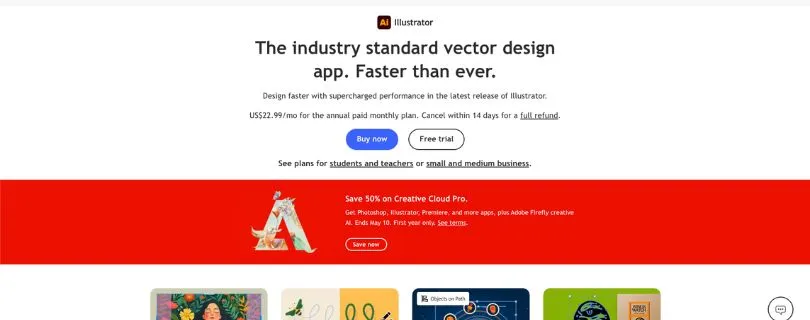
Adobe lists Illustrator at US$22.99/month on the annual billed monthly plan in the U.S.
Pricing can vary by country, taxes, offers, and whether you choose Illustrator alone or the full Creative Cloud plan. In some regions, Adobe also shows local pricing and promotional discounts, so it is worth checking the official pricing page before subscribing.
Verdict
Choose Adobe Illustrator if you want the safest professional choice and regularly work with clients, agencies, print shops, or other Adobe users.
It is expensive, but it is still the strongest all-around vector graphics software in 2026.
2. Affinity — Best Free Professional Illustrator Alternative
Why Affinity Is a Big Deal in 2026
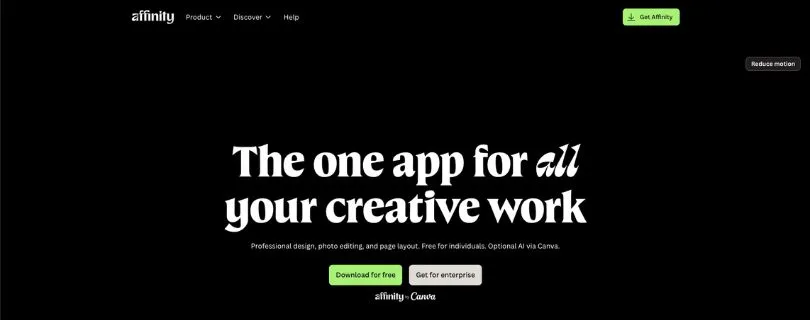
Affinity is one of the most interesting design tools right now because it changed in a big way.
It is no longer just the old “Affinity Designer” conversation. Canva relaunched Affinity as a unified professional creative app that brings vector design, photo editing, and layout tools into one workspace. Even better, Canva says Affinity is free, and new users can download it with a free Canva account.
That makes Affinity a serious Adobe Illustrator alternative for freelancers, students, creators, and small businesses.
When I look at Affinity, the biggest appeal is simple: you get professional design power without immediately paying a subscription. For someone creating logos, social media assets, brand graphics, illustrations, posters, or simple layouts, that is a big deal.
It may not replace Illustrator for every agency workflow yet, but for many users, it is more than enough.
Best For
Affinity is best for freelancers, students, creators, small businesses, marketers, and designers who want a free professional vector design app without Adobe’s monthly cost.
It also makes sense if you want vector, photo, and layout tools in one place.
Key Features
- Vector design workspace
- Photo editing tools
- Page layout tools
- Professional export options
- Support for files like PSD, AI, PDF, SVG, TIFF, and IDML
- Canva account activation
- Optional Canva AI features for premium users
- Fast desktop workflow for Windows and Mac
Canva says Affinity supports major file formats like PSD, AI, PDF, SVG, TIFF, and IDML, which makes it easier to bring existing creative work into the app.
Pros
The biggest win is value.
Affinity gives you professional design tools for free, which is rare in this category. The interface feels cleaner than Illustrator, and the all-in-one setup is useful if you move between vector graphics, image editing, and layout design.
It is also a strong pick for creators who make brand assets, marketing graphics, thumbnails, simple illustrations, and client visuals but do not want to live inside a subscription ecosystem.
Cons
Affinity’s new direction may confuse older Affinity Designer users.
Since Canva relaunched the product as a unified app, some users may need time to adjust to the new workflow. It is also not as deeply embedded in agency and print workflows as Adobe Illustrator.
Another thing to watch: the core app is free, but some AI features connect to Canva Premium. That may matter if you want AI-assisted creative workflows inside Affinity.
Pricing
Affinity is currently positioned as free forever for professional photo, vector, and layout design.
Canva also says new users can create a free Canva account to download and activate Affinity. Some Canva AI features may require Canva Premium access, so the free plan is best understood as the core Affinity app, not every Canva-powered AI extra.
Verdict
Choose Affinity if you want the best free professional Illustrator alternative in 2026.
It is the tool I would recommend first to freelancers, students, and budget-conscious designers who want serious vector design features without starting with a paid subscription.
3. CorelDRAW — Best Vector Software for Print, Signage, and Production Design
Why CorelDRAW Still Matters
CorelDRAW has been around for a long time, but I would not call it outdated.
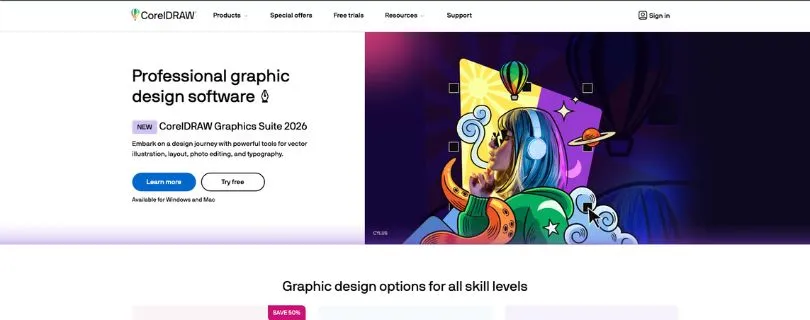
It still makes a lot of sense for print shops, signage businesses, apparel designers, engravers, packaging teams, and production-heavy design work. Corel describes CorelDRAW Graphics Suite 2026 as a professional toolkit for vector illustration, layout, photo editing, and typography, and that matches where the software feels strongest.
Where Illustrator feels like the agency standard, CorelDRAW often feels more practical for hands-on production work.
If you are preparing large-format signs, vinyl graphics, brochures, packaging layouts, or print files that need tight control, CorelDRAW gives you a strong mix of vector editing and layout tools.
Best For
CorelDRAW is best for print shops, sign makers, packaging designers, apparel designers, production artists, engravers, and businesses that need vector design plus page layout tools.
It is also a good option if you want a professional design suite but do not want Adobe as your only choice.
Key Features
- Vector illustration tools
- Page layout tools
- Typography controls
- Corel PHOTO-PAINT integration
- Font management
- Image tracing and vectorization
- File compatibility for professional workflows
- CorelDRAW Web access for subscribers
- AI-powered tools in the 2026 suite
Corel’s 2026 release also adds AI tools and interface updates, with Corel positioning the suite around vector illustration, layout, photo editing, and typography.
Pros
CorelDRAW is excellent for print and production work.
I like that it combines vector tools, layout, typography, and photo editing in one suite. It is especially useful when the final output is not just a web graphic, but something physical: a sign, label, package, shirt, flyer, brochure, or large-format print.
The one-time purchase option also makes it stand out, especially when so many creative apps are subscription-only.
Cons
CorelDRAW is not as common as Illustrator in many design agencies.
That can matter if you work with teams or clients who expect Adobe files every time. It can also feel expensive upfront, especially if you are comparing it with free tools like Affinity or Inkscape.
The tutorial ecosystem is good, but Adobe still has the larger learning community.
Pricing
CorelDRAW Graphics Suite 2026 offers a 15-day free trial. Its official product page shows a monthly plan at $39/month and a one-time purchase at $549.
Corel also shows a 365-day subscription at $269/year on its official offers page.
Verdict
Choose CorelDRAW if your work involves print production, signage, engraving, apparel, packaging, or multi-page design.
It is not the trendiest design app, but for production designers, it is still one of the most practical vector graphics tools in 2026.
4. Inkscape — Best Free Open-Source Vector Graphics Software
Why Inkscape Is Still the Best Open-Source Option
Inkscape is the tool I recommend when someone says, “I need real vector editing, but I do not want to pay.”
It is free, open source, and surprisingly capable. You can use it for logos, icons, diagrams, web graphics, illustrations, maps, and SVG editing. The official Inkscape GitHub page describes it as professional-quality vector graphics software for Windows, macOS, and Linux, used by both design professionals and hobbyists.
The best part is that Inkscape works with SVG as its native format, which makes it especially useful for web designers, developers, icon designers, and anyone who needs clean scalable graphics.
It does not feel as polished as Illustrator or Affinity, but it gives you a lot for free.
Best For
Inkscape is best for students, Linux users, hobbyists, open-source supporters, SVG editors, budget-conscious designers, and beginners who want to learn real vector design without paying for software.
It is also a good choice for developers who need to edit SVG files directly.
Key Features
- SVG editing
- Node and path editing
- Shape tools
- Text tools
- Object alignment and distribution
- Extensions
- PDF import and export support
- Cross-platform support for Windows, macOS, and Linux
Pros
Inkscape is completely free and open source.
That alone makes it valuable, but it is not just a basic tool. You can create real vector artwork with it, edit paths, build icons, design logos, and export useful file formats.
I also like that it works on Linux, which many paid design tools still ignore.
Cons
The interface is the main weakness.
Inkscape can feel less polished than paid tools, especially if you are coming from Illustrator, Affinity, or Figma. Some workflows take more clicks than they should, and advanced print production is not as smooth.
It is powerful, but it does ask for patience.
Pricing
Inkscape is free and open-source software. Its official GitHub page describes it as free and open source, with support for Windows, macOS, and Linux.
There is no paid plan, no subscription, and no trial limit.
Verdict
Choose Inkscape if you want the best free open-source vector editor and do not mind a less polished interface.
It is not the prettiest tool on this list, but for SVG editing and no-cost vector design, it is still hard to beat.
5. Figma — Best Vector-Based Software for UI/UX and Collaboration
Why Figma Belongs on a Vector Graphics List
Figma is not a traditional illustration app like Illustrator, CorelDRAW, or Inkscape.
But if your vector work is mostly UI design, app screens, website layouts, icons, wireframes, design systems, and prototypes, Figma absolutely belongs here.
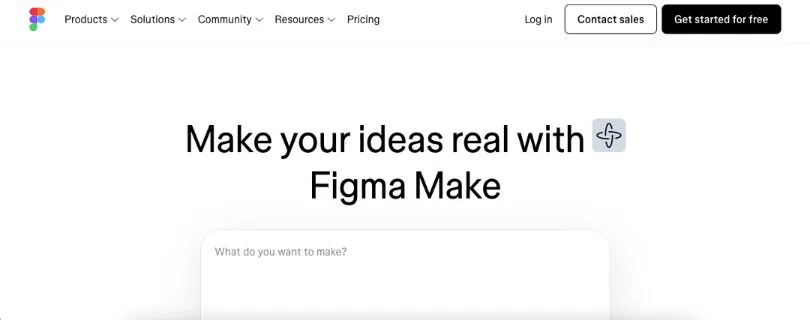
Figma describes itself as a collaborative design platform for building products, where teams can brainstorm, design, build, and gather feedback in one place.
What I like most about Figma is how fast it feels for team-based work. You can design a screen, turn it into a prototype, share it with a client, collect comments, and hand it off to developers without exporting ten different files.
For logos and complex illustrations, I would still pick Illustrator or Affinity. But for UI/UX work, Figma is the better tool.
Best For
Figma is best for UI/UX designers, product teams, SaaS companies, web designers, app designers, design system teams, and agencies that need real-time collaboration.
It is also useful for marketing teams that need fast landing page mockups, ad layouts, and social media design systems.
Key Features
- Vector-based interface design
- Components and reusable design systems
- Auto layout
- Prototyping
- Real-time collaboration
- Browser-based access
- Developer handoff
- Comments and feedback
- Dev Mode on paid plans
Figma Design includes prototyping, feedback, and design system workflows, while Dev Mode helps developers inspect and translate designs without changing the original file.
Pros
Figma has the best collaboration experience on this list.
It is easy to share files, collect feedback, work with teammates, and keep design systems organized. The browser-based workflow also makes it convenient for teams that do not want everyone installing heavy desktop software.
For UI design, Figma feels faster than traditional vector software.
Cons
Figma is not built for advanced illustration or print production.
You can create icons, interface graphics, and clean vector shapes, but it is not the tool I would choose for detailed artwork, packaging files, signage, or complex print layouts.
It is excellent for screens. Less so for everything else.
Pricing
Figma offers a free Starter plan. Its official pricing page lists the Professional plan at $16/month on monthly billing or $12/month on annual billing. Organization is listed at $55/month billed annually, and Enterprise is listed at $90/month billed annually.
Pricing can change based on seat type and plan, so teams should check Figma’s pricing page carefully before upgrading.
Verdict
Choose Figma if your vector work is mostly UI, web, app, icon, or product design.
It is not the best choice for advanced illustration or print, but for collaboration and interface design, it is the strongest tool in this list.
Honorable Mentions: Other Vector Graphics Tools Worth Considering
The five tools above cover most serious vector design needs, but a few other apps are still worth knowing about. These are not my top picks for everyone, but they can be useful for specific workflows.
Linearity Curve
Linearity Curve is a good choice for Mac and iPad users who want to create illustrations, marketing graphics, and social media visuals with Apple Pencil support.
It feels more creator-friendly than traditional desktop vector software, but it is not as universal as Illustrator or Affinity.
Canva
Canva is best for beginners, social media graphics, presentations, ads, and template-based brand content.
It is great when you need quick visuals, but I would not call it a full professional vector editor. You get design speed, not deep path-editing control.
Vectr
Vectr is useful if you want a simple browser-based vector editor for quick graphics, icons, or basic SVG work.
It is easy to start with, but too limited for complex illustration, branding, or print projects.
Boxy SVG
Boxy SVG is a lightweight option for editing SVG files without opening a heavy design suite.
It works well for simple SVG cleanup, web graphics, and icon edits, but it is not built to replace a full vector design app.
SVGator
SVGator is best for animated SVG graphics.
If you want to animate icons, logos, buttons, or web illustrations without writing code, it can save time. For static vector design, though, you will still want another tool.
Sketch
Sketch is still a strong Mac-only tool for UI design, app layouts, icons, and design systems.
It works well for Apple-focused design teams, but Figma is usually the better choice if collaboration, browser access, and cross-platform teamwork matter.
Vector Graphics Software Buyer’s Guide
What Is Vector Graphics Software?
Vector graphics software lets you create artwork using paths, points, curves, and shapes instead of fixed pixels.
That means your design can scale up or down without losing quality. A logo made in a vector app can look sharp on a business card, website, billboard, or product package.
Vector vs Raster Graphics: What’s the Difference?
The main difference is how the image is built. Vector files use mathematical paths, so they stay crisp at any size. Common vector formats include SVG, AI, EPS, and PDF.
Raster files use pixels, so they can lose quality when enlarged. Common raster formats include JPG, PNG, GIF, and TIFF.
Vectors are best for logos, icons, typography, illustrations, stickers, signs, and print graphics. Raster images are better for photos, digital painting, textures, and pixel-based editing.
Free vs Paid Vector Software: Which Should You Choose?
Use free vector software like Affinity or Inkscape if you are learning, freelancing on a budget, creating SVGs, or making everyday brand graphics.
Use paid software like Adobe Illustrator or CorelDRAW if you need professional file compatibility, client handoff, print workflows, advanced typography, or production-ready tools.
Best Vector Software by Use Case
| Use Case | Best Choice |
| Best overall | Adobe Illustrator |
| Best free professional option | Affinity |
| Best open-source option | Inkscape |
| Best for print/signage | CorelDRAW |
| Best for UI/UX | Figma |
| Best for iPad/Mac illustration | Linearity Curve |
| Best for beginners | Affinity or Canva |
| Best for SVG editing | Inkscape or Boxy SVG |
| Best for teams | Figma |
Which Vector Graphics Software Is Best for You?
There is no single best vector graphics software for everyone. The right choice depends on what you create, who you work with, and how much control you need.
- Choose Adobe Illustrator if you work professionally and need the most trusted vector tool for logos, illustrations, packaging, icons, and client files. It is the best choice when industry-standard compatibility matters.
- Choose Affinity if you want a free professional Illustrator alternative with vector, photo, and layout tools in one app. It is a smart pick for freelancers, students, creators, and small businesses.
- Choose CorelDRAW if you work with print, signage, packaging, apparel, engraving, or production design. It gives you strong vector and layout tools for real-world output.
- Choose Inkscape if you want free, open-source vector editing with strong SVG control. It is great for hobbyists, Linux users, students, and budget-conscious designers.
- Choose Figma if you design websites, apps, interfaces, prototypes, or design systems with a team. It is the best option here for collaboration and UI/UX workflows.
Final Verdict: The Best Vector Graphics Software in 2026
Here is my final ranking:
- Adobe Illustrator — Best overall
- Affinity — Best free professional alternative
- CorelDRAW — Best for print and production
- Inkscape — Best open-source vector editor
- Figma — Best for UI/UX and collaboration
For most professionals, Adobe Illustrator remains the best vector graphics software in 2026. But the gap is narrower than ever.
Affinity is now the strongest free professional alternative, CorelDRAW remains excellent for production and print, Inkscape is still the best open-source SVG editor, and Figma is the clear choice for collaborative UI and product design.
FAQs About the Best Vector Graphics Software
What is the best vector graphics software in 2026?
Adobe Illustrator is the best vector graphics software overall in 2026. It has the strongest professional toolset for logo design, illustration, typography, packaging, icons, and print-ready artwork.
What is the best free vector graphics software?
Affinity is the best free professional vector design option in 2026, while Inkscape is the best free open-source vector editor. Affinity feels more modern, while Inkscape gives you strong SVG control without any cost.
What is the best vector software for beginners?
Affinity and Canva are the easiest options for beginners. Affinity gives you more professional control, while Canva is better for quick social media graphics, templates, and simple brand designs.
Is Inkscape as good as Adobe Illustrator?
Inkscape is a powerful free tool, especially for SVG editing, icons, and basic vector artwork. But Adobe Illustrator is still better for advanced illustration, professional file compatibility, typography, print workflows, and client handoff.
Is Affinity better than Illustrator?
Affinity is better if you want a free professional design app without a subscription. Illustrator is still better if you need the industry-standard vector tool, advanced features, Adobe Creative Cloud integration, and smoother compatibility with agencies or print shops.
What is the best vector software for logo design?
Adobe Illustrator is the best choice for professional logo design. Affinity and Inkscape are also strong options if you want a free or lower-cost alternative.
What is the best vector software for UI design?
Figma is the best vector-based tool for UI/UX design. It is great for websites, apps, wireframes, prototypes, components, and design systems.
What is the best vector software for print design?
CorelDRAW and Adobe Illustrator are the best options for print design. CorelDRAW is especially strong for signage, apparel, packaging, engraving, and production work.
What is the best vector software for SVG editing?
Inkscape is one of the best choices for SVG editing because SVG is its native format. Boxy SVG is also useful if you want a lightweight SVG editor for quick web graphics and icon edits.
Can Canva be used for vector graphics?
Canva can help you create simple vector-style graphics, icons, logos, and social media designs, but it is not a full professional vector editor. It is better for templates and quick visuals than detailed path editing.
What is the best Adobe Illustrator alternative?
Affinity is the best Adobe Illustrator alternative for most users in 2026. It offers professional vector, photo, and layout tools in one app without the same subscription barrier.
What vector software do professional designers use?
Most professional designers use Adobe Illustrator, especially in branding, illustration, packaging, and agency workflows. Some also use CorelDRAW for print production, Figma for UI/UX, and Affinity as a free professional alternative.
What is the easiest vector graphics software to learn?
Canva is the easiest for basic design, but Affinity is the better choice if you want to learn real vector design. Figma is also easy to learn if your focus is UI design instead of illustration.
Is Figma a vector graphics software?
Yes, Figma uses vector-based design tools, but it is mainly built for UI/UX design, prototypes, and collaboration. It is not the best choice for advanced illustration or print production.
Which vector graphics software is best for Mac?
Adobe Illustrator, Affinity, Figma, Sketch, and Linearity Curve are all good Mac options. For most users, Illustrator is best overall, Affinity is best free, and Linearity Curve is great for Mac and iPad illustration.
Which vector graphics software is best for iPad?
Linearity Curve is one of the best vector design tools for iPad, especially for Apple Pencil users. Adobe Illustrator also has an iPad version, but many designers still prefer the desktop version for serious work.
What file formats should vector software support?
Good vector graphics software should support formats like SVG, PDF, EPS, AI, and sometimes CDR. SVG is especially important for web graphics, while PDF and EPS matter more for print and client delivery.
Do I need paid vector software?
Not always. Free tools like Affinity and Inkscape are enough for many users. Paid tools like Adobe Illustrator and CorelDRAW make more sense if you need professional compatibility, advanced print tools, agency workflows, or regular client work.