Pixlr is a solid online photo editing and design tool.
It lets you edit images, remove backgrounds, create quick designs, add filters, use layers, and try AI tools directly from your browser. Plus, the interface is simple enough for beginners, and you don’t need to install anything.
But I tested it alongside other online photo editors and design tools. I also looked through real user feedback on Reddit, G2, Capterra, and Software Advice.
And I kept seeing the same friction points come up:
- Free plan limits can feel restrictive
- Ads can interrupt the editing workflow
- Advanced layer editing is not as strong as pro tools
- AI features often sit behind paid plans
- Export quality and file handling can vary
- It may feel limited for serious design or photo work
Pixlr is not a bad tool. But depending on how you edit, design, or create content, these gaps can slow you down.
This guide covers 5 Pixlr alternatives I’d actually recommend.
Each one is organized by what it does well, where it falls short, and who it fits.
Quick Comparison Table: Best Pixlr Alternatives
Before we get into the full reviews, here’s the quick version.
Some Pixlr alternatives are better for advanced image editing. Some are better for social media AI graphics generation, AI photo edits, batch processing, or simple everyday design work. The right choice depends on whether you want a free browser editor, a Canva-style design tool, or a more serious desktop photo editor.
| Tool | Best For | Free Plan | Browser-Based? | AI Tools | Learning Curve | Main Advantage Over Pixlr |
| Photopea | Free Photoshop-like editing in the browser | Yes | Yes | Limited | Medium | Better for PSD files, layers, masks, and advanced editing |
| Canva | Social media designs, templates, and non-designers | Yes | Yes | Yes | Easy | Much stronger template library, brand kits, and design workflow |
| GIMP | Free open-source desktop photo editing | Yes | No | Limited | Hard | More powerful manual editing tools with no browser limits |
| Fotor | Quick AI photo edits, portraits, and enhancements | Yes | Yes | Yes | Easy | Faster AI-powered edits for casual users and marketers |
| PhotoScape X | Batch editing, collages, GIFs, and everyday fixes | Yes | No | Limited | Easy | Better desktop workflow for quick repetitive edits |
How We Chose the Best Pixlr Alternatives
I didn’t just compare feature lists. I looked at what actually affects your daily photo editing and design workflow.
Here’s what I tested across these Pixlr alternatives:
- Ease of use – whether the tool feels beginner-friendly like Pixlr or takes more time to learn
- Free plan value – how much you can actually do before hitting paywalls, watermarks, export limits, or locked AI features
- Online vs desktop access – whether you can edit in the browser or need to install a desktop app
- AI photo editing features – how well it handles background removal, object removal, image enhancement, retouching, and generative edits
- Design and template support – whether it helps with social media posts, thumbnails, ads, banners, brand kits, and quick marketing visuals
- Advanced editing tools – how well it supports layers, masks, PSD files, RAW editing, curves, batch processing, and export quality
The goal wasn’t to find one perfect editor for everyone. I wanted to find the best Pixlr alternative for each type of user, from casual creators and small business owners to designers who need more control.
5 Best Pixlr Alternatives in 2026
Now let’s look at each tool in detail, starting with the one I’d recommend first for most people who want a free online editor with more control.
- Photopea
- Canva
- GIMP
- Fotor
- PhotoScape X
1. Photopea
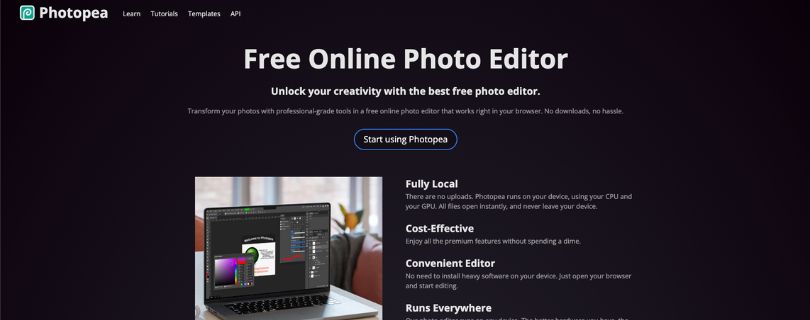
Best for: Users who want a free browser-based Photoshop-like Pixlr alternative with layers, masks, RAW support, and PSD support.
Photopea is probably the closest thing to a serious free Pixlr alternative if your main need is actual image editing, not just quick templates or filters.
It runs directly in your browser, but it feels much more like Photoshop than a lightweight online editor. You get layers, masks, blending modes, smart objects, curves, RAW file support, and full PSD support, which makes it useful for client files, thumbnails, product images, and layered designs. Photopea also says files run locally on your device, so your images don’t need to be uploaded to its servers for editing.
The biggest reason Photopea stands out is control.
Pixlr is easier to jump into, but Photopea gives you more room to work when a design gets messy. You can open a PSD, adjust individual layers, remove a background, tweak text, export the final image, and move on without installing anything.
Photopea Online Photo Editor
Where it gets tricky is the interface. If you’ve never used Photoshop or a similar editor before, Photopea can feel a little crowded at first. The menus, panels, and tool names are more advanced than Pixlr’s beginner-friendly layout.
But once you get used to it, the workflow is surprisingly capable for a free browser tool.
Key Features of Photopea
- Browser-based photo editor with no installation needed
- Full PSD opening and saving support
- RAW file support for formats like DNG, CR2, NEF, ARW, and more
- Layers, masks, layer styles, smart objects, channels, and paths
- Advanced adjustments like levels, curves, liquify, and puppet warp
- Vector editing for logos, icons, and simple illustrations
- AI tools for background removal and replacing parts of an image
What could be better:
- The interface can feel intimidating for beginners
- Free version includes ads
- No large template library like Canva
- AI tools are useful, but not as guided as dedicated AI photo editors
Pricing
- Free – full browser-based editor with professional editing tools
- Premium – Photopea’s older official premium note lists it at $5/month, mainly to remove ads and support development; check the in-app Account window for the current live offer before upgrading.
Photopea vs Pixlr
Photopea is better than Pixlr if you want more advanced editing control, PSD support, RAW support, and a Photoshop-like workflow in the browser.
Pixlr is better if you want a cleaner interface, faster casual edits, and built-in AI tools that feel easier for beginners.
If you’re looking for the best free online Pixlr alternative for serious editing, start with Photopea.
Not fully sold on Photopea? Explore other top alternatives:
Best Photopea Alternatives
2. Canva
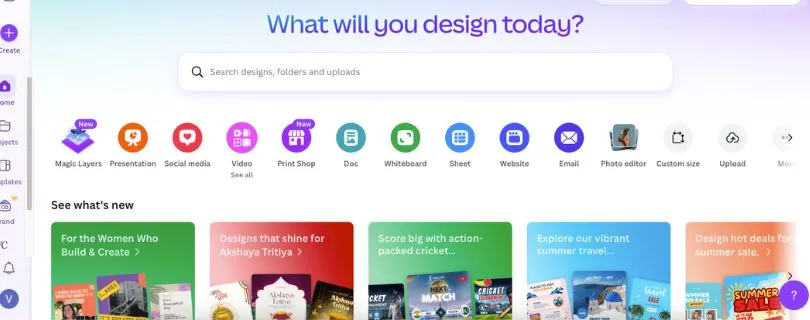
Best for: Creators, marketers, small businesses, and non-designers who need social media graphics, templates, brand kits, and quick visual content.
Canva is not a traditional photo editor in the same way Pixlr is. And that’s exactly why a lot of people will prefer it.
If you use Pixlr to make Instagram posts, YouTube thumbnails, Pinterest pins, ads, posters, banners, or simple branded graphics, Canva feels faster. You don’t start with a blank editing canvas and a bunch of manual tools. You start with templates, layouts, fonts, stock photos, icons, and drag-and-drop design blocks.
That makes Canva one of the best Pixlr alternatives for social media content creation.
Canva Design Platform
The workflow is simple. Pick a template, change the text, swap the image, adjust brand colors, and export. For small teams, the brand kit features are especially useful because you can keep logos, fonts, and colors consistent across designs.
Canva also has a growing set of AI tools for writing, image generation, background removal, design suggestions, and quick content repurposing. Its own Pro page highlights premium features like Magic Resize, Brand Kit, Background Remover, and AI-powered design tools, so it works well if you need an AI graphic design tool for marketers rather than a complex photo manipulation app.
The trade-off is editing depth. Canva is not the tool I’d choose for heavy retouching, advanced layer control, or detailed image cleanup.
Key Features of Canva
- Huge template library for social posts, ads, flyers, thumbnails, and presentations
- Drag-and-drop design editor for beginners
- Brand kit features for logos, colors, and fonts
- Background remover and Magic Resize on paid plans
- AI tools for image generation, writing, design creation, and editing
- Team collaboration, comments, folders, and approval workflows
- Easy export options for PNG, JPG, PDF, MP4, and GIF
What could be better:
- Not ideal for advanced photo editing or detailed retouching
- Many premium templates and assets require a paid plan
- Less control over layers and manual edits than Photopea or GIMP
- Designs can look template-based if you don’t customize them enough
Pricing
- Canva Free – $0, includes basic design tools, templates, and free content
- Canva Pro – current price varies by country and billing page; Canva’s official pricing page should be checked for the live local price
- Canva Teams / Business plans – priced per user/team, with collaboration and brand management features
- Canva Enterprise – custom pricing for larger organizations
Curious what you’ll actually pay for Canva?
Canva Pricing Explained
Canva vs Pixlr
Canva is better than Pixlr if you mostly create social media graphics, marketing visuals, thumbnails, presentations, and branded designs.
Pixlr is better if you want a more traditional image editor with direct photo adjustments, layers, filters, and AI editing tools inside a photo-focused workspace.
If you need a Canva alternative for design teams, Pixlr may feel too limited. But if you need a Pixlr alternative for design teams, Canva is one of the easiest upgrades.
Still deciding? Check out the best Canva alternatives:
Best Canva Alternatives
3. GIMP
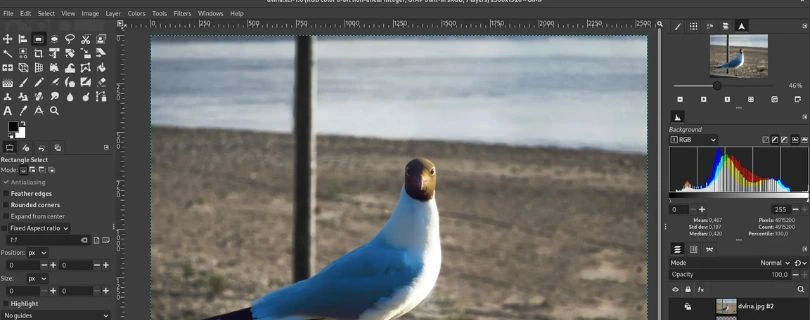
Best for: Users who want a free open-source desktop Pixlr alternative with more advanced editing tools and offline access.
GIMP is the tool I’d recommend if you want power over convenience.
It’s free, open-source, and available for Windows, macOS, and Linux. Unlike Pixlr, it doesn’t run in the browser. You install it on your computer and use it as a full desktop photo editor. GIMP’s official site describes it as a free and open-source cross-platform image editor.
That makes a big difference if you work with larger files, want offline access, or don’t want to worry about browser performance.
GIMP Photo Editing Software
GIMP gives you layers, masks, curves, advanced selections, brushes, clone tools, plugins, and deep manual control. You can use it for photo retouching, digital art, image cleanup, product image editing, and more detailed design work.
But I’ll be honest: GIMP is not as friendly as Pixlr.
The interface takes time. Some tools feel less polished than paid design software. If you only need to crop an image, add text, or remove a background quickly, GIMP can feel like too much.
But if you’re willing to learn it, it’s one of the strongest free Pixlr alternatives available.
Key Features of GIMP
- Free and open-source desktop image editor
- Works offline on Windows, macOS, and Linux
- Layers, masks, paths, brushes, and advanced selections
- Curves, levels, color correction, and retouching tools
- Plugin support for expanding functionality
- Good for photo manipulation, cleanup, and creative edits
- No browser limits, save caps, or required subscription
What could be better:
- Steeper learning curve than Pixlr
- Interface can feel dated or confusing for beginners
- No built-in social media template library
- AI tools are not built in like newer online editors
- Some workflows require plugins or manual setup
Pricing
- GIMP – Free
- Free trial – Not needed; the full tool is free
- Paid plan – None
GIMP vs Pixlr
GIMP is better than Pixlr if you want a free desktop editor with more control, offline access, and advanced manual editing tools.
Pixlr is better if you want a faster browser-based workflow, a simpler interface, and built-in AI features for quick edits.
Choose GIMP if you want long-term editing power. Choose Pixlr if you want speed and simplicity.
Still deciding? Check out the best GIMP alternatives:
Best GIMP Alternatives
4. Fotor
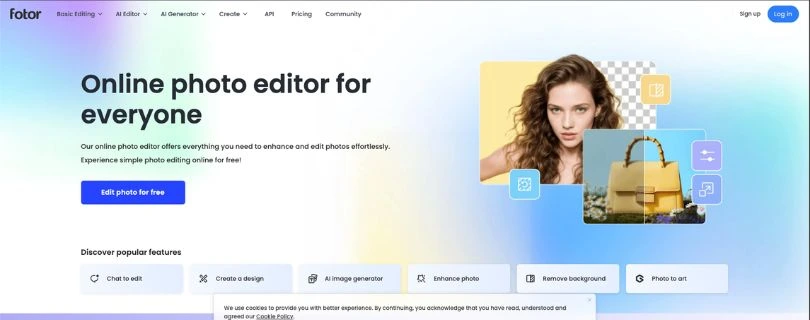
Best for: Users who want quick AI photo edits, portrait retouching, background removal, and simple design tools without a steep learning curve.
Fotor is a strong Pixlr alternative for people who don’t want to manually edit every detail.
It’s built around quick improvements. Upload a photo, apply an enhancer, remove a background, clean up a portrait, add filters, or create a design from a template. The experience feels more guided than Photopea or GIMP, which makes it easier for casual creators, small business owners, and marketers.
If Pixlr feels flexible but a little inconsistent for AI edits, Fotor is worth testing.
Fotor AI Photo Editor
The AI tools are the main draw. Fotor’s pricing page lists tools and features like AI image enhancement, background removal, object removal, AI portrait tools, batch editing, templates, AI generation, and HD watermark-free exports on higher plans.
It’s also useful for ecommerce visuals, profile photos, social posts, and quick ad creatives. You won’t get the same deep editing control as GIMP or Photopea, but you’ll usually get to a usable result faster.
That’s the trade-off: speed over precision.
Key Features of Fotor
- AI image enhancer for quick photo improvements
- Background remover and object remover tools
- Portrait retouching for skin smoothing and face edits
- Design templates for social media and marketing visuals
- Collage maker, filters, effects, and basic editing tools
- AI image generation and creative AI features
- Web-based editor with mobile and desktop options
What could be better:
- Some AI tools and exports require a paid plan
- Less advanced layer control than Photopea
- Not ideal for complex photo manipulation
- Free version includes watermarked exports on some formats
- AI credits and usage limits can affect heavy users
Pricing
- Fotor Basic – $0, free forever, with limited free credits, basic editing tools, basic templates, 512MB cloud storage, and watermarked JPG/PNG/PDF exports
- Fotor Pro – paid plan with 100+ editing tools, AI portrait tools, 100,000+ templates/assets, 2GB cloud storage, HD exports, transparent PNG, and watermark-free downloads
- Fotor Pro+ – paid plan with more AI usage, batch background editing, multiple brand kits, 100GB cloud storage, and Pro features
- Higher AI tiers / credit plans – available for heavier AI image and video generation usage
Fotor vs Pixlr
Fotor is better than Pixlr if you want quick AI-powered photo edits, portrait cleanup, background removal, and simple design outputs.
Pixlr is better if you want a more flexible editor with a familiar photo-editing canvas, layers, effects, and a broader editing workspace.
If your workflow is mostly “upload, enhance, export,” Fotor makes sense. If you want to manually build and edit designs, Pixlr may still feel more flexible.
Looking for something better than Fotor? Start here:
Best Fotor Alternatives
5. PhotoScape X
Best for: Users who want a simple desktop editor for batch editing, collages, GIFs, screenshots, and everyday image fixes.
PhotoScape X is not trying to be Photoshop. That’s part of the appeal.
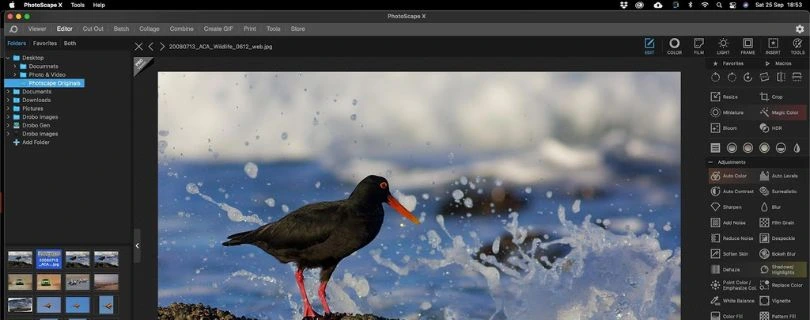
It’s a practical desktop photo editor for people who want fast, simple tools without opening a browser. If you need to resize a folder of images, make a collage, create a GIF, add filters, crop photos, or do basic corrections, PhotoScape X handles those tasks well.
It feels especially useful for bloggers, ecommerce sellers, students, and casual creators who work with a lot of images at once.
PhotoScape X Desktop Photo Editor
The batch editing tools are the biggest reason to consider it over Pixlr. Pixlr works well for editing one image in the browser. PhotoScape X is better when you need to apply similar edits across multiple files.
You can rename, resize, convert, adjust, and export batches without building a complicated workflow.
The downside is depth. PhotoScape X is not the best choice for advanced layers, professional retouching, PSD editing, or AI-heavy workflows. It’s more of a clean utility-style editor than a full creative suite.
Key Features of PhotoScape X
- Desktop photo editor for Windows and macOS
- Batch resize, batch rename, and batch format conversion
- Collage maker and layout tools
- GIF creator and screen capture tools
- Filters, frames, effects, stickers, and text tools
- Basic retouching and color adjustment options
- Simple interface for everyday photo fixes
What could be better:
- Not browser-based
- Limited advanced layer editing
- AI features are not as strong as newer online tools
- Some advanced features require the Pro version
- Not ideal for professional design or detailed photo manipulation
Pricing
- PhotoScape X – Free
- PhotoScape X Pro – one-time paid upgrade; Microsoft Store listing shows it as a paid Pro app, and third-party pricing trackers commonly list it around $39.99 one-time
- Free trial – Free version available
PhotoScape X vs Pixlr
PhotoScape X is better than Pixlr if you want a simple desktop workflow for batch editing, collages, GIFs, and repetitive image tasks.
Pixlr is better if you want browser-based editing, AI tools, and a more modern online workspace.
Choose PhotoScape X when you need to process lots of images quickly. Choose Pixlr when you want a flexible online editor you can use from almost anywhere.
Pixlr vs Alternatives: Comparison of Top 3 Photo Editing Tools
Here’s how the top Pixlr alternatives compare on the features that matter most for online photo editing, design work, and everyday creative workflows.
| Feature | Pixlr | Photopea | Canva | Fotor |
| Starting Price | Free plan available | Free plan available | Free plan available | Free plan available |
| Pricing Model | Freemium | Freemium | Freemium / team plans | Freemium / credit-based AI usage |
| Best For | Quick online photo edits and AI tools | Advanced browser-based editing | Social media designs and templates | Fast AI photo enhancements |
| Browser-Based Editing | Yes | Yes | Yes | Yes |
| Layers & Masks | Yes | Yes, more advanced | Limited design layers | Limited |
| PSD Support | Limited | Strong | No | No |
| Templates | Basic to moderate | Limited | Very strong | Good |
| AI Tools | Yes | Limited | Yes | Yes |
| Background Remover | Yes | Yes | Yes, mostly paid | Yes |
| Brand Kit Features | Limited | No | Yes | Limited |
| Best Advantage | Simple all-in-one editor | More control than Pixlr | Faster design workflow | Easier AI-powered edits |
Which Pixlr Alternative Should You Choose?
The best Pixlr alternative depends on what you’re trying to create.
If you need detailed image editing, Photopea or GIMP will make more sense. If your work is mostly social media graphics, templates, thumbnails, and branded content, Canva is the easier choice. For quick AI-powered edits, Fotor is faster. And if you just want a simple desktop tool for batch edits, PhotoScape X is the better fit.
| Use Case | Best Pixlr Alternative |
| Free browser-based Photoshop-like editor | Photopea |
| Easy social media designs | Canva |
| Free open-source desktop editing | GIMP |
| AI-powered quick photo edits | Fotor |
| Simple desktop batch editing | PhotoScape X |
| One-time paid professional editor | Affinity Photo |
| Beginner-friendly Adobe desktop editor | Photoshop Elements |
| Simple filters and collages | iPiccy or BeFunky |
For most people, I’d start with Photopea if you want editing power, Canva if you want fast design work, and Fotor if you want AI tools that do more of the cleanup for you.
Free Pixlr Alternatives With No Daily Save Limit
One common reason people look for Pixlr alternatives is simple: they want to keep editing and exporting without running into daily save limits.
Here are the best options to check:
| Tool | No Daily Save Limit? | Best For |
| Photopea | Yes | Free browser-based editing with PSD and layer support |
| GIMP | Yes | Free desktop editing with advanced manual tools |
| PhotoScape X | Yes | Simple desktop edits, batch processing, collages, and GIFs |
| Canva Free | Mostly yes, with premium asset/export limits | Social media designs, templates, and quick branded graphics |
| Fotor Free | Limited by free features, watermarks, or AI usage caps | Quick AI edits, filters, portraits, and basic enhancements |
Final Verdict: The Best Pixlr Alternative Overall
The best Pixlr alternative overall is Photopea. It gives you the closest Photoshop-like editing experience in a browser, with layers, masks, PSD support, and strong manual control.
For most creators, Canva is the better everyday choice. It’s faster for social media posts, thumbnails, ads, presentations, and branded templates.
If you want a completely free desktop editor, GIMP is the strongest option. It takes more time to learn, but it gives you far more editing depth than Pixlr.
Here’s the simple breakdown:
- Best overall free online editor: Photopea
- Best for social media design: Canva
- Best free desktop editor: GIMP
- Best for AI photo edits: Fotor
- Best for batch editing: PhotoScape X
FAQs About Pixlr Alternatives
What is the best Pixlr alternative?
Photopea is the best overall Pixlr alternative if you want a free browser-based editor with layers, masks, PSD support, and advanced editing tools. For social media graphics and templates, Canva is the better choice.
What is the best free Pixlr alternative?
The best free Pixlr alternatives are Photopea and GIMP. Photopea works in your browser, while GIMP is a free desktop editor with more advanced manual controls.
Is there a Pixlr alternative with no daily save limit?
Yes. Photopea, GIMP, and PhotoScape X are good options if you want to avoid daily save limits. Canva and Fotor also have free plans, but some assets, AI tools, or exports may be limited.
What is the best online Pixlr alternative?
Photopea is the best online Pixlr alternative for advanced editing. Canva is better for templates and social media designs, while Fotor is better for quick AI photo edits.
Is Photopea better than Pixlr?
Photopea is better than Pixlr for advanced editing, PSD files, layers, masks, and Photoshop-style workflows. Pixlr is easier for beginners who want quick edits, filters, and built-in AI tools.
Is Canva better than Pixlr?
Canva is better than Pixlr for social media posts, thumbnails, presentations, ads, and brand templates. Pixlr is better if you want a more traditional photo editor with manual image editing tools.
What is the easiest Pixlr alternative?
Canva is the easiest Pixlr alternative for design work. Fotor is also easy if you mainly want AI-powered photo enhancement, background removal, and quick portrait edits.
What is the best open-source Pixlr alternative?
GIMP is the best open-source Pixlr alternative. It’s free, works offline, and includes advanced editing tools, but it has a steeper learning curve than Pixlr.
What is the best Pixlr alternative for AI photo editing?
Fotor is one of the best Pixlr alternatives for AI photo editing. It’s useful for image enhancement, background removal, portrait retouching, object removal, and quick visual cleanup.
What is the best Pixlr alternative for social media creators?
Canva is the best choice for social media creators because it has ready-made templates, brand kits, stock assets, video design tools, and easy export options for different platforms.
What is the best Pixlr alternative for designers?
Photopea is best for designers who need PSD support and advanced browser editing. Affinity Photo is also worth considering if you want a paid professional desktop editor.
What is the best Pixlr alternative for beginners?
Canva and Fotor are the best Pixlr alternatives for beginners. Canva is better for design templates, while Fotor is better for quick photo edits and AI enhancements.
What is the best Pixlr alternative for editing PSD files?
Photopea is the best Pixlr alternative for editing PSD files online. It opens and edits layered Photoshop files directly in the browser.
What is the best Pixlr alternative for batch editing?
PhotoScape X is the best Pixlr alternative for batch editing. It’s useful for resizing, renaming, converting, and applying basic edits to multiple images at once.
Which Pixlr alternative should I use instead of Photoshop?
Use Photopea if you want a free online Photoshop-style editor. Use GIMP if you want a free desktop editor. Use Affinity Photo if you want a paid professional tool without an Adobe subscription.