If you are thinking about choosing PixVerse AI for creating AI videos but want an honest review before you spend your credits or upgrade your plan, you are in the right place.
PixVerse AI is a popular AI video generator, and just like you, I had also heard a lot about it!
I have been exploring AI video tools for a while, so I wanted to see how well PixVerse AI performs for real content creation.
That is why I tested PixVerse AI’s text-to-video, image-to-video, templates, effects, and video generation quality to get a clear idea of how the tool works from start to finish.
In this blog, I will walk you through my complete PixVerse AI review:
- What the tool offers
- How the features perform in real use
- Pros and cons you should know
- Pricing details
- What real users are saying
Let’s get started.
Key Takeaways
- Best for: PixVerse AI is best for short AI videos, TikTok/Reels content, image animation, fantasy effects, product teasers, and quick concept videos.
- Main features: It offers text-to-video, image-to-video, templates, AI effects, multi-shot generation, lip-sync/audio, character reference, extend, restyle, and API access.
- Pricing model: PixVerse has a free plan and paid credit-based plans, but the exact credits and plan benefits may change over time.
- Biggest pros: It is beginner-friendly, fast, visually creative, and packed with viral templates and useful camera effects.
- Biggest cons: Videos are usually short, outputs can be inconsistent, credits can run out quickly, and editing control is limited.
- Final verdict: PixVerse AI is great for fast creative video generation, but it is not the best choice for long-form or highly controlled video production.
| Review Point | My Rating |
| 😊 Ease of Use | 4.6/5 |
| 🎬 AI Video Quality | 4.3/5 |
| ✨ Features & Effects | 4.5/5 |
| 💰 Pricing Value | 4.0/5 |
| 🛠️ Editing Control | 3.6/5 |
| ⭐ Overall Rating | 4.3/5 |
What Is PixVerse AI?
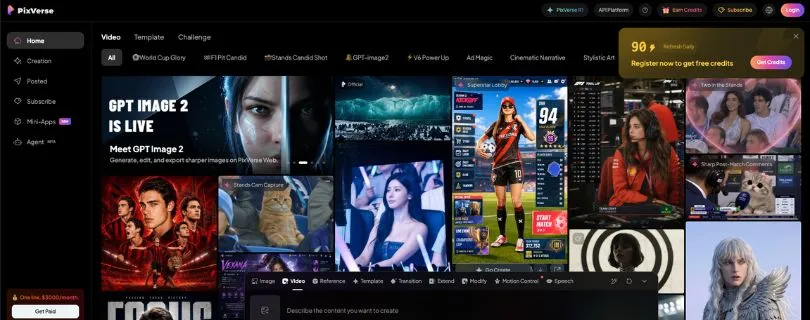
PixVerse AI is an AI video generator that helps you create short videos from text prompts, uploaded images, references, and ready-made templates.
Instead of shooting footage, editing clips, adding effects, and exporting everything manually, you can simply describe what you want or upload an image, choose a few settings, and let PixVerse generate the video for you.
That’s what makes it useful for creators who don’t have traditional video editing skills. You don’t need to know animation, keyframes, or complex editing software. Most of the workflow is based on prompts, templates, effects, and simple generation settings.
PixVerse is available through its web platform, mobile app experience, and API options for developers or teams who want to build video generation into their own workflows.
Here’s the simple difference:
| Traditional Video Editing | PixVerse AI |
| Shoot footage, animate, cut clips, add effects, export | Type a prompt or upload an image, choose settings, generate a short video, download or refine |
Who Owns or Runs PixVerse AI?
PixVerse AI is run by the PixVerse team behind the official PixVerse platform. The company and product details may change over time, so it’s always better to check the official PixVerse website for the latest information before relying on old reviews.
What Makes PixVerse Popular?
PixVerse is popular because it makes short AI video creation feel quick and beginner-friendly. You can create text-to-video clips, animate images, use viral AI effects, and make videos that fit TikTok, Instagram Reels, and YouTube Shorts.
It also offers cinematic motion, camera effects, community examples, and templates, which makes it easier to create something fun without starting from a blank screen.
How PixVerse AI Works
PixVerse works by taking your input, such as a text prompt, image, template, or reference, and turning it into a short AI-generated video.
You choose the style, motion, duration, aspect ratio, and other settings, then PixVerse creates the video based on your instructions.
Text-to-Video
With text-to-video, you write a prompt describing the scene you want. PixVerse then reads your prompt and tries to understand the subject, style, setting, camera movement, lighting, and motion.
For example:
“Cinematic close-up of a futuristic motorcycle speeding through a neon-lit street at night, rain reflections on the road, slow tracking shot, dramatic lighting.”
PixVerse uses that prompt to generate a short video clip that matches the idea.
Image-to-Video
With image-to-video, you upload a still image and PixVerse adds movement to it. This can include camera motion, depth, lighting changes, facial expressions, or small subject movements.
This feature is helpful for portraits, product photos, anime art, character shots, and concept images that you want to bring to life.
Templates and AI Effects
Templates are useful if you don’t want to write detailed prompts from scratch. You can choose a ready-made effect and apply it to your image or idea.
Common PixVerse effects include dance animations, fantasy transformations, character effects, zoom effects, hug effects, anime-style motion, product motion, and social media edits.
Multi-Shot and Storytelling Tools
Newer PixVerse workflows also support more structured video creation. Instead of generating one simple clip, you can create videos with different scene beats or camera angles.
This is helpful for short stories, product ads, cinematic concepts, and creative videos where one shot is not enough.
Audio, Lip-Sync, and Sound Effects
PixVerse can also support audio-related features, including lip-sync and sound effects, depending on the model, plan, and settings you use.
Just keep an eye on the credit cost. Adding audio or using higher-quality settings may use more credits than a basic video generation.
Extend, Restyle, Fusion, Modify, and Reference Features
PixVerse also includes extra tools to refine your videos:
- Extend: Continue a video for a few more seconds.
- Restyle: Change the look, mood, or visual style of a video.
- Fusion/Reference-to-Video: Use a reference image or video to guide the final result.
- Modify: Adjust parts of an existing generated video.
- Character Reference: Help PixVerse keep the same character across different shots.
- Multi-Frame/Start-End Control: Guide how the video starts and ends, so the motion feels more intentional.
What Real Users Are Saying About PixVerse AI?
Quick TLDR of User Reviews
✅ Great for: Easy AI video creation, image-to-video, cinematic looks, viral effects
❌ Weak on: Credit usage, inconsistent results, pricing complaints, limited control
PixVerse AI has a mixed reputation across review platforms.
On Google Play, the app has a strong rating and a huge number of reviews, which shows that many casual users enjoy it for quick AI videos and fun effects.
But on Reddit and Trustpilot, users are more cautious. The biggest complaints are usually about credits getting used up quickly, failed generations, subscription issues, and outputs not always matching the prompt.
Meanwhile, G2 is positive, but there is only one PixVerse review there right now, so I would not treat that as enough proof on its own.
Here’s a quick snapshot:
- Google Play – 4.4⭐/5 (4.31M+ reviews)
- Trustpilot – 3.1⭐/5 (100 reviews)
- G2 – 5.0⭐/5 (1 review)
But numbers don’t tell the full story.
What’s Happening on Reddit
Reddit users are more practical and direct about PixVerse AI. They usually compare it with tools like Runway, Kling, Seedance, Sora, Luma, and other AI video generators.
Some users like PixVerse for its visual style. One Reddit user said:
“PixVerse V6 → best aesthetics/human vibe”
Another user in the same Reddit discussion about AI video workflows explained why convenience matters:
“If it helps me get usable outputs faster, that’s kind of all I need.”
But the negative side is also clear. A Reddit user complained:
“I’ve literally burned through like half my monthly credits just from prompts that came out completely unusable.”
That sums up one of the biggest PixVerse concerns: the results can look great, but failed generations still cost credits.
In another Reddit thread about PixVerse in actual use, one user said:
“Credit anxiety is real, my friend.”
Most Reddit discussions around PixVerse focus on:
- Credit usage and failed generations
- Output quality compared with other AI video models
- Strong cinematic style and human visuals
- Queue speed and rendering time
- Whether PixVerse is good enough for real workflows
Reddit Thread on PixVerse AI Actual Use
User Reviews From Trustpilot
Trustpilot reviews are more divided.
Some users like the image-to-video feature and daily credits. One reviewer said the “Image to Video thing worked really well,” which matches what many casual creators like about PixVerse.
But a lot of negative reviews talk about these issues:
- Credits being wasted on poor outputs
- Subscription and cancellation problems
- Prompts not being followed properly
- Support taking time to respond
- Watermark or billing-related complaints
One Trustpilot reviewer complained about “Poor facial reproduction,” while another said the tool keeps “losing credits” when results don’t match the prompt.
So, Trustpilot gives a more cautious picture. PixVerse can be fun and useful, but users clearly want better billing clarity, better support, and more reliable generations.
Read PixVerse reviews on Trustpilot
User Reviews From G2
G2 looks more positive, but there is only one review available, so it is a small sample.
The reviewer liked how easy it was to create clips from prompts and said the “quality is also great.” That lines up with PixVerse’s biggest strength: fast AI video creation without needing editing skills.
But even the G2 review mentioned pricing as a downside. The reviewer said the “paid plans prices can be reduced.”
So, the G2 feedback is simple:
- PixVerse is easy to use for prompt-based video clips.
Read the full review on G2 - Video quality is good, but pricing could be better.
Read the full review on G2
User Reviews From Google Play
Google Play is where PixVerse has the largest user base.
Many users enjoy the app because it is quick, fun, and easy to use on mobile. But even happy users often complain about the credit system.
One Google Play reviewer said the app is “too expensive,” especially because users may need to remake videos multiple times to get the result they want.
Another common complaint is that you can’t always preview and approve a result before spending credits, which can feel frustrating when the AI output misses the prompt.
Overall, real users seem to agree on one thing: PixVerse AI is great when it works well, especially for short AI videos, image animation, and viral effects. But if you plan to use it seriously, keep an eye on credits, pricing, and output consistency.
PixVerse AI Features: My Hands-On Experience and Functionality Breakdown
If you want a serious, easy-to-follow breakdown of PixVerse AI features, grab a coffee — because there’s quite a bit to cover here.
That said, I’ve kept everything simple and practical, so you’ll get a clear idea of what PixVerse AI can actually do — and where it still feels limited.
I will share my experience with these PixVerse AI features in detail below:
- Text-to-Video Generation
- Image-to-Video Animation
- AI Templates and Viral Effects
- Cinematic Camera Controls
- Multi-Shot Video Creation
- Character Reference
- Audio, Lip-Sync, and Sound Effects
- Extend and Restyle Tools
- API Access for Developers
1. Text-to-Video Generation
The core feature of PixVerse AI is text-to-video generation.
This is where you type a prompt, describe the video you want, and PixVerse creates a short AI-generated clip based on your instructions.
On that front, PixVerse AI performs pretty well.
I was able to create short cinematic clips by describing the scene, subject, camera movement, mood, and style. The process feels beginner-friendly, especially if you’ve never used an AI video generator before.
What stood out to me
What I liked most is that PixVerse doesn’t make the process feel too technical.
You don’t need to understand animation, rendering, keyframes, or video editing timelines. You just write something like:
“Cinematic close-up of a futuristic motorcycle speeding through a neon-lit street at night, rain reflections on the road, slow tracking shot, dramatic lighting.”
And PixVerse tries to turn that idea into a short video.
Of course, the result depends heavily on your prompt. A clear prompt gives you a much better output than a vague one.
What could be better
The output is not always perfect.
Sometimes the motion feels slightly strange, the subject changes a little, or the video doesn’t follow every detail in the prompt. This is common with most text-to-video AI tools, but it’s still something you should know before using your credits.
My take
PixVerse AI’s text-to-video feature is great for quick concepts, social media clips, fantasy visuals, short ads, and creative experiments.
But if you need exact scene control or frame-perfect results, you may feel limited.
2. Image-to-Video Animation
Image-to-video is one of the most useful features in PixVerse AI.
Instead of starting from a blank prompt, you upload an image and ask PixVerse to animate it. This works well for portraits, product images, anime characters, concept art, and social media visuals.
What it does
PixVerse can add movement to a still image.
This can include:
- Camera zoom
- Facial movement
- Hair or clothing motion
- Background movement
- Lighting changes
- Depth and 3D-style motion
This feature is especially helpful if you already have an image you like and just want to bring it to life.
What I liked
The best part is that image-to-video feels more controlled than text-to-video.
Since PixVerse already has a visual reference, it usually has a better idea of the subject, style, and composition. This makes it easier to create videos for Instagram Reels, TikTok clips, YouTube Shorts, product teasers, or AI character videos.
What could be better
The image can still change during the video.
Faces may shift, hands may look odd, and small details in the image may not stay perfectly consistent. If you’re animating a branded product, logo, or real person, you’ll need to check the output carefully.
My take
PixVerse AI’s image-to-video feature is one of its strongest tools.
It’s simple, fun, and useful for creators who want fast movement from a static image without opening a video editing app.
3. AI Templates and Viral Effects
PixVerse AI also offers templates and ready-made effects, which are clearly designed for social media creators.
If you don’t want to write a long prompt, templates make the process much easier.
What templates help with
Templates are useful for creating quick videos based on popular styles or trends.
You can use them for:
- Dance animations
- Fantasy transformations
- Hug effects
- Character effects
- Anime-style motion
- Zoom effects
- Product motion
- Social media edits
- Fun viral clips
This is helpful if you’re creating content for TikTok, Reels, Shorts, or meme-style videos.
What I liked
Templates remove a lot of guesswork.
Instead of thinking, “What should I write in the prompt?”, you can simply choose an effect, upload your image, adjust a few settings, and generate the video.
This makes PixVerse feel less intimidating for beginners.
What could be better
Templates can sometimes feel repetitive.
If too many creators use the same effect, your video may start looking similar to other AI videos online. So, if you want something more original, it’s better to combine templates with your own prompts and custom ideas.
My take
PixVerse templates are great for quick, fun, and trend-based content.
They’re not always the best choice for serious brand videos, but they work really well for creators who want fast results without overthinking the process.
4. Cinematic Camera Controls
One thing PixVerse does well is camera movement.
This is where the tool starts to feel more creative. You can describe how the camera should move, and PixVerse tries to add that motion into the video.
What you can try
Some common camera movements include:
- Zoom in
- Zoom out
- Pan left or right
- Tracking shot
- Dolly-in
- Orbit shot
- Close-up
- Wide shot
- Slow motion
- Handheld camera feel
These small details can make a simple AI video look much more polished.
What I liked
Camera movement helps PixVerse videos feel less flat.
For example, instead of saying “a robot standing in a city,” you can say:
“Slow cinematic tracking shot of a robot walking through a rainy cyberpunk city, neon lights reflecting on the street.”
That gives PixVerse more direction, and the final video usually feels more cinematic.
What could be better
The camera does not always follow instructions perfectly.
Sometimes the movement is too strong, too slow, or not exactly what you asked for. But when it works, it can make a big difference in the final result.
My take
Camera controls are one of the main reasons PixVerse is useful for short cinematic videos.
You just need to be specific in your prompt and keep your scene simple.
5. Multi-Shot Video Creation
PixVerse also supports more structured video creation through multi-shot workflows.
This feature is useful when one single clip is not enough and you want your video to feel more like a mini scene.
What it does
Multi-shot generation lets you create different scene beats or camera angles inside a video.
For example, you could create:
- A wide opening shot
- A close-up of the character
- A product detail shot
- A final dramatic reveal
This is helpful for storytelling, short ads, cinematic concepts, and social media videos that need more than one simple movement.
What I liked
This feature makes PixVerse feel more useful for creators and marketers.
Instead of generating random clips, you can start thinking in scenes. That’s helpful if you’re making a product teaser, a short story, or a fantasy-style video.
What could be better
Multi-shot videos can still be inconsistent.
The character, outfit, object, or background may shift between shots. So, you may need to regenerate or use reference tools to keep things more stable.
My take
Multi-shot tools are a strong step forward for PixVerse.
They make the platform more useful for storytelling, but they still need patience if you want clean continuity.
6. Character Reference
Character reference is another helpful feature, especially if you want the same person or character to appear across different clips.
This matters because AI video tools often struggle with consistency.
What it helps with
Character reference can help PixVerse keep the same:
- Face
- Outfit
- Hair style
- General look
- Character identity
- Visual style
This is useful for AI influencers, story videos, brand mascots, anime characters, and short narrative clips.
What I liked
When it works well, character reference saves a lot of time.
You don’t have to describe the same character again and again in every prompt. You can use a reference and guide PixVerse toward a more consistent result.
What could be better
It is not perfect.
Small details may still change between generations. For example, the face may look slightly different, clothes may shift, or the character may not look exactly the same in every shot.
My take
Character reference is useful, but don’t expect perfect movie-level continuity.
It’s good for short creative projects, social content, and AI character experiments, but you’ll still need to review each output carefully.
7. Audio, Lip-Sync, and Sound Effects
PixVerse also supports audio-related features, depending on the model, plan, and settings available in your account.
This can include lip-sync, sound effects, or audio that matches the video mood.
What it can help with
Audio features are useful for:
- Talking character videos
- Short dialogue clips
- AI avatar-style content
- Social media videos
- Storytelling clips
- Meme videos
- Product promos with sound
This makes PixVerse more useful than a simple silent AI video generator.
What I liked
Audio can make short videos feel more complete.
A silent AI clip may look nice, but once you add voice, sound effects, or lip movement, it becomes much easier to use for social media or storytelling.
What could be better
Audio features may use more credits.
Also, lip-sync may not always match perfectly, especially if the character’s mouth movement is complex or the scene has too much motion.
My take
PixVerse audio and lip-sync features are useful for creators who want more engaging videos.
Just check the credit cost before generating too many versions, because this is where credits can disappear quickly.
8. Extend and Restyle Tools
PixVerse also gives you tools to refine or continue your videos after the first generation.
This is helpful because the first result is not always the final result.
Extend
Extend lets you continue a video for a few more seconds.
This is useful when you like the result but feel the clip ends too quickly. Instead of starting again, you can try extending the same video.
Restyle
Restyle lets you change the look or mood of a video.
For example, you may turn a normal-looking clip into something more cinematic, anime-inspired, fantasy-based, or dramatic.
Modify
Modify helps you adjust parts of a generated video.
This can be useful when the overall result is good, but one detail needs improvement.
Fusion and reference-to-video
Fusion or reference-based tools help guide PixVerse using an existing image, style, or idea.
This gives you more control compared to writing only a text prompt.
My take
These tools are helpful because AI video generation is rarely perfect on the first try.
Extend, restyle, modify, and reference features give you more room to improve the output instead of wasting every generation from scratch.
9. API Access for Developers
PixVerse also offers API access for developers, teams, and businesses that want to add AI video generation into their own products or workflows.
This is not something every casual creator will need.
But for developers, SaaS tools, agencies, and automation-heavy teams, it can be very useful.
What it can be used for
PixVerse API access can help with:
- Building AI video apps
- Automating video generation
- Creating videos at scale
- Adding video tools to a platform
- Generating product videos
- Creating social media clips programmatically
What I liked
The API makes PixVerse more than just a creator tool.
It gives businesses and developers a way to use PixVerse inside their own systems instead of manually generating every video from the dashboard.
What could be better
API pricing and credit usage can be confusing for beginners.
If you’re not technical, the normal PixVerse web or mobile app will be much easier to use.
My take
PixVerse API access is a nice option for advanced users, developers, and teams.
But for most creators, the main web app and mobile experience will be enough.
PixVerse AI Pricing: Is PixVerse Free?
PixVerse offers free and paid credit-based usage, but pricing can change depending on your region, subscription type, app store billing, model, resolution, video duration, and whether audio is enabled.
So yes, PixVerse AI can be used for free, but the free plan is mainly best for testing the tool, not for heavy video creation.
PixVerse Free Plan
PixVerse’s free plan is useful if you just want to try the platform before paying.
You can test text-to-video, image-to-video, templates, and effects without committing to a paid plan right away. This is helpful if you’re still comparing PixVerse with tools like Runway, Pika, Kling, or other AI video generators.
Still comparing creator-friendly AI video tools?
Read: Pika AI Pricing Explained
That said, the free plan has limits.
Depending on the current plan rules, free users may face watermarks, lower resolution, slower queues, limited generations, fewer credits, or restricted access to premium features.
And honestly, free credits can run out quickly when you’re testing different prompts. If one or two generations don’t come out well, you may use your credits faster than expected.
Paid Plans
PixVerse paid plans are mainly built around credits. The more credits you have, the more videos you can generate or refine.
Here’s a quick pricing snapshot:
| Plan | Estimated Monthly Price | Credits/Usage | Resolution | Best For | Notes |
| Free/Basic | $0 | Limited free credits | Lower resolution | Testing PixVerse | May include watermark, queues, or feature limits |
| Standard | Around $10/month | Around 1,200 monthly credits | Up to 720p | Casual creators | Good for light social media use |
| Pro | Around $30/month | Around 6,000 monthly credits | Up to 1080p | Frequent creators | Better for regular TikTok, Reels, and Shorts content |
| Premium | Around $60/month | Around 15,000 monthly credits | Up to 1080p | Heavy users | Better for creators making many videos each month |
| Team/Enterprise/API | Custom or API-based | Higher-volume usage | Depends on setup | Agencies, teams, developers | API and web/app credits may be billed separately |
| Credit Top-Ups | Varies | One-time extra credits | Depends on model/settings | Extra generations | Useful when your monthly credits run out |
Always verify pricing inside the official PixVerse billing page before buying, because credit amounts and plan benefits may change.
Want to compare another credit-based video tool before upgrading?
Read: Vidu AI Pricing Explained
PixVerse API Pricing
PixVerse also offers API pricing for developers, agencies, and teams that want to add AI video generation into their own apps, tools, or workflows.
The API works on a credit-based system. Your final cost depends on things like:
- Model used
- Video duration
- Resolution
- Audio or no audio
- Number of generations
- Extra tools or refinements
In simple words, a basic lower-resolution video will usually cost fewer credits, while higher-resolution videos, longer clips, and audio-enabled generations usually cost more.
This is more useful for developers and businesses than casual creators. If you’re just making videos for TikTok, Reels, YouTube Shorts, or product teasers, the normal PixVerse web or mobile app will be easier to use.
Which PixVerse Plan Should You Choose?
If you’re a beginner, start with the free plan. It’s enough to understand how PixVerse works and whether the output quality fits your needs.
If you’re a casual creator, the Standard plan should be enough for light testing, occasional AI videos, and simple image-to-video clips.
If you create short-form content regularly, the Pro or Premium plan makes more sense. These plans are better for people making TikTok videos, Instagram Reels, YouTube Shorts, product promos, or AI character videos every week.
If you’re an agency or team, look at Team, Enterprise, or API options. This is better if you need higher-volume video generation, workflow automation, or commercial production.
If you’re a developer, API credits are the better route. Just remember that PixVerse API billing may be separate from the normal PixVerse web/app subscription.
Prompt Tips for Better PixVerse AI Results
PixVerse AI is easy to use, but your results depend a lot on how you write your prompts.
A weak prompt can give you a random-looking video. A clear prompt gives PixVerse more direction and usually leads to a better result.
Here are a few simple tips that helped me get better outputs:
- Use clear physical descriptions: Describe the subject, outfit, setting, lighting, and mood.
- Don’t overload the prompt: Avoid adding five different actions in one clip. Keep the scene focused.
- Mention camera movement directly: Use words like “slow zoom,” “tracking shot,” “orbit shot,” or “close-up.”
- Use one main subject per clip: PixVerse handles simple scenes better than crowded ones.
- Repeat character details in multi-shot prompts: This helps reduce character changes between shots.
- Use high-quality images for image-to-video: Blurry or low-quality images usually lead to weaker videos.
- Test lower resolution first: This helps you save credits before generating a final version.
- Save successful prompts: If a prompt works well, keep it and reuse the structure.
- Choose the right aspect ratio: Use 9:16 for TikTok/Reels/Shorts, 16:9 for YouTube, and 1:1 for square posts.
- Avoid vague prompts: Instead of “make it amazing,” explain what “amazing” means visually.
PixVerse Prompt Examples
Here are a few prompt ideas you can use or tweak:
Cinematic scene:“Cinematic wide shot of a lone astronaut walking across a red desert planet, soft dust in the air, dramatic sunset lighting, slow tracking shot, realistic sci-fi style.”
TikTok/Reels video:“A stylish creator walking through a neon city street at night, fast camera zooms, trendy social media edit, glowing lights, energetic movement, vertical 9:16.”
Product ad:“Luxury perfume bottle on a glossy black surface, water droplets, soft studio lighting, slow rotating camera, premium product commercial style.”
Anime clip:“Anime girl standing on a rooftop during sunset, hair moving in the wind, glowing city skyline, emotional atmosphere, smooth cinematic camera pan.”
Fantasy VFX:“A warrior holding a glowing sword in a dark forest, magical blue particles floating around, dramatic fog, slow-motion fantasy movie scene.”
Talking/lip-sync character:“A friendly AI avatar speaking directly to the camera, clean studio background, natural facial expression, soft lighting, realistic lip-sync style.”
Image-to-video portrait:“Add subtle motion to this portrait, gentle smile, soft blinking, slight hair movement, slow camera push-in, natural lighting.”
Brand teaser:“Modern startup launch teaser, sleek laptop on a desk, glowing interface, fast cinematic cuts, clean blue lighting, professional tech ad style.”
PixVerse AI vs Other AI Video Generators
PixVerse AI is not the only AI video generator out there. Tools like Runway, Pika, Kling, Vidu, Luma, Veo, Sora, SeaArt, MagicLight, and Pollo also offer strong video generation features.
The right choice depends on what you need. Some tools are better for cinematic realism. Some are better for long-form videos. PixVerse sits more on the creator-friendly side, especially for short AI videos, image animation, viral effects, and quick social content.
| Tool | Best For | Strengths | Weaknesses | Best User |
| PixVerse AI | Short AI videos and viral effects | Easy to use, fast, good templates, strong image-to-video | Short clips, credit usage, limited editing control | Social creators, marketers, beginners |
| Runway | AI video editing and creative production | Broader editing suite, advanced creative tools, strong video controls | Can feel more complex for beginners | Filmmakers, agencies, advanced creators |
| Pika | Fun creator-friendly AI videos | Easy prompts, effects, fast creative outputs | May not offer deep production control | Casual creators, social media users |
| Kling | Realistic motion and cinematic clips | Strong visual quality and motion realism | Availability and pricing may vary by region | Creators wanting realism |
| Vidu | Fast video generation and anime-style clips | Good for anime, first/last frame control, quick outputs | May need testing for consistent results | Anime creators, concept creators |
| Luma/Dream Machine | Cinematic visual generation | Strong creative visuals and motion | Less focused on viral templates | Designers, storytellers, visual creators |
| Veo | High-end realism and native audio | Strong realism, high-quality model output | Access and cost may not suit everyone | Professional creators and developers |
| Sora/Sora 2 | Realistic video with strong world simulation | Advanced realism, audio, scene understanding | Availability and access can change | Advanced creators, developers |
| SeaArt | AI image and video creation | Good for image-to-video and creative visuals | More of a broad AI art platform | AI art users and casual creators |
| MagicLight | Long-form AI videos | Useful for longer story-based videos | Not as focused on quick viral effects | YouTubers, storytellers, educators |
| Pollo AI | Multi-model video creation | All-in-one AI video and image tools | Can feel less focused than one dedicated model | Users who want many tools in one place |
PixVerse vs Runway
Runway is stronger if you want a broader AI creative suite.
It gives you more production-style tools, video editing features, and advanced creative controls. If you’re making serious brand videos, film concepts, or polished AI video projects, Runway may feel more complete.
PixVerse is easier if your goal is quick short-form content.
For example, if you want to animate an image, create a fantasy effect, make a TikTok-style video, or test a quick product teaser, PixVerse feels faster and less intimidating.
My take:
Choose Runway for deeper creative control. Choose PixVerse for faster short clips and social media-friendly AI effects.
Want to compare Runway with more AI video tools?
Check: Top Runway Alternatives
PixVerse vs Pika
PixVerse and Pika are both creator-friendly AI video tools.
Pika is fun, simple, and good for creative experiments. PixVerse also feels beginner-friendly, but it leans more into templates, image-to-video effects, cinematic movement, and viral-style clips.
Both tools can work well for TikTok, Reels, Shorts, memes, and casual AI video creation.
The main difference is workflow. PixVerse feels better if you like templates and quick effects. Pika may feel better if you want playful video generation and creative prompt experiments.
My take:
Choose PixVerse if you want fast templates and image animation. Choose Pika if you want a fun, flexible prompt-based video tool.
Want to see how Pika compares with other AI video tools?
Read: Best Pika Alternatives
PixVerse vs Kling, Vidu, Veo, and Sora
This is where PixVerse starts competing with more advanced AI video models.
Kling, Vidu, Veo, and Sora/Sora 2 are often discussed for realism, motion quality, physics, character movement, and cinematic output.
PixVerse can still create impressive videos, especially for short clips, effects, and social media content. But if your main goal is highly realistic motion, longer storytelling, or production-level video quality, some of these tools may perform better depending on the scene.
Here’s the simple way to look at it:
- Kling: Better if you care about realistic movement and cinematic scenes.
- Vidu: Good for fast clips, anime-style content, and frame-controlled videos.
- Veo: Strong for high-end realism and native audio workflows.
- Sora/Sora 2: Better for advanced realism, physics, and audio-based generation.
- PixVerse: Better for fast, beginner-friendly, social-ready AI videos.
My take:
PixVerse is not trying to be the most technical AI video model. Its biggest value is speed, simplicity, effects, and ease of use.
If Kling looks stronger for realism, compare it with other options here:
Best Kling Alternatives
Best PixVerse Alternatives
Here are some simple picks based on what you need:
- Best for editing suite: Runway
- Best for realism: Veo, Kling, or Sora/Sora 2
- Best for long-form storytelling: MagicLight
- Best for cheap experimentation: SeaArt or Pika
- Best for social effects: PixVerse, Pika, or Pollo
- Best for anime-style videos: Vidu or PixVerse
Not sure whether Vidu is the better fit?
Read: Vidu AI Alternatives - Best for all-in-one AI video access: Pollo AI
PixVerse is still a strong option if you want fast short videos without spending hours learning a complex video editor.
Still comparing PixVerse with other AI video tools?
Read: Best PixVerse Alternatives
Final Verdict: Is PixVerse AI Worth It?
Yes, PixVerse AI is worth using if you want a fast, beginner-friendly way to create short AI videos from prompts, images, and templates.
It is especially useful for social media creators, marketers, hobbyists, and anyone who wants cinematic visuals without learning complex editing tools.
I like it most for image-to-video, short-form content, viral effects, fantasy clips, product teasers, and quick creative ideas.
But it’s not perfect.
PixVerse is not the best choice for long-form production, exact timeline control, or projects where every frame needs to look consistent. You may also need to regenerate clips a few times, which can use credits quickly.
So, my honest take is simple:
PixVerse AI is great when you want speed, creativity, and easy AI video generation. But if you need professional-level control, long videos, or predictable results every time, you may want to compare it with tools like Runway, Kling, Veo, or Sora/Sora 2.
Use PixVerse AI If
You should try PixVerse AI if:
- You create short social videos.
- You want fast image-to-video effects.
- You like experimenting with cinematic prompts.
- You need quick ad concepts or creative drafts.
- You prefer templates over manual editing.
- You make TikTok, Instagram Reels, or YouTube Shorts.
- You want a beginner-friendly AI video generator.
Avoid PixVerse AI If
You may want to skip PixVerse AI if:
- You need long videos.
- You need frame-level control.
- You need predictable character consistency.
- You dislike credit-based pricing.
- You need a full professional editing suite.
- You want every output to match your prompt perfectly.
- You are creating serious brand videos that need strict visual accuracy.
FAQs About PixVerse AI
1. What is PixVerse AI?
PixVerse AI is an AI video generator that turns text prompts, images, templates, and references into short videos. You can use it to create cinematic clips, social media videos, image animations, fantasy effects, product teasers, and quick creative concepts without learning traditional video editing.
2. Is PixVerse AI free?
Yes, PixVerse AI usually offers free credits or a free plan so you can test the platform. However, the free version may come with limits such as fewer credits, slower generation, watermarks, lower resolution, or restricted access to premium features.
3. How much does PixVerse AI cost?
PixVerse uses a credit-based pricing model. The final cost depends on your plan, region, subscription type, video model, resolution, duration, and whether you use extra features like audio or lip-sync. Always check the official PixVerse pricing page before buying because plan details can change.
4. Is PixVerse AI worth it?
PixVerse AI is worth trying if you want a fast and beginner-friendly AI video generator for short clips, TikTok videos, Instagram Reels, YouTube Shorts, image animation, and creative experiments. But if you need long videos, full editing control, or perfect consistency, it may feel limited.
5. What is PixVerse AI best used for?
PixVerse AI is best for short-form video content, image-to-video animation, viral AI effects, fantasy clips, anime-style motion, product teaser videos, cinematic concepts, and social media content. It is especially useful if you want quick visuals without spending hours editing.
6. Can PixVerse AI turn images into videos?
Yes, PixVerse AI can turn still images into animated videos. You can upload a portrait, product image, character design, anime image, or concept art, then use PixVerse to add camera movement, expression changes, depth, lighting effects, or motion.
7. Does PixVerse AI support text-to-video?
Yes, PixVerse supports text-to-video generation. You write a prompt describing the scene, subject, style, mood, camera movement, and lighting, and PixVerse creates a short AI-generated video based on that prompt.
8. Does PixVerse AI have templates?
Yes, PixVerse offers templates and ready-made AI effects. These are useful if you don’t want to write detailed prompts from scratch. You can use them for dance effects, fantasy transformations, character animations, zoom effects, hug effects, anime motion, and viral social media edits.
9. Does PixVerse AI have a watermark?
PixVerse may add a watermark on free or lower-tier outputs, depending on the current plan and export settings. Paid plans may offer watermark-free downloads, but you should check the latest plan details before upgrading.
10. How long can PixVerse AI videos be?
PixVerse is mainly designed for short AI videos. The exact video length depends on the model, plan, credits, and settings you choose. If you need long-form videos, you may need to generate multiple clips and edit them together in another tool.
11. Can I use PixVerse AI for TikTok, Reels, and YouTube Shorts?
Yes, PixVerse is a good fit for TikTok, Instagram Reels, and YouTube Shorts because it focuses on short, visual, and attention-grabbing videos. Just make sure you choose the right aspect ratio, such as 9:16 for vertical videos.
12. Can I use PixVerse AI videos commercially?
You may be able to use PixVerse AI videos commercially depending on your plan, the content you create, and the rights of the images, prompts, references, or templates you use. Always read the latest PixVerse terms before using generated videos in ads, client projects, or brand campaigns.
13. Is PixVerse AI safe to use?
PixVerse AI is generally safe to use as a creative tool, but you should still be careful with what you upload. Avoid using private photos, sensitive documents, copyrighted characters, celebrity likenesses, or images of real people without permission.
14. Does PixVerse AI support lip-sync?
PixVerse can support audio and lip-sync features depending on the model, plan, and settings available in your account. This is useful for talking characters, AI avatar clips, dialogue videos, and short social content.
15. Why do PixVerse credits run out quickly?
PixVerse credits can run out quickly because each generation, regeneration, higher-resolution export, longer video, or audio-based feature may use credits. If the output does not match your prompt, you may need to try again, which can use even more credits.
16. How can I get better results from PixVerse AI?
To get better results, write clear prompts, use one main subject per video, mention camera movement directly, avoid adding too many actions, and use high-quality images for image-to-video. It also helps to test at lower settings first before spending credits on final exports.
17. Is PixVerse AI good for beginners?
Yes, PixVerse AI is beginner-friendly. You don’t need video editing experience to use it. The prompt-based workflow, templates, effects, and image-to-video tools make it easy for new users to create short AI videos quickly.
18. What are the main disadvantages of PixVerse AI?
The biggest downsides are short video length, credit usage, inconsistent outputs, limited editing control, possible queue delays, and occasional issues with character or object consistency. It is great for quick videos, but not a full replacement for professional video editing software.
19. What is the best alternative to PixVerse AI?
The best PixVerse alternative depends on your needs. Runway is better for a broader AI editing suite, Pika is good for fun creator-friendly clips, Kling and Veo are strong for realism, MagicLight is useful for longer videos, and Pollo AI is helpful if you want access to multiple AI video tools in one place.
20. Is PixVerse better than Runway or Pika?
PixVerse is better if you want quick short videos, viral effects, image animation, and beginner-friendly templates. Runway is better for advanced editing and production-style workflows. Pika is also creator-friendly and works well for fun prompt-based video experiments.
21. Does PixVerse AI have an app?
PixVerse is available through web and mobile experiences, depending on your device and region. If you prefer creating videos from your phone, the mobile app can be useful for quick AI videos, image animation, and social media content.
22. Can PixVerse AI create realistic videos?
PixVerse can create realistic-looking videos, especially with strong prompts and good references. However, it may still struggle with complex motion, hands, faces, object consistency, or highly detailed scenes. For strict realism, you may want to compare it with tools like Kling, Veo, Runway, or Sora.
23. Can PixVerse AI make anime videos?
Yes, PixVerse can create anime-style videos and animate anime images. It works well for character shots, fantasy scenes, stylized motion, and short anime-inspired clips. For best results, use a clear anime-style prompt or upload a high-quality anime image.
24. Can PixVerse AI replace video editing software?
No, PixVerse AI should not be seen as a full replacement for tools like Premiere Pro, DaVinci Resolve, CapCut, or Final Cut Pro. It helps you generate short AI clips, but you may still need a separate editor for cutting, arranging, adding captions, music, transitions, and final polishing.
25. Who should use PixVerse AI?
PixVerse AI is best for social media creators, YouTubers, marketers, designers, small business owners, AI art creators, hobbyists, and anyone who wants to create short videos quickly. It is especially helpful if you want visual ideas, product teasers, TikTok-style clips, or image-to-video animations without complex editing.