
Krita is one of those creative tools that almost sounds too good to be true.
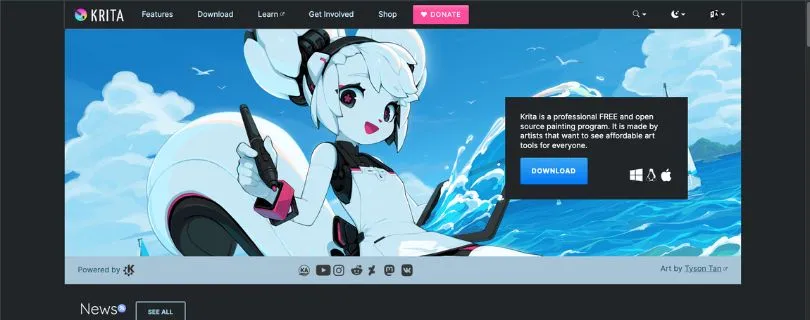
It is free, open source, built around digital art, and regularly mentioned beside paid software such as Photoshop and Clip Studio Paint. Krita itself describes the app as a professional painting program rather than a stripped-down free editor.
That raises the obvious question: how much are you actually giving up by paying nothing?
For this Krita review, I focused on the things that matter most in day-to-day creative work: brushes, drawing workflow, interface, layers, text, animation, performance, and file handling.
I also based this Krita review on the current stable 5.3.2.1 branch rather than older versions. Krita’s developers consider 5.3.2.1 suitable for productive work, while the parallel 6.0.2.1 release is still described as more experimental.
The short version is that Krita is much stronger than its $0 price suggests.
But calling it a free Photoshop replacement oversimplifies the product. Krita is primarily a digital painting and illustration tool. If photo retouching, template design, or an Adobe-heavy workflow is your priority, some limitations appear quickly.
Here is what stood out, where Krita still needs work, and whether it deserves a place in your creative workflow in 2026.
If you are mainly deciding between Krita and GIMP, I have also compared them directly in my Krita vs GIMP comparison.
TL;DR: Krita Review at a Glance
| Category | Krita in 2026 |
| What is it? | Free and open-source digital painting software |
| Version reviewed | Krita 5.3.2.1 |
| Best for | Digital painters, illustrators, concept artists, comic creators |
| Price | Free from Krita’s official website |
| Best features | Brushes, customization, tablet-friendly workflow, layers |
| Main drawbacks | Learning curve, demanding large projects, not photo-editing-first |
| Animation | Built-in frame-by-frame animation tools |
| AI | Mostly added through third-party plugins |
| My verdict | One of the strongest free digital painting tools, but not a replacement for every Photoshop workflow |
The free website version is functionally the same as the paid Steam and Microsoft Store editions; those paid versions mainly add automatic updates while helping fund development. Krita also includes native frame-by-frame raster animation tools.
My early Krita review verdict is simple: choose it for drawing and painting first, not because you expect every feature found in Photoshop.
Still comparing drawing and painting tools? Check the other options here: Best Krita Alternatives.
In-Depth Krita Review: Features I Looked At
1. Brushes & Digital Painting
This is where Krita makes its strongest case.
Krita ships with more than 100 professionally made brush presets, multiple brush engines, and dedicated stabilizers for smoothing strokes. Brushes can also be customized heavily and saved for different drawing or painting styles.
That matters because Krita digital painting does not feel like a general image editor with a brush tool added on top. Painting is clearly the center of the product.
The brush engines cover jobs such as color smudging, particles, shapes, and filter effects. Stabilization is also useful when you want cleaner line art or more controlled strokes.
The downside is choice overload. Krita for beginners can feel overwhelming because there are so many presets and settings available before you know what actually fits your workflow.
My Verdict: Brushes are the biggest strength in this Krita review. For sketching, inking, concept art, and digital painting, the toolset offers far more control than its free price suggests.
2. Interface & Ease of Use
Krita’s interface is flexible, but it is not minimal.
Its panels, called Dockers, can be moved, hidden, rearranged, and saved as custom workspaces. You can also create your own shortcuts for frequently used tools.
That flexibility gets better as you learn the program, but the first few sessions may feel busy. There are plenty of brush settings, dockers, layer controls, and specialized tools competing for attention.
Users already familiar with desktop creative software will probably understand the layout faster than complete beginners.
If your priority is editing photos rather than painting them, read my GIMP Review as well because GIMP is built around a different workflow.
My Verdict: Krita is not difficult because the interface is poorly designed. It feels complex because the software gives artists a lot of control.
3. Layers, Text & Comic Tools
Krita goes much deeper than brushes once you start building more complicated artwork.
You get paint layers, vector layers, group layers, masks, blending modes, and filter layers. That makes it possible to keep adjustments separate instead of permanently changing the artwork underneath.
For illustration work, I found that much more useful than constantly duplicating layers just to protect the original image.
Krita 5.3 also improved one area that used to feel noticeably weaker: text.
The text system was rewritten and now supports editing text directly on the canvas, better OpenType support, text inside shapes, and text following paths.
That matters for comic artists because lettering no longer feels as disconnected from the rest of the drawing workflow.
Still, Krita is not trying to become a full desktop-publishing or professional vector-design application.
If logos, scalable illustrations, and vector graphics are your main job, my guide to the best vector graphics software covers tools built more specifically for that workflow.
My Verdict: Krita’s layer system is powerful enough for complex digital artwork, while the newer text tools remove one of its older weak points. Vector work is useful, but painting still comes first.
4. Animation
Krita also includes frame-by-frame animation, which surprised me because it is easy to think of the software as drawing-only.
You get a timeline, animation frames, onion skinning, playback controls, and tools for creating hand-drawn motion without moving your artwork into another application.
For someone already drawing characters in Krita, that is convenient.
You can rough out movement, clean up frames, and paint them using the same brushes you already use for illustration.
The limitation appears when the project becomes more complicated.
Krita’s animation tools make more sense for short 2D sequences, animated illustrations, and traditional frame-by-frame work than for large production pipelines.
Some users also report that heavier animations can become demanding once frame counts and layer complexity increase.
My Verdict: Krita animation is a useful bonus for illustrators and independent animators. I would use it for shorter hand-drawn projects, but not choose Krita solely as a replacement for dedicated animation software.
5. Performance, Large Files & PSD Support
Performance is where your hardware starts to matter.
Normal sketches and moderately layered paintings feel straightforward, but large canvases, hundreds of layers, complicated brushes, and high-resolution artwork can put more pressure on memory.
This is also one of the more common complaints I found while reading long-term user feedback.
Krita’s native .kra format keeps features such as layers and editing information intact, but complicated project files can become large.
PSD support is available too, which helps when moving artwork between Krita and Photoshop.
But compatibility should not be confused with perfect interchangeability.
Some Photoshop-specific effects, layer behavior, or advanced features may not transfer exactly the way you expect.
If PSD compatibility is central to your workflow, my Adobe Photoshop Review explains what you gain by staying inside Adobe’s own environment.
Looking for serious image editors without committing to Photoshop? Compare the options in my Best Adobe Photoshop Alternatives.
My Verdict: Krita performs well for normal digital painting, but huge canvases and complex files can expose its limits. PSD support is helpful, just not something I would trust blindly for complicated Adobe projects.
6. AI Features & Plugins
Krita has AI options, but this part needs some clarification.
Generative AI is not the core experience in the same way it is with newer AI-first design platforms.
Instead, Krita can be extended through plugins.
Krita AI Diffusion
One of the better-known options is Krita AI Diffusion, a third-party plugin that brings generative image workflows directly into the canvas.
Depending on your setup, it can support workflows involving models such as Stable Diffusion and FLUX, including generation, inpainting, and image-assisted editing.
What I like about this approach is that AI remains optional.
You can use Krita entirely as a traditional painting application and never touch generative tools.
The tradeoff is setup. Local AI workflows can require models, sufficient hardware, and more configuration than clicking an AI button in a browser-based design tool.
Want software where AI generation is built into the main workflow? See my Best AI Graphic Design Generator Tools.
My Verdict: AI is useful in Krita if you are willing to customize your setup. Beginners looking for effortless built-in generation will probably find dedicated AI design tools easier.
Krita Pricing in 2026
Krita’s pricing is refreshingly simple.
The official desktop download is free and open source. There is no required monthly subscription, feature tier, or premium plan locking the main painting tools behind a paywall.
You can also use artwork created in Krita commercially. Your artwork does not become open source simply because Krita itself is.
Paid versions are available through stores such as Steam and the Microsoft Store. They provide conveniences such as automatic updates while helping financially support Krita’s development.
The important part is that you are not paying to unlock a “Pro” version of the software.
That makes Krita pricing difficult for most commercial art software to compete with.
Curious how much the subscription alternative costs? Read my full Adobe Photoshop Pricing Explained breakdown.
My Verdict: If cost is one of your main concerns, Krita is exceptionally hard to beat. The real investment is learning the software and having hardware capable of handling the size of projects you want to create.
What Real Users Say About Krita
Reading through Reddit, Software Advice, and Trustpilot, the same pattern appears repeatedly.
✅ What Users Consistently Praise
- Strong brush customization and drawing-tablet support.
- Excellent value because the core software is free.
- Flexible workspaces for different illustration workflows.
- An active community with tutorials, brushes, and troubleshooting help.
❌ Where Users Hit Friction
- The interface can take time to learn.
- Large files and complex animations may feel slower.
- Some users report occasional bugs depending on their system.
- Photoshop users may run into limitations when moving complicated PSD files between apps.
The feedback matches my Krita review: its strengths are concentrated around drawing and painting, while most complaints appear around complexity, performance, or workflows Krita was never primarily designed for.
Who Krita Is Built For (and Who Should Look Elsewhere)
Krita is a strong fit for digital painters, illustrators, concept artists, comic creators, students, and anyone using a drawing tablet who wants powerful software without a subscription.
It makes less sense for professional photo retouchers, template-first social designers, or teams heavily dependent on Adobe workflows.
If fast templates and drag-and-drop graphics matter more than painting, compare the Best Canva Alternatives.
Better Alternatives to Krita
| If you mainly need | Consider |
| Photo editing | GIMP |
| Adobe workflow | Photoshop |
| Browser-based editing | Photopea |
| Template design | Canva |
For browser-based Photoshop-style editing, you can also explore my Photopea Alternatives.
Final Verdict: Is Krita Worth It in 2026?
After this Krita review, my conclusion is straightforward.
Krita is not the best free replacement for every Photoshop workflow.
But for digital painting, illustration, comics, and tablet-based art, it offers an unusually complete toolset without requiring a subscription.
The main tradeoffs are its learning curve, heavier-project performance, and weaker fit for photo-first workflows.
For artists who mainly want to draw and paint, Krita is absolutely worth trying.
Frequently Asked Questions
Is Krita Really Free?
Yes. Krita is free and open source, and you can use artwork created with it commercially.
Is Krita Good for Beginners?
Yes, although the number of brushes, Dockers, and settings can initially feel overwhelming.
Is Krita Better Than GIMP?
For digital painting, usually yes. For photo editing and image manipulation, GIMP may fit better.
Can Krita Replace Photoshop?
For painting and illustration, possibly. For advanced photo editing and Adobe-centered workflows, not completely.
Is Krita Good for Animation?
Yes for short frame-by-frame 2D animation, though larger projects can become demanding.