Photopea positions itself as a free, browser-based Photoshop alternative.
And honestly, that promise is hard to ignore.
You open a tab, upload a PSD, and start editing with layers, masks, text tools, filters, and familiar Photoshop-style controls — without installing anything.
But here’s where Photopea starts to feel limited: it runs in the browser, the free version shows ads, performance can slow down with heavier files, and the interface can feel a little cramped when you’re working on detailed edits.
And it’s not always the best fit for every creative workflow!
When I added it all up
Photopea is great for quick PSD edits — but if you need smoother performance, better templates, stronger drawing tools, offline access, or more professional photo editing, you’ll probably start looking elsewhere.
That gap is hard to ignore.
There’s nothing wrong with a free online editor that does a lot surprisingly well.
But when your work involves client designs, social media graphics, digital painting, product photos, or large layered files, “good enough in a browser” doesn’t always feel good enough anymore.
So I spent time comparing the most serious Photopea alternatives I could find — looking at layer support, PSD handling, editing speed, ease of use, design templates, drawing tools, pricing, and whether each tool actually fits the way creators and designers work.
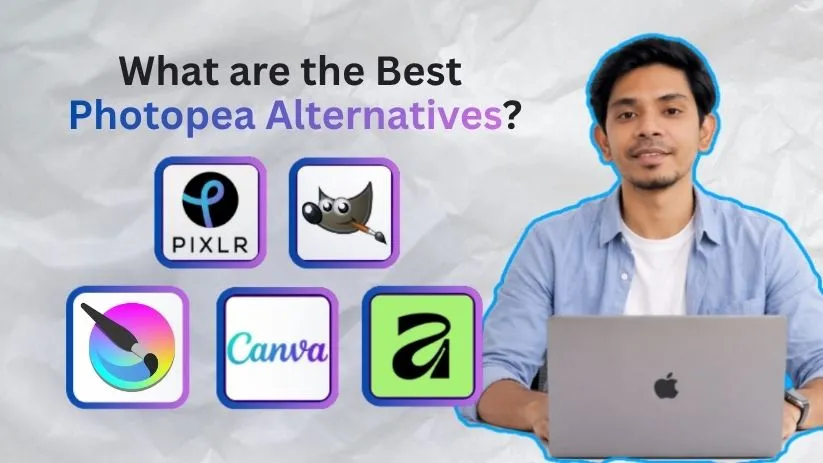
Here are the 5 best Photopea alternatives that stood out.
Quick Answer: Best Photopea Alternatives by Use Case
If you just want the fastest answer, here’s the simple version: Pixlr is the closest online alternative to Photopea, while GIMP is the best free desktop option.
But the right choice depends on what you actually use Photopea for.
| Use Case | Best Alternative |
| Closest online alternative to Photopea | Pixlr |
| Best free desktop alternative | GIMP |
| Best for digital art and illustration | Krita |
| Best for social media and quick designs | Canva |
| Best professional paid alternative | Affinity Photo |
5 Best Photopea Alternatives in 2026
I’ll share my honest take on each tool — where it feels better than Photopea, where it doesn’t, and which type of creator should actually use it.
With that context, here are the 5 Photopea alternatives that stood out.
1. Pixlr
Best For: Users who want the closest online Photopea alternative with a simpler interface, faster quick edits, and built-in AI tools.
Pixlr is probably the easiest recommendation if you like the idea of Photopea but want something that feels lighter and more beginner-friendly.
It runs in the browser, works well for everyday photo edits, and gives you separate tools for different workflows — Pixlr Express for quick edits, Pixlr Editor for more detailed work, and Pixlr Designer for template-based designs.
Key Features of Pixlr
Pixlr gives you browser-based photo editing without making you install anything.
You can use layers, filters, cutout tools, background removal, AI image generation, generative fill, templates, and mobile apps. The workflow feels more polished for simple edits than Photopea, especially if you’re making social graphics, thumbnails, banners, or quick product images.
The AI tools are also a big reason to consider Pixlr. Photopea is better if you want a Photoshop-style interface, but Pixlr feels more modern when you’re doing quick retouching, object removal, or simple AI-assisted edits.
Pixlr’s paid plans include ad-free editing, unlimited saves, monthly AI credits, templates, fonts, elements, animations, and access across web, desktop, and mobile.
What could be better:
Pixlr is easier than Photopea, but it’s not always deeper.
Some advanced editing features are split across different Pixlr tools, so you may jump between Pixlr Editor, Pixlr Express, and Pixlr Designer depending on the job. That can feel slightly annoying if you want one clean workspace for everything.
The free version is useful, but ads and AI credit limits can get in the way if you use it daily. It’s also not the strongest choice for heavy PSD editing or serious client photo retouching.
Pricing (Billed Annually)
- Free: $0
- Plus: $1.49/month
- Premium: $6.49/month
- Team: $11.99/month
- Enterprise: Custom pricing
Pixlr also lists monthly prices separately, with Plus at $2.49/month, Premium at $9.99/month, and Team at $16.99/month.
Pixlr vs Photopea
Pixlr is better if you want a cleaner online editor for fast edits, AI tools, and beginner-friendly design work.
Photopea is better if you need a more Photoshop-like workspace, stronger PSD handling, and more advanced manual editing controls inside the browser.
Choose Pixlr if Photopea feels too technical or cluttered. Stick with Photopea if your main work revolves around layered PSD files.
2. GIMP
Best For: Users who want a free desktop Photopea alternative with serious editing power and offline access.
GIMP is the obvious pick if your biggest problem with Photopea is that it runs in the browser.
It’s free, open source, and available for Windows, macOS, Linux, and other operating systems. The official GIMP site describes it as a free and open-source cross-platform image editor, and users can change and redistribute the source code.
Key Features of GIMP
GIMP gives you advanced image manipulation tools without a subscription.
You get layers, masks, selection tools, painting tools, color correction, retouching, plugins, custom brushes, file format support, and a flexible workspace. It’s good for photo manipulation, web graphics, icons, image cleanup, and more detailed creative editing.
The biggest advantage over Photopea is performance and offline access. You don’t need to keep a browser tab open, and you don’t have to worry about ads or internet connection issues while editing.
What could be better:
GIMP is powerful, but it doesn’t feel as friendly as Photopea or Pixlr.
The interface can feel old-school, and the learning curve is real. If you’re coming from Photoshop or Photopea, some tools and shortcuts won’t behave exactly how you expect.
It’s also not the smoothest option for template-based design, social media graphics, or beginner edits. Canva and Pixlr are much easier for that kind of work.
Pricing
- Free: $0
- Paid plan: Not available
- Open-source license: Free to use, modify, and distribute
- Donations: Optional
GIMP is free software, and the official site confirms that users can modify and distribute its source code.
GIMP vs Photopea
GIMP is better if you want a completely free desktop editor with more control and offline reliability.
Photopea is better if you want quick browser-based editing, PSD access from any device, and a Photoshop-like layout without installing software.
Choose GIMP if you’re comfortable learning a more complex tool. Choose Photopea if convenience matters more than desktop performance.
3. Krita
Best For: Artists, illustrators, comic creators, concept artists, and anyone using Photopea mainly for drawing or painting.
Krita is not trying to be a Photopea clone.
That’s actually the point. If you use Photopea for illustration, brush work, character art, textures, comics, or concept sketches, Krita feels much more natural.
The official Krita site describes it as a professional free and open-source painting program made by artists who want affordable art tools for everyone.
Key Features of Krita
Krita is built around drawing and painting first.
You get a strong brush engine, brush stabilizers, layer support, masks, blending modes, animation tools, comic-focused features, vector and text tools, and a workspace that feels designed for artists instead of photo editors.
The brush experience is the main reason to switch. Photopea can handle basic drawing, but Krita gives artists far more control over pressure, texture, stroke smoothing, and custom brush behavior.
It’s also free and open source. Krita’s official download page says it is licensed under GNU GPL v3, and users are free to study, modify, and distribute it.
What could be better:
Krita is not the best choice for general photo editing.
You can edit images in it, but that’s not where it shines. If your work is mostly background removal, product photos, PSD cleanup, social media graphics, or quick marketing designs, Pixlr or Canva will feel faster.
It can also feel like too much tool if you’re not an artist. The interface makes sense once you understand digital painting workflows, but beginners may need time to adjust.
Pricing
- Free desktop download: $0
- Open-source license: Free under GNU GPL v3
- Store versions: Paid in some app stores as a way to support development
- Donations: Optional
Krita says the official download from krita.org is free, while store versions may have a price tag to support the project.
Krita vs Photopea
Krita is better if your creative work is drawing, painting, comics, animation, or illustration.
Photopea is better if you need a browser-based photo editor with PSD support, layout tools, text editing, and quick Photoshop-style adjustments.
Choose Krita if you create artwork from scratch. Choose Photopea if you mostly edit existing images and layered design files.
4. Canva
Best For: Social media creators, marketers, small businesses, students, and teams that need fast designs instead of advanced photo editing.
Canva is not a direct Photopea replacement.
It’s not the tool I’d open for detailed PSD editing or complex masking. But for everyday creative work — Instagram posts, YouTube thumbnails, ads, flyers, presentations, posters, brand templates — Canva is often faster than Photopea by a mile.
Key Features of Canva
Canva is built for speed.
You get drag-and-drop editing, thousands of templates, stock photos, graphics, fonts, background remover, AI design tools, brand kits, social media resizing, team folders, comments, and simple export options.
This is where Canva beats Photopea clearly. You don’t need to build every design from scratch. You can start with a template, add your brand colors, swap images, resize the design, and publish much faster.
For marketers, Canva feels more like an AI graphic design tool for campaigns than a traditional image editor. It’s also useful if you need brand kit features and repeatable templates for a team.
What could be better:
Canva gives you less editing control than Photopea.
You won’t get the same Photoshop-style layer workflow, advanced selections, PSD editing depth, or detailed manual retouching. It’s great for layout and quick graphics, but not ideal for professional photo manipulation.
The free plan is generous, but many of the best assets, AI tools, background remover features, and brand controls sit behind paid plans.
Pricing (Billed Annually)
- Free: $0
- Canva Pro: $120/year for one person
- Canva Teams: $100/year for one person
- Enterprise: Custom pricing
Canva’s own resource page lists Canva Free at US$0/year, Canva Pro at US$120/year for one person, and Canva Teams at US$100/year for one person, with enterprise pricing varying by organization size.
You will find this reading helpful:
Canva Pricing Explained
Canva vs Photopea
Canva is better if you want fast branded designs, templates, presentations, social media graphics, and marketing assets.
Photopea is better if you need advanced image editing, PSD support, layer-level control, and Photoshop-like tools in the browser.
Choose Canva if your goal is to create polished designs quickly. Choose Photopea if your goal is to edit images deeply.
Also Read:
Canva Alternatives and Competitors for Creating Designs and Videos
5. Affinity Photo
Best For: Photographers, designers, and advanced users who want a professional Photopea alternative without relying on a browser.
Affinity Photo used to be the paid, one-time-purchase alternative people recommended when they were tired of Photoshop subscriptions.
Now, Affinity has changed in a big way. The official Affinity site says the new Affinity app is free for individuals, combining professional design, photo editing, and page layout in one app.
Key Features of Affinity Photo
Affinity gives you a much more professional editing environment than Photopea.
You get advanced retouching, RAW photo editing, layer-based workflows, masks, live filters, high-resolution file handling, PSD support, professional export options, and a desktop workspace that feels built for serious projects.
The biggest difference is performance. Large files, complex edits, and detailed retouching feel more comfortable in a desktop app than inside a browser tab.
Affinity also now sits inside a wider creative platform. Canva’s announcement says the all-new Affinity is available at no cost and combines professional-grade design tools into a flexible creative app.
What could be better:
Affinity is not browser-based.
That means it loses Photopea’s biggest convenience: opening any computer, visiting a website, and editing a file instantly. You need to download the app and work from your device.
It’s also more advanced than many casual users need. If you only want to make memes, resize product images, or create quick graphics, Pixlr or Canva will feel easier.
AI features may also depend on Canva’s premium ecosystem, so users who want AI inside Affinity should check the current Canva/Affinity setup before committing. The Affinity site says optional AI is available via Canva.
Pricing
- Affinity for individuals: Free
- Optional AI features: Via Canva
- Enterprise/team use: Check current Affinity/Canva terms
- Older Affinity V2 apps: Availability may vary
Affinity’s official site currently positions the new Affinity app as free for individuals.
Affinity Photo vs Photopea
Affinity Photo is better if you want professional desktop editing, smoother performance, RAW workflows, and more serious creative control.
Photopea is better if you want a free browser-based PSD editor that works instantly without installing anything.
Choose Affinity if you’re doing polished client work, photography, or heavy edits. Choose Photopea if you need fast access from any browser.
Photopea Alternatives Compared
Not every Photopea alternative solves the same problem.
Some tools are better if you want another browser-based photo editor. Others make more sense if you need offline editing, digital painting, social media templates, or professional photo retouching.
Here’s the quick comparison:
| Tool | Best For | Platform | Free Plan | Skill Level | Closest Photopea Match? |
| Pixlr | Online editing | Web, mobile | Yes, limited | Beginner to intermediate | Yes |
| GIMP | Free desktop editing | Windows, Mac, Linux | Yes | Intermediate to advanced | Medium |
| Krita | Digital art | Windows, Mac, Linux | Yes | Intermediate | No, artist-focused |
| Canva | Quick designs | Web, mobile, desktop | Yes | Beginner | No, design-focused |
| Affinity Photo | Professional editing | Desktop, iPad | Paid/free depending on version | Advanced | High |
Which Photopea Alternative Should You Choose?
Choose Pixlr if…
You want an online editor like Photopea, but with a cleaner interface and easier quick-edit tools.
Choose GIMP if…
You want a free offline photo editor with advanced editing features and no browser limits.
Choose Krita if…
You mainly draw, paint, illustrate, create comics, or need better brush control than Photopea offers.
Choose Canva if…
You create social media graphics, YouTube thumbnails, posters, ads, presentations, or branded templates.
Choose Affinity Photo if…
You want a professional photo editor for serious image editing without relying on a browser.
Tools That Almost Made the List
Adobe Photoshop
Photoshop is still the strongest professional editor overall. It gives you deep layer control, advanced retouching, AI features, RAW editing, and the best industry compatibility. The downside is obvious: it’s expensive and subscription-based. You can check its pricing explained here to find out if it fits in your budget or not.
Adobe Express
Adobe Express is good for quick browser-based designs, templates, social posts, and AI-powered edits. It’s easier than Photopea, but it doesn’t give you the same advanced layer editing or PSD-style control.
You may like reading:
Adobe Express Alternatives
Fotor
Fotor is useful for AI photo enhancement, background removal, portraits, filters, and quick edits. It’s a good casual editing tool, but not powerful enough for serious layered design work.
If you like more options then check out Fotor alternatives i have collected and compared.
Paint.NET
Paint.NET is a simple, lightweight, free editor for Windows users. It supports layers and basic effects, but it’s not as flexible or advanced as Photopea, GIMP, or Affinity Photo.
Darktable
Darktable is a strong free option for RAW photo editing and photography workflows. But it’s not a direct Photopea replacement because it’s built more for photo processing than graphic design or PSD-style editing.
MiniPaint
MiniPaint is worth mentioning because some users recommend it as an online, open-source image editor. It’s simple and browser-based, but it’s not as feature-rich as Photopea.
My Final Verdict
The best Photopea alternative depends on why you want to switch.
If you like Photopea’s browser-based workflow but want something easier for quick edits, Pixlr is the best choice. If you want a completely free desktop editor with more advanced control, go with GIMP.
If your work is more creative than technical, Krita makes more sense for drawing, painting, illustration, and comics. If you mostly create social posts, thumbnails, posters, ads, or presentations, Canva will save you the most time.
And if you want a more professional editing setup for serious photo work, polished client projects, or heavier layered files, Affinity Photo is the strongest option.
For most users, Pixlr is the closest Photopea alternative, while GIMP is the best free offline Photopea alternative.
FAQs About Photopea Alternatives
What is the best Photopea alternative?
The best Photopea alternative for most users is Pixlr because it works online, feels easy to use, and handles everyday photo editing well. If you want a free offline option, GIMP is the better choice.
What is the closest online alternative to Photopea?
Pixlr is the closest online alternative to Photopea. It runs in the browser, supports quick edits, includes AI tools, and feels easier for beginners than Photopea.
Is there a free Photopea alternative?
Yes. GIMP, Krita, Pixlr, and Canva all offer free options. GIMP and Krita are the best fully free desktop alternatives, while Pixlr and Canva are better for browser-based work.
Is GIMP better than Photopea?
GIMP is better if you want offline editing, more control, and a free desktop app. Photopea is better if you want to edit PSD files quickly in the browser without installing anything.
Is Pixlr better than Photopea?
Pixlr is better for quick edits, AI tools, and a simpler interface. Photopea is better for advanced layer editing and Photoshop-style PSD work.
What is the best Photopea alternative for PSD files?
Affinity Photo is one of the best choices for professional PSD editing. GIMP can also open and edit many PSD files, but complex files may not always transfer perfectly.
What is the best Photopea alternative for beginners?
Canva is best for complete beginners who want templates and quick designs. Pixlr is better if you want beginner-friendly photo editing that still feels closer to Photopea.
What is the best Photopea alternative for artists?
Krita is the best Photopea alternative for artists, illustrators, comic creators, and digital painters. Its brush tools and drawing workflow are much better suited for artwork.
What is the best Photopea alternative for social media graphics?
Canva is the best option for social media graphics, thumbnails, posters, ads, presentations, and branded templates. It’s faster than Photopea for design-heavy work.
What is the best offline Photopea alternative?
GIMP is the best free offline Photopea alternative. Affinity Photo is the better option if you want a more polished, professional desktop editor.
Is there a Photopea alternative without ads?
Yes. GIMP and Krita are free desktop tools without browser ads. Paid plans of tools like Pixlr, Canva, and Affinity Photo can also give you a cleaner experience.
Which Photopea alternative should I use instead of Photoshop?
If you want a free option, choose GIMP. If you want a professional editor without Photoshop’s subscription, choose Affinity Photo. If you want something browser-based, choose Pixlr.