
SVGator holds a 4.7/5 rating on G2 from 29 reviews and a 4.3/5 Trustpilot score from 15 reviews, which suggests users generally respond well to its no-code approach. But ratings alone do not show whether this browser-based SVG animation software is the right fit for your workflow.
The appeal is straightforward: SVGator combines a visual timeline, keyframes, advanced animators, and interactive triggers so you can create motion without writing animation code by hand. It also supports outputs beyond SVG, including Lottie, React Native, Flutter, GIF, and video formats.
In this SVGator review, I’ll look at how the editor works, who it suits, where its animation tools stand out, and where the limitations start to matter in real-world web and product design work. I’ll also cover pricing, export options, real user feedback, performance concerns, and the alternatives worth considering before you pay for a plan.
What Is SVGator and Who Is It For?
SVG Animation Software Explained
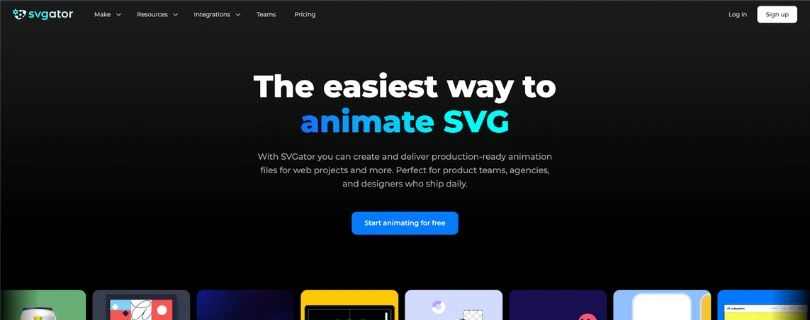
SVGator is a browser-based SVG animation tool built around a visual editor instead of manual coding. You can start from a blank canvas or import SVG, Lottie JSON, GIF, JPEG, and PNG files, then animate elements with keyframes on a timeline. SVGator is primarily built for SVG workflows, while Lottie importing is still labeled Beta in its documentation.
The idea is to keep vector design and motion in one workflow. SVGator can turn artwork into web-ready animations for icons, logos, illustrations, and interface graphics without requiring a developer to recreate every effect from scratch. G2 lists SVGator as serving customers since 2017.
Still exploring tools for creating and editing vectors? Check out my Vector Graphics Software guide to compare the wider category.
That focused approach also means SVGator is not trying to replace a full video or cinematic motion-graphics suite. Its strength is creating scalable, lightweight vector animation for websites, apps, and digital products.
Target Users: Designers, Developers and Marketers
SVGator is best suited to people who want polished vector motion without building animation logic by hand:
- UI/UX designers: micro-interactions, interface graphics, and animated icons.
- Web designers: lightweight motion for websites.
- Graphic designers: animated logos and illustrations.
- Developers: SVG, Lottie, React Native, and Flutter outputs.
- Marketers: GIFs, short videos, and reusable animated visuals.
If you’re unsure whether SVGator fits your workflow, compare it with the best SVGator Alternatives before committing.
It is less suitable for cinematic compositing, complex character animation, audio-led editing, or very large motion-graphics projects. Those workflows usually need deeper production tools.
For web and product teams, however, that narrower focus can be useful. SVGator sits between static vector design software and advanced motion tools, giving users a practical way to add interactive, scalable animation without introducing an unnecessarily heavy workflow.
How SVGator Works: From Static SVG to Interactive Animation
SVGator follows this workflow: import artwork, choose an element, add motion on a timeline, preview the result, and select an export format. That keeps it approachable without requiring SVG animation code.
Import, Create and Animate: The Basic Workflow
You can start from a blank project or import SVG, Lottie JSON, GIF, JPEG, or PNG files. SVG remains the main format, while raster images have fewer animation properties than vector elements.
A typical workflow looks like this:
- Create or import the artwork.
- Select the SVG element to animate.
- Add an animator and keyframes.
- Adjust timing, easing, motion, and interactions.
- Preview and export the finished animation.
The process feels closer to a visual motion editor than writing CSS or JavaScript by hand, giving designers control over timing and movement without relying on a developer for every change.
Timeline, Keyframes and Animators
The timeline is where most animation work happens. Select an element, choose an animator, and change its properties over time. Transform controls cover position, scale, skew, rotation, and anchor points, while other animators handle properties such as opacity and color. SVGator
G2 reviewers often compare the interface with familiar timeline-based tools such as After Effects or older Flash workflows. However, one reviewer said the amount of timeline and sidebar information visible at first could feel overwhelming. G2
Once the timeline becomes familiar, you can set starting values, move the playhead, change properties, and refine transitions with easing.
Morphing, Motion Paths and Advanced Animation
SVGator goes beyond basic position and opacity changes. Its toolkit includes morphing, path animation, stroke effects, clipping masks, filters, color changes, and easing controls for more expressive logo, icon, and illustration motion. SVGator
These features add useful creative range, but SVGator remains more focused on lightweight web and interface animation than cinematic compositing or complex character work.
Click, Hover and Scroll Interactivity
Animations can start on click, mouse-over, or scroll into view. SVGator can also control what happens on a second click or mouse-out, including pause, reset, reverse, or continue. SVGator
Need more advanced app-style animation workflows? My Rive Review explains how Rive handles interactive motion.
There are implementation limits. Click triggers require JavaScript export, scroll-triggered SVGs must be embedded inline, and interactive events apply to the overall animation rather than independently to individual elements. SVGator
SVG, Lottie, Mobile, GIF and Video Exports
Projects can be exported as animated SVG using JavaScript or CSS, Lottie JSON, React Native .js, Flutter .dart, GIF, PNG, WebP, image sequences, or video formats such as MP4, AVI, MKV, MOV, and WebM. SVGator
If Lottie is your main delivery format, read my LottieFiles Review to see what a Lottie-focused platform provides.
SVGator says its optimized Lottie JSON can reduce the JSON structure’s file size by up to 70%. Video exports can reach 4K at 60 fps, while MOV and WebM support transparent output. SVGator
Comparing the two major Lottie-focused options? My Lottielab vs LottieFiles comparison breaks down their differences.
Lottie importing is still described as Beta, so files created elsewhere may encounter compatibility issues. That makes it worth testing the exact import/export workflow you plan to use. SVGator
Figma Integration, Collaboration and SVGator MCP
Artwork can be copied from Figma into SVGator, while SVGator’s Figma plugin lets users access projects and download production-ready SVG, Lottie, Flutter, or React Native files. SVGator
Want to see another browser-based animation workflow before choosing? Read my Lottielab Review for a different approach.
SVGator MCP adds AI-assisted workflows. Its documentation shows compatible assistants adjusting timing and keyframes, changing export settings, and producing downloadable animated SVG files. Export-only changes can be applied without modifying the underlying project. SVGator
Together, these integrations help reduce handoffs between design, animation, and implementation, particularly for teams producing reusable web or app assets.
Real-World Use: How SVGator Performs Under Pressure
Third-party reviews suggest SVGator performs best on focused work such as animated icons, logos, illustrations, and other web-ready vector assets. The picture becomes more mixed as projects get larger or users expect the depth of a full motion-design suite.
Ease of Use and Learning Curve
SVGator currently averages 4.7/5 on G2 from 29 reviews, and G2 gives it an Ease of Admin score of 9.2/10. Reviewers repeatedly praise the no-code workflow, familiar timeline, and ability to create web-ready animation without advanced motion-design experience. G2
That does not mean every beginner will find it instantly simple. One 2026 G2 reviewer described the first experience as overwhelming because the timeline and side controls present a lot of information at once. G2
The learning curve should feel gentler if you already know Figma, Illustrator, Flash, or After Effects-style interfaces. Complete beginners may need more time with animators, keyframes, easing, and export settings.
Performance on Complex Projects
For normal web animation work, reviewers commonly describe SVGator as quick and lightweight. One G2 reviewer reported turning an imported client logo into a responsive SVG animation in under an hour, while others highlight production-ready output. G2
Complexity can change that experience. A Trustpilot reviewer reported lag with a high number of objects and wanted better keyframe organization. Since this is individual feedback rather than a benchmark, larger projects are worth testing before committing. Trustpilot
SVGator is therefore better viewed as a focused vector-animation tool than a replacement for software built around huge scenes, cinematic compositing, or advanced character animation.
User Satisfaction and Common Complaints
Trustpilot currently shows 4.3/5 from 15 reviews, with 86% five-star ratings, 7% two-star, and 7% one-star. Nine reviews were posted within the previous 12 months when the page was checked. Trustpilot
Recurring concerns across G2 and Trustpilot include:
- Pricing feeling high for some individual users.
- Larger or more advanced projects exposing limits.
- A learning curve beyond basic animation.
Positive feedback clusters around ease of use, browser-based access, no-code animation, lightweight SVG output, and support. G2 reviewers also frequently describe SVGator as a way to shorten the path from vector design to web-ready animation. G2
The practical takeaway is simple: SVGator appears strongest when the project matches its core purpose—compact, polished vector animations that need to move from design to implementation without a heavy production workflow.
SVGator Pricing Plans: Which Tier Offers the Best Value?
SVGator’s pricing becomes easier to understand once you separate learning the editor from exporting animation. The Free plan includes the full editor and every animator, but animated formats require a paid subscription. SVGator
Free vs Starter vs Pro vs Team
SVGator currently offers four plans:
- Free — $0: all animators, the asset library, templates, and unlimited static SVG exports.
- Starter — $20/month billed yearly: animated SVG, Lottie, React Native and Flutter exports, interactivity, and Player API access.
- Pro — $24/month billed yearly: unlimited animation exports, GIF and video, maximum output quality, sharing, commenting, and unlimited viewers.
- Team — $27/seat/month billed yearly: Pro features plus shared editing, team workspace, centralized billing, priority support, and up to 10 seats. Team requires at least three seats. SVGator
SVGator also advertises annual savings of up to 36%. SVGator
Want every restriction and plan difference explained? Read my complete SVGator Pricing Explained guide.
Starter is the practical choice if SVG and Lottie are your main deliverables. Pro makes more sense when GIF, video, frequent exports, or client review are part of the workflow.
What the Free Plan Actually Lets You Do
In my experience, the Free plan is useful for learning because the editor and advanced animators are not locked behind payment. You can explore the timeline, morphing, motion controls, and templates before deciding whether the export features justify an upgrade. SVGator
If you don’t want to pay for animation software yet, compare these Free AI Animation Tools first.
The restriction appears at export. Free accounts get unlimited static SVGs, while animated SVG, Lottie, React Native, Flutter, interactivity, and Player API access require Starter or above. GIF and video require Pro or Team. SVGator
That makes the SVGator free plan better for testing the software than for producing finished animated assets for real client or production work.
Is SVGator Pro or Team Worth It?
Starter should cover many freelancers and designers. Pro is easier to justify if you regularly export animations or need video, GIF, sharing, and commenting alongside SVG and Lottie files.
Team is mainly for collaborative editing. SVGator recommends Pro for solo users working with multiple clients, while Team adds shared editing and a workspace for multiple designers. With a three-seat minimum, I would only consider Team if several people genuinely need to work inside the same projects. SVGator
SVGator vs Rive: Which One Fits Your Workflow Better?
SVGator and Rive both handle interactive animations, but they approach the job differently. From my experience with the workflows, SVGator feels closer to a traditional timeline-based SVG animation tool, while Rive is built more heavily around real-time interactive graphics and application behavior.
Animation Features, Interactivity and Workflow
SVGator is convenient when the final asset needs to be an animated SVG, Lottie file, or familiar web format. Its timeline, keyframes, morphing, motion paths, and click, hover, and scroll triggers suit websites, icons, logos, and interface illustrations.
If neither tool looks perfect, my Rive Alternatives guide covers more interactive animation options.
Rive goes deeper into state-driven interactivity. Its State Machine connects animations with conditions, inputs, listeners, transitions, data binding, and runtime behavior. Rive describes its animation platform as behaving more like a game engine than a traditional design tool. Rive
That gives Rive an advantage for apps, games, and interfaces whose behavior changes continuously at runtime. SVGator feels more direct when the goal is to build and ship a polished web animation without introducing that additional layer of logic.
Pricing and Best-Fit Differences
The better choice depends less on a long feature checklist and more on what you are actually shipping. I would lean toward SVGator for SVG, Lottie, website animation, animated illustrations, and straightforward interactive triggers.
Comparing subscription costs too? See my full Rive Pricing Explained guide before deciding.
Rive makes more sense when state machines, runtime data, reusable interactive components, or app and game integration are central to the project. Its runtimes support platforms including web, Apple, Android, Flutter, React, React Native, Unity, and Unreal. Rive
For a typical web-animation workflow, I would choose SVGator for its simpler SVG-first approach. For complex, state-based product interactions, Rive deserves the closer look.
Conclusion
After going through SVGator’s editor, animation controls, export options, and pricing, its biggest advantage for me is how little friction it puts between a static vector and a production-ready web animation.
I especially like the timeline workflow, morphing, motion paths, interactive triggers, and flexible SVG and Lottie exports.
Its weaknesses are equally clear: animated exports require payment, complex projects may expose limitations, and it is not a replacement for high-end motion or character-animation software.
If your work revolves around websites, UI assets, icons, logos, or lightweight interactive graphics, my SVGator review suggests it is well worth testing before paying.
FAQs
Is SVGator free?
Yes. SVGator has a Free plan with the full editor, all animators, templates, the asset library, and unlimited static SVG exports. Animated SVG, Lottie, mobile, GIF, and video exports require a paid plan. SVGator
Is SVGator good for beginners?
It can be. The visual timeline and no-code workflow make basic animation approachable, especially if you already know tools with keyframes and timelines. Complete beginners may still need time to understand animators, easing, interactivity, and export settings.
Does SVGator require coding?
No coding is required for normal design and animation work. You can create motion and interactive behaviors visually. Developers can still use JavaScript exports and the Player API when they need more control after an animation leaves the editor. SVGator
Can SVGator export Lottie animations?
Yes. SVGator exports standard and optimized Lottie JSON. Its optimized option can reduce the JSON structure’s file size by up to 70%, although SVGator notes that importing Lottie files created elsewhere remains a Beta feature. SVGator
What is the best SVGator alternative?
It depends on the workflow. Rive is stronger for state-based runtime interactivity, while Lottie-focused tools may suit teams centered on that format. For traditional web SVG animation combined with multiple export choices, SVGator remains a strong option.