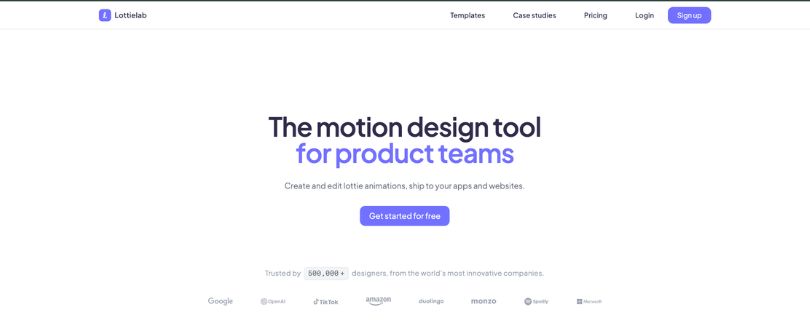
If you are thinking about choosing Lottielab for creating Lottie animations but want an honest review before you hit “Upgrade”, you are in the right place.
Lottielab is a popular browser-based motion design tool, and just like you, I had also heard a lot about it.
I have been using design and animation tools for a few years, so I wanted to see how well Lottielab performs in a real UI animation workflow.
That is why I tested Lottielab’s editor, Figma import, timeline, export options, and collaboration features to get a clear picture of how the tool works end to end.
In this blog, I will walk you through my complete Lottielab review:
- What the tool offers
- How the features perform in real use
- Pros and cons you should know
- Pricing details
- What real users are saying
Let’s get started.
In-Depth Review of Lottielab’s Key Features
In this section, I will walk you through a detailed review of the 6 primary features of Lottielab:
- Lottie Creator & Editor
- Figma to Lottie Import
- Timeline-Based Animation
- Export Options
- Team Collaboration
- Lottie Hosting & File Optimization
1. Lottie Creator & Editor
The very first feature I tried in Lottielab was its Lottie creator and editor.
You get a browser-based workspace where you can create and edit Lottie animations for websites, apps, icons, onboarding screens, product UI, and marketing graphics.
The best part is that you do not need After Effects to get started.
Lottielab gives you a design-style editor where you can animate visual elements directly. You can work with shapes, paths, SVG files, imported Lottie files, and Figma designs. The interface feels closer to a design tool than a traditional motion graphics app, which makes it easier for beginners to understand.
You can use it for things like:
- Logo animations: Upload an SVG logo and animate it inside the editor.
- SVG animations: Import SVG illustrations and turn them into motion graphics.
- UI animations: Create small product animations for apps, websites, loading states, buttons, and onboarding flows.
- Existing Lottie edits: Upload Lottie files and make changes without going back to the original design file.
I liked that the editor runs in the browser. There is nothing to install, and you can open your file from almost any machine.
That said, it is not a full After Effects replacement.
If you are building complex character animations, heavy compositing, or advanced video-style motion graphics, Lottielab will feel limited. But for lightweight product animation, it does the job well.
A Reddit user described it as looking like “Figma for motion design,” and honestly, that is a pretty fair way to explain the experience.
2. Figma to Lottie Import
The next feature I tested was Lottielab’s Figma workflow.
This is one of the biggest reasons designers may want to try Lottielab.
Instead of rebuilding your design from scratch, you can bring your Figma designs into Lottielab and turn static screens, icons, or illustrations into animated Lottie files.
Lottielab also has a Figma plugin that lets you animate Figma designs and export them as Lottie, GIF, MP4, or Telegram stickers.
You can use this workflow in a few ways:
- Import from Figma: Bring your existing designs into Lottielab.
- Animate static UI: Add motion to icons, illustrations, product screens, or empty states.
- Export for development: Send the final animation to your website, mobile app, or product team.
- Use Magic Animator: Generate editable motion from Figma designs using Lottielab’s AI animation tool.
I found this especially useful for product design work.
For example, if you already have an onboarding illustration in Figma, you can import it into Lottielab, add simple entrance animations, export it as a Lottie file, and hand it to a developer for React, Webflow, iOS, or Android.
That workflow feels much faster than opening After Effects, setting up Bodymovin, exporting JSON, checking compatibility, and then fixing broken layers.
The only thing you need to watch carefully is file structure.
If your Figma file is messy, your animation workflow will also feel messy. Clean layers, clear naming, grouped elements, and simple vector shapes make the import process much smoother.
So, before you import from Figma, spend a few minutes cleaning the file. It saves a lot of time later.
3. Timeline-Based Animation
Next up, I tried Lottielab’s animation timeline.
This is where you control how your design moves.
If you have used tools like Figma, Jitter, Rive, or After Effects, the basic idea will feel familiar. You select an object, change its properties over time, and create motion between those points.
You can animate common properties like position, scale, rotation, opacity, and paths. Lottielab’s homepage also highlights actions like fade in, animate path, and slide out, which are exactly the kind of small UI animation effects most product teams need.
The timeline is useful for creating:
- Micro-interactions: Button animations, loading states, hover-style motion, and small feedback effects.
- Onboarding animations: Simple character, icon, or illustration movements.
- Hero section animations: Lightweight website animations that load faster than video.
- Marketing assets: Short animated graphics for product pages and social posts.
The learning curve is not too steep.
I was able to create basic motion fairly quickly, especially for simple UI elements. Move an object, set timing, adjust the transition, preview it, and repeat.
But once I started working with more detailed animations, I had to slow down.
The tool is easy to start with, but good motion still takes planning. You need to think about timing, spacing, easing, and how each element supports the user experience.
That is not a Lottielab problem. That is just motion design.
Overall, the timeline works best when your goal is clean, lightweight product animation rather than cinematic motion graphics.
4. Export Options
After creating a few test animations, I checked Lottielab’s export options.
This part matters a lot because a motion design tool is only useful if you can actually ship the animation where you need it.
Lottielab lets you export animations in common formats like Lottie JSON, GIF, and MP4. It also has dedicated tools for converting Lottie files into GIF and MP4, including 4K video export.
You can use these exports for different cases:
- Lottie JSON: Best for websites, mobile apps, React apps, onboarding screens, and product UI.
- GIF: Useful for emails, docs, quick previews, and places where Lottie is not supported.
- MP4: Better for social posts, ads, landing page videos, and presentations.
- Telegram stickers: Useful if you are creating animated sticker packs from Figma or Lottie assets.
I mainly cared about the Lottie export because that is where tools like this need to prove themselves.
A clean Lottie file should be lightweight, scalable, and easy for developers to add to a website or app. Lottielab explains Lottie as a small vector animation format, similar to SVG, and says it can be much smaller than MP4 or GIF for the same animation.
In real use, the export process felt simple for smaller animations.
For example, if you create a loading icon, animated checkmark, hero illustration, or onboarding graphic, you can export it and send the file directly to a developer.
What I liked here is that Lottielab does not force you into only one format.
If your developer wants JSON, you can export Lottie. If your marketing team wants a quick social asset, you can use MP4. If you need something for an email campaign, GIF is there too.
The one thing I would watch is quality and file complexity.
Simple vector animations export better than large, complicated animations. If your file has too many layers, effects, or messy imported assets, you may need to clean it up before export.
So, Lottielab is strong for practical product animation exports, but I would still test every final file inside the actual app or website before handing it off.
5. Team Collaboration
The next feature I looked at was team collaboration.
This is one of the areas where Lottielab tries to feel more like a modern design tool than an old-school animation tool.
Lottielab says it is built for product and design teams, and its collaboration features include inviting team members, editing files together, and leaving comments inside the editor.
That sounds simple, but it can save a lot of back and forth.
Normally, a product animation workflow can get messy very quickly.
A designer creates the animation.
A developer asks for a smaller file.
A product manager wants the timing changed.
A marketer asks for a GIF version.
Then everyone starts sharing random files in Slack.
Lottielab makes that process cleaner because the work lives in one browser-based workspace.
You can use collaboration for things like:
- Design reviews: Let teammates comment on animation timing, motion style, or visual details.
- Developer handoff: Share the final Lottie file or hosted animation with engineers.
- Team libraries: Keep reusable motion assets in one place.
- Client feedback: Share animation work without asking the client to install software.
I can see this being useful for startups and product teams that already work in tools like Figma, Linear, Notion, and GitHub.
The workflow feels familiar: create, share, comment, revise, ship.
That said, I would not call Lottielab a complete project management tool.
You still need your normal task tracker for approvals, deadlines, and feedback history. Lottielab is better as the animation workspace where the actual file gets reviewed and improved.
If you work alone, this feature may not matter much.
But if you work with designers, developers, founders, clients, or marketing teams, collaboration is one of the stronger reasons to choose Lottielab over a basic Lottie editor.
6. Lottie Hosting & File Optimization
The final feature I tested was Lottielab’s hosting and optimization workflow.
This is useful because exporting a Lottie file is only half the job. You also need to make sure it loads fast, works properly, and does not slow down your website or app.
Lottielab offers Lottie hosting through its own CDN, which means you can serve animations through a fast delivery network instead of manually uploading files to your own server. It also mentions hosting, optimizing, and exporting Lottie animations from the same workflow.
You can use this in a few ways:
- Host animations: Publish Lottie files through Lottielab’s CDN.
- Update live files: Make changes in the editor and push updates without fully rebuilding the animation workflow.
- Optimize file size: Reduce animation weight so it loads faster.
- Ship to web and mobile: Use hosted files across websites, iOS, Android, and web apps.
This is helpful for teams that care about page speed.
Lottie animations are already known for being lightweight because they are vector-based, but poor file structure can still make them heavier than needed. Too many paths, unnecessary layers, or complex exports can create bloated JSON files.
Lottielab’s hosting and optimization tools help reduce that friction.
For example, if you are adding a hero animation to a SaaS landing page, you do not want a giant MP4 slowing down the first load. A well-optimized Lottie file can give you smooth motion without the same file-size problem.
The main thing I would not skip is testing.
After hosting or optimizing a file, check it on desktop, mobile, Safari, Chrome, and inside your actual product environment. Motion can look fine in an editor but behave differently once it is embedded.
Overall, Lottielab’s hosting and optimization features make sense for teams that want to create, review, export, and ship Lottie animations from one place instead of jumping between multiple tools.
Pros & Cons of Lottielab
If Lottielab’s features are not enough to help you decide whether it is the right tool for you, do not worry!
Below, I have compared its pros and cons to help you find out whether its limitations outweigh the strengths.
Pros of Lottielab
- Easy to use, especially if you already work with tools like Figma.
- Runs fully in the browser, so you do not need to install heavy software.
- Lets you create, edit, and export Lottie animations from one place.
- Supports Figma import, SVG upload, and existing Lottie file editing.
- Offers useful export options like Lottie JSON, GIF, MP4, and Telegram stickers.
- Good collaboration features for designers, developers, and product teams.
- Comes with a free plan, which is helpful for testing the tool before upgrading.
Cons of Lottielab
- Not powerful enough to fully replace After Effects for advanced motion design.
- Can feel limited for complex interactive animations compared to Rive.
- Large or messy files may slow down the workflow.
- Some advanced features, HD exports, hosting, and team tools may require a paid plan.
What are Users Saying About Lottielab?
At first glance, Lottielab appears to have very positive user reviews.
But as soon as I went through the reviews, I saw users mainly talking about 3 things:
- ease of use
- export and performance issues
- whether it is powerful enough compared to tools like Rive or After Effects
1. Easy to Use, Especially for Lottie and UI Animations
The first thing I noticed was that many users like Lottielab because it makes Lottie animation feel less intimidating.
On Product Hunt, Lottielab has a 4.5-star rating based on 37 reviews, and users often describe it as a simple way to create or edit lightweight Lottie animations without dealing with heavier tools.
Source: Product Hunt — Lottielab reviews:https://www.producthunt.com/products/lottielab/reviews
This makes sense.
If you want to create a logo animation, loader, onboarding animation, website hero animation, or simple UI motion, Lottielab feels much easier than opening After Effects and setting up a full export workflow.
So, for beginners and product teams, this is a big plus.
2. Great Concept, but Some Users Report Bugs and Slow Exports
That said, not every review is perfect.
Some Product Hunt reviewers also mentioned issues like slow loading, bugs, export crashes, and performance problems with larger files.
Source: Product Hunt — Lottielab reviews:https://www.producthunt.com/products/lottielab/reviews
This is something you should keep in mind before upgrading.
Lottielab works best when you use it for clean, lightweight vector animations. But if you import a large or messy file with too many layers, the editor may not feel as smooth.
So, while Lottielab is good for creating quick Lottie animations, I would not blindly trust it with complex production files without testing the export first.
3. Good for Vector Animation, but Not for Every Motion Designer
I also found a Reddit discussion where a user said Lottielab looks like “Figma for motion design.”
That is actually one of the best ways to describe the tool.
Source: Reddit — Lottielab discussion:https://www.reddit.com/r/MotionDesign/comments/1hflg6g/lottielab_looks_interesting/
The same Reddit post also pointed out that Lottielab could be great for vector-only animations, especially because it is accessible from the browser and supports collaboration.
And I agree with that.
If your work is mostly UI animations, website motion, icons, SVG animations, and Lottie exports, Lottielab makes a lot of sense.
But if you are a professional motion designer who needs complex effects, advanced compositing, 3D-style movement, or deep animation control, Lottielab may feel too simple.
So, Lottielab is not a bad tool.
It is just not built for every type of animation work.
4. Users Like the Workflow, but Want Better Stability and Deeper Controls
Another thing I noticed on Product Hunt is that users like how fast Lottielab makes the animation workflow.
Many reviewers praise the Figma import, clean editor, timeline, and flexible export options. Some also mention that it helps non-motion designers create animations without learning After Effects first.
Source: Product Hunt — Lottielab product page:https://www.producthunt.com/products/lottielab
But the same reviews also show a clear pattern.
Some users want better handling for large files, deeper animation controls, and more reliable exports.
That is where Lottielab still has room to improve.
So, if you are buying Lottielab for simple Lottie animations, product UI motion, website assets, or quick client work, it can save you a lot of time.
But if you are expecting a mature After Effects or Rive replacement?
You may want to test the free plan first before paying.
Lottielab Pricing: How Much Does it Cost?
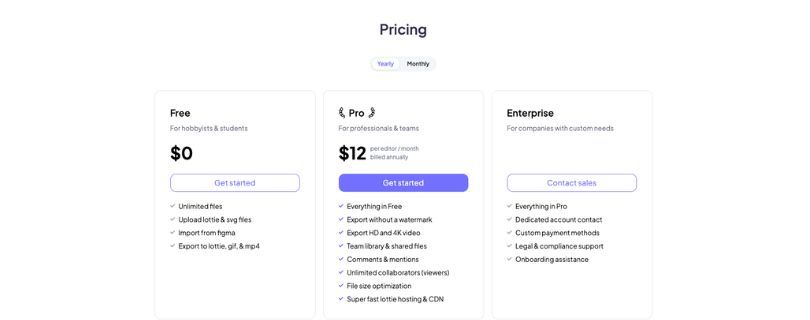
Lottielab offers three different pricing plans. Let me quickly outline what you will get with each of them:
1. Free Plan – $0/Month
- Unlimited files.
- Upload Lottie and SVG files.
- Import from Figma.
- Export to Lottie, GIF, and MP4.
Best For: Students, hobbyists, beginners, and designers who want to test Lottielab before paying.
The good thing is that Lottielab’s free plan is actually useful.
You can create files, import designs from Figma, upload SVG or Lottie files, and export your animation in common formats. So, if you only want to experiment with Lottie animation or create a few simple UI animations, this plan is enough to get started.
But there is one major catch.
You do not get watermark-free exports, HD/4K video export, team libraries, comments, file optimization, or Lottie hosting. These features are locked behind the paid plan.
2. Pro Plan – $18/Month or $144/Year
- Everything in the Free plan.
- Export without a watermark.
- Export HD and 4K video.
- Team library and shared files.
- Comments and mentions.
- Unlimited collaborators as viewers.
- File size optimization.
- Lottie hosting and CDN.
Best For: Freelancers, product designers, marketers, and teams that want to create polished Lottie animations for real projects.
This is the plan most serious users will probably need.
The biggest reason to upgrade is watermark-free export. If you are using animations on a client website, SaaS landing page, mobile app, or product onboarding flow, you probably do not want Lottielab branding on the final asset.
You also get file optimization and CDN hosting, which is useful if you care about page speed and want your Lottie files to load quickly on web and mobile. Lottielab lists the Pro plan at $18 per editor/month on monthly billing, or $144 per year when billed annually.
3. Enterprise Plan – Custom Pricing
- Everything in Pro.
- Dedicated account contact.
- Custom payment methods.
- Legal and compliance support.
- Onboarding assistance.
Best For: Larger companies, agencies, and product teams that need support, compliance help, and a custom setup.
This plan does not have public pricing.
You will need to contact Lottielab’s sales team and get a quote based on your team size and requirements.
One Thing I Liked About Lottielab Pricing
One thing I liked is that Lottielab does not charge for unlimited viewer collaborators on the Pro plan.
So, your designers can edit, while developers, managers, clients, or teammates can view and comment without needing paid editor seats. For product teams, that pricing model feels much more practical than paying for every single person who only needs to review an animation.
So, Is Lottielab Pricing Justified?
Yes, Lottielab’s pricing feels justified if you regularly create Lottie animations for websites, apps, landing pages, or client projects. The Pro plan makes the most sense when you need watermark-free exports, HD/4K video, file optimization, hosting, comments, and team collaboration in one place.
But if you only need to make one or two simple animations, the free plan may be enough. I would start there, test the editor with your actual Figma or SVG files, and upgrade only when the export limits or branding start getting in your way.
FAQs
1. Is Lottielab free enough for beginners?
Yes, Lottielab’s free plan is enough for beginners who want to test the editor, import Figma files, upload SVGs, and create simple Lottie animations.
But if you want watermark-free exports, HD/4K video, hosting, optimization, and team comments, you will need the Pro plan.
2. Can Lottielab replace After Effects?
No, Lottielab cannot fully replace After Effects.
It is much easier for Lottie animations, UI motion, animated icons, and lightweight web animations, but After Effects is still better for advanced motion graphics, video compositing, and complex animation work.
3. Does Lottielab work with Figma?
Yes, Lottielab works with Figma.
You can import Figma designs into Lottielab and turn static UI elements, icons, illustrations, or product screens into animated Lottie files.
4. Is Lottielab better than Rive?
It depends on what you need.
Lottielab is better for simple Lottie animations and quick design-to-export workflows, while Rive is better for advanced interactive animations, state machines, and complex app/game-style motion.