
SVGator makes SVG animation much easier than writing animation code from scratch.
But that doesn’t automatically make it the right tool for every animation workflow.
Maybe you need interactive animations that behave more like part of an app. Maybe Lottie is your final format. Or maybe you simply want a free SVGator alternative that exports clean animation without adding another runtime to your project.
That’s where other SVGator alternatives start to make more sense.
I compared the major SVGator competitors across their animation capabilities, export formats, workflow, pricing, and the type of projects they’re actually built for.
By the end of this guide, you’ll know:
- Which SVGator alternative is best for SVG, Lottie, interactive, and motion-design workflows
- Where each tool does something better—or simply differently—than SVGator
- Which SVG animation software fits your project without paying for features you won’t use
SVGator itself now covers SVG, Lottie, video, GIF, React Native, Flutter, and interactive animations, so replacing it isn’t just about finding another timeline editor. The better question is where your animation needs to end up.
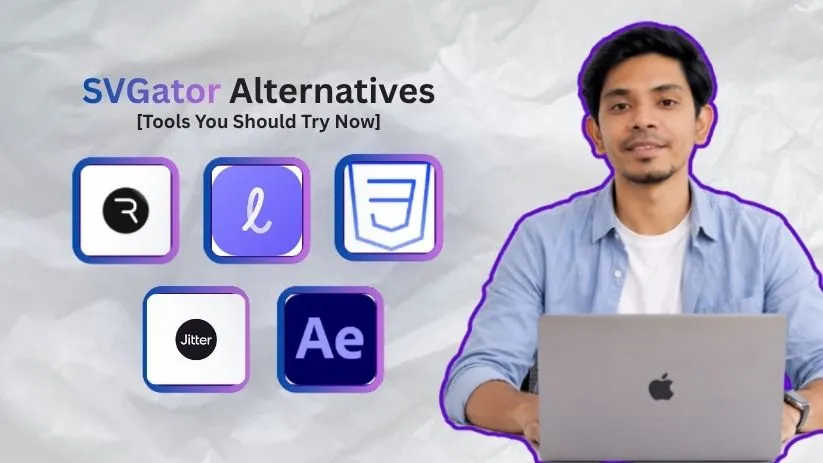
With that in mind, here are the five options worth comparing.
TL;DR — 5 Best SVGator Alternatives
Don’t want to compare every feature manually?
Here’s the short version.
There isn’t one best SVGator alternative for everyone because these tools solve noticeably different animation problems.
Rive is the strongest option when animation needs to respond to states and user input inside a product. Lottielab makes more sense when Lottie is your main delivery format. CSSVG takes a much simpler developer-focused approach with CSS and SMIL exports. Jitter is built around fast motion design, while After Effects gives professional motion designers significantly more creative depth.
| Tool | Where It Stands Out vs. SVGator | Starting Price |
| Rive | Interactive graphics, state machines, app and game runtimes | Free to create; Cadet starts at $9/seat/month for shipping .riv files |
| Lottielab | Browser-based Lottie creation, editing, collaboration, and delivery | Free plan; Pro required for features such as Lottie export and team tools |
| CSSVG | Pure CSS, SMIL, and React JSX output without a separate animation runtime | Free |
| Jitter | Fast motion design, templates, Figma workflows, video/GIF/Lottie exports | Free plan; paid Pro, Max, and Ultra plans available |
| Adobe After Effects | Advanced motion graphics, compositing, effects, and professional animation | $22.99/month in the US for the individual annual plan billed monthly |
So don’t pick based only on which product has the longest feature list.
Pick based on the animation you’re trying to ship.
Curious what SVGator itself costs before choosing an alternative? Read my full SVGator Pricing Explained breakdown first.
5 Top SVGator Alternatives and Competitors
Now let’s get into the actual differences.
For each tool, I’ll focus less on generic feature lists and more on why you’d choose it instead of SVGator.
Because a web designer animating an SVG icon doesn’t have the same requirements as a product team building an interactive onboarding experience.
Let’s start with one of the biggest differences in workflow.
1. Rive — Best for Interactive and State-Driven Animation
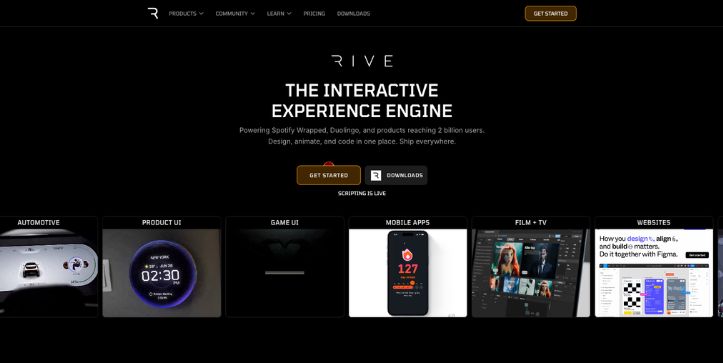
Best For: Product designers and developers creating interactive UI, apps, websites, games, and animations that react to user input or application state.
Rive isn’t simply another online SVG animator with a timeline.
Its bigger advantage is that animation can include behavior.
Rive combines its editor with a stateful graphics format and multi-platform runtimes. Its State Machines let designers define how an animation changes when conditions, inputs, or interactions change.
Think about an animated button.
A normal timeline animation might give you a hover animation and a click animation.
With Rive, you can build states such as idle → hover → pressed → loading → success, then define the logic controlling how the animation moves between them.
That’s where Rive starts to feel less like traditional vector animation software and more like a visual system for building interactive graphics.
And those animations aren’t limited to the browser.
Rive currently provides runtimes for platforms including JavaScript, Flutter, iOS, Android, React, React Native, C++, Unity, and Unreal.
That makes it particularly interesting for product teams that want one interactive asset to move between design and production.
But there is a trade-off.
If your end goal is simply a native animated SVG that you can place on a webpage, Rive may be more infrastructure than you need.
Rive’s production workflow centers around its .riv format and runtimes, while SVGator is explicitly built around exporting production-ready animated SVG alongside formats such as Lottie and video.
So the question isn’t really:
“Is Rive better than SVGator?”
It’s:
“Do I need an animated file, or do I need an interactive animation system?”
If it’s the second one, Rive becomes much more compelling.
Pros of Rive
- Powerful State Machines for interactive and responsive animation
- Supports animation logic that can react to user input and application state
- Runtimes available across web, mobile, and game-development platforms
- Includes advanced vector-animation features such as skeletal animation, constraints, meshes, responsive layouts, and data binding
- Free plan available for learning and creating
Cons of Rive
- More technical than necessary for basic SVG icons, loaders, or decorative website animations
- Production delivery revolves around Rive’s .riv format and runtime ecosystem
- Some teams may face a steeper learning curve when moving from simple timeline animation to State Machines and application logic
Rive Pricing
Rive currently separates creating from shipping.
- Free: $0/seat/month with three collaborative files
- Cadet: $9/seat/month with unlimited files and .riv export
- Voyager: $32/seat/month for larger collaboration workflows and additional features
- Enterprise: $120/seat/month for qualifying organizations and enterprise controls
That pricing model is worth noticing.
You can learn and build inside Rive without immediately paying, but you’ll need a shipping plan when you want to export .riv files for production.
Curious what you’ll actually pay for Rive? Check my complete Rive Pricing Explained guide before upgrading.
Who Should Choose Rive Over SVGator?
Choose Rive if your animation needs to respond, change state, and function as part of the product experience rather than simply play on a webpage.
For interactive onboarding, app UI, game interfaces, dynamic buttons, controls, and state-driven graphics, it’s one of the strongest SVGator competitors on this list.
But if your main requirement is lightweight native SVG output for a website, keep reading.
The next SVGator alternative takes a very different route: Lottie first.
Not sure Rive is the right fit for your workflow? Compare it with the best Rive alternatives before making your choice.
2. Lottielab — Best for Lottie-First Workflows
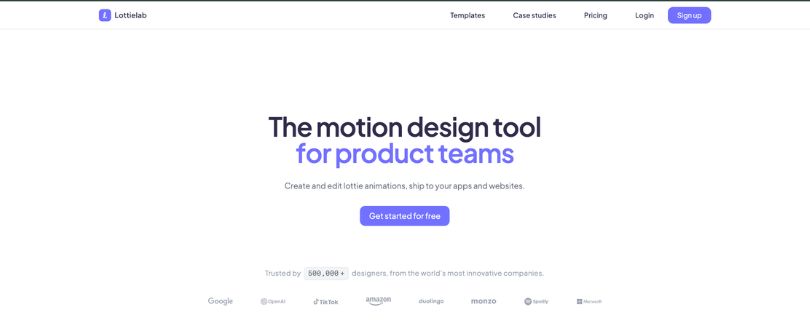
Best For: Product designers and teams that primarily create Lottie animations for websites, mobile apps, onboarding flows, and UI motion.
Lottielab makes the most sense when you already know where your animation is going:
Lottie.
Unlike a broader SVG animation tool, Lottielab is built specifically around creating, editing, reviewing, and shipping Lottie animations to web, iOS, and Android.
That narrower focus is actually its strength.
You can import an SVG, bring designs over from Figma, or start from scratch in the browser. From there, you animate with a visual editor instead of moving into a heavier desktop motion-design setup.
For product teams, the workflow is particularly appealing.
Designers can create the animation, teammates can review it, and paid plans add shared files, comments, team libraries, file-size optimization, and Lottie hosting through a CDN.
So if your designer is working in Figma and your developer ultimately needs a Lottie asset for an app or website, Lottielab keeps that process fairly direct.
But this is also where the biggest difference between Lottielab and SVGator appears.
Lottielab can import SVG, but its production workflow revolves much more heavily around Lottie. SVGator, by comparison, can export native animated SVG alongside Lottie, GIF, MP4, WebP, APNG, and other formats.
That matters if you’re building for the web.
A native animated SVG can be placed directly into a page without requiring a separate Lottie player. A Lottie file, on the other hand, generally needs a compatible player or implementation layer to render it.
So Lottielab isn’t necessarily the better choice if you’re simply searching for another online SVG animator.
It’s the more focused choice when Lottie is already part of your product workflow.
Pros of Lottielab
- Browser-based editor built specifically around Lottie animation
- Imports SVG files and Figma designs
- Designed for web, iOS, and Android delivery
- Collaboration features include shared files, comments, and team libraries on Pro
- Includes file optimization and Lottie hosting/CDN features on the paid plan
- Free plan lets you create unlimited files and export GIF and MP4
Cons of Lottielab
- Native animated SVG isn’t its primary export workflow
- Lottie export is reserved for the Pro tier on the current pricing page
- Less suitable if you need one project to produce several web-native and raster formats
- A Lottie-focused workflow can require a player or implementation layer when used on the web
Lottielab Pricing
Lottielab currently offers three plans:
- Free: $0 with unlimited files, SVG/Lottie uploads, Figma import, and GIF/MP4 export
- Pro: Paid per editor, adding Lottie export, HD and 4K video, team collaboration, optimization, and hosting
- Enterprise: Custom pricing with onboarding, compliance, and account support
One detail to watch here is the export limitation.
You can do quite a lot on the Free plan, but if Lottie is the reason you’re choosing Lottielab in the first place, you’ll eventually need the Pro plan to export it according to the current official pricing page.
Curious what you’ll actually pay for Lottielab? Read my full Lottielab Pricing Explained breakdown before upgrading.
Who Should Choose Lottielab Over SVGator?
Choose Lottielab if your workflow starts in Figma or SVG and almost always ends in Lottie for a product, website, or mobile app.
It’s especially attractive for teams that want creation, feedback, optimization, and delivery sitting closer together.
But what if you don’t want Lottie at all?
What if you want the browser to run your animation using ordinary SVG and CSS?
That’s where the next SVGator alternative gets interesting.
Still comparing Lottie animation tools? Check out the best Lottielab alternatives before settling on your workflow.
3. CSSVG — Best Free SVGator Alternative
Best For: Developers and technically minded designers creating lightweight animated icons, loaders, UI elements, and SVGs that need clean CSS, SMIL, or React output.
CSSVG takes almost the opposite approach to Lottielab.
Instead of asking:
“How do we package this animation for a player?”
It asks:
“Can the browser just run the animation itself?”
CSSVG is a free, browser-based visual animation editor that currently exports animations in three main ways: CSS @keyframes, standalone SMIL SVG, and React JSX. Its output is designed to work without adding a separate JavaScript animation runtime.
That makes it one of the more interesting free SVGator alternatives for developers.
Say you’re creating a loading spinner.
You don’t necessarily need a full motion-design platform, a proprietary animation file, or another JavaScript package just to rotate a few SVG paths.
With CSSVG, you can animate visually on a timeline and export ordinary CSS keyframes alongside the SVG.
Or you can export the animation as SMIL.
In that case, the animation instructions live inside the SVG itself using elements such as <animate> and <animateTransform>, giving you a self-contained animated file.
React developers get another option.
CSSVG can generate a ready-to-use JSX/TSX component with the SVG animation already included, so you don’t have to manually translate a finished animation into component code.
That’s a very different value proposition from SVGator.
SVGator is the more complete SVG animation software when you’re creating sophisticated illustrations, morphing complex paths, or need a polished animation environment with broader export options.
CSSVG is more focused.
Its own comparison recommends SVGator instead when you need advanced path morphing, complex illustrations, or a more polished workflow for non-technical users.
And that’s an important distinction.
CSSVG doesn’t need to beat SVGator at everything to be useful.
If all you want is a lightweight animated icon or UI element that a developer can inspect, modify, and drop directly into a codebase, having fewer layers between the editor and the final code can actually be the advantage.
Pros of CSSVG
- Free to use with no subscription required
- Visual timeline means you don’t have to hand-code every keyframe
- Exports CSS @keyframes
- Can generate self-contained SMIL animated SVGs
- Exports React JSX/TSX components
- No separate JavaScript animation runtime required for its CSS and SMIL workflows
- Well suited to icons, loaders, and small UI animations
Cons of CSSVG
- Not as feature-rich as SVGator for large or complex illustration animation
- Advanced path morphing is not its strongest use case
- The workflow is more developer-oriented than some no-code designers may want
- It doesn’t offer the same broad set of Lottie, video, and raster export workflows as SVGator
CSSVG Pricing
This one’s easy.
CSSVG is currently free.
Its site describes the editor as free with no subscription and no sign-up required to start creating and exporting animations.
That makes it especially worth trying before paying for another SVG animation tool if your needs are relatively simple.
Who Should Choose CSSVG Over SVGator?
Choose CSSVG if you’re a developer—or work closely with developers—and want animated SVG output that stays close to ordinary web technologies.
It’s a particularly good fit for:
icons, loaders, hover effects, small UI animations, design-system components, and React projects.
If you’re looking for a free SVGator alternative specifically because you don’t need all of SVGator’s advanced motion-design features, CSSVG is probably the most straightforward option on this list.
But simplicity isn’t always the goal.
Sometimes you want to create polished motion graphics quickly without moving into something as complex as After Effects.
That’s where Jitter comes in.
4. Jitter — Best for Fast Motion Design and Figma Workflows
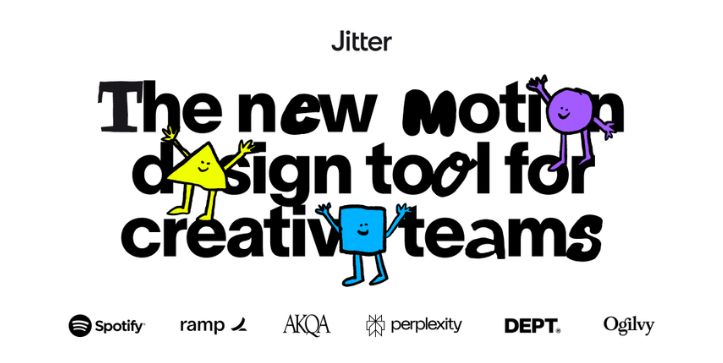
Best For: Designers and creative teams producing UI animations, social content, product visuals, ads, and branded motion without the complexity of traditional motion-design software.
Sometimes you don’t need more animation controls.
You need to get from static design → polished motion → export faster.
That’s where Jitter stands out.
Jitter is a browser-based motion design tool with a familiar visual interface, animation presets, reusable components, collaboration tools, and a large template library. It also supports importing designs from Figma, which makes it particularly convenient for teams already designing their interfaces and marketing assets there.
So imagine you’ve finished a product announcement in Figma.
Instead of rebuilding the entire layout inside traditional vector animation software, you can move the design into Jitter, animate the elements, and export the result.
And Jitter isn’t limited to one final format.
It currently supports video, GIF, and Lottie exports, while higher tiers unlock options such as WebM, ProRes, 4K output, transparent exports, and batch exporting.
That’s useful if one campaign needs to become:
- A video for social media
- A GIF for email
- A Lottie animation for a website or product
- Multiple resized or localized animation variations
Jitter has also moved further toward high-volume creative workflows, with animated components, batch export, AI-assisted effects, and tools for producing multiple versions of an animation.
But here’s where Jitter vs SVGator becomes clearer.
Jitter is primarily geared toward creating motion assets quickly.
SVGator puts much more emphasis on web-native SVG output and built-in interactions such as hover, click, and scroll triggers. SVGator also exports animated SVG that can live directly in a webpage rather than requiring you to deliver the animation as video, GIF, or Lottie.
So if your goal is:
“Make this design move.”
Jitter is compelling.
If your goal is:
“Make this SVG part of an interactive website.”
SVGator may still be the better fit.
Pros of Jitter
- Browser-based workflow with no desktop installation
- Direct Figma import
- Video, GIF, and Lottie exports
- Animation presets and reusable animated components
- 400+ templates currently available on its site
- Real-time collaboration and comments
- Free plan available for getting started
Cons of Jitter
- Native animated SVG isn’t its main delivery format
- Less focused on web-native SVG interactivity than SVGator
- Free exports are limited to 720p/30fps and retain restrictions that paid plans remove
- Advanced export features are split across higher plans
Jitter Pricing
Jitter currently offers Free, Pro, Max, Ultra, and Enterprise plans.
The Free plan includes unlimited drafts, three workspace files, Figma import, and video/GIF/Lottie export up to 720p and 30fps.
Pro increases that to 1080p/60fps and unlimited files, while Max unlocks features such as 4K/120fps and batch export. Enterprise adds organizational security and administration features.
Curious what you’ll actually pay for Jitter? Check my full Jitter Pricing Explained guide before choosing a plan.
Who Should Choose Jitter Over SVGator?
Choose Jitter if speed matters more than building sophisticated web-native SVG behavior.
For designers creating social graphics, product announcements, UI demos, marketing animations, and Figma-based motion, Jitter is one of the easier SVGator competitors to get productive with quickly.
Not sure Jitter is the right motion tool for you? Compare it with the best Jitter alternatives and competitors before deciding.
But what if “easy” isn’t what you’re looking for?
What if you want maximum control?
Then we need to talk about After Effects.
5. Adobe After Effects — Best for Advanced Motion Graphics
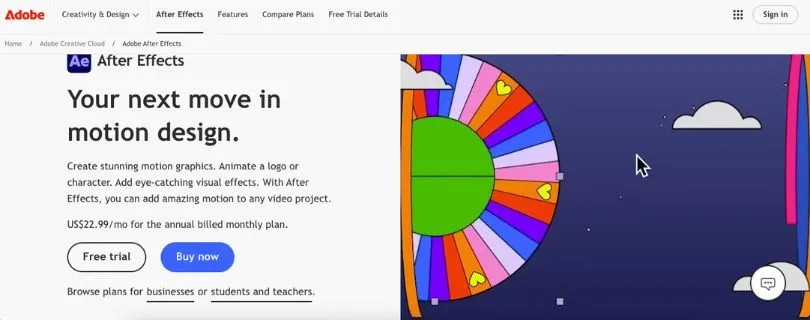
Best For: Professional motion designers who need advanced animation, compositing, effects, expressions, and much more creative control than a typical online SVG animator provides.
Adobe After Effects isn’t a direct SVGator replacement in the same way CSSVG or Lottielab can be.
It’s a much bigger tool.
Adobe positions After Effects as professional software for motion graphics and visual effects, with detailed keyframe controls, compositing, animation presets, expressions, and integration with other Creative Cloud applications.
And that’s exactly why it belongs on this list.
Say you’re creating a simple animated logo.
Both SVGator and After Effects can handle motion.
But now imagine that logo is part of a larger sequence with animated typography, footage, masks, effects, transitions, compositing, and dozens of precisely controlled layers.
That’s where After Effects starts pulling away.
You can control keyframes through its timeline and Graph Editor, while expressions let you connect properties and automate animation behavior instead of manually creating every movement.
There is also a route from After Effects to Lottie.
Tools such as the LottieFiles After Effects plugin and Bodymovin can convert compatible After Effects animations into Lottie files for use in digital products.
But notice the word compatible.
After Effects was not built as an SVG-first web animation software platform.
Moving its animations into a web-oriented format can introduce another export step, and not every After Effects capability maps neatly to Lottie. SVGator, by comparison, is specifically designed around producing web-ready SVG and other digital animation formats from the editor.
That’s the trade-off.
After Effects gives you far more creative depth.
SVGator gives you a shorter path to the web.
Pros of Adobe After Effects
- Advanced keyframe and Graph Editor controls
- Powerful expressions for procedural and linked animation
- Extensive motion graphics, effects, and compositing capabilities
- Integrates with other Adobe Creative Cloud applications
- Can be incorporated into Lottie workflows through plugins such as LottieFiles/Bodymovin
Cons of Adobe After Effects
- Much steeper learning curve than a focused SVG animation tool
- Desktop software rather than a lightweight browser-first workflow
- Native animated SVG isn’t its core output
- Lottie workflows require an additional export/plugin step
- Overkill for basic icons, loaders, and simple website animations
Adobe After Effects Pricing
Adobe currently lists the standalone After Effects plan in the US at $22.99/month on an annual plan billed monthly, with a seven-day free trial.
Creative Cloud Pro is also available for users who need After Effects alongside apps such as Photoshop, Illustrator, and Premiere.
Who Should Choose After Effects Over SVGator?
Choose After Effects when you’re a motion designer first and a web animator second.
If you need advanced motion graphics, compositing, complex effects, or highly controlled animation sequences, After Effects gives you far more room to work.
But if the final deliverable is primarily an interactive SVG for a website, the extra power can also mean extra work.
And that brings us to the question that actually matters:
Which of these five SVGator alternatives should you pick?
Which SVGator Alternative Should You Actually Pick?
Five tools can look surprisingly similar when you’re comparing feature lists.
But the differences become much clearer once you ask what you’re actually trying to ship.
Before choosing between these SVGator alternatives, ask yourself these three questions.
1. Do I Need Native SVG or an Interactive Runtime?
Start with the final format.
If you want lightweight SVG animation built around web technologies such as CSS and SMIL, CSSVG is the most direct option on this list.
If the animation needs to respond to application state, user input, or changing conditions, Rive is much stronger. Its State Machines are specifically designed to connect animations and control transitions for interactive experiences in products, apps, games, and websites.
And if your product team already works primarily with Lottie, Lottielab keeps creation, editing, and delivery centered around that format for web, iOS, and Android.
Still deciding between the two major Lottie workflows? Read my full Lottielab vs LottieFiles comparison to see which one fits your team better.
In other words:
Native web animation → CSSVG
Interactive product animation → Rive
Lottie workflow → Lottielab
That decision alone can eliminate half the list.
2. Where Will the Animation Actually Be Used?
Next, think about where people will see the animation.
For buttons, interactive UI, game interfaces, and application experiences, Rive is hard to ignore because its animations are designed to run as interactive graphics rather than just rendered motion.
For product and app animations delivered as Lottie, Lottielab is the more specialized Lottie animation tool.
Creating ads, social posts, product videos, or marketing graphics?
That’s where Jitter makes more sense. Its current product is built around quick web-based motion design, Figma import, and exports including video, GIF, and Lottie.
And if you’re producing professional motion graphics rather than primarily web assets, After Effects gives you the deeper animation and compositing environment.
The destination should guide the software—not the other way around.
3. How Much Complexity Do I Actually Need?
More features aren’t always an advantage.
If you’re animating a loader or icon, opening a professional motion-design application can be like using a film studio to make a blinking button.
For simple web-focused animation, start with CSSVG.
For quick visual motion and Figma-based creative work, try Jitter.
For a product team’s Lottie workflow, look at Lottielab.
If your project needs logic, states, and interactive behavior, Rive gives you significantly more room to grow. Its State Machines let animations transition according to defined conditions rather than simply following one fixed timeline.
And when animation itself is the main creative discipline—rather than just one component of a website—After Effects becomes easier to justify.
So, Which Is the Best SVGator Alternative?
There isn’t one best SVGator alternative for every project.
That’s probably the most useful answer.
Choose Rive when you need interactive, state-driven animation that becomes part of an application or product experience.
Choose Lottielab when Lottie is your primary format and you want a browser-based workflow built around creating, editing, reviewing, and shipping those animations.
Choose CSSVG when you want a lightweight, developer-friendly free SVGator alternative.
Choose Jitter when speed, Figma integration, social content, and general motion design matter more than native interactive SVG output. Jitter currently supports one-click-style Figma workflows and Lottie/video-oriented exports.
And choose Adobe After Effects when you need professional motion-design depth and don’t mind a more complex workflow.
The easiest way to decide?
Don’t ask which SVG animation software has the most features.
Ask which one gets your animation into production with the fewest unnecessary steps.
FAQs About SVGator Alternatives
1. What Is the Best SVGator Alternative?
Rive is one of the strongest overall SVGator competitors if your priority is interactive animation. AlternativeTo currently ranks it first among its SVGator alternatives, while Rive’s own platform is centered around interactive graphics and State Machines.
But for Lottie workflows, Lottielab may fit better. For simple web animation, CSSVG can be more practical.
So the “best” option depends heavily on your output format.
2. What Is the Best Free SVGator Alternative?
For straightforward SVG and web-animation work, CSSVG is the option I’d look at first because it focuses on lightweight browser-friendly output without turning the workflow into a larger animation platform.
You can also start creating with tools such as Rive and Lottielab on free tiers. Lottielab’s current Free plan, for example, includes unlimited files, SVG and Lottie uploads, Figma import, and GIF/MP4 export.
The right free option still depends on what you need to export.
3. Is Rive Better Than SVGator?
For interactive animation, it can be.
Rive State Machines let designers define states and transition logic for animations that respond to what happens inside a website, app, or game.
That makes Rive particularly powerful for interactive UI and product experiences.
But if you’re mainly creating conventional animated SVG assets for websites, SVGator’s SVG-first workflow may be simpler.
4. Which SVGator Alternative Is Best for Lottie Animations?
Lottielab is the clearest choice if Lottie is central to your workflow.
The platform is specifically positioned as a motion-design tool for product teams to create and edit Lottie animations and ship them to apps and websites.
Jitter is another option if you’re coming from Figma and also need motion-design or marketing exports. Its workflow supports Figma import and Lottie export as well.
5. Is SVG Circus Still a Good SVGator Alternative?
I’d skip it for a new project.
SVG Circus still appears on some lists of SVGator alternatives, but AlternativeTo currently marks the project as discontinued and says its last commit and version date back to 2014.
That’s why it didn’t make our top five.
If you were considering SVG Circus because you want something free and lightweight for simple SVG animation, a maintained option such as CSSVG is the more sensible place to start.