
GIMP calls itself a free image editor.
It helps you edit photos, retouch portraits, create graphics, work with layers, design social media visuals, and export images for blogs, thumbnails, and online content — without paying for a subscription.
And honestly, GIMP is worth it if you want a free, open-source tool for photo editing, web graphics, YouTube thumbnails, basic design, digital art, or Linux workflows. But it’s not the best fit if you need a polished professional workflow, built-in RAW editing, advanced AI tools, smooth Photoshop-like editing, or serious print/CMYK support.
| Category | Verdict |
| Best for | Hobbyists, students, bloggers, Linux users, budget creators |
| Not ideal for | High-end photographers, print designers, agencies, Photoshop power users |
| Price | Free |
| Version reviewed | GIMP 3.2.4 |
| Biggest strengths | Layers, masks, filters, plugins, no subscription |
| Biggest weaknesses | Learning curve, UI quirks, limited AI/pro workflow tools |
Well, it sounds like the kind of tool every beginner, creator, and budget-conscious designer would want. But is GIMP actually worth using in 2026, and can it really replace paid tools like Photoshop or Affinity Photo?
Still deciding between GIMP and Photoshop?
GIMP vs Photoshop
I explored GIMP closely for everyday photo editing, design, and beginner-friendly workflows, and this blog is my honest experience with it.
In this detailed review of GIMP, I will:
- Break down every key feature GIMP offers
- Highlight my own observations on ease of use, editing tools, performance, and limitations
- Share what real users like and dislike about it
- And finally, list strong GIMP alternatives you can consider for your exact use case
Want to compare other free and paid options before choosing GIMP?
Best GIMP Alternatives
So, keep reading to find out if GIMP is actually the right tool for you!
What Is GIMP?
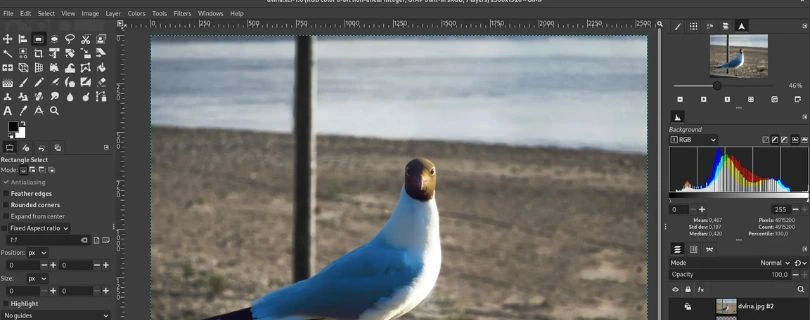
GIMP stands for GNU Image Manipulation Program.
In simple words, it’s a free image editing app you can use for photo editing, retouching, image composition, digital painting, thumbnails, web graphics, and basic design work. It’s a raster image editor, which means it mainly works with pixel-based images like JPG, PNG, TIFF, and similar formats.
GIMP works on Windows, macOS, Linux, and other operating systems, and the official site describes it as free software that lets users change and share the source code.
Is GIMP Really Free?
Yes, GIMP is really free.
There’s no monthly subscription, no free-trial countdown, and no watermark on your exported images. You can download it, use it for personal or commercial projects, and keep using it without paying.
The project does accept optional donations, but paying is not required. Since GIMP is open-source, developers can also inspect and modify the code.
One small warning: download it from the official GIMP website only. Avoid random third-party download sites because they may bundle extra installers or outdated versions.
Current GIMP Version in 2026
The current stable version of GIMP is GIMP 3.2.4, released on April 17, 2026, according to the official download page.
This matters because many older GIMP reviews still talk about GIMP 3.0, 2.10, or even older builds. GIMP 3.2 adds useful workflow improvements, especially around non-destructive layers, link layers, vector layers, file support, and stability.
GIMP Review Summary: Pros and Cons
Pros
- Free forever
- Works on Windows, macOS, and Linux
- Good layer-based editing
- Supports masks, curves, levels, selections, clone, and heal tools
- Better non-destructive editing in GIMP 3.2
- Strong plugin ecosystem
- Good file format support, including PSD and PSB improvements
- Customizable interface
- Lighter than many paid creative suites
- Good option for older or lower-spec computers
Cons
- The learning curve is steep
- The interface can feel dated or confusing at first
- No built-in RAW editor; you’ll need Darktable, RawTherapee, or ART
- No Photoshop-style generative AI tools by default
- Not as smooth as Photoshop or Affinity Photo for professional workflows
- Print and CMYK workflows still aren’t ideal for serious prepress work
- Some filters and large projects can feel slow
- Beginners may struggle with basic tasks like exporting, cropping, and finding the right tools
What’s New in GIMP 3.2?
Non-Destructive Layers
GIMP 3.2 makes non-destructive editing more useful. That means you can edit certain layers later instead of permanently changing the pixels right away.
Text layers already worked this way, but GIMP 3.2 expands the idea with link layers and vector layers. You can also rasterize these layers when you want to make direct pixel edits.
Link Layers: GIMP’s Smart Object-Like Feature
Link Layers let you place an external image inside your GIMP project.
For example, you can link an SVG logo, edit that logo in another app like Inkscape, and see the update inside GIMP. It works a bit like Photoshop’s Linked Smart Objects, but I wouldn’t call it a full Photoshop replacement yet. It’s more of a useful step in that direction.
Vector Layers
GIMP 3.2 now supports vector layers through path layers.
This is helpful for shapes, logos, icons, diagrams, and simple layout-style design. You can adjust stroke, fill, color, pattern, visibility, line width, and transform the shape without destroying it right away.
Better Non-Destructive Filters
GIMP 3.2 also improves non-destructive filters.
One handy trick is using an empty layer group in Pass Through mode. When you apply a filter to that group, it can affect the layers below it. This gives you something closer to an adjustment-layer workflow, even though it still doesn’t feel as polished as Photoshop.
Better File Support
GIMP 3.2 also improves file handling.
You now get JPEG 2000 export, PSB export, better Photoshop layer style import, SVG/PDF export with raster and vector layer information, and RAW workflow support through Darktable, RawTherapee, and ART plug-ins.
Interface and Ease of Use
First Impressions
GIMP has a traditional desktop editor layout.
You get the toolbox on the left, the canvas in the middle, and layers, brushes, and other docks on the right. If you’ve used Photoshop before, some parts will feel familiar, but the menus and tool names may take time to understand.
The good part is that you can customize the interface, change themes, adjust icons, and move panels around to fit your workflow.
Is GIMP Beginner-Friendly?
Yes and no.
GIMP can work well for motivated beginners who are willing to follow tutorials and learn the basics step by step. It’s great if you want to edit photos, make thumbnails, remove backgrounds manually, or design simple graphics without paying.
But if you expect Canva-style templates, one-click AI edits, or a super clean beginner interface, GIMP may feel frustrating at first.
Why Users Call GIMP “Clunky”
GIMP is powerful, but it doesn’t always feel smooth.
The biggest issue is that simple tasks can feel harder than they should. Saving and exporting are separate. Some tools are named differently from Photoshop. Menus can feel dense. A few workflows take more manual steps than modern design apps.
So when people call GIMP clunky, they usually don’t mean it’s weak. They mean it takes effort to learn where everything is.
Tips to Make GIMP Easier
- Use single-window mode
- Customize the theme and icons
- Learn crop, resize, layers, masks, and export first
- Save projects as XCF
- Export final images as JPG, PNG, TIFF, or PSD
- Use Darktable or RawTherapee for RAW photos
- Install G’MIC only after you understand the core tools
- Don’t try to learn everything in one day
In-Depth Review of GIMP’s Key Features
In this section, I will walk you through a detailed review of the 6 primary features of GIMP:
- Photo Editing & Retouching
- Layers, Masks & Non-Destructive Editing
- Selection Tools & Background Removal
- Text, Graphics & Design Tools
- File Support, Plugins & RAW Workflow
- Interface, Performance & Ease of Use
1. Photo Editing & Retouching
The first thing most people use GIMP for is basic photo editing.
And for that, GIMP gives you a lot without asking for money.
Basic Editing Tools
You can crop images, resize photos, rotate pictures, adjust brightness, fix contrast, sharpen details, blur backgrounds, and correct colors.
For everyday edits, this is more than enough.
If you’re editing blog images, YouTube thumbnails, product photos, social media graphics, or personal pictures, GIMP can handle the basics pretty well.
The tools don’t feel as modern or quick as Photoshop, but they do work.
Color Correction
GIMP also gives you tools like:
- Levels
- Curves
- Color Balance
- Hue-Saturation
- Exposure
- Shadows-Highlights
These are helpful when your image looks too dark, too flat, too warm, or too dull.
For example, if you take a product photo and the lighting looks slightly off, you can use curves and levels to make the image look cleaner and more balanced.
This is one area where GIMP feels surprisingly capable for a free photo editing software.
Retouching Tools
GIMP includes clone, heal, smudge, dodge, burn, blur, and sharpen tools.
You can use these to remove small spots, clean up skin, fix dust marks, or remove tiny distractions from a photo.
The heal tool is useful, but it’s not as smart as the AI-powered object removal tools you see in Photoshop or newer AI image editors.
So yes, you can retouch photos in GIMP.
But if you want one-click background cleanup or automatic object removal, GIMP may feel slower.
My Take on Photo Editing
For basic and intermediate photo editing, GIMP is absolutely useful.
It’s great for creators, bloggers, students, and small business owners who want to improve images without paying for Photoshop.
But for professional photographers who edit hundreds of RAW files, manage photo catalogs, or need fast AI masking, GIMP is not the smoothest choice.
2. Layers, Masks & Non-Destructive Editing
The next big feature I looked at is GIMP’s layer system.
And honestly, this is where GIMP becomes much more than a basic image editor.
Layer-Based Editing
GIMP lets you work with layers, which means you can place different parts of your design on separate levels.
For example, you can keep your background image, text, logo, color effects, and extra graphics on separate layers.
This is helpful because you don’t have to destroy the whole image every time you make a small change.
If you’re making YouTube thumbnails, Instagram posts, blog banners, or simple product graphics, layers make the editing process much easier.
Layer Masks
Layer masks are one of GIMP’s most useful tools.
A mask lets you hide or reveal parts of a layer without deleting them permanently.
For example, you can use a mask to blend two images, remove part of a background, create soft edges, or apply edits only to one part of a photo.
It takes a little time to understand masks, especially if you’re a beginner.
But once it clicks, GIMP becomes a lot more powerful.
Non-Destructive Editing in GIMP 3.2
GIMP has improved a lot in this area.
GIMP 3.2 focuses heavily on non-destructive layers, including text layers, link layers, and vector layers. A non-destructive layer means you can go back and edit it later without relying only on undo. The official GIMP 3.2 release notes describe this as one of the main focuses of the update.
This is a big step forward.
Older versions of GIMP often forced you to “commit” edits too early. GIMP 3.2 feels more flexible, especially if you work with text, linked images, and vector-style shapes.
Link Layers
Link Layers let you place an external file inside your GIMP project.
For example, you can link a logo or illustration, edit that file somewhere else, and update it inside your GIMP project.
It feels similar to Photoshop’s Linked Smart Objects, but I wouldn’t call it a full replacement yet.
It’s useful, but Photoshop still feels more polished for this kind of professional workflow.
My Take on Layers and Masks
GIMP’s layers and masks are strong enough for most creative work.
You can build thumbnails, edit portraits, create social media posts, design web graphics, and make simple composites.
The only issue is that beginners may need tutorials before these tools feel natural.
3. Selection Tools & Background Removal
The third feature I checked closely is GIMP’s selection system.
Selections matter because they help you isolate parts of an image.
This is useful when you want to remove a background, cut out a person, recolor an object, or edit only one part of a photo.
Basic Selection Tools
GIMP gives you several selection tools, including:
- Rectangle Select
- Ellipse Select
- Free Select
- Fuzzy Select
- Select by Color
- Scissors Select
- Foreground Select
- Paths Tool
For simple images, these tools work fine.
For example, if your subject has a plain background, the Fuzzy Select or Select by Color tool can help you remove it quickly.
But if the image has hair, shadows, soft edges, or a busy background, you’ll need more manual cleanup.
Foreground Select Tool
The Foreground Select tool is useful when you want to separate a person or object from the background.
You roughly outline the subject, mark the foreground area, and GIMP tries to detect what should stay.
It’s helpful, but not perfect.
You may still need to clean the edges with a mask, brush, or eraser.
This is where GIMP feels less beginner-friendly than tools with automatic AI background removal.
Paths Tool for Clean Cutouts
If you want more control, the Paths Tool is the better option.
It lets you manually draw around an object and create a precise selection.
This is great for product images, logos, objects, and clean shapes.
The downside?
It takes time.
If you’re editing one important image, it’s worth it. But if you need to remove backgrounds from 50 product photos, GIMP will feel slow compared with a dedicated background remover tool.
My Take on Background Removal
GIMP can remove backgrounds, but it’s not the fastest tool for the job.
For careful manual editing, it gives you solid control.
But if you want quick one-click background removal for ecommerce images, social media posts, or ad creatives, you may prefer Canva, Photoshop, Photopea, or a dedicated AI background remover.
4. Text, Graphics & Design Tools
The fourth area I tested was GIMP’s design side.
This is important because many people don’t use GIMP only for photo editing. They also use it for YouTube thumbnails, blog banners, social media graphics, posters, simple logos, and website images.
Text Tool
GIMP gives you a proper text tool for adding titles, captions, labels, and design text.
You can change the font, size, spacing, alignment, color, and outline. For thumbnails and social media posts, this is useful enough.
For example, if you’re creating a YouTube thumbnail, you can add a photo, place bold text on top, add a stroke around the text, and export the final image as a JPG or PNG.
That said, the text workflow still doesn’t feel as smooth as Canva or Photoshop.
It works, but it takes more manual effort.
Graphics and Simple Design Work
GIMP can handle basic design work quite well.
You can create:
- Blog featured images
- YouTube thumbnails
- Instagram graphics
- Website banners
- Simple posters
- Product image edits
- Basic ad creatives
- Transparent PNG graphics
The layer system helps a lot here because you can keep your image, text, logo, shapes, and effects separate.
This makes it easier to change one part of the design without ruining everything else.
Digital Painting and Brushes
GIMP also includes brushes, pencils, airbrush tools, gradients, patterns, and painting options.
In GIMP 3.2, the MyPaint Brush tool was upgraded with 20 new brushes, which makes it more useful for digital painting and creative drawing.
Still, I would not call GIMP the best digital painting app.
If your main work is illustration, concept art, or drawing with a tablet, Krita will probably feel better.
But for light painting, sketching, texture work, and creative edits, GIMP does the job.
My Take on Design Tools
GIMP is good for practical design work.
If you want to make thumbnails, banners, simple graphics, and web images without paying for a design tool, it’s a solid option.
But if you want ready-made templates, drag-and-drop layouts, brand kits, and quick social media designs, Canva will feel much easier.
GIMP gives you control.
Canva gives you speed.
If speed and templates matter more to you, read this before choosing Canva:
I Tried Canva: My Honest Review
5. File Support, Plugins & RAW Workflow
The next thing I looked at was file support.
This matters because an image editor is only useful if it works with the files you actually use.
Common File Formats
GIMP supports many common image formats, including JPG, PNG, GIF, TIFF, WebP, PSD, PDF, and SVG.
For most creators, bloggers, students, and small business owners, that is enough.
You can edit a blog image as JPG, create a transparent logo as PNG, work on a layered project as XCF, or open some Photoshop files as PSD.
GIMP’s own project format is XCF, and that is what you should use when you want to keep your layers editable.
Then, when the design is finished, you export it as JPG, PNG, TIFF, WebP, or another final format.
PSD and PSB Support
GIMP can open Photoshop PSD files, but you should keep your expectations realistic.
Simple PSD files usually work fine.
But if the file has advanced Photoshop effects, smart objects, complex adjustment layers, or special layer styles, everything may not transfer perfectly.
GIMP 3.2 improves Photoshop-related support, including better layer style import and PSB export. PSB is Photoshop’s large document format, used for very big files.
So yes, GIMP is better with Photoshop files than it used to be.
But if your whole workflow depends on exchanging complex PSD files with clients, agencies, or designers, Photoshop is still safer.
RAW Photo Workflow
This is one area where beginners can get confused.
GIMP is not a native RAW photo editor.
So if you shoot RAW photos from a DSLR or mirrorless camera, you’ll usually need another tool like Darktable, RawTherapee, or ART to process the RAW file first.
GIMP’s own documentation says RAW import depends on registered plug-ins, with Darktable and RawTherapee listed as common options.
The workflow looks like this:
- Open RAW photo in Darktable or RawTherapee
- Adjust exposure, color, shadows, highlights, and lens corrections
- Send or export the image to GIMP
- Finish retouching, masking, compositing, or graphic edits in GIMP
This works.
But it is not as smooth as Lightroom plus Photoshop or other paid photo editing workflows.
Plugins and Extensions
GIMP has a strong plugin ecosystem.
Plugins can add filters, effects, batch editing tools, extra export options, and creative features.
One popular example is G’MIC, which gives you a large collection of filters and image effects.
But here’s my honest advice.
Don’t install too many plugins on day one.
Learn GIMP’s core tools first. Once you understand layers, masks, selections, colors, and export settings, plugins become much more useful.
Otherwise, they just make the software feel more confusing.
My Take on File Support
GIMP’s file support is good for everyday creative work.
It can handle most image formats creators normally use, and GIMP 3.2 improves support for more advanced workflows like PSB, linked files, RAW plug-ins, and vector/raster export.
But for professional photography and agency-level Photoshop collaboration, it still has limits.
6. Interface, Performance & Ease of Use
The final feature area I tested was the overall user experience.
Because honestly, this is where GIMP gets the most mixed reactions.
Interface
GIMP has a traditional desktop editing layout.
You get tools on the left, your image in the middle, and layers, brushes, tool options, and other panels around the canvas.
If you’ve used Photoshop before, you’ll understand the basic idea.
But the actual workflow feels different.
Some tools are placed in different menus. Some names are different. Some actions take more clicks than expected.
This is why beginners often feel lost at first.
Customization
The good news is that GIMP lets you customize the workspace.
You can change themes, adjust icon sizes, move panels, hide tools you don’t use, and set up the layout in a way that feels cleaner.
GIMP is also cross-platform and available for GNU/Linux, macOS, Windows, and more operating systems, according to the official website.
That makes it especially useful for Linux users, where Photoshop is not available natively.
Performance
For simple edits, GIMP runs well.
Cropping, resizing, basic retouching, color correction, and light design work feel fine on most decent computers.
But when you start working with large layered files, heavy filters, big exports, or complex compositions, GIMP can slow down.
It’s not unusable.
It just doesn’t always feel as fast or polished as paid tools like Photoshop or Affinity Photo.
So if you only edit a few images for blogs, social media, or thumbnails, performance should be okay.
If you work with huge files every day, you may notice the limits more quickly.
Ease of Use
GIMP is not the easiest design tool for beginners.
Canva is easier.
Photoshop has a steeper learning curve too, but it has more tutorials, industry-standard workflows, and smoother professional features.
GIMP sits somewhere in the middle.
It gives you serious editing power for free, but it expects you to learn how things work.
The first few days can feel annoying.
But once you understand save vs export, layers, masks, selections, and basic color tools, it becomes much more comfortable.
Pricing
There is no paid pricing plan to compare here.
GIMP is free software, and the official website says you can change its source code and distribute your changes.
That means:
- No subscription
- No trial limit
- No watermark
- No premium plan
- No locked export options
You can donate to support the project, but payment is optional.
Comparing free GIMP with paid Photoshop? Check the real Photoshop cost here:
Adobe Photoshop Pricing Explained
My Take on Interface and Usability
GIMP is powerful, but it is not effortless.
If you want a free Photoshop alternative and you’re willing to spend time learning, GIMP is worth it.
If you want fast templates, one-click AI edits, automatic background removal, or a modern beginner-friendly design dashboard, you may want to use Canva, Photopea, Photoshop, or Affinity Photo instead.
Looking for simpler online editors too?
Best Pixlr Alternatives
GIMP for Photo Editing: Is It Good Enough?
For Basic Photo Editing
Yes, GIMP is good enough for basic photo editing.
You can use it to resize images, crop photos, fix brightness and contrast, adjust colors, retouch blemishes, remove small objects, add text, and prepare images for blogs or social media.
For example, if you need to clean up a product photo, make a blog featured image, or edit a quick Instagram post, GIMP can handle it without any paid plan.
The only catch is speed. The tools are there, but some edits take more manual work than they would in Photoshop, Canva, or newer AI photo editors.
For RAW Photo Editing
GIMP is limited by itself when it comes to RAW files.
It is not a native RAW processor, so you’ll usually need another app like Darktable, RawTherapee, or ART to open and process RAW photos first. Darktable, for example, describes itself as an open-source photography workflow app and RAW developer.
The better workflow looks like this:
- Edit RAW photo in Darktable, RawTherapee, or ART
- Adjust exposure, color, shadows, highlights, and lens correction
- Send or export the image to GIMP
- Finish retouching, masking, compositing, or graphic edits
So yes, GIMP can be part of a RAW photo editing workflow.
But on its own, it’s not a Lightroom replacement.
For Professional Photography
Professional photographers can use GIMP, but I wouldn’t call it ideal for most pros.
There’s no Lightroom-style photo library. RAW editing happens through separate apps. The workflow can feel slower. And by default, GIMP doesn’t give you modern AI masking, one-click object removal, or fast batch editing in the same polished way commercial tools do.
For occasional retouching, it’s fine.
For daily client photography work, Photoshop, Lightroom, Capture One, or Affinity-style tools usually feel smoother.
GIMP for Graphic Design
Good Design Use Cases
GIMP works well for practical design tasks like:
- YouTube thumbnails
- Blog graphics
- Website banners
- Social media posts
- Simple posters
- Book covers
- Web images
- Basic logos and mockups
It’s especially useful when you want full control over layers, text, images, masks, and exports.
So if you’re a blogger, YouTuber, student, freelancer, or small business owner, GIMP can cover a lot of everyday design needs.
Where It Falls Short
GIMP is not the best tool for every design job.
It can feel limited for professional brand design, print layouts, advanced typography, vector-heavy work, collaborative design systems, and serious CMYK/prepress workflows.
You can create graphics in GIMP, but it’s not a full replacement for tools like Illustrator, InDesign, Figma, Canva, or professional print design software.
GIMP vs Canva for Beginners
Canva is easier for beginners.
It gives you templates, drag-and-drop editing, brand kits, social media layouts, and fast export options. Canva also positions itself as a free online graphic design tool for social media posts, presentations, posters, videos, and more.
GIMP wins when you want deeper pixel-level control, manual photo editing, custom masks, layered edits, and no paywall for core image editing features.
So the choice is simple:
Use Canva if you want speed and templates.
Use GIMP if you want control and free manual editing.
GIMP vs Photoshop
Quick Comparison Table
| Feature | GIMP | Photoshop |
| Price | Free | Subscription |
| Platforms | Windows, macOS, Linux | Windows, macOS, web/mobile options |
| RAW workflow | External apps/plugins | Camera Raw integration |
| Layers/masks | Strong | Industry-leading |
| Non-destructive editing | Improved, still less polished | Excellent |
| AI tools | Limited by default | Strong generative AI tools |
| CMYK/print | Improving, not ideal | Better for pro print workflows |
| Learning curve | Steep | Also steep, but more tutorials/workflow standards |
| Best for | Free editing, Linux users, hobbyists | Professionals, agencies, advanced creators |
Adobe sells Photoshop through subscription plans, and Photoshop also includes features like Camera Raw support and Firefly-powered Generative Fill for adding, removing, or expanding image content with text prompts.
Is GIMP as Good as Photoshop?
No, GIMP is not as good as Photoshop for professional speed, AI editing, industry workflows, advanced automation, RAW integration, or print-heavy work.
But that doesn’t mean GIMP is weak.
For basic and intermediate editing, GIMP can replace Photoshop for many users. You can crop, retouch, use layers, create masks, design thumbnails, edit web graphics, and export clean final images.
The real difference is comfort.
Photoshop feels more polished.
GIMP takes more patience.
Should Photoshop Users Switch to GIMP?
Switch to GIMP if you only edit images occasionally, hate subscriptions, use Linux, or mostly create simple graphics, thumbnails, blog images, and social media visuals.
Do not switch if your income depends on Photoshop files, client PSD workflows, advanced retouching, AI tools, print design, or fast professional editing.
For hobby use, GIMP makes a lot of sense.
For agency work, Photoshop is still safer.
Want to compare Photoshop with other serious editing tools?
Best Adobe Photoshop Alternatives
GIMP vs Affinity Photo
Affinity is one of the strongest GIMP alternatives.
It feels more modern, smoother, and closer to a professional creative app. The current Affinity platform is also listed as free for individuals, with optional AI features through Canva.
Compared with GIMP, Affinity gives you a cleaner interface and a more polished workflow.
But GIMP still wins in three areas:
- It’s open-source
- It works well for Linux users
- It has a long-standing plugin and community ecosystem
So if you want the most polished free Photoshop alternative, Affinity is worth checking.
If you care about open-source software, Linux support, and full control, GIMP still has a strong place.
GIMP vs Photopea, Krita, Darktable, and Canva
GIMP vs Photopea
Photopea is a browser-based photo editor that works directly online without downloads. Its official site describes it as a free online photo editor for editing photos, applying effects, adding text, cropping, and resizing in the browser.
Photopea feels more familiar if you already know Photoshop.
GIMP is better if you want offline editing, open-source software, deeper customization, and a desktop workflow.
Want a browser-based editor instead of installing software?
Best Photopea Alternatives
GIMP vs Krita
Krita is better for digital painting and illustration.
Its official site calls it a free and open-source painting program made for artists.
GIMP is better for general image editing, retouching, compositing, and web graphics.
So use Krita if you mainly draw.
Use GIMP if you mainly edit images.
Still confused between drawing and photo editing workflows?
Krita vs GIMP
GIMP vs Darktable
Darktable is for RAW photo development.
GIMP is for pixel editing, retouching, compositing, and graphic design.
They work best together.
Use Darktable to process your RAW photo first, then use GIMP to clean it up, remove objects, add text, create masks, or build a final design.
GIMP vs Canva
Canva is easier for non-designers.
It gives you templates, drag-and-drop design, quick social media layouts, and beginner-friendly tools.
GIMP is more powerful for manual image editing.
So if you want to make a quick Instagram post, use Canva.
If you want to carefully edit pixels, use masks, retouch photos, or build layered graphics from scratch, use GIMP.
Who Should Use GIMP?
GIMP Is Worth It For
GIMP is worth it for:
- Students
- Hobby photographers
- Bloggers
- YouTubers making thumbnails
- Small business owners
- Linux users
- Open-source supporters
- People avoiding subscriptions
- Users who only edit images occasionally
- Creators willing to learn
If you want a free image editor and you don’t mind watching a few tutorials, GIMP gives you a lot.
GIMP Is Not Worth It For
GIMP is probably not the best fit for:
- Professional retouchers on deadlines
- Print designers needing strong CMYK workflows
- Beginners who want one-click AI edits
- Photographers needing Lightroom-style RAW/catalog workflows
- Agencies using complex Photoshop files
- Design teams needing cloud collaboration and brand systems
GIMP is powerful, but it asks for patience.
If speed, polish, AI tools, and team workflows matter more than price, a paid or template-based tool may be a better choice.
Real User Reviews: Why People Love and Hate GIMP
At first glance, GIMP has a very mixed reputation.
Some users love it because it’s free, open-source, and powerful enough for real photo editing and design work.
But once I went through user reviews, I noticed people usually complain about 3 things:
- hard learning curve
- confusing interface
- slower or less polished workflow compared to Photoshop
Why Users Like GIMP
The biggest reason people like GIMP is simple: it gives you serious editing tools for free.
On GetApp, users praised GIMP for photo editing, graphic design, layers, masks, file format support, retouching, color correction, and quick image edits without paying for premium software.
Source: GetApp
That matches my experience too.
GIMP is not a toy editor. You can use it for book covers, YouTube thumbnails, blog images, social media graphics, photo retouching, background edits, and layered compositions.
I also found a Capterra review where the user called GIMP “probably the best free photo editor” and liked that it offers powerful features like healing tools, scripts, and batch processing.
Source: Capterra
So, if your main goal is to avoid subscriptions and still get proper editing tools, GIMP makes a lot of sense.
You are not getting templates and AI shortcuts like Canva.
But you are getting real image editing power without a monthly bill.
Why Users Complain About GIMP
Now, here’s where things get less pretty.
A lot of users complain that GIMP is hard to learn.
On G2, users mention that the interface can feel confusing because there are many tools and options on screen. Some also say bigger images or multiple layers can slow things down on normal computers.
Source: G2
This is probably the most common GIMP complaint.
It’s not that the tools are missing.
It’s that finding them, understanding them, and using them smoothly takes time.
G2’s pros and cons page also highlights a challenging learning curve, unintuitive interface, slow performance with complex files, and poor navigation as repeated user complaints.
Source: G2
And Trustpilot is even harsher.
GIMP has a “Poor” Trustpilot rating from 76 reviews, and several users complain about lag, confusing workflows, basic tasks feeling difficult, and the software not feeling beginner-friendly.
Source: Trustpilot
I also noticed complaints around saving and exporting.
This makes sense because GIMP separates Save and Export. You save editable projects as XCF, but you export finished images as JPG, PNG, TIFF, or other formats.
That is logical once you understand it.
But for beginners, it can feel weird at first.
My Balanced Take
GIMP’s problem is not lack of power.
Its problem is friction.
It gives you layers, masks, brushes, retouching tools, filters, plugins, and strong file support for free. That is impressive.
But it often makes you work harder than modern commercial apps.
Photoshop feels smoother.
Canva feels easier.
Affinity Photo feels more polished.
GIMP feels more manual.
So, if you are patient and willing to learn, GIMP can become a very useful free photo editor.
But if you want one-click edits, clean templates, AI background removal, or a beginner-friendly design dashboard, GIMP may frustrate you before it impresses you.
My Final Thoughts: Is GIMP Worth It in 2026?
Yes, GIMP is worth it in 2026 — but only for the right type of user.
If you want a free image editor for photo editing, retouching, YouTube thumbnails, blog graphics, social media posts, simple designs, and layered image work, GIMP gives you a lot without asking for a subscription.
It is also a much better tool now than many older reviews make it sound. GIMP 3.2 adds useful workflow improvements like non-destructive layers, link layers, vector layers, better filters, improved file support, and stability fixes.
That said, GIMP still has the same big problem: it takes effort.
The interface is not as smooth as Photoshop. It is not as beginner-friendly as Canva. And it does not give you modern AI tools, native RAW editing, or a polished professional workflow out of the box.
So here’s my honest verdict:
Use GIMP if you want power, control, and zero cost.
Skip GIMP if you want speed, templates, AI editing, and a cleaner beginner experience.
Not sure GIMP is the right fit? Compare the best options here:
Best GIMP Alternatives
For hobbyists, students, bloggers, Linux users, and budget creators, GIMP is one of the best free Photoshop alternatives available.
For professional photographers, agencies, print designers, or advanced Photoshop users, it may feel too slow and manual for daily work.
FAQs About GIMP
Is GIMP completely free?
Yes, GIMP is completely free to download and use.
There is no subscription, no trial limit, and no watermark on exported images. You can use it for personal projects, client work, social media graphics, blog images, and other creative tasks without paying.
Is GIMP good for beginners?
GIMP can be good for beginners, but it is not the easiest tool to learn.
If you’re willing to follow tutorials and learn basics like crop, resize, layers, masks, and export settings, you can get comfortable with it.
But if you want Canva-style templates or one-click AI editing, GIMP may feel confusing at first.
Is GIMP good for photo editing?
Yes, GIMP is good for basic and intermediate photo editing.
You can crop images, resize photos, adjust colors, fix contrast, retouch blemishes, remove small objects, and prepare images for websites, blogs, and social media.
For advanced photography workflows, it is more limited because RAW editing usually depends on external apps.
Does GIMP support RAW files?
GIMP can be part of a RAW photo editing workflow, but it is not a native RAW processor by itself.
The better workflow is to process RAW photos first in tools like Darktable, RawTherapee, or ART, then finish retouching, masking, or compositing inside GIMP.
Can GIMP replace Photoshop?
GIMP can replace Photoshop for many basic and intermediate tasks.
It works well for cropping, retouching, masking, layered designs, thumbnails, blog graphics, and web images.
But it is not a full Photoshop replacement for professional speed, AI tools, advanced automation, RAW integration, complex PSD workflows, or print-heavy design work.
Can GIMP open PSD files?
Yes, GIMP can open many PSD files.
Simple Photoshop files usually work fine. But complex PSD files with smart objects, advanced adjustment layers, or heavy layer effects may not import perfectly.
So, it’s fine for basic Photoshop file compatibility, but not something I’d fully rely on for agency-level PSD collaboration.
Does GIMP have adjustment layers?
GIMP does not have Photoshop-style adjustment layers in the same polished way.
However, newer versions of GIMP have improved non-destructive editing, and you can use certain workflows to make edits more flexible.
Still, Photoshop is better if adjustment layers are a major part of your editing process.
Does GIMP have AI tools?
GIMP does not include Photoshop-style generative AI tools by default.
You may find third-party plugins or external workflows, but if you want built-in AI background removal, generative fill, or one-click object removal, Photoshop, Canva, or dedicated AI image tools will feel easier.
Is GIMP good for graphic design?
Yes, GIMP is good for simple graphic design work.
You can create YouTube thumbnails, blog graphics, banners, posters, social media images, book covers, and basic web graphics.
But for professional brand design, print layouts, vector-heavy projects, or team design systems, tools like Canva, Figma, Illustrator, Affinity, or InDesign-style software may be better.
Is GIMP safe to download?
Yes, GIMP is safe if you download it from the official website.
Avoid random third-party download sites because they may offer outdated installers or bundle unwanted software.
What is the latest version of GIMP?
The latest version discussed in this review is GIMP 3.2.4.
This matters because many older reviews still talk about GIMP 2.10 or GIMP 3.0, and the newer versions have improved workflows.
Who should use GIMP?
GIMP is best for students, hobby photographers, bloggers, YouTubers, small business owners, Linux users, open-source supporters, and creators who want a free photo editing tool.
It is not the best fit for professional retouchers, print designers, agencies, or beginners who want fast templates and AI-powered editing.