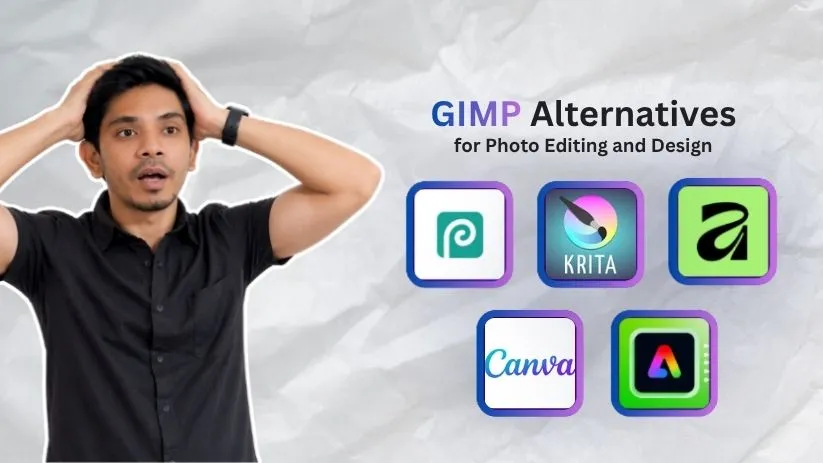
I’ve tested a lot of photo editing and design tools over the years, and GIMP still comes up whenever people ask for a free Photoshop alternative.
Usually, it gets recommended because it’s powerful, open source, and available without a subscription.
On paper, that sounds perfect: layer based editing, plugins, masks, filters, advanced image manipulation, and support for different creative workflows.
But here’s the pattern I keep seeing among users who start looking beyond it.
They like that GIMP is free, but they struggle with the interface. Simple edits can feel slower than expected. Text handling is not always comfortable. Some users want a smoother Photoshop like layout. Others need faster templates, browser based editing, cleaner digital painting tools, or a simple editor that does not take hours to learn.
Instead of helping them move faster, GIMP sometimes makes the creative process feel heavier than it should.
That’s what pushed me to look for better alternatives.
I compared different tools based on ease of use, editing power, platform support, file compatibility, pricing, design flexibility, and real creative workflow value. Only 5 made the final cut.
In this blog, you’ll get a full breakdown of the top 5 GIMP alternatives, covering:
- Features
- Pricing
- Limitations
- Who each tool is best for
So you can choose the right editor and spend less time fighting the tool and more time creating better visuals.
Quick Comparison Table: Top 5 GIMP Alternatives
Before picking a GIMP alternative, it helps to know what each tool actually solves. Some are better for photo editing. Some work better for digital art. Others are made for quick social media graphics, brand assets, and marketing visuals.
Here’s a quick side by side view.
| Tool | Best For | Free Plan | Main Limitation |
| Photopea | Browser based photo editing and PSD work | Yes | Can feel slower with large files or heavy browser workloads |
| Krita | Digital painting, illustration, comics, and concept art | Yes | Not the best choice for quick marketing graphics or heavy photo retouching |
| Affinity | Professional photo editing, vector design, and layout work | Yes | Not open source, and some AI linked features may depend on Canva plans |
| Adobe Express | Fast branded graphics, social posts, flyers, and light video edits | Yes | Less flexible than advanced desktop editors for detailed photo manipulation |
| Canva | Social media designs, presentations, thumbnails, ads, and team templates | Yes | Not built for deep pixel level editing or advanced compositing |
5 Best GIMP Alternatives in 2026
Let’s look at each tool in detail, one by one.
1. Photopea
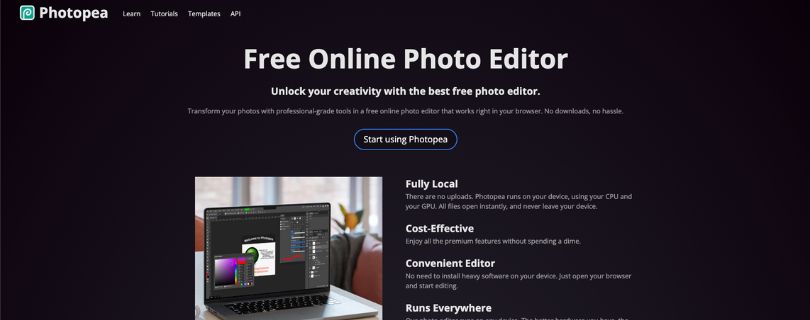
Best For: Creators, students, freelancers, and designers who want a Photoshop style editor in the browser without installing heavy software.
Photopea is one of the closest GIMP alternatives if you want a familiar layer based editing experience without downloading anything. It runs directly in your browser and handles many of the jobs people usually open GIMP for, such as photo edits, PSD work, thumbnails, social media graphics, simple mockups, and image cleanup.
What makes Photopea stand out is its file support. It can open and save PSD files, and it also supports formats like PNG, JPG, SVG, PDF, AI, TIFF, INDD, Figma, RAW formats, and many others. That makes it useful when a client sends a Photoshop file and you don’t want to subscribe to Photoshop just to make a small change. Photopea also says files run locally on your device, so your files do not need to be uploaded to a server for basic editing.
The interface feels closer to Photoshop than GIMP. That is a big reason many users like it. Layers, masks, smart objects, adjustment layers, blending, filters, vector shapes, and RAW support are all there. It is not as smooth as a native desktop app when you work with very large files, but for everyday edits, it is surprisingly capable.
Key Features of Photopea
- Browser based photo editor with no installation required
- Strong PSD opening and saving support
- Works with layers, masks, smart objects, paths, channels, and adjustment layers
- Supports common and advanced file formats, including PSD, SVG, PDF, AI, TIFF, RAW, and Figma files
- Useful for social media graphics, product photos, thumbnails, banners, and quick design edits
- Runs on most devices through a browser
- Includes AI assisted options like background removal and object replacement
What could be better:
Photopea depends heavily on your browser and device performance. If you open a large PSD with many layers, it can feel slower than a desktop editor. The interface is powerful, but beginners may still need time to understand layers, masks, and export settings.
Pricing
- Free: Available with access to professional editing features
- Premium: $5/month according to Photopea’s own premium account information
- Self hosted version: $500 to $2,000/month, billed annually, mainly for businesses that want their own hosted version
Photopea vs GIMP
Photopea is better if you want browser based editing, PSD support, and a Photoshop like workspace.
GIMP is better if you want a full desktop open source editor with plugin flexibility and deeper offline control.
2. Krita
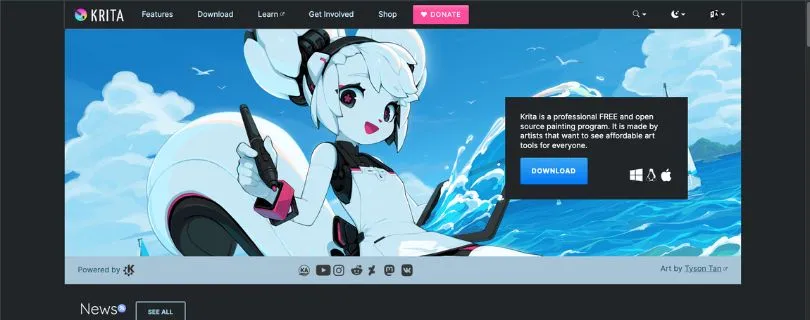
Best For: Digital artists, illustrators, comic creators, concept artists, and anyone who works with brushes more than photo retouching tools.
Krita is not just another photo editor. It is a serious digital painting app built for artists. If you use GIMP mainly for drawing, painting, sketching, concept art, or illustration, Krita will probably feel more natural from the first session.
The brush engine is the biggest reason to try it. You get a wide range of brushes, stabilizers, texture options, blending tools, and drawing focused controls that feel much better than GIMP for stylus work. Krita is also free and open source, so it keeps the same no subscription advantage that makes GIMP attractive in the first place.
I would not choose Krita as my first tool for heavy product photo cleanup or marketing design templates. That is not where it shines. But for drawing, comics, matte painting, storyboards, and creative artwork, it feels more focused than GIMP.
Key Features of Krita
- Free and open source digital painting software
- Advanced brush engine for sketching, painting, comics, and concept art
- Brush stabilizers for smoother line work
- Layer support, masks, blending modes, and selection tools
- Animation support for frame by frame creative work
- Works well with drawing tablets
- Good option for artists who want a no cost painting app
What could be better:
Krita is not built around fast marketing graphics or template based design. It also feels less suitable for users who mainly need photo correction, social media layouts, or quick browser based edits.
Pricing
- Krita Desktop: Free
- Open source license: GNU GPL v3
- Optional paid versions may appear on some app stores to support development, but the main desktop version is free from Krita’s official site
Krita vs GIMP
Krita is better for illustration, painting, comics, and stylus based creative work.
GIMP is better for general image manipulation, plugin based editing, and photo focused workflows.
3. Affinity
Best For: Professional creators, photographers, designers, and small teams who want polished photo editing, vector design, and layout tools in one app.
Affinity has changed a lot. Earlier, users knew it as separate apps like Affinity Photo, Designer, and Publisher. Now, Canva has relaunched Affinity as a unified professional design app that combines photo editing, vector design, and page layout into one platform. Canva also says the new Affinity is available for free through a Canva account.
This makes Affinity a very interesting GIMP alternative. It gives you a cleaner professional workspace than GIMP, especially if you move between photo edits, vector artwork, brand layouts, and publication style design. For someone who wants more polish but does not want the Adobe subscription path, Affinity is worth testing.
The best part is the workflow. You are not jumping between separate apps for every creative task. You can retouch an image, create vector elements, and build layouts inside one environment. That makes it useful for designers who work on campaign graphics, product visuals, brand assets, and client files.
Key Features of Affinity
- Professional photo editing, vector design, and page layout in one app
- Supports major creative file formats, including PSD, AI, PDF, SVG, TIFF, and IDML
- Pixel, vector, and layout workflows in a unified workspace
- Better polished interface than GIMP for professional design work
- Useful for photographers, designers, freelancers, and brand teams
- Canva account based access for the new Affinity version
What could be better:
Affinity is not open source. Some AI powered features may connect to Canva paid plans, so users should check what is free and what sits behind Canva premium access before building a long term workflow around it.
Pricing
- New Affinity app: Free with a Canva account
- Core professional tools: Free according to Affinity’s official positioning
- Optional AI linked features: May require Canva premium access depending on the feature and region
Affinity vs GIMP
Affinity is better if you want a cleaner professional creative app for photo, vector, and layout work.
GIMP is better if you specifically want open source software, community plugins, and full desktop based editing without depending on a Canva account.
4. Adobe Express
Best For: Creators, marketers, students, small businesses, and teams that need quick branded graphics, social posts, flyers, short videos, and light design work.
Adobe Express is not a direct replacement for GIMP if you need detailed pixel editing. But it is a strong GIMP alternative for people who use GIMP only because they need to make graphics, posts, banners, thumbnails, posters, or simple promotional visuals.
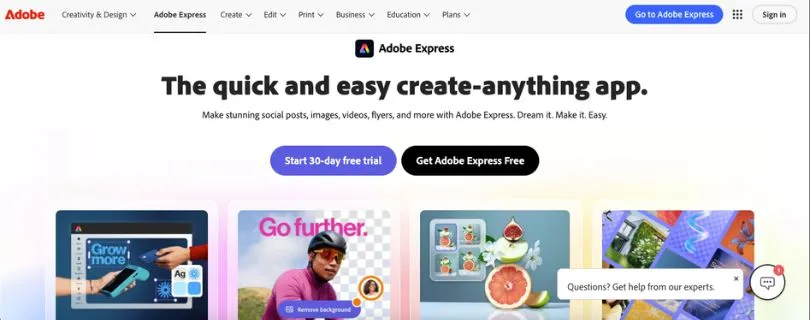
The experience feels much faster than GIMP for everyday content creation. You start with templates, add your brand assets, adjust typography, remove backgrounds, resize designs, and publish assets for different channels. For a marketer or small business owner, that matters more than having every advanced image manipulation feature.
Adobe Express also connects well with the Adobe ecosystem. It includes templates, Adobe Stock assets, fonts, basic editing tools, video tools, generative AI credits, and content scheduling depending on the plan. The free plan includes basic tools, 100,000 plus templates, 1M plus royalty free Adobe Stock assets, 4,000 plus fonts, 5GB storage, and standard editing tools. Premium adds more assets, more AI credits, premium templates, background removal, advanced animation, resize tools, and 100GB storage.
Key Features of Adobe Express
- Template based design for social posts, flyers, reels, banners, and presentations
- Basic photo, video, and document editing tools
- Background removal and one click resize on paid plans
- Adobe Stock assets, Adobe Fonts, and brand tools
- Generative AI credits for image and creative content generation
- Content scheduling for social channels
- Useful for quick branded content and lightweight video edits
What could be better:
Adobe Express is not the tool for deep photo manipulation, advanced compositing, or detailed retouching. If you want full layer control like GIMP, Photopea, or Affinity, Adobe Express may feel too template driven.
Pricing
- Free: $0, includes basic editing tools, limited assets, 5GB cloud storage, and limited generative AI credits
- Premium: $9.99/month for Adobe Express Premium
- Teams: Pricing may vary, but Adobe’s U.S. Creative Cloud business pricing lists team plans separately and notes that all prices are subject to applicable local taxes
- Adobe Firefly Pro: $19.99/month, includes Adobe Express Premium plus Photoshop on web and mobile and 4,000 creative AI credits
- Pricing may vary by country, billing option, promotions, and taxes
Adobe’s U.S. pricing page lists Adobe Express Premium at US$9.99/month, while Adobe’s Creative Cloud page lists Adobe Firefly Pro at US$19.99/month with Adobe Express Premium and Photoshop web/mobile included.
Adobe Express vs GIMP
Adobe Express is better for fast branded graphics, social media content, presentations, and lightweight creative campaigns.
GIMP is better for detailed manual editing, advanced layer work, image manipulation, and open source desktop workflows.
This Reading is Helpful for You:
Best Adobe Express Competitors to Explore Before Seeing other Tools
5. Canva
Best For: Marketers, creators, small businesses, agencies, educators, and design teams that need fast, good looking visuals without learning advanced editing software.
Canva is the easiest GIMP alternative for people who do not really want a photo editor. They want finished designs. Social posts, presentations, thumbnails, posters, flyers, ads, videos, documents, and brand graphics are much faster to create in Canva than in GIMP.
The tool is built around templates and drag and drop editing. That makes it useful for non designers, but it is also practical for teams that need brand consistency. You can set brand colors, fonts, logos, templates, and reusable layouts, then let marketers or internal teams create assets without breaking the brand.
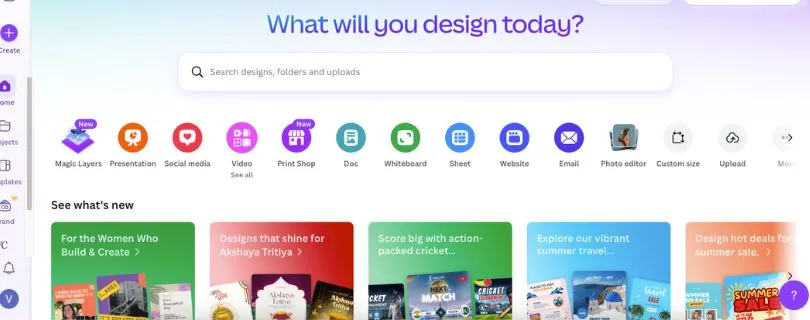
Canva’s Pro plan adds features such as Magic Resize, Brand Kit, Background Remover, premium content, and AI powered design tools. Canva Business is positioned for growing teams that need more brand management, collaboration, analytics, and shared workspace features.
As a Canva alternative for design teams, GIMP feels too manual. Every asset takes more setup. Canva is faster when the job is a LinkedIn post, ad creative, YouTube thumbnail, pitch deck, or simple product graphic.
Key Features of Canva
- Drag and drop design editor
- Large template library for social media, presentations, ads, posters, flyers, and videos
- Brand Kit features for logos, colors, and fonts
- Background Remover and Magic Resize on paid plans
- AI powered design, writing, and image tools
- Team collaboration features on business plans
- Strong option for social media content and quick marketing visuals
What could be better:
Canva is not built for deep image editing. You will feel its limits if you need advanced masks, complex compositing, pixel level retouching, RAW editing, or professional PSD workflows.
Pricing
- Free: $0, available for individuals with access to basic templates and design tools
- Canva Pro: $15/month or $120/year for solo creators, with premium content, Brand Kit, Background Remover, Magic Resize, and AI features
- Canva Business: $20/month per person or $200/year per person, for individuals and growing teams with higher AI access, advanced brand management, analytics, and shared workspace features
- Canva Enterprise: Custom pricing for larger businesses
- Pricing may vary by country, billing option, taxes, promotions, and account type, so users should check Canva’s live pricing page before subscribing
Canva’s own pages confirm the Free, Pro, Business, and Enterprise positioning, while recent pricing trackers list U.S. Canva Pro at $15/month or $120/year and Canva Business at $20/month per person or $200/year per person.
Canva vs GIMP
Canva is better for quick designs, brand templates, social media graphics, presentations, and team based content creation.
GIMP is better for advanced image manipulation, detailed editing, open source workflows, and users who want more control over every layer and pixel.
Also Read:
Top Canva Competitors and Alternatives You Should Try
Best GIMP Alternative by Use Case
Not every GIMP alternative fits the same type of work. Here’s the quick breakdown.
Best Free Online GIMP Alternative: Photopea
Photopea is the best pick if you want a browser based editor with PSD support, layers, masks, and Photoshop style tools.
Best Open Source GIMP Alternative: Krita
Krita is the strongest open source option, especially for artists who need brushes, drawing tools, and a creative workspace.
Best GIMP Alternative for Digital Painting: Krita
Krita is built for painting, sketching, comics, concept art, and tablet based artwork. It feels more natural than GIMP for artists.
Best GIMP Alternative for Beginners: Canva or Paint.NET
Canva works best for quick designs and templates. Paint.NET is better for simple Windows based photo edits.
Best GIMP Alternative for Windows: Paint.NET
Paint.NET is lightweight, easy to learn, and practical for everyday Windows image editing.
Best GIMP Alternative for PSD Editing: Photopea
Photopea handles PSD files well and lets users open, edit, and export Photoshop files without installing software.
Best GIMP Alternative for Professional Photo Editing: Affinity
Affinity is better for polished photo editing, RAW work, advanced layers, and professional creative projects.
Best GIMP Alternative for Social Media Graphics: Canva
Canva is the easiest choice for posts, ads, banners, thumbnails, presentations, and branded marketing visuals.
GIMP Alternatives Comparison: Which One Should You Choose?
Choose the tool based on the type of creative work you do most often.
- Choose Photopea if you want Photoshop like editing in a browser with strong PSD support.
- Choose Krita if you create illustrations, comics, concept art, sketches, or digital paintings.
- Choose Affinity if you need professional photo editing, vector design, and layout tools in a polished app.
- Choose Paint.NET if you want a simple Windows editor for quick everyday image edits.
- Choose Canva if you need fast templates, social media graphics, marketing visuals, and easy team collaboration.
Open Source GIMP Alternatives Worth Mentioning
GIMP is not the only open source creative tool worth trying. These options also fit specific workflows.
- Krita: Best for digital painting, illustration, comics, and concept art.
- PhotoDemon: A lightweight photo editor for quick edits and basic image adjustments.
- Pinta: A simple image editor for users who want something easier than GIMP.
- Darktable: A strong choice for RAW photo editing and photography workflows.
- RawTherapee: Good for photographers who need advanced RAW image processing.
- Inkscape: Best for vector graphics, logos, icons, and SVG based design work.
- Scribus: Useful for publishing workflows, brochures, magazines, and print layout design.
My Final Verdict: What Is the Best GIMP Alternative?
Photopea is the best overall GIMP alternative for most users. It is free, browser based, familiar for Photoshop users, and strong enough to handle PSD files, layers, masks, and everyday design edits.
Krita is the better choice for artists. If your work includes sketching, digital painting, comics, or concept art, Krita feels more focused than GIMP.
Affinity is the best pick for professionals who want a polished creative suite. It works well for photo editing, vector design, and layout based creative projects.
Paint.NET is best for Windows users who want something simple. It is lightweight, easy to learn, and practical for quick image edits.
Canva is the right choice for business and marketing designs. It helps you create social media posts, ads, presentations, thumbnails, and branded visuals faster than traditional editing tools.
The best GIMP alternative is not the tool with the longest feature list. It is the tool that fits the work you actually do every day.
FAQs
What is the best GIMP alternative?
Photopea is the best overall GIMP alternative for most users. It works in the browser, supports PSD files, and gives you a Photoshop like editing experience without installing software.
What is the best free GIMP alternative?
Photopea is the best free online option. Krita is the best free open source option for digital artists. Paint.NET is also a good free choice for Windows users.
What is the best online GIMP alternative?
Photopea is the best online GIMP alternative. It runs in a browser and supports layers, masks, PSD files, and common image editing tools.
Is Photopea better than GIMP?
Photopea is better if you want browser based editing and strong PSD support. GIMP is better if you want a fully open source desktop editor with plugins and offline control.
Is Krita better than GIMP?
Krita is better for digital painting, illustration, comics, and concept art. GIMP is better for general image manipulation, photo editing, and plugin based workflows.
What is the easiest GIMP alternative for beginners?
Canva is the easiest option for beginners who want templates and quick designs. Paint.NET is easier for basic Windows image editing.
What is the best GIMP alternative for Windows?
Paint.NET is the best simple GIMP alternative for Windows. Photopea and Affinity are also good choices if you need PSD editing or professional creative tools.
What is the best GIMP alternative for Mac?
Photopea, Krita, Canva, Adobe Express, and Affinity are strong options for Mac users. Photopea works best for browser based PSD editing, while Affinity is better for professional creative work.
What is the best open source GIMP alternative?
Krita is the best open source GIMP alternative for artists. Other open source options include Pinta, PhotoDemon, Darktable, RawTherapee, Inkscape, and Scribus.
What is the best GIMP alternative for PSD files?
Photopea is the best GIMP alternative for PSD editing. It can open, edit, and export Photoshop files directly from the browser.
Is Canva a good alternative to GIMP?
Canva is a good alternative if you create social media posts, ads, presentations, banners, thumbnails, and marketing visuals. It is not the best choice for advanced image editing or detailed photo manipulation.
Is Adobe Express better than GIMP?
Adobe Express is better for quick branded graphics, simple video edits, templates, and social content. GIMP is better for advanced editing, layer control, and detailed image manipulation.
What is the best GIMP alternative for professional photo editing?
Affinity is the best option for professional photo editing, especially if you want a polished app for photo edits, vector work, and layout design.
What is the best GIMP alternative for social media graphics?
Canva is the best choice for social media graphics. It offers ready made templates, brand kit features, resizing tools, and easy collaboration.
What do people use instead of GIMP?
Many users switch to Photopea for browser based editing, Krita for digital art, Affinity for professional work, Paint.NET for simple Windows edits, and Canva for marketing graphics.
Is there a Photoshop like free alternative to GIMP?
Yes. Photopea is the closest free Photoshop like alternative to GIMP. It has a familiar layout, PSD support, layers, masks, and browser based access.
Should beginners use GIMP or an alternative?
Beginners can use GIMP if they want to learn advanced editing. But Canva, Paint.NET, and Photopea usually feel easier for quick edits, social graphics, and everyday design work.