Picking between Canva and Adobe Express for your design workflow?
Canva promises an easy drag-and-drop editor, thousands of templates, brand kits, social media designs, presentations, videos, and AI design tools that help you create almost anything fast.
Adobe Express claims polished templates, Adobe Fonts, Adobe Stock assets, PDF tools, background removal, Firefly-powered AI features, and a smoother workflow for anyone already using Creative Cloud.
(Both look great on their homepage.)
But here is the thing. Feature pages and pricing pages tell one story. The actual design editor tells a very different one.
I tested both tools, opened their dashboards, built social media posts, tried their templates, tested AI features, edited PDFs, checked brand kits, compared export options, and pushed through the kind of everyday design tasks creators and marketers actually care about.
And I found gaps that most comparison pages do not show you.
Some templates look great at first but take more cleanup than expected. Some AI features feel useful, while others are better for quick experiments than final client work.
And one tool is clearly easier for beginners, while the other makes a lot more sense if your workflow already lives inside Adobe.
(That difference matters more than most reviews admit.)
In this comparison, I will walk you through:
- What I actually saw inside Canva and Adobe Express
- How each tool handles templates, branding, AI, PDFs, video, and exports
- Which platform feels faster for social media design and marketing content
- Where each tool starts to feel limited in real creative work
- A clear verdict on who Canva and Adobe Express are best for
Let us get into it.
Quick Verdict: Canva vs Adobe Express
Choose Canva if you want the easier design tool for everyday creative work. It is better for beginners, social media graphics, presentations, team collaboration, brand kits, and fast template-based design.
Choose Adobe Express if you already use Adobe Creative Cloud or need stronger Adobe Fonts support, PDF editing, Adobe Stock assets, background removal, quick actions, and smoother handoff with Photoshop, Illustrator, and Creative Cloud Libraries.
| Category | Winner |
| Ease of use | Canva |
| Template quantity | Canva |
| Template quality/curation | Adobe Express |
| AI tools | Tie, depending on use case |
| PDF handling | Adobe Express |
| Presentations | Canva |
| Social media graphics | Canva |
| Adobe ecosystem workflow | Adobe Express |
| Brand consistency | Tie |
| Team collaboration | Canva |
| Stock photos/assets | Adobe Express |
| Best for beginners | Canva |
| Best for Adobe users | Adobe Express |
| Overall winner | Canva for most users; Adobe Express for Adobe-based workflows |
Canva vs Adobe Express at a Glance
Here is the quick Canva vs Adobe Express comparison if you want to see how both tools stack up before getting into the details.
| Feature | Canva | Adobe Express |
| Best for | Beginners, marketers, teams, educators, and social media managers | Adobe users, designers, creators, and small businesses needing Adobe assets |
| Templates | Larger library with more variety | Smaller library, but more curated |
| Editor | Very beginner-friendly | Clean, modern, and Adobe-style |
| AI tools | Magic Design, Magic Write, Magic Edit, Magic Eraser, and text-to-image tools | Adobe Firefly-powered tools, generative-style editing, text effects, and image/video generation |
| Brand kit | Strong for teams and businesses | Strong, especially with Adobe Libraries |
| PDF support | Good, but can feel limited for deeper edits | Stronger PDF handling and Adobe-native workflow |
| Stock assets | Large Canva asset library | Adobe Stock integration |
| Fonts | Large font library with custom uploads | Adobe Fonts integration |
| Collaboration | Strong team tools | Better for Adobe ecosystem users |
| Video | Good for social videos and simple editing | Good for quick social and video workflows |
| Exports | Strong export variety | Strong standard exports and quick actions |
| Learning curve | Easier for beginners | Easy, but more useful if you know Adobe |
| Free plan | Very generous for casual use | Useful, especially for quick actions and Adobe workflows |
Also Read:
Best Canva Alternatives in 2026 [Free & Paid]
Best Adobe Express Alternatives for Graphic Design
Canva vs Adobe Express: Feature-by-Feature Comparison
I tested both tools across the areas that matter most in everyday design work. Each section includes what I found inside the editor, a comparison table, and a clear winner.
Canva vs Adobe Express: Who Has the Better Design Editor?
The design editor is where the whole experience either clicks or starts to feel annoying. Templates are useful, but if the editor is slow, confusing, or too limited, even a simple Instagram post can take longer than it should.
I built designs inside both Canva and Adobe Express to see which one feels better for real creative work. Here is what I found.
| Feature | Canva | Adobe Express |
| Editor Style | Drag-and-drop, very beginner-friendly | Clean, modern, Adobe-style editor |
| Template Editing | Very fast and flexible | Smooth, but slightly more structured |
| Object Controls | Easy resize, crop, group, lock, align | Good controls, familiar for Adobe users |
| Text Editing | Simple, fast, strong preset styles | Better font quality with Adobe Fonts |
| Brand Controls | Strong Brand Kit and team templates | Strong with Adobe Libraries |
| Learning Curve | Easier for complete beginners | Easy, but better if you know Adobe |
| Best For | Social posts, presentations, quick marketing designs | Branded graphics, PDFs, Adobe-connected workflows |
What I Found Inside Canva
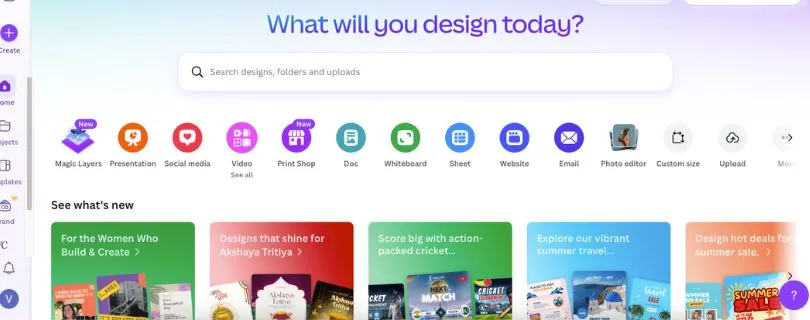
When I opened Canva, the first thing that stood out was how quickly I could get from idea to finished design.
I searched for an Instagram post template, picked one, changed the headline, swapped the image, adjusted the colors, added a logo, and exported the design in just a few minutes.
That is Canva’s biggest strength. It does not make you think too much.
The editor is built around a simple drag-and-drop workflow. You click an element, move it, resize it, duplicate it, or replace it. Text boxes, photos, shapes, icons, charts, videos, and animations are all easy to find from the left sidebar.
(For beginners, this is a big deal. You do not need to understand layers, artboards, masks, or professional design software terms.)
Canva also feels faster when you are working with templates. I could test multiple layouts, apply brand colors, resize the same design for different social platforms, and keep moving without getting stuck in menus.
The Brand Kit is also easy to use. Once I added logos, colors, and fonts, Canva made it simple to apply them across designs. This makes it especially useful for small businesses, content teams, and anyone looking for an AI graphic design tool for marketers.
But Canva is not perfect.
Some popular templates feel overused, especially for social media posts, carousels, and pitch decks. If you do not customize them enough, your design can quickly look like something people have already seen a hundred times.
The editor can also feel a little crowded. Canva has so many templates, elements, apps, AI tools, and content options that the sidebar can become distracting.
Still, for speed, simplicity, and everyday content creation, Canva is hard to beat.
What I Found Inside Adobe Express
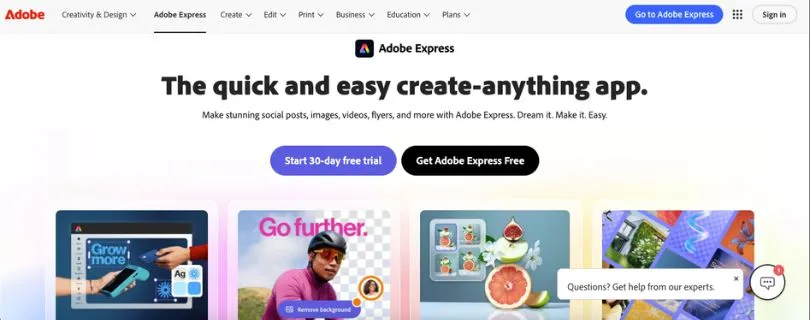
Adobe Express feels cleaner and more controlled when you first enter the editor.
The interface is less busy than Canva’s, and the overall design feels more polished. It still uses a simple drag-and-drop setup, but you can tell Adobe has designed it for people who care about layout, typography, image quality, and brand consistency.
I tested a few social post templates, a flyer, and a simple PDF edit. The experience felt smooth, especially when working with text and images.
The biggest advantage is Adobe Fonts. Typography inside Adobe Express feels more premium than Canva in many cases. If you are creating branded graphics, ads, posters, or polished social content, the font options can make a noticeable difference.
Adobe Express also works better if your assets already live inside the Adobe ecosystem. Creative Cloud Libraries, Adobe Stock, Photoshop files, Illustrator assets, and PDF tools give it a stronger workflow for designers and teams already using Adobe.
(That is where Adobe Express starts to make more sense. It is not just a Canva alternative for design teams. It is more like a lighter Adobe tool for fast, branded content.)
The downside is that Adobe Express does not feel as instantly flexible as Canva. Template variety is smaller, and some everyday design tasks take an extra moment to figure out.
For example, Canva makes it easier to jump from a social post to a presentation to a video thumbnail to a document. Adobe Express can do many of these things, but Canva feels more natural when you are switching between content types all day.
Adobe Express is also slightly less beginner-friendly. It is not difficult, but it feels more useful when you already understand Adobe’s way of working.
Who Wins This Round?
Canva wins for ease of use, speed, and beginner-friendly design. If you want to create social posts, presentations, flyers, videos, and marketing graphics without much learning curve, Canva is the better editor.
Adobe Express wins for cleaner design control, typography, PDF workflows, and Adobe-connected assets. If you already use Photoshop, Illustrator, Adobe Stock, or Creative Cloud Libraries, Adobe Express fits more naturally into that workflow.
The gap neither fully solves: Canva can feel too template-heavy and crowded, while Adobe Express still does not match Canva’s speed, template depth, or all-in-one content workflow.
Canva vs Adobe Express: Who Has Better Templates?
Templates are the main reason most people open tools like Canva and Adobe Express in the first place.
You do not always want to start from a blank page. Sometimes you need a good Instagram post, flyer, presentation, YouTube thumbnail, ad creative, or business document ready in minutes.
I searched, edited, and compared templates inside both tools. Here is the breakdown.
| Feature | Canva | Adobe Express |
| Template Quantity | Much larger library | Smaller library |
| Template Variety | Social, presentations, docs, posters, videos, websites, whiteboards | Social posts, flyers, videos, ads, posters, PDFs |
| Search Experience | Very broad, sometimes overwhelming | Cleaner and easier to scan |
| Template Style | Lots of variety, but some feel common | More polished and curated |
| Best For | Fast content creation across many formats | Cleaner branded designs and polished visuals |
What I Found Inside Canva
Canva’s template library is huge.
I searched for social media posts, pitch decks, resumes, menus, worksheets, flyers, YouTube thumbnails, Instagram carousels, and short-form video templates. In almost every case, Canva gave me more options than I needed.
That is both the strength and the problem.
If you know what you want, Canva is fast. You can search “minimal skincare Instagram post” or “real estate open house flyer” and get a full page of usable starting points.
But if you are not sure what style you want, the number of choices can slow you down.
Some templates also feel very “Canva.” You have probably seen them before: bold headline, pastel background, floating shapes, clean sans-serif font, stock photo on one side.
That is not always bad. For small businesses, teachers, creators, and social media managers, these templates are useful because they are easy to edit and quick to publish.
But for client work or premium brand visuals, you need to customize them properly.
What I Found Inside Adobe Express
Adobe Express has fewer templates, but the overall quality feels more controlled.
The designs often look cleaner out of the box. The typography feels stronger, the layouts feel less crowded, and the visual style feels closer to what you might expect from Adobe.
I noticed this most when testing posters, social ads, and branded graphics. Adobe Express templates often needed less cleanup to look polished.
But the smaller library can be limiting.
When I searched for niche use cases, Canva almost always had more options. Adobe Express covered the basics well, but Canva went deeper into specific industries, formats, and content types.
(That matters if you create content every day and need fresh layout ideas constantly.)
Who Wins This Round?
Canva wins for template quantity and variety. It is better if you want the biggest template library for social media, presentations, business documents, education, marketing, and quick design work.
Adobe Express wins for template curation. Its library is smaller, but many templates feel cleaner and more premium right away.
The gap neither fully solves: Canva gives you more choices than you may want, while Adobe Express sometimes does not give you enough.
Canva vs Adobe Express: Who Has Better AI Tools?
AI is now a big part of both platforms.
Canva has Magic Studio. Adobe Express has Adobe Firefly-powered features. Both can help with writing, image generation, background removal, design ideas, and quick edits.
But they feel very different in real use.
| Feature | Canva | Adobe Express |
| AI Design Generation | Magic Design | Text-to-template and Firefly-powered generation |
| AI Writing | Magic Write | AI text tools |
| Image Generation | Text-to-image tools | Adobe Firefly image generation |
| Object Removal | Magic Eraser | Remove/insert object tools |
| Background Removal | Yes | Yes |
| Text Effects | Basic creative text options | Stronger Firefly text effects |
| Best For | Fast AI-assisted design | Better AI image and visual generation |
What I Found Inside Canva
Canva’s AI tools feel built for speed.
Magic Design is useful when you want quick design ideas without starting from scratch. You can upload an image or type a prompt, and Canva suggests layouts you can edit.
Magic Write is handy for captions, presentation text, short descriptions, and basic marketing copy. It is not a replacement for a good writer, but it helps when you need placeholder text or quick content ideas.
I also tested Canva’s image editing tools. Background removal is simple, Magic Eraser is useful for cleaning up small distractions, and Magic Edit can help replace parts of an image.
For social media video creation, Canva’s AI tools are helpful when you need something fast rather than perfect.
The weak spot is output quality. Some AI-generated visuals look good enough for drafts, but not always good enough for polished brand work or paid ads.
What I Found Inside Adobe Express
Adobe Express feels stronger for visual AI.
Firefly gives Adobe Express a real advantage when generating images, text effects, and creative visuals. The results often feel more refined than typical quick AI design outputs.
I tested a few image prompts and text effects, and Adobe Express handled stylized visuals better than Canva in several cases.
The text effects are especially fun for social graphics, posters, and campaign visuals. You can create attention-grabbing typography without opening Photoshop.
Adobe Express also feels better for users who care about commercial-safe creative workflows and Adobe-connected assets.
But Canva’s AI tools are easier to use across everyday design tasks. Adobe’s AI feels more powerful for visuals, while Canva’s feels more practical for quick content production.
Who Wins This Round?
It is a tie, depending on the use case.
Canva wins if you want AI tools that help you create social posts, presentations, captions, simple videos, and everyday marketing content quickly.
Adobe Express wins if you care more about AI image generation, text effects, polished visuals, and Firefly-powered creative work.
The gap both leave open: AI output still needs human review. Neither tool can consistently replace a designer’s eye for layout, brand consistency, spacing, or final polish.
Canva vs Adobe Express: Who Has Better Brand Kit Features?
Brand tools matter when you are not just making one design.
If you create content every week, manage clients, work with a team, or run campaigns across multiple channels, you need logos, colors, fonts, and templates to stay consistent.
I tested how both tools handle brand assets.
| Feature | Canva | Adobe Express |
| Brand Colors | Yes | Yes |
| Brand Fonts | Yes | Yes, with Adobe Fonts |
| Logos | Yes | Yes |
| Brand Templates | Strong | Strong |
| Team Access | Very good | Good, better with Adobe workflows |
| Asset Libraries | Canva folders and brand assets | Creative Cloud Libraries |
| Best For | Marketing teams and small businesses | Adobe-based creative teams |
What I Found Inside Canva
Canva’s Brand Kit is one of its strongest features.
You can upload logos, add brand colors, choose fonts, and apply everything across templates. For small businesses and marketing teams, this keeps designs from drifting off-brand.
I liked how quickly I could apply brand colors to a template. Canva also makes it easy to build reusable templates for social posts, presentations, ads, and documents.
This is where Canva becomes more than a simple design tool. It becomes a lightweight brand system for non-designers.
A social media manager can create weekly posts. A virtual assistant can update a flyer. A founder can edit a pitch deck. Everyone can stay close to the same visual style without needing a designer for every small change.
What I Found Inside Adobe Express
Adobe Express also has strong brand features, but the value depends heavily on your Adobe workflow.
If your team already uses Creative Cloud Libraries, Adobe Fonts, Photoshop, or Illustrator, Adobe Express makes a lot of sense. Designers can create approved assets, and non-designers can use them in simpler Adobe Express projects.
This is useful for teams where professional designers still control the core brand system.
Adobe Fonts also gives Adobe Express a strong typography advantage. If font quality matters to your brand, this is not a small detail.
But for a team starting from scratch, Canva feels easier to set up and manage.
Who Wins This Round?
Canva wins for most small businesses, marketers, and content teams. The Brand Kit is easier to understand, easier to apply, and better suited for non-designers.
Adobe Express wins for Adobe-based teams that already use Creative Cloud Libraries, Adobe Fonts, and professional design assets.
The gap neither fully solves: Canva is easier, but Adobe has better creative ecosystem depth. Your winner depends on where your brand assets already live.
Canva vs Adobe Express: Who Handles PDFs Better?
PDFs are where Adobe has a natural advantage.
Canva can create and export PDFs, but Adobe Express is closer to Adobe’s larger PDF ecosystem. I tested basic PDF workflows in both tools to see how they feel in practice.
| Feature | Canva | Adobe Express |
| PDF Import | Yes | Yes |
| PDF Editing | Good for simple design edits | Stronger for PDF-focused work |
| PDF Export | Yes | Yes |
| File Conversion | Basic | Strong quick actions |
| Best For | Designed PDFs, worksheets, presentations | Editing, converting, and working with PDFs |
What I Found Inside Canva
Canva is very good at creating beautiful PDFs.
If you want to design a lead magnet, worksheet, checklist, brochure, pitch deck, or downloadable guide, Canva is a strong choice. The templates are easy to edit, and exporting to PDF is simple.
I tested a basic PDF design workflow, and Canva handled it well. I could add images, adjust spacing, change fonts, and export a clean PDF.
But when you need deeper PDF handling, Canva can feel less flexible.
It is better at designing PDFs than managing PDFs.
What I Found Inside Adobe Express
Adobe Express feels more comfortable with PDFs.
That is not surprising. Adobe has been tied to PDF workflows for years, and Express benefits from that ecosystem.
PDF quick actions are one of the best parts of Adobe Express. You can edit, combine, convert, and adjust files more naturally than in Canva.
For users who regularly work with client PDFs, marketing documents, forms, simple reports, or file conversions, Adobe Express feels more practical.
(If PDFs are part of your daily workflow, this is one of the clearest reasons to choose Adobe Express.)
Who Wins This Round?
Adobe Express wins for PDF handling. It is better for editing, converting, and managing PDF-based workflows.
Canva is still better for designing attractive PDFs from scratch, especially if you want templates for guides, workbooks, presentations, and marketing documents.
The gap is clear: Canva is a PDF design tool. Adobe Express is better as a PDF workflow tool.
Canva vs Adobe Express: Who Has Better Stock Assets and Fonts?
Assets can make or break a design.
Good photos, icons, illustrations, fonts, videos, and design elements help you create faster and make the final result look more polished.
I compared both tools by building social graphics, flyers, and ad-style visuals.
| Feature | Canva | Adobe Express |
| Stock Photos | Large Canva library | Adobe Stock integration |
| Icons and Elements | Very large library | Good, but smaller |
| Fonts | Large font library and uploads | Adobe Fonts integration |
| Illustrations | Huge variety | Good curated options |
| Best For | Fast, varied content creation | Premium-looking fonts and stock assets |
What I Found Inside Canva
Canva has a massive asset library.
You can find photos, videos, icons, stickers, frames, mockups, charts, shapes, animated elements, and illustrations without leaving the editor.
This makes Canva very fast for everyday content. If you are building social media posts, a presentation, a flyer, or a simple ad creative, you can usually find what you need in seconds.
The downside is consistency.
Because Canva has so many assets, it is easy to mix styles that do not belong together. A design can quickly look messy if you combine random icons, stock photos, and decorative elements.
Canva gives you more options, but you still need taste.
What I Found Inside Adobe Express
Adobe Express has fewer playful design elements, but its asset quality feels more premium in certain areas.
Adobe Stock integration is a real advantage if you care about polished photography and professional-looking campaign visuals.
Adobe Fonts is even more important. Good typography can make a simple design look much more expensive, and Adobe Express has a clear edge here.
When I tested poster-style graphics and brand visuals, Adobe Express often looked more refined because the fonts felt better.
Who Wins This Round?
Canva wins for asset variety. It has more icons, templates, elements, illustrations, stickers, and quick design assets.
Adobe Express wins for stock photo quality and fonts. Adobe Stock and Adobe Fonts make it better for polished brand visuals.
The gap neither fully solves: Canva can look generic if you do not customize enough, while Adobe Express can feel less flexible when you want lots of fun, fast design elements.
Canva vs Adobe Express: Who Is Better for Collaboration?
Collaboration matters when more than one person touches the same design.
A solo creator may only care about templates and exports. But a marketing team, agency, school, or small business needs folders, comments, shared assets, brand controls, and easy handoff.
| Feature | Canva | Adobe Express |
| Team Sharing | Strong | Good |
| Comments | Yes | Yes |
| Shared Brand Assets | Yes | Yes |
| Template Locking | Good for teams | Good with Adobe workflows |
| Folder Organization | Strong | Good |
| Best For | Marketing teams, schools, small businesses | Teams already using Adobe |
What I Found Inside Canva
Canva feels built for teams.
You can share designs, organize projects into folders, leave comments, create brand templates, and let non-designers edit approved layouts.
This is one of the biggest reasons Canva is popular with marketing teams. A designer can create a branded template, and a social media manager can update the copy without breaking the whole layout.
For agencies and small businesses, Canva also makes it easier to move fast. You do not need everyone to know Photoshop or Illustrator.
Canva’s collaboration features make it a strong AI graphic design tool for marketers who need speed more than advanced design control.
What I Found Inside Adobe Express
Adobe Express supports collaboration, but it feels more useful when your team already works inside Adobe.
If designers use Creative Cloud Libraries and brand assets already live in Adobe, Express can help non-designers create approved content without opening more complex tools.
That is useful.
But for general team collaboration, Canva feels easier and more natural. The learning curve is lower, and the whole platform feels designed for shared marketing work.
Who Wins This Round?
Canva wins for most teams. It is easier to share, organize, comment, create templates, and keep non-designers moving.
Adobe Express wins for Adobe-based creative teams where designers already manage assets inside Creative Cloud.
The gap neither fully solves: Canva is better for broad collaboration, while Adobe Express is better for Adobe-connected handoff.
Canva vs Adobe Express: Who Has Better Video Tools?
Both tools can create simple videos.
Neither one replaces Premiere Pro, Final Cut, DaVinci Resolve, or a dedicated AI video generator. But for short social clips, quick ads, animated posts, and simple edits, both are useful.
| Feature | Canva | Adobe Express |
| Social Video Templates | Strong | Good |
| Timeline Editing | Simple and beginner-friendly | Simple and clean |
| Animations | Easy presets | Good presets |
| Captions/Text | Good | Good |
| Stock Video | Large library | Adobe Stock assets |
| Best For | Reels, TikToks, simple ads, social videos | Quick branded videos and Adobe-connected assets |
What I Found Inside Canva
Canva is strong for simple social video creation.
I tested short-form video templates, animated posts, and basic marketing clips. The workflow is easy: pick a template, replace clips, edit text, add music, adjust timing, and export.
For creators, coaches, educators, and small businesses, Canva works well as a social media video creation tool.
It is not built for advanced editing, though.
You will not get the same timeline control, color grading, audio mixing, or motion precision you get in a real video editor. But for quick Reels, TikToks, ads, and product promos, Canva is more than enough.
What I Found Inside Adobe Express
Adobe Express also handles simple video well.
The editor is clean, and the templates are useful for quick branded content. If you are already using Adobe assets, it makes sense to create lightweight videos inside Express instead of jumping into Premiere for every small task.
Adobe Express is especially useful for short visual promos, animated text, social posts, and quick video edits.
But Canva still feels faster when creating everyday social videos from templates.
If your workflow is mostly “make this post, resize it, add motion, publish it,” Canva feels smoother.
Who Wins This Round?
Canva wins for simple social videos and fast marketing clips. It has more templates and feels easier for creators who post often.
Adobe Express wins for Adobe-connected video workflows and polished branded clips.
The gap neither fully solves: both tools are good for quick videos, but neither is a full video editor or the best AI video generator for creators who need advanced motion, cinematic output, or complex editing.
Canva vs Adobe Express: Who Has Better Export Options?
Exporting sounds boring until it blocks your workflow.
A design tool can look great inside the editor, but if it gives you the wrong file format, adds a watermark, limits quality, or makes resizing painful, the final step becomes frustrating.
| Feature | Canva | Adobe Express |
| Image Exports | PNG, JPG, and more | Standard image exports |
| PDF Export | Yes | Yes, stronger PDF workflow |
| Video Export | Yes | Yes |
| Resize Tools | Strong, especially on paid plans | Good |
| File Conversions | Good | Strong quick actions |
| Best For | Everyday export variety | PDF and quick file tasks |
What I Found Inside Canva
Canva gives you strong everyday export options.
You can export graphics, presentations, PDFs, videos, and images in common formats. For most creators and marketers, that covers the basics.
The resize feature is especially useful when repurposing one design across Instagram, LinkedIn, YouTube, Facebook, Pinterest, and ads.
This is one of those small features that saves real time.
Canva is also strong for presentation exports, printable PDFs, social graphics, and quick design downloads.
What I Found Inside Adobe Express
Adobe Express handles standard exports well, but its extra value comes from quick actions.
You can resize, convert, remove backgrounds, adjust PDFs, and handle simple file tasks quickly. That makes it useful when you do not want to open a full Adobe app for a basic job.
Adobe Express feels better when your workflow includes lots of file cleanup, PDF work, and asset conversion.
But for everyday creator exports, Canva feels broader and more flexible.
Who Wins This Round?
Canva wins for export variety and content repurposing.
Adobe Express wins for PDF exports, file conversions, and quick actions.
The gap is simple: Canva is better for publishing across many content formats. Adobe Express is better for utility-style file tasks.
Canva vs Adobe Express: Who Has the Better Free Plan?
The free plan matters because many people test these tools before paying.
I checked what each platform feels like when you are not ready to upgrade yet.
| Feature | Canva | Adobe Express |
| Free Templates | Large selection | Good selection |
| Free Assets | Large library, but premium assets are locked | Useful free assets, Adobe assets vary |
| Free AI Tools | Limited access | Limited access |
| Brand Kit | More limited on free | More limited on free |
| Best For | Beginners and casual creators | Adobe users and quick actions |
What I Found Inside Canva
Canva’s free plan is one of the best reasons people start with it.
You can create a lot without paying. There are free templates, free elements, basic exports, simple editing tools, and enough features to make social posts, presentations, flyers, and documents.
Of course, you will hit limits.
Premium templates, Pro elements, advanced brand tools, background remover, resizing, and some AI tools sit behind paid plans.
Still, Canva’s free plan feels generous for beginners.
What I Found Inside Adobe Express
Adobe Express also has a useful free plan.
It is especially good if you want quick actions, simple designs, background removal access depending on current limits, and Adobe-style creative tools.
The free plan is a nice way to test the editor and see whether the Adobe workflow fits you.
But for pure template variety and beginner-friendly design, Canva’s free plan feels more useful for most people.
Who Wins This Round?
Canva wins for the better free plan for most casual users.
Adobe Express is still worth testing, especially if you already use Adobe tools or want PDF quick actions and Firefly-powered features.
The gap both leave open: free plans are useful for testing, but serious brand work, team workflows, premium assets, and higher-quality exports usually push you toward a paid plan.
Canva vs Adobe Express: What You Will Actually Pay
Pricing pages can make both tools look simple.
The real question is what you need to pay for once you start using templates, brand kits, premium assets, AI tools, team features, and exports regularly.
| Use Case | Better Value |
| Casual creator | Canva free plan |
| Beginner making social posts | Canva |
| Small business brand kit | Canva Pro or Canva Teams |
| Adobe Creative Cloud user | Adobe Express |
| PDF-heavy workflow | Adobe Express |
| Design team using Adobe assets | Adobe Express |
| Marketing team creating daily content | Canva |
| Presentations and documents | Canva |
What I Found Inside Canva

Canva gives strong value if you create lots of everyday content.
For a solo creator, freelancer, small business owner, educator, or social media manager, Canva Pro often feels worth it because it removes many small limits.
You get more templates, premium assets, background remover, resizing, brand tools, and better workflow features.
For teams, Canva becomes even more useful because of shared templates, folders, brand kits, and collaboration.
The main risk is paying for Canva and still making designs that look too similar to everyone else’s. The tool is easy, but good design still needs thoughtful customization.
Also Read:Canva pricing plans and cost breakdown
What I Found Inside Adobe Express
Adobe Express can be a better value if you already pay for Adobe Creative Cloud.
That changes the math completely.
If Adobe Express is already included in your Adobe workflow, it becomes a handy lightweight design tool for quick graphics, PDFs, social assets, and Firefly-powered creative work.
For users who do not use Adobe, the value depends on whether you care more about Adobe Fonts, Adobe Stock, PDFs, and Firefly than Canva’s larger template library.
Who Wins This Round?
Canva wins for most individuals, small businesses, educators, and marketing teams.
Adobe Express wins for existing Adobe users and teams that already rely on Adobe assets.
The gap both leave open: pricing depends heavily on your workflow. Check the current plan limits before buying, especially for AI features, team access, premium assets, and commercial usage rights.
Also Read:
Final Verdict: Canva vs Adobe Express
After testing both tools, the winner depends on what kind of creative work you do.
Canva is the better choice for most people.
It is easier to learn, faster to use, packed with templates, and better for social media graphics, presentations, documents, simple videos, team collaboration, and everyday marketing content.
Adobe Express is the better choice if your workflow already lives inside Adobe.
It gives you stronger typography through Adobe Fonts, better PDF handling, Adobe Stock access, Firefly-powered AI tools, and smoother connections with Creative Cloud assets.
Pick Canva if:
- You want the easiest design tool for beginners
- You create lots of social media graphics, presentations, flyers, and marketing content
- You need a huge template library with plenty of layout options
- You work with a team and need simple collaboration, folders, comments, and brand templates
- You want a fast AI graphic design tool for marketers, creators, educators, or small businesses
- You do not already rely heavily on Adobe Creative Cloud
Pick Adobe Express if:
- You already use Adobe Creative Cloud, Photoshop, Illustrator, or Adobe Stock
- You care more about Adobe Fonts, polished typography, and premium-looking assets
- You need stronger PDF editing, file conversion, and quick actions
- You want Firefly-powered AI tools for image generation, text effects, and creative edits
- Your design team manages brand assets inside Creative Cloud Libraries
- You want a Canva alternative for design teams already working in Adobe
Who wins overall?
Canva wins overall for most users.
Adobe Express wins for Adobe-based workflows.
The honest answer is this: Canva is better when you need speed, templates, and simplicity. Adobe Express is better when you need Adobe assets, PDFs, fonts, and a more polished creative workflow.
For most creators and marketers, I would start with Canva.
For Adobe users, I would test Adobe Express before adding another design subscription.
FAQs About Canva vs Adobe Express
Is Canva better than Adobe Express?
Canva is better for most users because it is easier to learn, has more templates, and works well for social media graphics, presentations, documents, videos, and team collaboration. Adobe Express is better if you already use Adobe Creative Cloud or need stronger PDF tools, Adobe Fonts, Adobe Stock, and Firefly-powered AI features.
Is Adobe Express better than Canva?
Adobe Express is better than Canva for Adobe-based workflows. If you use Photoshop, Illustrator, Adobe Stock, Creative Cloud Libraries, or work with PDFs often, Adobe Express feels more natural. But for everyday design work, Canva is usually faster and easier.
Which is easier to use, Canva or Adobe Express?
Canva is easier for beginners. The editor feels simple, the templates are easy to customize, and most tools are where you expect them to be. Adobe Express is also beginner-friendly, but it makes more sense if you already understand Adobe’s design ecosystem.
Which tool has better templates?
Canva has more templates and more variety. It is better for social media posts, presentations, flyers, resumes, worksheets, YouTube thumbnails, and business documents. Adobe Express has fewer templates, but many of them feel more polished and curated.
Which has better AI tools, Canva or Adobe Express?
It depends on what you want to create. Canva’s Magic Studio is better for quick AI-assisted designs, captions, layouts, and everyday marketing content. Adobe Express is stronger for Firefly-powered image generation, text effects, object editing, and more polished visual experiments.
Is Adobe Express free like Canva?
Yes, Adobe Express has a free plan, and Canva also has a free plan. Canva’s free plan feels more useful for beginners because it gives you access to a large template library and basic design tools. Adobe Express’s free plan is useful for quick actions, simple designs, PDF tasks, and testing Adobe’s AI tools.
Which is better for social media graphics?
Canva is better for most social media graphics. It has more templates for Instagram posts, stories, reels, TikTok videos, LinkedIn posts, Pinterest pins, YouTube thumbnails, and Facebook ads. Adobe Express can also create strong social graphics, but Canva is faster for daily content creation.
Which is better for presentations?
Canva is better for presentations. It has more pitch deck templates, business slides, education templates, visual layouts, and collaboration tools. Adobe Express can create presentation-style visuals, but Canva feels more complete for slide-based work.
Which is better for PDFs?
Adobe Express is better for PDF workflows. Canva is great for designing PDFs like guides, worksheets, brochures, and lead magnets, but Adobe Express is stronger for editing, converting, combining, and working with PDF files.
Which is better for brand kits?
Canva is better for most small businesses and marketing teams because its Brand Kit is simple to set up and easy to apply across templates. Adobe Express is better if your brand assets already live inside Creative Cloud Libraries or your team relies on Adobe Fonts and Adobe files.
Which is better for teams?
Canva is better for most teams. It is easier to share designs, organize projects, leave comments, create branded templates, and let non-designers edit content safely. Adobe Express is better for teams already using Adobe Creative Cloud.
Which is better for professional designers?
Adobe Express is usually better as a lightweight companion tool for professional designers who already use Photoshop, Illustrator, InDesign, or Creative Cloud Libraries. Canva is better when designers need to hand off simple templates to marketers, clients, or non-designers.
Can Adobe Express replace Canva?
Adobe Express can replace Canva if your work depends on Adobe assets, PDFs, typography, and Creative Cloud workflows. But if you rely heavily on templates, presentations, social media content, and team collaboration, Canva is still the better all-in-one choice.
Can Canva replace Adobe Express?
Canva can replace Adobe Express for most everyday design tasks. You can create social posts, flyers, presentations, videos, documents, and brand templates without needing Adobe Express. But Canva does not fully replace Adobe Express if you need Adobe Fonts, Adobe Stock, PDF quick actions, or Creative Cloud integration.
Is Adobe Express like Canva?
Yes, Adobe Express is similar to Canva because both are online design tools for creating graphics, videos, flyers, posters, social media posts, and branded content. The difference is that Canva focuses more on simplicity and templates, while Adobe Express focuses more on Adobe assets, PDFs, typography, and Firefly-powered AI tools.
Is Canva or Adobe Express better for small businesses?
Canva is better for most small businesses because it is easier to use, has more templates, and supports everyday marketing needs like social posts, menus, flyers, ads, presentations, and brand kits. Adobe Express is a better choice if the business already uses Adobe Creative Cloud or needs stronger PDF and asset workflows.
Is Canva or Adobe Express better for students and teachers?
Canva is usually better for students and teachers because it has more education templates, worksheets, presentations, posters, classroom materials, and beginner-friendly tools. Adobe Express is also useful for creative projects, but Canva has a wider education-focused workflow.
Which is better for YouTube thumbnails?
Canva is better for YouTube thumbnails because it has more thumbnail templates, bold text styles, cutout effects, and quick editing tools. Adobe Express can create polished thumbnails too, especially with better fonts and image tools, but Canva is faster for most creators.
Which is better for logo design?
Neither Canva nor Adobe Express is the best choice for serious custom logo design. Canva is fine for quick logo ideas and simple small-business branding. Adobe Express can also help with clean logo-style graphics. But for a professional, original logo, a designer using Illustrator or another vector design tool is still better.
Which is better for print designs?
Canva is better for quick print designs like flyers, posters, menus, brochures, invitations, and business cards because it has more templates. Adobe Express is better if your print workflow depends on Adobe fonts, Adobe Stock images, or PDF handling.
Which is better for video editing?
Canva is better for simple social videos, reels, TikToks, animated posts, and quick marketing clips. Adobe Express is good for quick branded videos and Adobe-connected assets, but neither tool replaces a full video editor like Premiere Pro, Final Cut, CapCut, or DaVinci Resolve.
Which is better for agencies?
Canva is usually better for agencies creating lots of social media content, presentations, ads, and brand templates for clients. Adobe Express is better for agencies already using Adobe Creative Cloud and managing assets through Creative Cloud Libraries.
Which one should I choose if I already use Photoshop or Illustrator?
Choose Adobe Express if you already use Photoshop or Illustrator and want a simpler tool for quick content creation. It connects better with Adobe assets, fonts, stock images, and Creative Cloud workflows.
Which one should I choose if I am a beginner?
Choose Canva if you are a beginner. It is easier to understand, gives you more templates, and helps you create good-looking designs without needing design experience.
Do professionals use Canva?
Yes, many professionals use Canva for quick marketing content, social posts, presentations, reports, simple ads, and client templates. Professional designers may still prefer Adobe tools for advanced work, but Canva is widely used for fast content production.
Do professionals use Adobe Express?
Yes, Adobe Express is useful for professionals who want quick branded graphics, PDF edits, simple videos, and social content without opening Photoshop, Illustrator, or Premiere Pro. It works best as a lightweight Adobe companion tool.
Should I use both Canva and Adobe Express?
You can use both if your workflow needs them. Canva is better for fast templates, presentations, and everyday social content. Adobe Express is better for PDFs, Adobe Fonts, Adobe Stock, Firefly AI, and Creative Cloud-connected work. For many people, Canva alone is enough. For Adobe users, Adobe Express is worth testing.