I tested Rive and found that it works well for interactive product animations, but not for every type of motion design work. This Rive review explains what it does well, where it falls short, and who it’s best for in 2026.
Quick verdict
Best for: Rive is an interactive animation tool that’s great for creating product animations, UI interactions, animated buttons, and app-ready motion graphics.
Falls short for: Beginners who only need simple animations, video-style motion design, or a quick GIF export without learning State Machines.
Bottom line: Rive is excellent for interactive animations that need to run inside real websites, apps, and games. But if you only need basic linear animations, it may feel more advanced than necessary.
What is Rive?
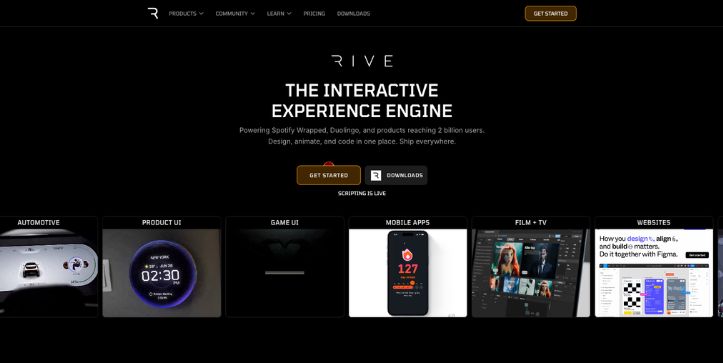
Rive is an interactive animation tool that helps you design, animate, and ship motion graphics for websites, apps, games, and product interfaces. It gives you a visual editor where you can create animations, add interactions, and prepare them for real use in production.
You build the animation in Rive, connect it to user actions like clicks, hovers, taps, or app states, and then developers can run it inside the final product. This makes Rive different from tools that only export videos, GIFs, or simple animation files.
Most animation tools, such as After Effects and Lottie-based workflows, focus on linear animations that play from start to finish. Rive goes further. It has State Machines, open-source runtimes, and interactive controls that let one animation react to what the user does.
Key features of Rive
Below are the main features of Rive:
- Visual animation editor: Design and animate graphics inside Rive without jumping between multiple tools. You can create shapes, set keyframes, adjust timing, and build motion directly in the editor.
- State Machines: Rive lets you make animations react to clicks, hovers, taps, scrolls, and app states. This is what makes it useful for interactive buttons, loading screens, toggles, icons, and product UI animations.
- Cross-platform runtimes: Developers can run Rive animations on web, iOS, Android, Flutter, React, React Native, Unity, and more. You don’t have to export the same animation in different formats for every platform.
- Small file sizes: Rive files are usually lightweight compared with videos, GIFs, and image sequences. This helps when you want smooth animations inside websites and mobile apps without slowing everything down.
- Team collaboration: Rive gives teams a shared workspace to design, animate, review, and ship interactive graphics together. This makes handoff easier between designers, animators, and developers.
Rive pricing
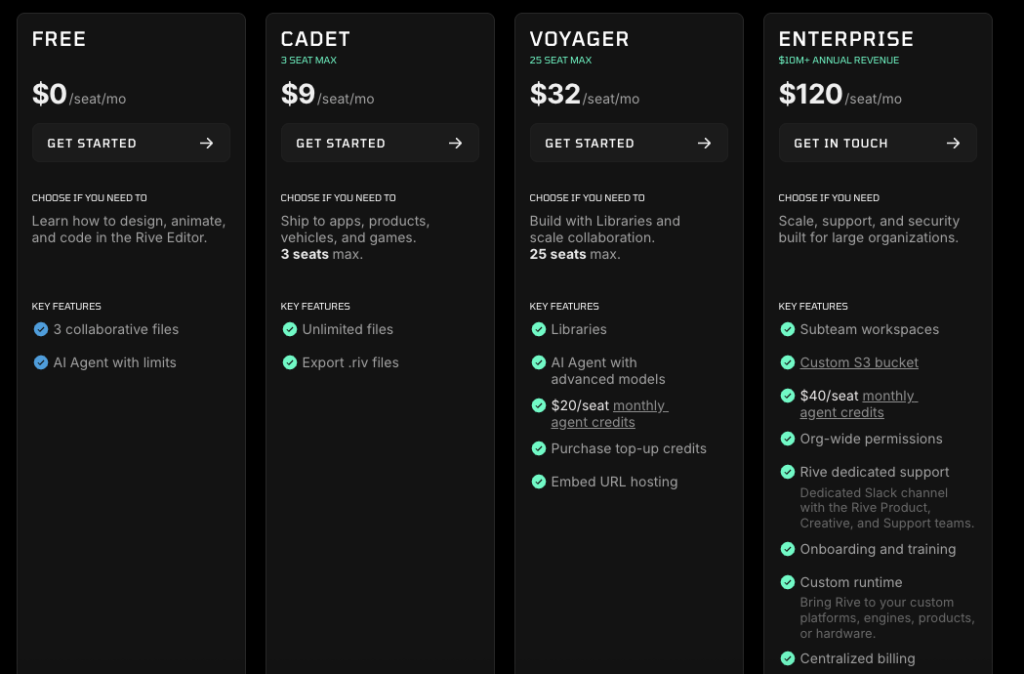
Rive uses a seat-based pricing model, but the biggest thing to understand is this: creating is free, shipping is paid.
You can use the free plan to learn Rive, build animations, test State Machines, and explore the editor. But once you want to export your work and use it inside a real website, app, product, or game, you’ll need a paid plan.
Rive also includes monthly AI agent credits on paid plans. These credits are used for Rive’s AI Coding Agent, which helps with scripting inside the editor. The credits reset every month, so they don’t roll over if you don’t use them.
Below is what you get with each plan:
| Plan | Monthly cost | Seat limit | AI credits | Key features |
| Free | $0/seat/month | Unlimited team members | Not included | 3 collaborative files, State Machines, Data Binding, Scripting, and editor access |
| Cadet | $9/seat/month | 3 seats max | $5/seat/month | Exports, unlimited files, folders, tags, and early access features |
| Voyager | $32/seat/month | 25 seats max | $16/seat/month | Libraries, CDN asset hosting, hosted embed links, Rive support, and priority community responses |
| Enterprise | $120/seat/month | Custom | $40/seat/month | Subteam workspaces, custom S3 bucket, org-wide permissions, SSO, SOC2 Type II, dedicated Slack support, onboarding, and custom runtime options |
Rive reviews
Most reviews say Rive is great for interactive product animations, but it takes time to learn if you’re coming from simpler tools like Lottie, GIF exports, or basic UI animation workflows.
What users like
- Interactive animations: Users on Product Hunt consistently praise Rive for animations that can react, change, and respond to user input instead of just playing from start to finish.
Source:https://www.producthunt.com/products/rive/reviews - Fast and lightweight output: Product Hunt reviewers mention fast performance, compact file size, and smooth interactive animations as major strengths. This makes Rive useful for websites, mobile apps, animated icons, and product UI.
Source:https://www.producthunt.com/products/rive/reviews?feed=single&filter=all&page=1&review=50241 - Better handoff for motion designers: G2 users like that Rive helps motion designers get animations into real products without depending on a long After Effects-to-developer handoff. Users also mention State Machines, timeline blending, and fast previews as useful parts of the workflow.
Source:https://www.g2.com/products/rive/reviews - Strong option for web animation: Some Reddit users describe Rive as more powerful than Lottie for web animation, especially when the animation needs interactivity instead of a simple looping effect.
Source:https://www.reddit.com/r/webdev/comments/1nbmdhp/do_you_think_lottie_animations_are_popular_for/ - Good for complex state-driven animations: In frontend discussions, users mention Rive as a solid choice for more complex animations that need states, smaller files, and decent performance.
Source:https://www.reddit.com/r/Frontend/comments/1muncfu/how_can_i_optimize_animations_on_the_web_to/
What frustrates users
- Learning curve: Users often say Rive takes time to understand, especially if you’re new to State Machines, runtime logic, or interactive animation. G2 reviews mention that the learning curve can feel tough at first, even though teams usually get comfortable after using it for a while.
Source:https://www.g2.com/products/rive/reviews - State Machines can feel confusing at first: Rive’s biggest strength is also one of the first things that slows people down. If you’re coming from a simple timeline tool, building animation logic with inputs, states, and transitions can feel less obvious than just pressing play on a linear animation.
Source:https://www.producthunt.com/products/rive/reviews - Feels clunky for some After Effects users: Some motion designers on Reddit say Rive can feel awkward when they first switch from After Effects. The workflow is different, and not every AE habit maps cleanly to Rive’s editor.
Source:https://www.reddit.com/r/MotionDesign/comments/1q3xmkr/feeling_a_loss_of_hope_learning_rive_but_is_it/ - Production use can expose bugs or rough edges: A Reddit post in the Rive community mentions bugs, confusing workflows like ViewModels, and a cluttered interface when testing Rive more seriously for production work. This doesn’t mean everyone has the same experience, but it’s worth knowing before you build an entire animation pipeline around it.
Source:https://www.reddit.com/r/Rive_app/comments/1sguk0e/honestly_rive_in_its_current_state_for_production/ - Not always the fastest choice for simple animations: If you only need a basic looping icon, a short loading animation, or a simple marketing graphic, Rive can feel like too much tool for the job. Users who only need linear animations may be happier with Lottie, Jitter, or After Effects exports.
My experience: Building an interactive onboarding button
I tested Rive by building an interactive onboarding button for a product signup flow. After creating the button shape, I added a hover state, a click animation, and a loading state. The result felt much closer to a real app interaction than a simple GIF or looping Lottie animation.
Problems started when I moved past the basic timeline. State Machines are powerful, but they take a little time to understand. Setting up inputs, transitions, and triggers felt less obvious than just animating keyframes from start to finish.
What this experience makes clear is the tradeoff you’re signing up for. Rive is excellent when you want interactive animations that respond to users, but it can feel slower when you only need a simple visual animation.
If you’re a designer, you can build a lot inside the editor without writing code. If you’re a developer, you’ll appreciate the runtimes and production workflow, but you’ll still need to wire the animation into your website, app, or game correctly.
Is Rive right for you?
Rive is a good fit if you need interactive animations for real products and don’t want your motion work to stay trapped inside a prototype.
Who might find it useful:
- Product designers creating interactive UI animations for apps, websites, and SaaS products. Rive works well for buttons, toggles, onboarding screens, loading states, and animated empty states.
- Developers adding motion to production apps who need animations that can respond to clicks, hovers, app states, and user input. The runtimes make Rive much more practical than exporting a basic video or GIF.
- Startups and product teams building polished interfaces who want their product to feel more alive without creating separate animation files for every small interaction.
Who should skip it:
- Motion designers creating video-style animations for ads, explainers, or social content. After Effects will usually feel more natural for that kind of work.
- Beginners who only need simple looping animations and don’t want to learn State Machines, triggers, or runtime setup. A basic Lottie workflow may be faster.
- Teams without design or developer support who expect Rive to be a one-click animation solution. Rive is powerful, but you still need someone who understands motion, interaction, or implementation.
Rive alternatives
Rive is a strong choice for interactive product animation, but it’s not the only option. The best alternative depends on what you’re trying to create, how technical your team is, and where the animation needs to run.
1. LottieFiles
LottieFiles is best for simple, lightweight animations that play from start to finish. It works well for animated icons, loading spinners, empty states, and small UI details.
If your team already uses After Effects and exports animations with Bodymovin, LottieFiles will probably feel easier than Rive. But if you need animations that respond to clicks, hovers, or app states, Rive gives you more control.
Don’t miss:
LottieFiles Alternatives That Make Animation Workflows Smoother
2. Adobe After Effects
Adobe After Effects is best for professional motion graphics, video animations, explainers, ads, and cinematic visual work. It gives motion designers deep control over layers, effects, timing, and composition.
Rive is not really an After Effects replacement. It’s better for interactive UI animation that needs to run inside a product. After Effects is still the better choice when the final output is a video, not an app interaction.
3. Jitter
Jitter is best for quick browser-based motion design. It’s useful for product videos, social media clips, landing page visuals, and simple animated UI mockups.
Jitter feels easier to pick up than Rive, especially if you want to create something fast and export it as a video or GIF. But it’s not built for state-based animations or runtime control in the same way Rive is.
Helpful guide:
Top Jitter Competitors to Make Animated Designs and Motion Videos
4. Spline
Spline is best for interactive 3D web experiences. If you want to create 3D product visuals, web scenes, or interactive 3D objects, Spline is a better fit than Rive.
Rive focuses more on 2D interactive graphics and UI animation. Spline makes more sense when the main experience depends on 3D models, depth, camera movement, and spatial interaction.
5. Figma Smart Animate
Figma Smart Animate is best for simple UI prototypes. Designers use it to show how screens, cards, buttons, and interface states might move during a product flow.
It’s great for communicating ideas, but it’s not the same as production-ready animation. Rive is the better option when the animation needs to become a real asset inside your website, mobile app, or game.
Final verdict: Should you use Rive?
Yes, use Rive if you need interactive animations for websites, apps, games, or product interfaces. Its State Machines, runtimes, and lightweight files make it much better than basic GIFs or linear animations.
But if you only need simple motion graphics or looping icons, Rive may be more than you need. My verdict: Rive is worth it for product-focused teams that want animations to respond to real user behavior.
FAQs about Rive
Is Rive free?
Yes, Rive has a free plan that lets you use the editor, create animations, test State Machines, and learn the tool. But if you want to export and ship your animations in real projects, you’ll likely need a paid plan.
What is Rive used for?
Rive is used to create interactive animations for websites, mobile apps, games, SaaS products, onboarding screens, animated buttons, loading states, icons, and product UI.
Is Rive good for beginners?
Rive is good for beginners who are willing to learn. Basic animations are easy enough to start with, but State Machines, triggers, and runtime setup take more practice.
Is Rive better than Lottie?
Rive is better if you need interactive animations that respond to clicks, hovers, taps, or app states. Lottie is usually better for simple animations that just play from start to finish.
Can Rive replace After Effects?
No, not fully. Rive is better for interactive product animations, while After Effects is better for video motion graphics, ads, explainers, and cinematic animation work.
Can I use Rive with React?
Yes, Rive works with React. It also supports other platforms like web, iOS, Android, Flutter, React Native, Unity, and more.
Is Rive good for mobile apps?
Yes, Rive is a strong option for mobile apps. It works well for onboarding animations, empty states, buttons, loading screens, success animations, and app UI interactions.
Does Rive export to GIF or video?
Rive is mainly built for interactive runtime animations, not traditional video exports. If your main goal is to create GIFs or videos, tools like After Effects, Jitter, or Lottie-based workflows may feel easier.
What are Rive State Machines?
State Machines let your animations react to user behavior or app logic. For example, one button animation can have a hover state, click state, loading state, and success state inside the same Rive file.
Is Rive worth it?
Yes, Rive is worth it if you’re building product animations that need to run inside real apps, websites, or games. If you only need a simple looping animation, it may be more advanced than necessary.
Do developers need to know Rive?
Developers don’t need to become animation experts, but understanding Rive helps a lot when adding interactive motion to a product. The runtime setup is where developers usually get involved.
Can designers use Rive without coding?
Yes, designers can create animations, set up interactions, and build State Machines inside Rive without writing code. But if the animation needs to connect with real app data, a developer may still need to help.
Why do people use Rive instead of GIFs?
People use Rive instead of GIFs because Rive animations can be interactive, smaller, sharper, and easier to control inside an app or website. GIFs are usually heavier and can’t respond to user actions.
What is the best Rive alternative?
The best Rive alternative depends on your use case. LottieFiles is best for simple UI animations, After Effects is best for video motion graphics, Jitter is best for quick browser-based animations, Spline is best for 3D web experiences, and Figma Smart Animate is best for prototypes.
Is Rive good for game UI?
Yes, Rive can work well for game UI, menus, HUD elements, character reactions, and interactive panels. It’s especially useful when animations need to change based on player actions or game states.