VistaCreate has quietly become a go-to design tool for creators, marketers, and small business owners in 2026. Whether you’re building a brand from scratch, managing a busy content calendar, or just trying to make your Instagram posts look less… meh, VistaCreate makes a bold promise: pick a template, tweak a few elements, and walk away with polished, professional designs in minutes.
But shiny templates aside, what is VistaCreate really, how does it compare to similar tools, what’s changed since its Crello days, and is the Pro plan actually worth it?
This hands-on guide pulls together expert insight, real user opinions, updated features, and pricing info to help you decide if VistaCreate deserves a spot in your creative toolkit.
What Is VistaCreate AI?
VistaCreate AI is an online graphic design platform built to help you create high-quality visuals without the steep learning curve. Whether you’re designing social media posts, ads, presentations, or print materials, VistaCreate gives you a head start with smart templates and easy-to-use tools that simplify the entire process.
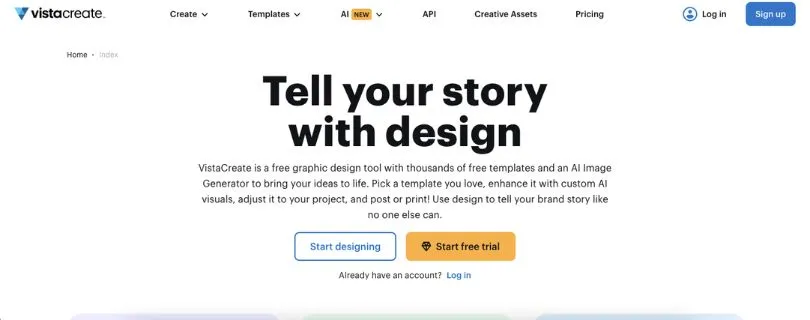
Instead of relying on traditional design software or complicated interfaces, VistaCreate takes a more guided approach. You begin by choosing what you want to create, and the platform instantly offers professionally designed templates you can tweak to fit your style. From there, it’s as simple as dragging and dropping elements, editing text, and letting the AI handle the visual balance.
When you create something in VistaCreate, you get access to:
- Pre-designed templates for social media, ads, presentations, and print
- A drag-and-drop editor that’s simple and intuitive
- Built-in animation tools for posts, stories, and short videos
- A massive library of photos, videos, icons, and design elements
- Brand kits to keep fonts, colors, and logos consistent
- Download and sharing options for digital use or print
What makes VistaCreate stand out is how it blends speed with quality. You don’t need to understand design theory to make something that looks sharp. The AI quietly handles layout suggestions, spacing, and visual flow so your work always feels put together.
Key highlights:
- Template-first approach that speeds up design work
- AI-assisted layout and design suggestions
- Beginner-friendly editor with drag-and-drop controls
- Support for static designs, animations, and short videos
- Designed for fast content creation, not complex design workflows
How VistaCreate Works (Step-by-Step)
VistaCreate keeps things simple on the surface, but there’s a lot going on behind the scenes to make design feel effortless. Here’s a breakdown of how the platform works from the moment you sign in to the moment you’re hitting download or publish.
Step 1: Choose What You Want to Create
Once you’re logged in, VistaCreate greets you with a clean dashboard and a simple question:
What do you want to design today?
You can type in what you’re looking for or browse a library of content types like:
- Instagram stories
- Facebook ads
- YouTube thumbnails
- Business cards
- Presentations
Once you select a format, VistaCreate automatically sets the canvas size and pulls up templates that match your choice.
Step 2: Pick a Template
Instead of starting from scratch, you scroll through hundreds (sometimes thousands) of templates tailored to your format. These templates are fully customizable and organized by category, vibe, or industry.
Whether you’re making something bold and colorful or clean and minimalist, there’s something for you. Pick one that feels close to your vision.
Step 3: Customize the Design
This is where things start to feel fun. The editor opens with drag-and-drop controls and an intuitive layout. You can:
- Swap out text and fonts
- Change images or upload your own
- Adjust colors to match your brand
- Add animations or motion graphics if you’re working on a video or animated post
- Use AI tools to resize your design for other platforms
The platform takes care of spacing, alignment, and visual balance, so your design still looks clean even as you tweak it.
Step 4: Save, Download, or Share
Once you’re happy with the result, you’ve got a few options:
- Download it in your preferred format (JPG, PNG, MP4, PDF)
- Share directly to social media
- Send it for printing via Vista’s integrated services
- Save it in folders or brand kits for future use
This workflow makes VistaCreate especially useful for content creators and marketers who need to produce visual content regularly without relying on a designer.
Use Cases for VistaCreate AI
VistaCreate AI is built for speed, simplicity, and consistency—perfect when you need solid visuals without jumping into full-blown design software. Here’s who it works best for, and where it might fall short.
Great fit for:
✔ Small business owners who need branded content fast
✔ Social media managers juggling multiple platforms
✔ Content creators looking to upgrade their visuals without hiring a designer
✔ Marketing teams producing ads, email graphics, and promotional materials
✔ Online sellers who need product images, flyers, or packaging mockups
✔ Coaches, consultants, and course creators making workbooks or slide decks
Not ideal for:
✖ Professional designers who need pixel-perfect control and advanced tools
✖ Teams working on large collaborative design projects with complex workflows
✖ Users who want full creative freedom beyond templates
✖ Projects that require intricate branding systems or custom animation layers
Limitations of VistaCreate
VistaCreate makes it easy to create good-looking designs fast, but like any tool, it’s not without its trade-offs. Here are a few limitations to keep in mind, especially if you plan to use it heavily or for more complex projects.
1. Limited Template Flexibility
This is one of the most common frustrations among regular users.
“I like the templates, but sometimes they’re too rigid. I end up fighting with the layout when I just want to move things around a bit.” (User feedback on forums)
Templates are great for speed, but if you want to break out of their structure or get very specific with positioning and sizing, you might hit a wall. VistaCreate isn’t built for total design freedom. It’s optimized for efficiency.
2. Animation Tools Are Basic
VistaCreate supports animated posts and short videos, which is great for social media. But the animation options are fairly limited.
You won’t find timeline editing, keyframe control, or advanced motion tools. It’s more plug-and-play than custom animation. For users who need more control or smoother transitions, it can feel restrictive.
3. Brand Kit Limitations on Free Plan
The ability to upload logos, set fonts, and save color palettes is super helpful, but it’s locked behind the Pro plan.
This means anyone on the free plan has to manually set up branding every time they create something. For small teams or solo creators trying to stay consistent, this can be a time suck.
4. Not Ideal for Collaborative Design Work
VistaCreate is built with individual users in mind. While you can share projects, it doesn’t support real-time collaboration like Figma or other pro design tools.
If you’re part of a larger team with multiple people jumping in and out of design files, VistaCreate might feel too limited for your workflow.
5. Less Control for Advanced Designers
For pros who are used to tools like Adobe Illustrator or Photoshop, VistaCreate can feel oversimplified.
You won’t get deep layer control, advanced masking, or the ability to build custom shapes and effects from scratch. It’s not trying to replace high-end design software. It’s built to help non-designers create decent visuals quickly.
VistaCreate Pricing (Updated for January 2026)
Here’s how VistaCreate’s pricing looks in early 2026 — clear, simple, and built around how you use the tool rather than confusing credit systems.
Starter Plan – $0
This is the free tier everyone can sign up for without entering payment info. You get a solid foundation of tools to start creating right away.
What you typically get:
- Access to thousands of ready-made templates
- Basic photo and video editing options
- A good-sized library of free assets (photos, icons, backgrounds)
- Ability to upload your own images and fonts
- Editable designs you can download and share
It’s perfect for casual users, beginners, and anyone who just wants to test the waters without spending a cent.
Pro Plan – $13/month (or $10/month billed annually)
This is the go-to plan for creators who make content regularly or want more powerful tools and assets.
With the Pro plan you unlock:
- Everything in the Starter plan
- Massive premium media library with millions of stock photos, videos, and graphics
- Advanced editing tools like background remover and resizing for different platforms
- Unlimited brand kits so logos, colors, and fonts stay consistent
- Version history to track edits
- Unlimited storage and team collaboration features (up to 10 users)
Choosing the annual billing option brings the monthly cost down to around $10, which many users find worth the commitment.
Pricing Summary
VistaCreate’s pricing structure keeps things straightforward. You get a useful free tier for basic tasks and a reasonably priced Pro plan that unlocks most of the platform’s magic. The Pro subscription is especially worth it if design is part of your regular workflow, you want access to premium assets, or you collaborate with others often.
VistaCreate AI Alternatives (2026 state)
VistaCreate is great for fast, polished designs, but depending on your needs, there are other tools that might suit you better, especially if you’re looking for more animation control, deeper customization, or real-time collaboration. Here are three standout alternatives in 2026.
1. Jitter – Best for motion design and micro-animations
If you’re focused on creating smooth, on-brand animations for UI, social content, or product demos, Jitter offers more precision and flexibility than VistaCreate.
Jitter gives you:
- Real-time motion design with timeline control
- Easy keyframe animation for text and elements
- Export options for web, video, or Lottie files
- Collaborative editing in the browser
- A clean, modern interface for designers who want full creative control
It’s especially useful for teams building animated assets that need to fit within product UI or marketing videos.
Also Read:
Jitter Pricing Explained
Top Jitter Alternatives and Competitors
2. Canva – Best all-around design suite for teams
Canva is VistaCreate’s closest competitor and continues to expand with powerful tools for content creation, branding, and collaboration.
Here’s what Canva brings to the table:
- Huge library of templates, images, and design assets
- Team workspaces, real-time collaboration, and comments
- Built-in AI tools like Magic Design and background removal
- Support for presentations, websites, docs, and social content
- Print services and branded merch
For growing teams or users who want a little bit of everything in one platform, Canva covers more ground with slightly deeper collaboration features.
3. Adobe Express – Best for brand-level design flexibility
Adobe Express offers the polish of Adobe’s design engine but in a more beginner-friendly package. It’s ideal if you want more creative control without diving into Photoshop or Illustrator.
With Adobe Express, you get:
- High-quality templates and Adobe Fonts
- Access to Adobe Stock assets (with paid plan)
- Video editing, quick actions, and resizing tools
- Brand kits and content scheduling
- Integration with other Adobe tools for smoother workflow
It’s a great step up if you’ve outgrown basic drag-and-drop design and want to experiment with more advanced features while staying inside the Adobe ecosystem.
Also Read:
Adobe Express Pricing Explained
Best Adobe Express Competitors
Is VistaCreate AI Worth It?
VistaCreate AI shines when you need to create visual content quickly and without hiring a designer. It’s a strong fit for:
- Social media posts and story graphics
- Marketing materials like flyers, ads, and banners
- Branded content for small businesses or personal brands
- Presentations, slides, or online course visuals
- Quick turnarounds where design polish still matters
- Teams that want fast, repeatable templates without starting from scratch
If your goal is to produce consistent, good-looking content with minimal effort, VistaCreate is absolutely worth it, especially at its price point. It handles 80% of the design work so you can focus on the message.
But VistaCreate might not be the right fit if:
- You need pixel-perfect control or advanced design tools
- You’re working on large-scale design projects with complex workflows
- You want real-time collaboration across a big team
- You’re a professional designer used to tools like Figma or Adobe
- You need fully custom animations or deep layer control
For most small businesses, creators, and marketers, VistaCreate is a solid time-saver. But if you need full creative flexibility or are building out high-end, highly detailed visual systems, you’ll likely outgrow it.
FAQ
Can VistaCreate AI design for all social media platforms?
Yes, VistaCreate offers pre-sized templates for all major platforms including Instagram, Facebook, YouTube, LinkedIn, TikTok, Pinterest, and more. You can also resize designs to fit multiple platforms with just a few clicks.
Does VistaCreate support team collaboration?
Yes, on the Pro plan you can invite up to 10 team members to collaborate on projects, share brand assets, and work from a shared content library.
Is VistaCreate suitable for non-designers?
Absolutely. VistaCreate is built specifically for non-designers. The templates, drag-and-drop editor, and AI-guided layout tools make it easy for anyone to create professional visuals.
Is VistaCreate free?
Yes, there’s a free Starter plan with access to thousands of templates and basic editing tools. For access to premium assets, brand kits, and advanced features, you’ll need the Pro plan.
Can VistaCreate be used for print designs?
Yes, VistaCreate includes templates for business cards, posters, flyers, brochures, and more. You can download your print-ready files or use Vista’s integrated printing service.