Animaker keeps turning heads as one of the most talked-about DIY animation tools out there. Whether you’re a marketer trying to spice up your next campaign, a teacher looking to make lessons more engaging, or a small business owner aiming to stand out on social media, Animaker makes a big promise: create pro-looking animated videos without hiring a video team or learning complex software.
But bold claims aside, what exactly is Animaker, how does it work, what’s new with its AI features, and is it really worth paying for versus sticking with the free plan?
This guide cuts through the noise. You’ll get a clear look at Animaker’s core features, updated pricing, real use cases, and honest feedback from people who’ve actually used it, so you can decide if it’s the right fit for your content workflow.
What is Animaker AI?
Animaker AI is an AI-powered video creation tool built to help anyone from solo creators to marketing teams turn written ideas into fully animated videos. Unlike traditional animation software that requires manual designing, scene setup, and editing, Animaker AI speeds up the entire process by generating ready-to-edit videos directly from natural language input.
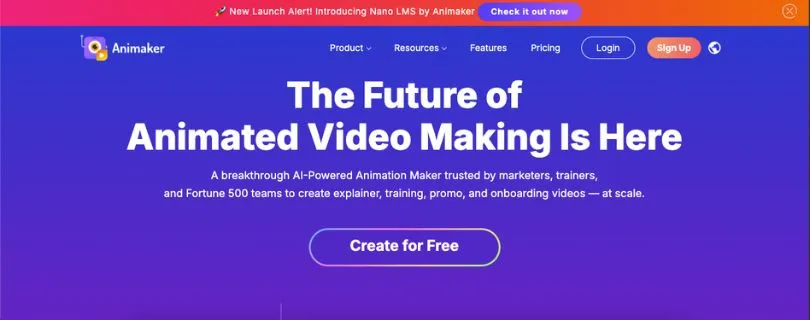
You type something like, “Make a 60-second explainer video about healthy eating for kids,” and Animaker AI pulls together:
- Scenes with pre-animated characters, backgrounds, and props
- Voiceovers in multiple languages with realistic AI voices
- Auto-synced lip movements and subtitles
- Matching music, transitions, and pacing
- A complete, editable video timeline ready for tweaks
This fast, AI-assisted workflow is a huge draw for marketers, educators, and businesses that want quality content without long production timelines or hiring outside help.
Key highlights:
- No need to animate manually. Start with a simple prompt
- Smart scene generation powered by a massive asset library
- AI voiceovers with lip-sync and subtitle generation
- Easy-to-edit timeline for custom tweaks and branding
- Cloud-based workspace with project autosave and team collaboration
- Designed for speed. Most videos can be made in under 15 minutes
Animaker AI isn’t just a tool for making things look good. It’s a time-saver, a skill-bridge, and for a lot of users, a creative sidekick that brings video ideas to life fast.
How Animaker Works (Step-by-Step)
Here’s the typical flow when you use Animaker to create a video, broken down into simple, actionable steps. If you’ve never made a video before, don’t worry. This is built to be beginner-friendly while still powerful enough for pros who want full creative control.
Step 1: Describe your video
Once you log in, you’re greeted with a clean dashboard and a prompt that guides you into creation mode.
You might type or select something like:
“Make a 60-second animated explainer video about how our food delivery app works.”
Animaker uses your input to understand the structure, tone, and style of the video you want to make. It automatically selects a suitable template, characters, scenes, and more.
Step 2: AI-generated video layout
Animaker builds your draft video with:
- Pre-designed scenes based on your prompt
- Matching animated characters and props
- AI voiceover with synced lip movements
- Subtitles generated from the voice script
- Background music and transitions to match pacing
You’ll see the video appear in the timeline view, ready for play-through and edits. This is where the magic starts to feel real.
Step 3: Customize with the drag-and-drop editor
Now you can tweak anything you want. Some common edits users make:
- Change the character’s outfit, expressions, or position
- Rewrite voiceover text or switch to a different AI voice
- Add logos, brand colors, or change the background
- Rearrange scenes or trim the video length
- Drop in charts, product mockups, or screen recordings
Every element is editable. It’s all point-and-click. No complex menus or design software needed.
Step 4: Export and share
When you’re happy with your video, you can:
- Export it in your desired resolution (up to 4K on higher plans)
- Share directly to YouTube, LinkedIn, or social platforms
- Download for use in presentations or ads
- Collaborate with teammates or clients via shared links
Use Cases for Animaker AI
Great fit for:
✔ Marketers creating promo or explainer videos quickly
✔ Small business owners who need content but not a full video team
✔ Educators making lessons more visual and engaging
✔ Social media managers producing reels, shorts, or ads at scale
✔ Agencies offering branded video services without the overhead
✔ HR and L&D teams building training or onboarding content
Not ideal for:
✖ Users expecting Pixar-level animation or film production quality
✖ Projects that require ultra-specific character animation from scratch
✖ Creators who prefer working entirely offline
✖ Teams needing advanced VFX or cinematic post-production features
Limitations of Animaker
- Pricing and Export Limits Can Add Up QuicklyThis is one of the most common user concerns, especially among those using the free plan or lower-tier subscriptions.
“I love how easy it is to create videos, but the watermark and limited exports really push you toward a paid plan.” (User comment)
“It’s perfect for quick content, but once you start making more videos or need HD exports, you burn through your quota fast.” (User feedback)
Bottom line: While the free tier is great for testing things out, serious use often leads to upgrading, and frequent exports or longer videos can drive up costs fast.
- Customization Is Limited in Some AreasAnimaker gives you a ton of ready-made assets, but there’s a ceiling to how much you can tweak them.
- Characters follow fixed animation patterns
- Scene transitions and timing have constraints
- Some users find it hard to match their brand’s exact visual tone
It works best when you’re okay working within a structured system. Full creative freedom? Not quite.
- Heavy Projects May Feel Laggy or CappedOn bigger or more complex video projects—think longer explainers or team collaborations—Animaker can start to feel sluggish.
- Timeline editing can lag when too many elements are involved
- Real-time previews may not always reflect final output
- Browser performance varies depending on your system
For most users this isn’t a dealbreaker, but it’s something to be aware of if you’re building multi-minute or multi-scene animations.
- Limited Control Over Voiceovers and Audio TimingAnimaker’s AI voiceovers are surprisingly solid, but:
- You can’t fully control inflection, tone, or pacing
- Lip sync is auto-generated and sometimes slightly off
- Audio tracks don’t allow fine-tuned edits within scenes
If you need professional-grade narration or exact audio cuts, you may find yourself exporting and finishing the audio in another tool.
Animaker Pricing (Updated for April 2026)
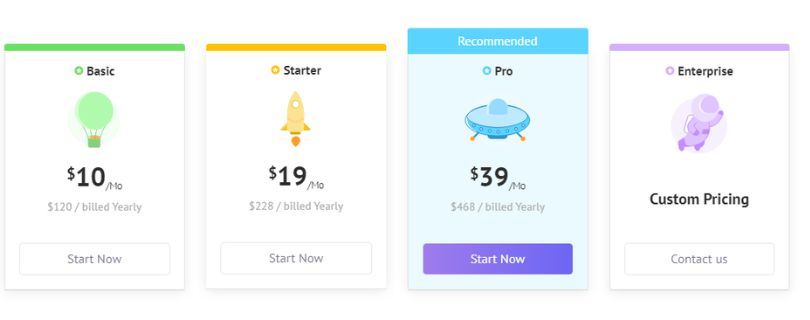
Here’s a clear snapshot of Animaker’s pricing, presented in US dollars so you can quickly see what each plan offers and how it fits different creators’ needs, from casual users to teams that produce video content regularly.
Free Plan – $0
- Basic access to the platform with limited monthly exports
- Watermarked videos in lower resolutions
- A small number of premium assets and downloads each month
Great for experimenting with the tool, learning the interface, or creating casual personal videos.
Basic Plan – $20 per month
- HD video quality
- A set number of premium exports and asset credits each month
- Ability to build a handful of custom characters
This tier is a good starting point if you’re making short animated clips for social media, internal presentations, or learning the ropes.
Starter Plan – $35 per month
- Full HD video export
- More premium downloads and asset credits than Basic
- Increased custom character limits
This plan suits regular content creators who want consistent access to better quality videos and a broader set of creative assets.
Pro Plan – $79 per month
- 2K video quality support
- Higher export counts and more premium asset credits
- Larger custom character quota and advanced features
If you’re producing animated explainers, marketing content, or polished videos on a regular basis, this is often the most practical choice.
Enterprise – Custom Pricing
- Tailored features for larger teams
- Unlimited or significantly expanded exports and custom characters
- Dedicated support and advanced account tools
Best for businesses and agencies that rely on video creation as part of their core workflow. Pricing is available on request.
Pricing SummaryAnimaker’s tiered structure lets you start free and scale as your needs grow. Just keep in mind that more frequent video production, higher export volumes, and professional grade outputs usually mean moving up to a paid plan, so the real cost depends on how you plan to use the tool.
Also Read:
Jitter AI Video Maker Pricing Explained
A complete guide to Adobe Express pricing
Animaker AI Alternatives (2026 state)
If Animaker isn’t the perfect fit for your workflow, there are a few strong alternatives worth checking out in 2026. Each offers a slightly different angle on video creation, from AI-powered animation to motion design for social media and web.
- Pika Labs AI – best for AI-first video generationPika is focused on turning simple text prompts into visually rich video content using generative AI.
- Text-to-video with cinematic quality
- No templates or stock assets, You will get everything is AI-generated
- Great for conceptual storytelling, mood boards, or creative shorts
- Limited editing control post-generation
Best for creators who want to experiment with AI-driven visuals and don’t need timeline-level editing.
- Adobe Express – best for multi-purpose content creationAdobe Express is Adobe’s answer to Canva, and it now includes basic animation features.
- Pre-built templates for social posts, stories, and ads
- Simple motion effects and animated text
- Integrated with Adobe’s larger ecosystem (Photoshop, Illustrator)
- Real-time brand kit sync
It’s ideal for users who want lightweight video features alongside other design tools.
- Jitter – best for motion design and UI animationJitter focuses on micro-animations and interface motion, making it a top pick for product designers and content creators.
- Timeline-based editor with intuitive motion controls
- Export animations as videos, GIFs, or Lottie files
- Works great for UI prototypes, product launches, or short social clips
- Not meant for long-form animated storytelling
If you’re designing sleek, animated visuals for tech products or mobile apps, Jitter is worth a look.
Is Animaker AI Worth It?
Animaker AI really shines when you need to create solid video content fast:
- A product explainer for your startup
- A promo video for a new campaign
- A quick animated tutorial for your course
- An onboarding video for employees
- A social media clip to boost engagement
- A training module that doesn’t need custom animation from scratch
If your project falls into the short-to-medium range of complexity, Animaker is a strong choice. It gives you speed, ease of use, and just enough creative flexibility to make something that looks polished without hiring a full team.
But Animaker may fall short when:
- You need ultra-specific or pixel-perfect animation control
- You want to animate highly custom characters or assets
- You require tight control over voice inflection, timing, or soundtrack mixing
- You’re making long-form videos or storytelling content that needs scene-by-scene nuance
- You prefer desktop software with advanced rendering and editing options
Animaker AI is built for efficiency, not deep customization. If you value speed, simplicity, and good-looking results with minimal effort, it’s absolutely worth it. If you’re aiming for frame-by-frame perfection or cinema-level output, you may outgrow it pretty quickly.
FAQ
Can Animaker AI create complete videos from just a prompt?
Yes. You can type in your video idea, and Animaker AI will generate scenes, voiceovers, subtitles, music, and transitions automatically.
Does Animaker support team collaboration?
Yes. You can invite team members to collaborate, leave comments, and work on the same project in real time.
Is Animaker suitable for beginners?
Absolutely. Animaker is designed for non-designers and first-time video creators. No animation experience required.
Is Animaker free?
There’s a Free plan with limited features and exports. For higher quality, more exports, and no watermark, you’ll need a paid plan.
Can Animaker make videos for YouTube, LinkedIn, or ads?
Yes. It offers templates and formats optimized for social media, ads, explainers, training videos, and more.