

Rive MCP lets Claude Code make changes directly inside an open Rive project. But I wanted to see how well it could follow a detailed design instruction and whether the final result would remain editable inside Rive.
So, I connected the Rive MCP to Claude Code and gave it a multi-step prompt.
I asked it to:
- Create a new artboard
- Add a text element inside a text layout
- Display the words “MCP Ready”
- Set the font size to 60 px
- Apply a white fill
- Set the text layout and its wrapping layouts to Hug × Hug
I then checked the Rive canvas, object hierarchy, layout settings, and text properties to see whether the output matched my instructions.
In this article, I’ll walk you through the features I found during my test, the limitation I encountered, and the final result Claude Code created inside Rive.
Rive MCP Test Results: A Quick Summary
| Test area | What I found |
| Connection | Claude Code connected to Rive through a local HTTP MCP server |
| Prompt handling | It followed a prompt containing multiple design requirements |
| Artboard | It created a new 500 × 300 artboard |
| Text | It added the requested “MCP Ready” text |
| Styling | It applied a 60 px size and white fill |
| Layout | It used nested Hug × Hug layouts |
| Verification | It inspected the final hierarchy and properties |
| Limitation | It needed an additional wrapper layout around the text |
This was a focused workflow test. I did not test animations, state machines, interactions, asset imports, or complex production projects.
How I Tested Rive MCP With Claude Code
I started with a blank Rive file and opened Claude Code beside it.
This made it easier to follow what Claude Code was doing in the terminal while watching the design appear inside Rive.
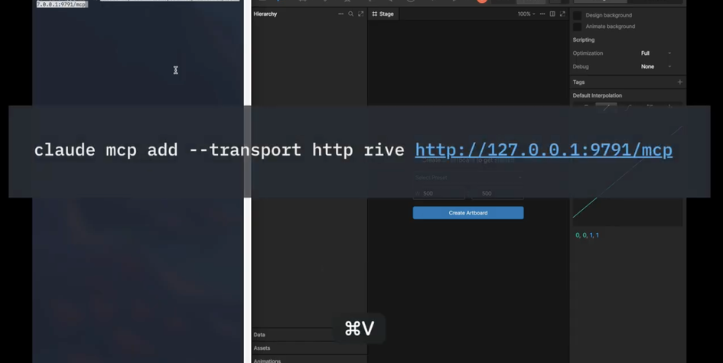
To connect the two applications, I registered Rive as a local HTTP MCP server using this command:
claude mcp add –transport http rive http://127.0.0.1:9791/mcp
Claude Code confirmed that the server had been added to my local configuration.
After launching Claude Code, I entered the following prompt:
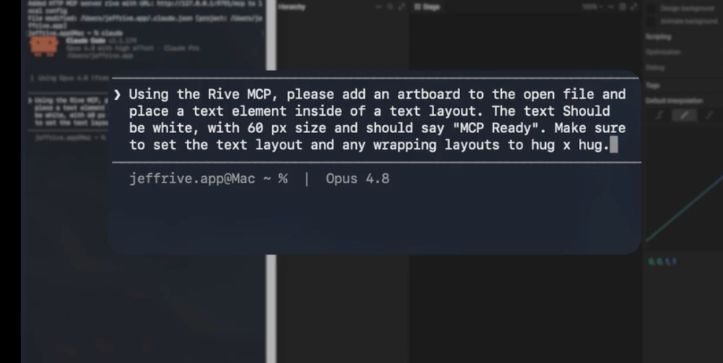
Using the Rive MCP, please add an artboard to the open file and place a text element inside of a text layout. The text should be white, with 60 px size and should say “MCP Ready”. Make sure to set the text layout and any wrapping layouts to hug × hug.
This was a useful test because it included more than basic object creation.
Claude Code had to understand the required hierarchy, insert exact text, apply specific styling, and configure the layout behavior.
Rive MCP Features I Found During My Test
1. It Connected to Claude Code Through a Local HTTP Server
The first feature I tested was the MCP connection itself.
I registered the Rive MCP using a local address, and Claude Code recognized it as an available server. I did not have to upload the Rive file, export the project, or send the document to another application.
In practice, this means the communication happened locally between Claude Code and the running Rive environment.
The setup worked in my test, but it still required entering a terminal command. Users who are not comfortable working with command-line tools may need additional setup guidance.
2. It Modified the Rive File That Was Already Open
What stood out to me was that Claude Code worked directly with the Rive document I already had open.
I started with a blank canvas. After I submitted the prompt, a new artboard appeared inside that same project.
This is different from asking an AI assistant for instructions and then manually repeating those steps inside Rive. The MCP gave Claude Code the ability to perform the changes in the editor.
That can be useful for repetitive setup tasks because it reduces the number of manual clicks required to create a basic structure.
However, I only tested this with one open project. I did not test how the MCP behaves when multiple Rive files or windows are open.
3. It Followed a Multi-Step Natural-Language Prompt
My prompt contained several separate requirements, including object creation, text content, typography, color, hierarchy, and layout sizing.
Claude Code did not require me to split these instructions into individual commands.
It interpreted the full request and began creating the required elements in sequence.
This was one of the strongest parts of the test because it showed that I could describe the desired result in plain English instead of specifying every operation manually.
The quality of the output still depends on the clarity of the prompt. For example, I did not provide an exact artboard size, so Claude Code created a 500 × 300 artboard on its own.
For more controlled results, I would include dimensions, object names, alignment, and positioning requirements directly in the prompt.
4. It Created a New Artboard Automatically
After processing my prompt, Claude Code created a new artboard inside the open Rive file.
The artboard was set to 500 × 300 px and named “MCP Ready.”
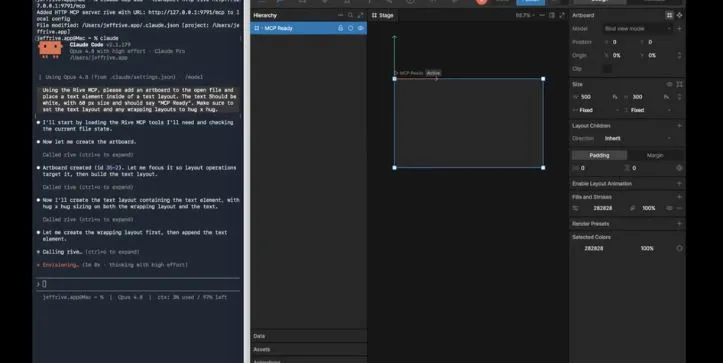
I had not specified the dimensions or artboard name in my prompt. This means Claude Code made those decisions based on the rest of the instruction.
The result worked for this test, but I would provide the exact width, height, and naming convention in future prompts.
For example, I could ask it to create a 1,200 × 630 px artboard named “Social Preview” instead of leaving those details open to interpretation.
This gives the user more control and reduces the chance of needing manual corrections later.
5. It Built a Structured Object Hierarchy
Rive MCP did not place an isolated text object directly on the artboard.
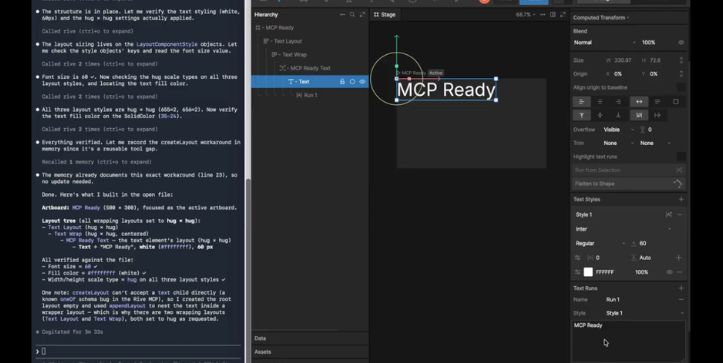
Instead, it created a nested structure containing the artboard, text layout, wrapping layout, text object, and text run.
The final hierarchy looked like this:
MCP Ready
└── Text Layout
└── Text Wrap
└── MCP Ready Text
└── Text
└── Run 1
What stood out to me was that each element remained visible and editable in Rive’s hierarchy panel.
This matters because AI-generated design output is more useful when it follows the application’s native document structure. I could select individual elements, inspect their settings, and continue editing them manually.
The MCP was not simply generating a flattened visual result.
However, the hierarchy included an additional wrapper that was not part of my original request. Claude Code added it to work around a limitation it encountered while inserting the text.
I will explain that issue in the next part of the article.
6. It Inserted the Exact Text I Requested
I asked Claude Code to add the words “MCP Ready,” and the same text appeared on the Rive canvas.
This may sound like a basic feature, but it helped confirm that the MCP could transfer exact content from a natural-language prompt into an editable Rive text object.
I could also see the text object and its run inside the hierarchy panel.
In this test, the text was short and did not contain multiple paragraphs, special characters, variables, or dynamic content.
So, I would not use this result alone to claim that Rive MCP can reliably manage every type of text-heavy design.
A broader test would need to include longer copy, line breaks, text alignment, font families, and multiple text styles.
7. It Applied the Requested Font Size and Color
My prompt asked for a 60 px font size and white text.
The final text properties matched both requirements.
When I selected the text element in Rive, the properties panel showed a font size of 60. The fill was set to white, represented by the hex value #FFFFFF.
This was one of the clearest pieces of evidence in the test because I could compare the final values directly with my original prompt.
Claude Code did not apply a visually similar gray or approximate font size. It used the exact values I requested.
That said, I did not specify a font family or weight. For a production design, I would include those details in the prompt rather than allowing the tool to use the existing or default typography settings.
8. It Applied Hug × Hug Layout Sizing
I also asked Claude Code to set the text layout and all wrapping layouts to Hug × Hug.
Hug sizing allows a layout to adjust its width and height according to the content inside it rather than using fixed dimensions.
After creating the hierarchy, Claude Code inspected the layout styles and reported that Hug sizing had been applied across the relevant layout levels.
I could also see the Hug × Hug setting in the Rive interface.
This showed that the MCP could handle layout behavior in addition to creating visible objects.
In practice, this can be useful when building labels, buttons, badges, or interface elements that need to resize according to their text.
However, this test only used one short line of text. I did not test how the layout would respond to longer copy, wrapping, minimum dimensions, padding, or responsive resizing.
9. It Updated the Rive Canvas in Real Time
As Claude Code processed the prompt, I could watch the new artboard, layout hierarchy, and text appear inside Rive.
I did not have to wait for a separate file to be generated or imported.
This made the process easier to follow because I could compare the terminal activity with the visible changes in the editor.
For example, when Claude Code created the text object, the “MCP Ready” text appeared on the canvas and the corresponding elements became visible in the hierarchy panel.
Real-time feedback is useful because it makes errors easier to spot. If the text, positioning, or structure had been incorrect, I could have stopped the process or given Claude Code another instruction.
However, the video only shows a small design task. More complex projects may involve longer processing times or changes that are harder to review as they happen.
10. It Verified the Final Output
Claude Code did not stop after creating the design.
It checked the object hierarchy, text content, font size, fill color, and layout settings before summarizing the result.
This was important because it reduced the need for me to inspect every property manually.
The verification also made the workflow more transparent. I could see which requirements had been completed and whether Claude Code had made any changes to the original plan.
That said, I would still review the final design myself before using it in a production project. An AI-generated confirmation should support manual quality checks, not replace them.
The Limitation I Encountered
The main issue appeared when Claude Code tried to place the text directly inside the initial layout.
The createLayout operation could not accept the text object as a direct child. Instead of stopping, Claude Code created another wrapper layout and placed the text inside it.
The final structure worked, but it contained an additional layout level:
Text Layout
└── Text Wrap
└── MCP Ready Text
This workaround showed that Claude Code could respond to an error and adjust its approach.
But it also created a slightly more complex hierarchy than I had requested. In a larger project, repeated workarounds like this could make the document harder to manage.
So, I would review the layer structure after using Rive MCP for more complex layouts.
My Final Verdict on Rive MCP
Based on this focused test, Rive MCP successfully turned a natural-language prompt into an editable design structure inside Rive.
It created an artboard, built nested layouts, inserted the correct text, applied the requested styling, configured Hug sizing, and checked the final properties.
The strongest part of the workflow was that Claude Code could make changes directly in the open Rive project instead of only explaining how to make them manually.
The experience was not completely frictionless. The text-child limitation required an additional wrapper layout, and I did not test advanced features such as animation, state machines, interactions, or responsive production interfaces.
My main takeaway is that Rive MCP looks useful for generating initial structures and handling repetitive editor tasks through natural-language instructions.
However, I would run additional tests before relying on it for complex Rive projects.
Frequently Asked Questions
What is Rive MCP?
Rive MCP is an integration that allows an MCP-compatible AI tool, such as Claude Code, to interact with a running Rive environment and make changes to an open project.
Can Claude Code edit a Rive file directly?
In my test, Claude Code modified the Rive file that was already open. It created an artboard, layouts, and editable text objects inside the project.
Does Rive MCP support natural-language prompts?
Yes. I used one multi-step prompt containing requirements for text, styling, hierarchy, and layout behavior.
Did Rive MCP complete every step correctly?
It completed the main requirements, but it needed an additional wrapper layout because the initial layout operation could not accept the text as a direct child.
Is Rive MCP suitable for production projects?
This test is not enough to confirm that. I would also test animations, state machines, responsive layouts, file handling, and larger projects before using it in a production workflow.