Stencil has become one of the most talked-about online graphic design tools in 2026, especially among creators who want clean, polished visuals without wrestling with complicated software. If you’re a social media manager trying to keep content consistent, a small business owner juggling too many tasks, or a blogger who just wants great graphics without spending half your day designing them, Stencil makes a simple promise: type out your idea, drop in your assets, and walk away with a ready-to-share image in minutes.
But buzz aside, what is Stencil at its core, how does it actually work, what sets it apart from the growing list of design platforms, and is it worth upgrading once you hit the limits of the free plan?
This guide pulls together hands-on experience, Stencil’s current feature set, updated pricing, and honest feedback from creators who use it every day. By the time you finish reading, you’ll have a clear sense of where Stencil shines, where it falls short, and whether it fits the way you create content.
What is Stencil?
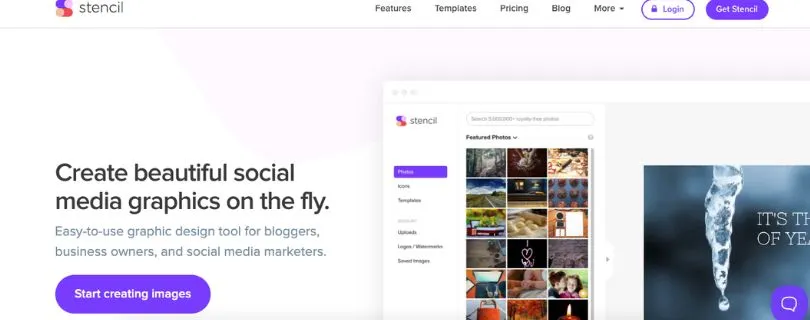
Stencil is an online graphic design platform built for creators who want fast, clean visuals without diving into complex editing tools. Instead of overwhelming you with endless menus, Stencil focuses on giving you simple controls, ready-to-use assets, and a workflow that moves as quickly as your ideas. It sits somewhere between a lightweight graphics editor and a content creation assistant, making it especially appealing to social media managers, bloggers, and small business owners who need polished designs on a tight schedule.
When you describe the design you want in your head and start building inside Stencil, you get access to:
- A massive library of royalty-free images and icons
• Prebuilt templates for social posts, ads, headers, and blog graphics
• Preset dimensions for every major platform
• Font collections you can mix, match, or replace with your own uploads
• Instant resizing so one design fits multiple channels
• Easy export and direct sharing to social media
This focus on speed and clarity is what makes Stencil a favorite for creators who want attractive visuals without taking on the workload of a full design suite.
Key highlights:
- No complicated design workspace; the editor stays clean and distraction-free
• Millions of stock photos and icons ready for commercial use
• Brand-friendly tools like logo uploads and saved color palettes
• Browser extensions that let you create graphics from images you find online
• A straightforward interface that keeps beginners from feeling lost
• Quick iterations so you can produce a full batch of graphics in minutes
How Stencil Works
Stencil follows a simple flow that helps you move from idea to finished graphic without feeling overwhelmed. The process is built around speed, clarity, and a clean workspace, so you can create polished visuals even if design isn’t your main job.
Step 1: Describe the design you want
When you log in, you land directly in the editor with a blank canvas and a set of intuitive tools. You start by choosing what you’re trying to create. Maybe it’s a Facebook post, a blog header, or a YouTube thumbnail. You pick a preset size or enter your own dimensions, then outline your idea in your head or sketch it loosely on the canvas. Stencil gives you quick access to photos, icons, fonts, and templates so you can start shaping the look right away.
Step 2: Assemble the core layout
Stencil loads your chosen canvas and lets you pull in the elements you need:
- Images from its stock library
- Icons and shapes
- Prebuilt templates
- Your saved logos or brand assets
- Headline or body text
You drag elements into place, adjust colors or fonts, and watch the design take shape. The editor stays minimal so the canvas stays in focus, which keeps your workflow clean and quick.
Step 3: Refine with simple edits
Once the main structure is in place, you can fine-tune your design. You might:
- Change the font pairings
- Resize or crop an image
- Swap a background color
- Adjust transparency
- Try different layout variations
- Duplicate the design for alternate versions
Because Stencil is built for fast iteration, each tweak feels light and immediate. You’re not digging through layers or complicated settings. You simply click, adjust, and move on.
Step 4: Export or share
After the design feels right, you choose how to use it. Stencil lets you:
- Download your image
- Share it directly to social platforms
- Resize it for other platforms without rebuilding
- Save it as a template for future use
- Store it inside your account for later editing
Use Cases for Stencil
Great fit for:
✔ Social media managers who need a steady flow of on-brand posts
✔ Small business owners creating quick promos, flyers, and announcements
✔ Bloggers who want clean, consistent featured images
✔ Creators designing Pinterest pins, YouTube thumbnails, or story graphics
✔ Teams that need simple, fast visuals without hiring a designer
✔ Anyone who wants ready-to-use templates instead of building layouts from scratch
Not ideal for:
✖ Designers who need advanced layering, masking, or complex compositing
✖ Teams working on large-scale brand campaigns with strict design systems
✖ Users who prefer full desktop software with granular control
✖ Projects that require highly customized vector work or animation
Limitations of Stencil
Even though Stencil is built for speed and simplicity, there are a few areas where users may feel the edges, especially if they’re coming from more advanced design environments or need deep creative control.
1. Limited flexibility for complex designs
This is the most common frustration you hear from experienced designers. Stencil handles straightforward graphics well, but once you try to build something layered, intricate, or highly stylized, the editor starts to feel tight.
Comments from users often sound like:
“I love how fast it is, but I hit a wall when I try to create anything more detailed.”
“It’s great for social posts, not so great for complex layouts.”
The bottom line: Stencil shines for quick content, not for elaborate design work.
2. Template layouts can feel restrictive
Stencil’s templates save time, but they don’t always offer the wiggle room creators want. You can swap fonts, images, and colors, but certain templates don’t allow deeper structural edits.
This can lead to situations where:
- You want to move an element the template doesn’t expect
- The spacing feels fixed
- The design starts to look like everyone else’s using the same template
If you rely heavily on templates, you might eventually wish for more creative freedom.
3. Less control compared to full design software
Tools like Photoshop or advanced web editors offer pixel-level precision. Stencil keeps things simple, which means:
- No detailed masking
- No vector-path editing
- Limited custom shapes
- No advanced blending or compositing
Creators who need fine-tuned control often outgrow Stencil or use it only for quick drafts.
4. Browser-based workflow has occasional hiccups
Because Stencil runs entirely in your browser, the experience can vary depending on your device and internet connection.
Common complaints include:
- Slowdowns when working with very large images
- Occasional lag after extended editing sessions
- Over-reliance on browser performance
For quick graphics, this isn’t a big deal, but during busy workdays with dozens of design tasks, it can feel limiting.
Stencil Pricing (Updated for May 2026)
Stencil keeps its pricing simple, and each plan is designed around how often you create graphics and how much flexibility you need. All plans include a 7-day money-back guarantee if you want to try the tool without pressure.
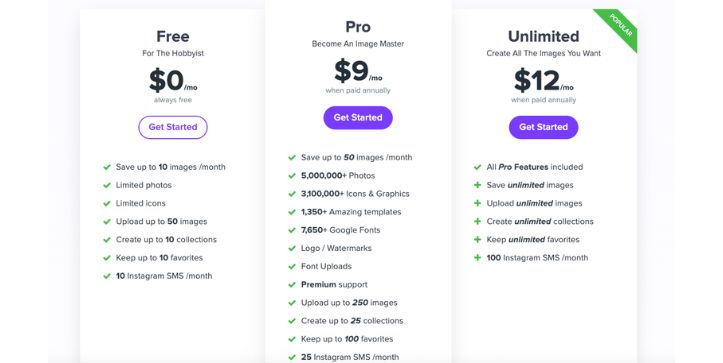
Free Plan – $0 per month
- Save up to 10 images per month
- Limited access to photos and icons
- Upload up to 50 of your own images
- Create up to 10 collections
- Keep up to 10 favorites
- 10 Instagram SMS per month
This plan is a light starter option, perfect if you only need occasional graphics or want to explore how Stencil works.
Pro Plan – $9/month when billed yearly (around $15/month billed monthly)
- Save up to 50 images per month
- Full access to millions of photos, icons, and graphics
- 1,350+ templates and 7,550+ fonts
- Add logos, watermarks, and custom font uploads
- Priority support
- Upload up to 250 custom images
- Create up to 25 collections
- Keep up to 100 favorites
- 25 Instagram SMS per month
This is the plan most users move to when they need more assets, more freedom, and more output each month.
Unlimited Plan – $12/month when billed yearly (around $20/month billed monthly)
- All Pro features included
- Unlimited saved images
- Unlimited uploads
- Unlimited collections
- Unlimited favorites
- 100 Instagram SMS per month
If you create graphics regularly for social media, blogs, ads, or client work, this plan gives you unlimited room to produce without hitting caps.
Pricing SummaryStencil keeps its monthly costs low, but the plan you choose will depend on how much you create. If you only design a few graphics here and there, the Free or Pro plan might be enough. If you produce content constantly, the Unlimited plan usually offers the best value without worrying about limits.
Is Stencil Worth It?
Stencil is worth it if you want a tool that gets out of your way and helps you crank out clean, professional graphics quickly. You don’t need a design degree to make visuals that look intentional and polished. For everyday content creators, marketers, and business owners, it takes the stress out of design so you can focus on sharing your message.
If you need deep design control or advanced features like vector editing or pixel-level precision, you might find Stencil a bit light. But for fast social posts, blog headers, ads, and thumbnails, it delivers consistent results without steep learning curves or complicated workflows. If speed and simplicity matter more than complexity, Stencil absolutely earns its place in your toolkit.
Frequently Asked Questions
Can Stencil create graphics from scratch?
Yes, you can start with a blank canvas and build your design using photos, icons, text, and shapes. You’re not required to use templates if you prefer creating your own layouts.
Does Stencil offer templates for social media?
Yes, Stencil includes a large library of templates for Instagram, Facebook, Pinterest, YouTube, and more. Each template is fully customizable so you can match your brand style.
Is Stencil beginner friendly?
Yes, Stencil is designed for non-designers who want clean visuals without a steep learning curve. The editor stays simple, and most users get comfortable within minutes.
Is there a free version of Stencil?
Yes, Stencil has a Free plan that lets you create and save a limited number of images each month. For regular content creation, most users upgrade to the Pro or Unlimited plan.
Can Stencil be used for blog graphics and ads?
Yes, it works well for blog headers, promotional images, ad creatives, thumbnails, and any quick visuals you need for your content or campaigns.