Picking between Krita and GIMP for your creative work?
Krita promises a painting-first workspace, powerful brushes, smooth tablet support, and animation tools built for artists.
GIMP promises photo editing, retouching, background removal, advanced selections, and image manipulation without paying for Photoshop.
(Both sound like the perfect free creative tool.)
But here is the thing. Feature lists and comparison tables only tell part of the story. The real difference shows up when you actually open the apps and try to finish a project.
I tested both tools, created new files, worked with layers, tried brushes, edited photos, used selection tools, checked export options, tested basic text handling, and pushed each app through the kind of work creators actually do.
And I found that Krita and GIMP are not really fighting for the same job.
Some tools in Krita feel amazing when you are sketching or painting, but awkward when you are cleaning up a photo. Some tools in GIMP are great for editing images, but feel slow and stiff when you try to draw from scratch.
And one of them feels much more natural the moment you plug in a drawing tablet.
(You can probably guess which one.)
In this comparison, I will walk you through:
- What I actually noticed inside Krita and GIMP’s workspaces
- How each tool handles drawing, painting, photo editing, layers, text, and exports
- Where Krita feels better than GIMP, and where GIMP clearly wins
- Which tool makes more sense for artists, designers, photographers, and beginners
- A clear verdict on whether you should use Krita, GIMP, or both
Let us get into it.
Krita vs GIMP at a Glance
Before we get into the deeper testing, here is the simple version.
Krita is built around creating artwork from scratch. It feels more natural when you are sketching, painting, using a stylus, building character art, making comics, or testing a 2D animation workflow.
GIMP is built around editing images that already exist. It makes more sense when you are retouching photos, removing backgrounds, adjusting colors, creating web graphics, or doing general image manipulation.
Here is how Krita and GIMP compare side by side:
| Category | Krita | GIMP |
| Main purpose | Digital painting and illustration | Photo editing and image manipulation |
| Best users | Artists, illustrators, animators, concept artists | Photographers, designers, bloggers, marketers |
| Brush engine | Excellent | Basic to decent |
| Tablet support | Strong | Usable, but less artist-focused |
| Photo retouching | Good for light edits | Better overall |
| Non-destructive editing | Strong filter layers and masks | Improving, but still more traditional |
| Animation | Dedicated 2D animation workspace | Basic frame/GIF-style use |
| Text tools | Improving, but not ideal for heavy text design | Better for general graphics, though not a full layout tool |
| Interface | Modern and art-focused | Powerful, but can feel complex |
| Learning curve | Easier for artists | Easier for photo editors familiar with Photoshop-like tools |
| Best alternative to | Clip Studio Paint or Photoshop painting tools | Photoshop photo editing tools |
Krita vs GIMP: Feature-by-Feature Comparison
I tested both tools across the areas that matter most for creative work. Each section includes what I found inside the workspace, a comparison table, and a clear winner.
Krita vs GIMP: Who Has the Better Drawing and Painting Tools?
Your drawing tools decide how natural the app feels the moment you put pen to tablet.
If the brush engine feels stiff, the stabilizer fights your hand, or the interface gets in the way, it does not matter how many features the software has. Drawing becomes work instead of flow.
I opened both Krita and GIMP, created a blank canvas, tested brushes, adjusted pressure settings, tried line work, used layers, and checked how each app handled a basic sketch-to-color workflow.
Here is what I found.
| Feature | Krita | GIMP |
| Brush Engine | Excellent | Basic to decent |
| Brush Presets | Large artist-focused library | Smaller and less painting-focused |
| Tablet Support | Strong | Usable, but less natural |
| Line Stabilization | Yes, very useful | Limited compared to Krita |
| Canvas Rotation | Smooth and artist-friendly | Available, but less central to workflow |
| Drawing Assistants | Yes | Limited |
| Best For | Sketching, painting, comics, concept art | Light drawing and simple edits |
What I Found Inside Krita
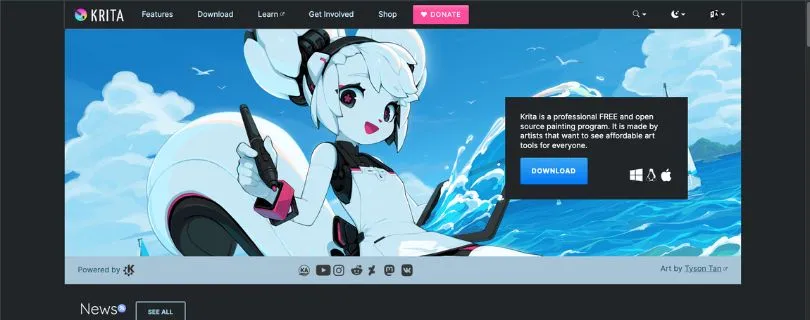
Krita feels like it was built by people who understand how artists actually work.
The brush presets are right there. The color selector is easy to reach. The canvas feels like the center of the experience, not just a place where edits happen. When I switched between pencil, ink, paint, and texture brushes, Krita responded the way I expected.
The stabilizer is one of the first things I noticed. If you draw line art, this matters a lot. It smooths out shaky strokes without making the brush feel completely disconnected from your hand.
I also liked how quickly I could rotate the canvas, zoom in, flip the view, and keep drawing without digging through menus.
That sounds small, but it changes the whole feel of the app.
Krita is also much better when you plug in a drawing tablet. Pressure sensitivity feels more natural, brush settings are deeper, and the whole interface makes more sense for sketching, painting, shading, and building an illustration from scratch.
(You do not feel like you are forcing a photo editor to become a drawing app.)
What I Found Inside GIMP
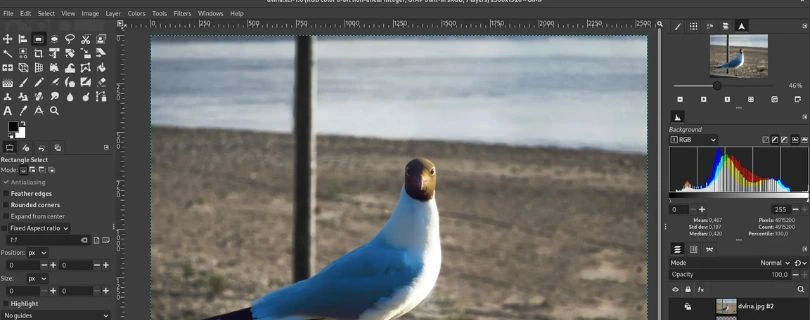
GIMP can draw, but drawing is not where it shines.
You can use brushes, pressure sensitivity, layers, and basic painting tools. For quick marks, simple edits, or rough drawing, it works fine. But once I tried to sketch properly, the difference became obvious.
The brush system feels more technical and less expressive. It does not have the same painterly feel as Krita. The brush presets are not as exciting, and the drawing workflow takes more effort to set up.
GIMP feels more comfortable when you are selecting, cutting, masking, retouching, or adjusting an image. When you ask it to behave like a digital sketchbook, it can do the job, but it does not feel happy doing it.
That is the main thing.
GIMP is powerful, but it does not invite you to draw.
Who Wins This Round?
Krita wins clearly.
For digital painting, illustration, comics, concept art, line art, character design, and tablet drawing, Krita is much better than GIMP. The brush engine, stabilizers, canvas controls, and artist-focused interface make a real difference.
GIMP is fine for basic drawing, but if your main question is Krita vs GIMP for drawing, the answer is simple: choose Krita.
Krita vs GIMP: Who Has Better Photo Editing Tools?
Photo editing is where the comparison flips.
A good photo editor needs strong selections, retouching tools, color correction, masks, healing, cloning, export options, and enough precision to clean up real images without making every task feel slow.
I tested both tools with a simple photo-editing workflow: crop, adjust colors, remove small distractions, work with layers, add text, export the final file, and check how smooth the process felt.
Here is the breakdown.
| Feature | Krita | GIMP |
| Cropping and Resizing | Yes | Yes |
| Color Correction | Good for basic edits | Stronger overall |
| Curves and Levels | Available | Better suited for photo work |
| Healing Tool | Limited compared to GIMP | Strong |
| Clone Tool | Available | Strong |
| Background Removal | Possible | Better |
| Selections | Good, but not the focus | Stronger and more precise |
| Best For | Light photo edits | Retouching and image manipulation |
What I Found Inside GIMP
GIMP feels much more at home with photo editing.
The selection tools are stronger. The clone and healing workflows make more sense. Curves, levels, color balance, hue/saturation, and layer masks all feel like they belong in the app’s core workflow.
When I tried cleaning up a photo, GIMP gave me more control. Removing small objects, selecting parts of an image, adjusting contrast, and preparing a web-ready export felt more direct.
This is where GIMP earns its “free Photoshop alternative” reputation.
No, it does not feel exactly like Photoshop. Some workflows still take more clicks than they should. But for a free photo editing software, GIMP gives you a serious amount of control.
If you are editing product photos, cleaning up portraits, making blog images, creating YouTube thumbnails, or removing backgrounds for social media posts, GIMP makes more sense than Krita.
What I Found Inside Krita
Krita can handle basic photo editing, but it is not built around it.
You can crop, resize, adjust colors, use masks, work with filters, and make edits to an image. For light adjustments, it is perfectly usable. If you already have Krita open and need to tweak an artwork scan or adjust a reference image, you can get it done.
But the workflow feels different.
Krita approaches images like an artist would. It is more comfortable painting over something, adding effects, using filter layers, or blending visual elements into an illustration.
When I tried more traditional photo work, like precise selections and cleanup, GIMP felt faster and more natural.
Krita is not bad at photo editing.
It is just not the tool I would reach for first.
Who Wins This Round?
GIMP wins.
For photo retouching, color correction, background removal, object cleanup, image manipulation, and web graphics, GIMP is the better choice.
Krita can handle light photo edits, but if your main question is Krita vs GIMP for photo editing, GIMP is the safer pick.
Krita vs GIMP: Who Handles Layers and Non-Destructive Editing Better?
Layers are where creative projects either stay flexible or become a mess.
If you are painting, editing, compositing, adding effects, or creating graphics for clients, you need a layer system that lets you experiment without destroying your original work.
I tested regular layers, groups, masks, adjustment-style workflows, filter layers, and basic compositing in both tools.
Here is what stood out.
| Feature | Krita | GIMP |
| Standard Layers | Yes | Yes |
| Layer Groups | Yes | Yes |
| Layer Masks | Yes | Yes |
| Filter Layers | Yes | Limited compared to Krita |
| Non-Destructive Workflow | Stronger for creative effects | More traditional |
| Blending Modes | Yes | Yes |
| Best For | Painting and flexible effects | Photo compositing and image edits |
What I Found Inside Krita
Krita’s layer system is one of its biggest strengths.
It gives you regular paint layers, group layers, vector layers, filter layers, fill layers, transparency masks, filter masks, and more. That sounds like a lot, but it is useful once you start building real artwork.
For example, I could paint on one layer, add a filter mask, test a color change, hide it, tweak it, and keep working without flattening everything.
That kind of flexibility is great for illustrators.
You can experiment with mood, lighting, shadows, texture, and color grading without destroying your original painting. It feels especially useful for concept art, comic panels, game assets, and polished illustration work.
Krita’s non-destructive editing is not the same as a full professional photo workflow, but for art creation, it feels very strong.
What I Found Inside GIMP
GIMP has a solid layer system, but it feels more traditional.
You can use layers, masks, groups, blending modes, opacity controls, and selections. For photo editing and compositing, that is often enough.
When I worked on image manipulation tasks, GIMP’s layer tools made sense. Duplicate a layer, mask part of it, adjust the color, blend it into another image, export the result. That workflow is familiar if you have used Photoshop-style editors before.
But compared with Krita, GIMP feels less fluid for non-destructive creative experiments.
You can still work carefully. You can duplicate layers and preserve originals. You can use masks and groups. But Krita makes filter-based experimentation feel more built in.
Who Wins This Round?
Krita wins for creative non-destructive editing.
GIMP is strong for traditional layer-based photo editing and compositing, but Krita gives artists a more flexible system for filters, masks, effects, and painting workflows.
The simple version: Krita has the better layer workflow for artists. GIMP has the better layer workflow for photo editors.
Krita vs GIMP: Who Has the Better Interface?
Interface matters more than people admit.
A tool can have every feature in the world, but if the workspace feels confusing, slow, or built for someone else’s brain, you will avoid using it.
I spent time moving around both apps, changing tools, opening panels, setting up workspaces, and doing basic creative tasks to see which one feels better in daily use.
| Feature | Krita | GIMP |
| First Impression | Modern and artist-focused | Powerful, but more technical |
| Workspace Layout | Canvas-first | Tool and menu-heavy |
| Customization | Strong | Strong |
| Beginner Friendliness | Better for artists | Better for editors with Photoshop-style experience |
| Tool Discovery | Easier for drawing tools | Easier for image-editing tools |
| Overall Feel | Creative and fluid | Practical but less friendly |
What I Found Inside Krita
Krita’s interface feels calmer.
The canvas takes center stage. Brushes, layers, color tools, and tool options are easy to keep nearby. You can rearrange dockers, switch workspaces, and create a setup that matches how you draw.
The default layout already makes sense for artists.
You do not need to hunt around too much before you can start sketching. Pick a brush, choose a color, create a layer, and go.
That is one reason Krita is easier to recommend to beginners who want to draw. It does not feel like they need to understand image editing theory before making something.
The app gets out of the way faster.
What I Found Inside GIMP
GIMP’s interface is better than its old reputation, but it still feels more complex.
There are lots of menus, panels, tool options, icons, and settings. If you know what you are looking for, that power is useful. If you are new, it can feel like the app expects you to already understand how image editors work.
For photo editing, the layout makes sense after some time. Tools like selection, crop, clone, paths, layers, and color correction are all there. But the experience is not as smooth for a complete beginner.
GIMP feels like a workshop full of useful tools.
Krita feels like a studio where the canvas is already waiting.
Who Wins This Round?
Krita wins for ease and creative flow.
GIMP wins only if you prefer a traditional image-editing interface or already understand Photoshop-style workflows.
For most beginners, Krita feels friendlier. For photo editors, GIMP feels more useful once you get past the learning curve.
Krita vs GIMP: Who Has Better Text and Graphic Design Tools?
This is where both tools have limits.
A lot of people compare Krita and GIMP as if one of them should replace Canva, Figma, Illustrator, or InDesign. That is not really fair. Neither app is a dedicated layout or brand design platform.
Still, text matters. If you are making thumbnails, posters, social graphics, comics, labels, or simple designs, you need to know how each tool handles it.
| Feature | Krita | GIMP |
| Basic Text | Yes | Yes |
| Text Editing Workflow | Okay, but not ideal | Better for general graphics |
| Typography Control | Limited | Better, but still not a layout tool |
| Social Graphics | Possible | Better |
| Comic Lettering | Usable for drafts | Usable, but not ideal |
| Logo Design | Not recommended | Not recommended |
| Best For | Text inside illustrations | Simple image-based graphics |
What I Found Inside GIMP
GIMP is better for general text-on-image work.
If you are making a blog graphic, YouTube thumbnail, meme, banner, or simple social media image, GIMP gives you a more practical workflow. You can place text, adjust it, combine it with photos, add effects, and export the final file.
It is still not a true graphic design app.
You will not get the same brand kit features, template system, layout tools, or collaboration options you would expect from Canva, Adobe Express, or Figma. But compared with Krita, GIMP feels more useful for basic design tasks.
For marketers, bloggers, and small business owners, GIMP is the better choice here.
What I Found Inside Krita
Krita’s text tools are fine for simple use, but they are not the reason to choose the app.
If you are adding a small label to an illustration, roughing in comic dialogue, or placing text as part of a painted design, Krita can handle it.
But the workflow does not feel as comfortable when you need heavier typography. Scaling, editing, arranging, and managing lots of text elements can feel clunky.
That does not make Krita bad.
It just means Krita is better as a drawing and painting app than as an AI graphic design tool for marketers or a Canva alternative for design teams.
Who Wins This Round?
GIMP wins for basic text and graphic design work.
Krita is fine when text supports an illustration. GIMP is better when the image itself is a designed graphic.
But if your project depends heavily on typography, templates, brand kits, and layout control, use a real design tool instead.
Krita vs GIMP: Who Is Better for Animation?
Animation is not even close.
Krita has a dedicated 2D animation workflow. GIMP does not.
I tested this from a practical creator angle: could I make simple frame-by-frame animation, preview movement, manage frames, and build something that feels intentional?
| Feature | Krita | GIMP |
| Animation Timeline | Yes | No dedicated modern timeline |
| Onion Skinning | Yes | No |
| Frame-by-Frame Drawing | Yes | Very basic workaround |
| Animation Workspace | Yes | No |
| GIF-Style Animation | Yes | Yes, basic |
| Best For | Hand-drawn 2D animation | Simple frame/GIF experiments |
What I Found Inside Krita
Krita gives you a real animation workspace.
You get a timeline, onion skinning, frame controls, playback, and a workflow that makes sense for hand-drawn animation. It is not trying to replace a full professional animation studio app, but for free software, it is surprisingly capable.
If you want to animate a character blink, a bouncing ball, a rough storyboard shot, or a short hand-drawn loop, Krita gives you the tools to do it.
It feels especially useful for illustrators who want to add motion without learning a completely separate app.
What I Found Inside GIMP
GIMP can create simple frame-based animations, mostly in a GIF-style workflow.
You can stack layers as frames and export an animated GIF. That works for very basic use. But it does not feel like animation software.
There is no proper animation timeline experience like Krita’s. No comfortable onion-skin workflow. No real sense that the app was designed for drawing movement frame by frame.
It works as a workaround.
Not as a main animation tool.
Who Wins This Round?
Krita wins by a wide margin.
If animation matters at all, choose Krita. GIMP is only useful for simple GIF-style animation or basic frame experiments.
Krita vs GIMP: Who Performs Better on Real Projects?
Performance depends on your machine, file size, layer count, brush settings, and what you are trying to do.
So instead of asking which app is “faster” in general, it is better to ask which one feels smoother for different types of work.
| Task | Krita | GIMP |
| Opening Standard Images | Good | Usually faster |
| Large Painting Canvases | Strong, but can get heavy | Not ideal for painting-heavy files |
| Many Brush Strokes | Better optimized for painting | Less natural |
| Photo Editing | Good | Better and often lighter |
| Large Layered Files | Can get heavy | Can also slow down |
| Exporting Web Images | Good | Strong |
| Low-End PCs | Usable, but heavier | Usually better |
What I Found Inside Krita
Krita can feel heavier, especially with large canvases, many layers, big brushes, or animation timelines.
That does not mean it performs badly. It just asks more from your machine when you start using it like a serious painting app.
If you are working on high-resolution concept art, comic pages, or animation, you will want enough RAM and a decent processor. Krita rewards better hardware.
On a good setup, the painting experience feels smooth. On a weaker machine, large brushes and complex files can start to lag.
What I Found Inside GIMP
GIMP usually feels lighter for standard image editing.
Opening photos, resizing graphics, exporting files, adjusting colors, and working on typical web images tends to feel quick. If you are using an older laptop or a low-end PC, GIMP may feel more practical for everyday editing.
But GIMP is not magically fast in every situation. Large files, many layers, high-resolution images, and heavy effects can still slow it down.
The difference is that GIMP is not trying to simulate a full painting studio. For basic editing, that helps.
Who Wins This Round?
GIMP wins for lightweight photo editing and general image tasks.
Krita wins for painting performance because it is optimized around brushes, canvas movement, and artist workflows.
If you have a low-end PC and mostly edit photos, pick GIMP. If you have a drawing tablet and want to paint, Krita is worth the extra system load.
Krita vs GIMP: Who Has Better File Support and Export Options?
File support matters when you work with clients, websites, print assets, game engines, or other creative tools.
The big question is not just “Can it open the file?” It is also “Can it keep the layers, masks, colors, and effects intact?”
| Feature | Krita | GIMP |
| Native Format | KRA | XCF |
| PNG Export | Yes | Yes |
| JPEG Export | Yes | Yes |
| TIFF Support | Yes | Yes |
| WebP Support | Yes | Yes |
| PSD Support | Yes, but not perfect | Yes, but not perfect |
| Best For | Artwork source files | Image-editing source files |
What I Found Inside Krita
Krita’s native KRA format is what you should use for serious artwork.
It keeps your layers, masks, animation data, and painting setup intact. If you are working on an illustration, comic page, or animation project, save your editable file as KRA first.
Krita can also export common formats like PNG and JPEG, which is what you will usually need for sharing online.
PSD support is useful, but I would not treat it as perfect. Complex Photoshop files can behave differently when moved between apps. That is not just a Krita problem. PSD compatibility is tricky across most non-Adobe tools.
What I Found Inside GIMP
GIMP’s native XCF format is the safest choice for editable image projects.
If you are working with layers, masks, selections, and text, save the working version as XCF. Then export a PNG, JPEG, WebP, or TIFF when you need to upload, send, or publish the file.
GIMP is strong for common export tasks. That makes it useful for bloggers, marketers, designers, and small business owners who need finished images for websites or social media.
PSD support exists here too, but again, do not expect every Photoshop effect, smart object, or layer style to transfer perfectly.
Who Wins This Round?
It depends on the workflow.
Krita wins for artwork source files. GIMP wins for general image editing and web export workflows.
The safest advice is simple: keep your original project in the app’s native format. Use KRA for Krita, XCF for GIMP, and export flattened copies when you need to share the final result.
Krita vs GIMP: Who Wins Overall?
Krita and GIMP are both free, open-source, and powerful, but they are not built for the same person.
Krita is the better choice if you want to create art.
GIMP is the better choice if you want to edit images.
That sounds simple, but it is the most honest answer.
| Use Case | Winner |
| Digital Painting | Krita |
| Illustration | Krita |
| Comics | Krita |
| Concept Art | Krita |
| 2D Animation | Krita |
| Photo Editing | GIMP |
| Retouching | GIMP |
| Background Removal | GIMP |
| Web Graphics | GIMP |
| Text-Based Graphics | GIMP |
| Low-End PC Editing | GIMP |
| Drawing Tablet Workflow | Krita |
My Final Verdict: Which One You Should Choose?
Here is what i found while testing two of them:
Use Krita if you are an artist, illustrator, comic creator, animator, concept artist, or anyone who wants a free digital painting software that actually feels built for drawing.
Use GIMP if you are a photographer, blogger, marketer, designer, or small business owner who needs a free Photoshop alternative for photo editing, retouching, background removal, and image manipulation.
Use both if you want the strongest free creative workflow.
Paint in Krita. Edit and export in GIMP.
That combination makes more sense than trying to force one tool to do everything.
What Real Users Say: Common Complaints
Before choosing between Krita and GIMP, it helps to look past feature lists and hear what daily users actually complain about. I went through Reddit threads, community forums, and review sites for both tools. Here are the patterns that kept showing up.
Krita: What Users Complain About
- Text tool feels weak: Users on the Krita Artists forum have repeatedly discussed Krita’s text tool problems, especially when trying to edit text after placing it on the canvas. One user said the biggest drawback is that text no longer feels editable once the text box is closed.
- Performance can struggle on some machines: AlternativeTo’s review summary mentions Krita performance issues on Windows, slow startup, and occasional file-related concerns. This matches what many artists notice when working with large canvases, big brushes, animation frames, or lots of layers.
- Not ideal for heavy typography work: Capterra reviewers praise Krita’s brushes and simple UI, but one review makes the limitation clear: they “would not recommend Krita as a text editor.” That is fair. Krita is great for painting, but not the tool I would pick for posters, brand layouts, or text-heavy graphics.
- Some artists still find it awkward at first: In Reddit discussions about why some artists dislike Krita, users mention that the app can feel laggy or unfamiliar depending on the device, tablet setup, and previous software habits. Krita is powerful, but it still takes time to tune the workspace to your hand.
GIMP: What Users Complain About
- Interface feels counterintuitive: A common Reddit complaint is that GIMP’s interface feels clunky, especially for users coming from Photoshop or simpler editors. One user described basic tasks like exporting and moving selections as harder than expected.
- Text editing frustrates users: Reddit users have called GIMP’s text editing tool awkward, with complaints around editing behavior, defaults, and general usability. Even users who like GIMP often admit the text workflow has quirks.
- GIMP can feel too advanced for casual users: TrustRadius reviewers mention that GIMP feels like advanced software, with some users asking for better documentation, a more user-friendly experience, and larger interface text. That is a real issue if you only need quick edits.
- Some workflows feel less modern: XDA’s GIMP 3 coverage notes that one of the long-running complaints around GIMP has been its interface, even though version 3 improved the look and feel. GIMP is much better than it used to be, but it still does not feel as smooth as newer creative tools for every task.
FAQ: Krita vs GIMP
Is Krita better than GIMP?
Krita is better than GIMP for drawing, digital painting, comics, concept art, texture painting, and 2D animation.
But that does not mean Krita is better at everything.
GIMP is stronger for photo editing, retouching, background removal, selections, compositing, and general image manipulation. So the better tool depends on what you are trying to make.
If you want to create art from a blank canvas, pick Krita. If you want to edit existing images, pick GIMP.
Is GIMP better than Krita?
GIMP is better than Krita for photo editing and image manipulation.
It gives you better tools for selections, masks, healing, cloning, color correction, object removal, and web image exports. If you are editing product photos, fixing portraits, removing backgrounds, or making blog graphics, GIMP makes more sense.
Krita can do some of those things, but it feels more comfortable as a painting and illustration app.
Should I use Krita or GIMP for drawing?
Use Krita for drawing.
This is one of the easiest decisions in the whole comparison. Krita has a better brush engine, stronger tablet support, smoother stabilizers, better canvas controls, and a workspace built around artists.
GIMP can handle basic drawing, but it does not feel nearly as natural when you are sketching, inking, shading, or painting for long sessions.
Should I use Krita or GIMP for photo editing?
Use GIMP for photo editing.
GIMP is the better choice for retouching photos, removing backgrounds, adjusting colors, working with selections, cloning objects, using masks, and preparing images for websites or social media.
Krita can handle light photo edits, but if photo editing is your main goal, GIMP is the safer and more practical choice.
Is Krita a good Photoshop alternative?
Krita is a good Photoshop alternative for digital painting, illustration, concept art, comics, and some creative artwork workflows.
It is not the best Photoshop alternative for heavy photo editing, advanced retouching, UI design, typography, or layout work.
Think of Krita as a free alternative to Photoshop’s painting side, not a full replacement for everything Photoshop does.
Is GIMP a good Photoshop alternative?
Yes, GIMP is one of the best free Photoshop alternatives for photo editing and image manipulation.
It is useful for retouching, background removal, color correction, compositing, resizing, cropping, and exporting graphics. It does not match Photoshop feature-for-feature, and some workflows feel less polished, but it is still very capable for a free tool.
For photographers, bloggers, marketers, and small business owners, GIMP is usually more useful than Krita.
Which is better for beginners, Krita or GIMP?
Krita is easier for beginners who want to draw.
GIMP is better for beginners who want to edit photos.
The learning curve depends on your goal. If you open Krita with a drawing tablet and want to sketch, the app feels pretty natural. If you open GIMP to remove a background or crop a product photo, it may take some learning, but the tools are better suited to the job.
Can Krita replace GIMP?
Krita can replace GIMP only if your work is mostly art-focused.
If you mainly draw, paint, create comics, or make concept art, you may not need GIMP very often. But if you edit photos, remove backgrounds, create marketing graphics, or clean up images, Krita is not a full replacement.
For many creators, the best answer is to use Krita and GIMP together.
Can GIMP replace Krita?
GIMP can replace Krita only for very basic drawing or image editing tasks.
If you are serious about digital painting, line art, illustration, comics, or animation, GIMP is not the better choice. It has brushes and painting tools, but they do not feel as smooth or artist-friendly as Krita’s.
GIMP is a strong image editor. Krita is a strong digital art tool.
Which is better for animation, Krita or GIMP?
Krita is better for animation.
Krita includes a dedicated 2D animation workspace with a timeline, onion skinning, frame controls, and a workflow that makes sense for hand-drawn animation.
GIMP can create simple GIF-style animations by treating layers as frames, but that feels more like a workaround than a proper animation workflow.
Which is better for game art, Krita or GIMP?
Krita is better for drawing game art, concept art, characters, props, environments, and tileable textures.
GIMP is better for cleanup, resizing, background removal, UI asset preparation, image conversion, and final export work.
For game developers, the best workflow is often both: create and paint the asset in Krita, then use GIMP for editing, cleanup, and exporting.
Which is better for thumbnails and social media graphics?
GIMP is usually better for thumbnails and social media graphics.
It handles photo editing, text placement, cropping, resizing, filters, and export settings better than Krita. If you are making YouTube thumbnails, blog images, simple banners, or image-based posts, GIMP is the more practical tool.
Krita can still work if your thumbnail is illustration-heavy, but it is not the better general design tool.
Which is better for comics, Krita or GIMP?
Krita is better for comics.
It gives you stronger drawing tools, better brush control, stabilizers, canvas rotation, comic-friendly workflows, and a more natural environment for sketching and inking panels.
GIMP can help with final image adjustments, but Krita is the better place to create the comic artwork.
Which is better for background removal?
GIMP is better for background removal.
Its selection tools, masks, paths, and image-editing workflow make it easier to cut out subjects, clean edges, and prepare transparent PNGs.
Krita can remove backgrounds too, but it is not as comfortable for this kind of precise photo-editing task.
Which is better for text, Krita or GIMP?
GIMP is better for basic text-based graphics, but neither tool is ideal for serious typography or layout design.
Krita’s text tools are fine for labels, rough comic text, or simple artwork notes, but they can feel awkward for heavier design work.
GIMP gives you a more practical text-on-image workflow, especially for thumbnails, banners, and simple graphics. For serious design, use Canva, Figma, Inkscape, Affinity Designer, or Adobe tools instead.
Which is better for a drawing tablet?
Krita is better for a drawing tablet.
Pressure sensitivity, brush settings, stabilizers, canvas rotation, and the overall drawing workflow feel much more natural in Krita. It is the tool I would recommend first to anyone buying a tablet for digital art.
GIMP supports tablets, but the experience feels less focused on artists.
Is Krita good for photo editing?
Krita is okay for light photo editing.
You can crop, resize, adjust colors, use masks, apply filters, and paint over images. But if you need serious retouching, background removal, healing, cloning, or image compositing, GIMP is better.
Krita is more of a painting app that can edit images. GIMP is an image editor built for that job.
Is GIMP good for digital painting?
GIMP is okay for basic digital painting, but it is not the best choice.
You can draw and paint in GIMP, but Krita gives you better brushes, smoother tablet support, stronger stabilizers, and a more artist-friendly workspace.
If you want a free digital painting software, Krita is the better option.
Do professionals use Krita?
Yes, many artists use Krita for illustration, concept art, comics, texture painting, and 2D animation.
It is especially popular with artists who want a free, open-source painting tool without a subscription. It may not replace every paid tool in every professional studio, but it is absolutely capable of serious creative work.
Do professionals use GIMP?
Yes, some professionals use GIMP for photo editing, web graphics, image cleanup, and open-source design workflows.
That said, many professional agencies and studios still rely on Photoshop because of industry compatibility, plugins, team workflows, and client expectations. GIMP is still a strong option for freelancers, small businesses, bloggers, educators, and Linux users.
Which one is better for low-end PCs?
GIMP is usually better for low-end PCs, especially if you are doing basic photo editing and web graphics.
Krita can run well, but large canvases, big brushes, animation timelines, and many layers can make it feel heavier.
If your computer is older and your main work is image editing, start with GIMP. If your main work is drawing, try Krita and keep your canvas size reasonable.
Can I use Krita and GIMP together?
Yes, and this is often the best free creative workflow.
Use Krita for sketching, painting, illustration, comics, textures, and animation. Then use GIMP for photo edits, cleanup, resizing, background removal, compression, and final export.
Trying to force one tool to do everything usually creates frustration. Using each tool for its strength makes more sense.
What file formats do Krita and GIMP use?
Krita’s native file format is KRA.
GIMP’s native file format is XCF.
Both tools can export common formats like PNG, JPEG, TIFF, and WebP. Both can also work with PSD files, but PSD compatibility is not always perfect. For serious projects, keep an editable native file and export separate copies for sharing.
Which should I learn first, Krita or GIMP?
Learn Krita first if your goal is drawing, painting, comics, animation, or concept art.
Learn GIMP first if your goal is photo editing, background removal, retouching, thumbnails, product images, or website graphics.
If you want to become a more flexible creator, learn both over time. Start with the one that matches your current project.
What do people usually ask ChatGPT about Krita vs GIMP?
The most common questions are usually practical ones:
- “Is Krita better than GIMP for drawing?”
- “Can GIMP do everything Krita does?”
- “Should I use Krita or GIMP for a drawing tablet?”
- “Which is better for photo editing?”
- “Can Krita replace Photoshop?”
- “Can GIMP replace Photoshop?”
- “Which one is easier for beginners?”
- “Should I install both Krita and GIMP?”
- “Which one is better for YouTube thumbnails?”
- “Which one is better for game assets?”
The honest answer behind most of those questions is the same: Krita is better for creating art. GIMP is better for editing images.