Here’s a pattern I keep seeing with creative users.
They download a free editor, try a few photo edits, follow some tutorials, and then a few weeks later, they’re asking if they should switch to Photoshop.
The reasons are usually the same.
Missing features, confusing workflows, limited PSD support, or edits taking longer than expected.
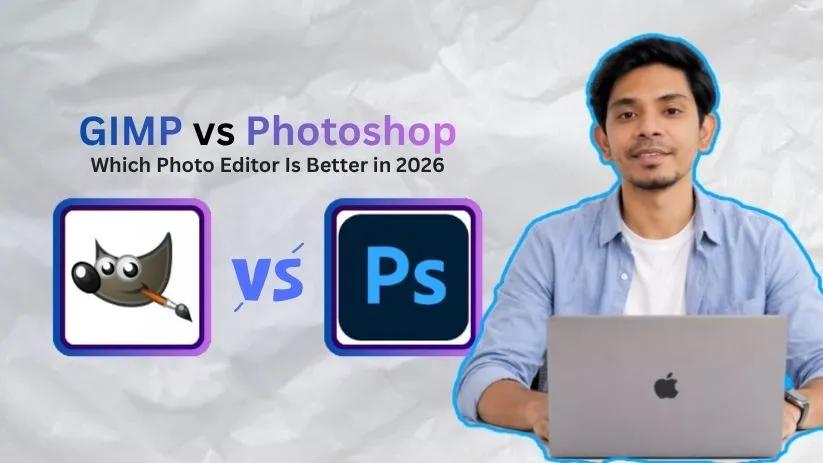
And if you’re in the same situation, you’ve probably landed here searching for “GIMP vs Photoshop” — both are popular image editing tools, and both get recommended for very different reasons.
But after comparing them side by side for real editing work, checking everything from background removal to layer handling to how fast each tool gets a finished design ready for export, I found differences that feature lists don’t always explain.
This comparison guide breaks down where GIMP and Photoshop stand, feature by feature.
I’ll also share which tool makes more sense depending on the exact work you do.
Photo retouching, social media graphics, digital art, PSD files, AI edits, and everyday image cleanup.
By the end, you’ll see where GIMP is more than enough, where Photoshop clearly pulls ahead, and which photo editor is actually worth your time.
GIMP vs Photoshop: Main Differences at a Glance
Here’s the quick comparison before we get into the details.
| Feature | GIMP | Photoshop |
| Price | Free | Paid subscription |
| Source model | Open-source | Proprietary |
| Platforms | Windows, macOS, Linux | Windows, macOS, web/mobile versions |
| AI tools | Limited and mostly plugin-based | Built-in Generative Fill, Remove Tool, Firefly, and partner AI models |
| Non-destructive editing | Improving in GIMP 3.x | Mature, polished, and widely used in professional workflows |
| Smart Objects | Limited; not a true Photoshop-style equivalent | Strong Smart Object support |
| Adjustment layers | Improving, but not as mature | Mature adjustment layer workflow |
| PSD compatibility | Can open and export PSD files, but with limits | Native PSD support |
| CMYK/prepress | Limited workflow, with improving import/export support | Stronger choice for professional print and prepress work |
| Performance | Good for many everyday tasks, but can slow down in heavier workflows | Better optimized for large files, GPU acceleration, and professional editing |
| Learning curve | Different interface; can feel unusual, especially for Photoshop users | Complex, but widely taught and industry-standard |
GIMP vs Photoshop: Feature-by-Feature Comparison
Now let’s get into the details.
I compared GIMP and Photoshop across the key areas that matter most when choosing photo editing software.
Not just what they claim on their feature pages, but how they actually feel when you’re editing photos, cutting out subjects, working with layers, exporting files, or trying to finish a design without fighting the software.
Let’s get into the details.
1. Price and Overall Value
Price is usually the first reason people compare GIMP and Photoshop.
And honestly, it’s a fair starting point.
If you only need to crop photos, clean up images, create YouTube thumbnails, design simple graphics, or resize product images for a website, paying every month for Photoshop can feel like overkill.
But price alone doesn’t tell the full story.
The real question is: are you saving money, or are you losing time?
GIMP: Completely Free
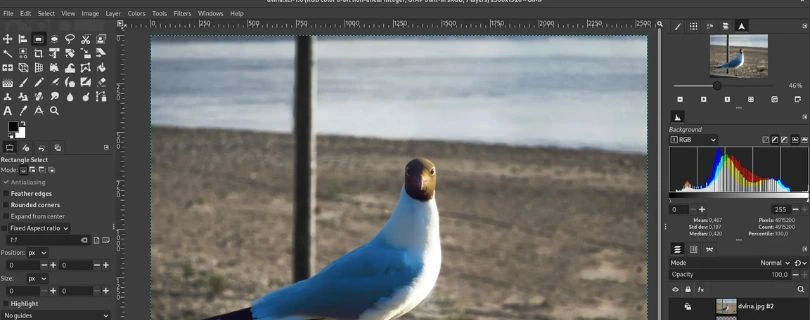
GIMP is free.
No trial. No subscription. No locked export button. No “upgrade to remove watermark” surprise.
You download it, install it, and start editing. That alone makes it one of the strongest free Photoshop alternatives for students, hobbyists, Linux users, small business owners, and anyone who doesn’t want another monthly software bill.
When I tested GIMP for basic editing work, like cropping blog images, removing small objects, adjusting brightness, creating simple graphics, and exporting web-friendly files, it handled the job well.
For everyday creative work, GIMP gives you a lot without charging anything.
That said, “free” comes with trade-offs.
Some edits take more steps. Some tools feel less polished. And when you’re trying to do fast client work, those extra clicks start to matter.
Photoshop: Paid Subscription
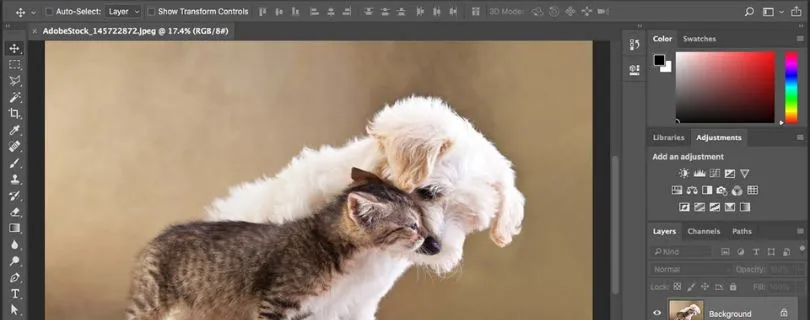
Photoshop is paid software, and that’s the biggest reason many users hesitate.
You don’t buy it once. You subscribe to it.
But what you get in return is a much smoother professional editing workflow. Photoshop gives you stronger selection tools, better AI features, mature non-destructive editing, Smart Objects, advanced masking, better PSD handling, and deeper integration with Adobe apps like Lightroom, Illustrator, and Adobe Express.
When I tested the same editing tasks in Photoshop, the difference showed up in speed.
Removing a background was faster. Cleaning up distractions was easier. Adjusting colors without damaging the original image felt more natural. Exporting layered work for clients was also more reliable.
Winner: GIMP for price, Photoshop for productivity
GIMP wins if your biggest priority is saving money.
Photoshop wins if your work depends on speed, polish, and professional output.
For casual users, GIMP offers better value. For working photographers, designers, agencies, and content teams, Photoshop can easily pay for itself by saving time on every project.
Before you decide based on cost alone, check the current Photoshop plans here:
Adobe Photoshop Pricing Explained
2. Ease of Use and Learning Curve
A photo editor can have hundreds of tools, but that doesn’t help much if you spend half your time looking for basic options.
So the next thing I looked at was how easy each tool feels in daily use.
This is where the difference between GIMP and Photoshop becomes very obvious.
GIMP: Powerful, But Not Always Intuitive
GIMP has a learning curve.
Not because it’s weak, but because it doesn’t always behave the way new users expect.
If you’re coming from Canva, Lightroom, Photoshop, or even mobile editing apps, GIMP can feel a little unusual at first. Some tools are tucked into menus. Some shortcuts feel different. Text editing can feel clunky. Layer handling takes time to understand.
When I tried to do common tasks like placing text on an image, resizing a layer, cutting out a subject, or adjusting colors, GIMP could do all of them. But I often needed an extra step or a quick menu search.
That’s the biggest friction with GIMP.
It’s capable, but it doesn’t always guide you.
Once you learn its logic, it becomes much easier. But beginners may need patience, especially if they’re expecting a Photoshop-style interface.
Photoshop: Complex, But More Polished
Photoshop is also not “easy” in the beginner sense.
It has a lot of tools, panels, menus, masks, layers, filters, and export settings. A first-time user can absolutely feel overwhelmed.
But the workflow is more polished.
Selection tools are easier to find. Layer controls feel cleaner. Adjustment layers make more sense visually. Contextual menus help you move faster. And because Photoshop is the industry standard, there are thousands of tutorials for almost every task you can imagine.
When I tested beginner-level workflows, Photoshop felt more predictable.
Need to remove a background? There’s a clear path.
Need to add a color adjustment without damaging the original photo? Adjustment layers are right there.
Need to resize a smart layer without losing quality? Smart Objects handle it.
Winner: Photoshop
GIMP is learnable, and experienced users can move quickly in it.
But Photoshop offers a cleaner, more guided workflow for most creative users, especially if you plan to follow tutorials, work with clients, or learn professional photo editing.
GIMP asks you to adapt to its workflow.
Photoshop gives you the workflow most of the industry already uses.
3. Photo Editing and Retouching Tools
Finding the right tool is one thing.
Finishing a clean edit is another.
This is where I tested both apps on real editing tasks: fixing exposure, adjusting colors, healing skin marks, removing small objects, cutting out subjects, and preparing images for social media or web use.
GIMP: Strong for Basic and Intermediate Editing
GIMP is much better than some people give it credit for.
For basic photo editing, it performs well. You can crop, resize, sharpen, adjust curves, correct colors, remove blemishes, use masks, work with layers, and export in common formats.
When I edited product-style images and simple portraits in GIMP, the results were good enough for blogs, small business websites, thumbnails, social media posts, and personal projects.
The healing tool works. The clone tool works. Curves and levels give you solid control. Layer masks let you build more advanced edits.
But the process often feels more manual.
For example, when removing a messy background or cleaning up an object from a busy scene, I had to spend more time refining edges and fixing rough spots by hand.
GIMP gives you control, but it doesn’t always give you speed.
Photoshop: Faster and More Refined
Photoshop is stronger for serious photo editing and retouching.
The healing tools feel more accurate. The Remove Tool is faster. Content-Aware Fill is better for object removal. Selections are cleaner. Masking is more flexible. And the overall editing flow is designed for people who work on images every day.
When I tested background removal, Photoshop usually got me closer to a usable cutout on the first try.
Hair, soft edges, shadows, and complex backgrounds were easier to handle. I still had to make manual adjustments, but the starting point was better.
For portrait retouching, Photoshop also felt more efficient. You can work non-destructively, stack adjustments, use masks, and keep the original image protected while making changes.
Winner: Photoshop
GIMP is good for everyday photo editing.
Photoshop is better for professional retouching, complex image cleanup, and high-quality edits where speed and precision matter.
If you’re editing one image for fun, GIMP is fine.
If you’re editing 40 client images before a deadline, Photoshop is the tool I’d rather use.
4. AI Tools and Automation
This is one of the biggest gaps between GIMP and Photoshop right now.
A few years ago, this comparison was mostly about layers, masks, selections, and price.
Now AI changes the conversation.
If your workflow includes background generation, object removal, image expansion, quick cleanup, or AI-assisted creative edits, Photoshop has a clear advantage.
GIMP: Limited AI Without Plugins
GIMP does not have built-in AI tools at the same level as Photoshop.
You may find plugins, scripts, or external workflows that add AI-style features, but they don’t feel native. Setup can be inconsistent. Output quality depends on the plugin. And the workflow usually takes more effort than simply selecting an area and typing a prompt.
When I used GIMP for cleanup-style edits, I had to rely more on classic tools like clone, heal, masks, paths, and manual selections.
That’s not always bad.
Manual editing gives you control. But if you’re used to AI image tools that remove objects in seconds or expand a background with one prompt, GIMP feels behind.
Photoshop: Built-In AI Editing
Photoshop is much stronger for AI-assisted editing.
Generative Fill, Generative Expand, the Remove Tool, object selection, automatic background removal, and Firefly-powered features make a real difference in daily creative work.
This is especially useful for:
- Extending product image backgrounds
- Removing distractions from photos
- Creating social media visuals
- Filling empty space in banners
- Testing ad creative variations
- Cleaning up images quickly before export
When I tested a simple image expansion task, Photoshop handled it in a way that felt built into the editing process. I didn’t need to leave the app, install anything, or rebuild the file.
That matters if you create a lot of content.
Winner: Photoshop
Photoshop wins this category easily.
GIMP can still handle manual editing, but Photoshop gives you modern AI tools directly inside the workspace.
If AI editing is part of your workflow, Photoshop is not just ahead. It’s in a different class.
5. Layers, Smart Objects, and Non-Destructive Editing
This is where professional users start to care a lot.
Non-destructive editing means you can change your work without permanently damaging the original image.
For example, you can adjust brightness, resize a design element, apply a filter, or change colors later without starting over.
If you only make quick edits, this may not seem like a big deal.
But once you work with clients, layered designs, product images, ads, thumbnails, or templates, it becomes one of the most important parts of the workflow.
GIMP: Improving, But Still Not as Mature
GIMP supports layers, masks, blend modes, groups, and many useful editing tools.
For a free editor, that’s impressive.
You can create layered graphics, combine images, edit transparency, add text, apply effects, and build more complex compositions.
GIMP has also been improving its non-destructive editing features in newer versions, which is good to see. It’s moving in the right direction.
But it still doesn’t feel as mature as Photoshop for professional layered work.
Some edits feel more permanent than they should. Some workflows require duplicates or manual workarounds. And if you’re used to Photoshop’s Smart Objects and adjustment layers, GIMP can feel limiting.
Photoshop: Built for Non-Destructive Work
Photoshop is much better here.
Smart Objects let you resize, transform, and apply effects without destroying the original layer. Adjustment layers let you change brightness, contrast, color balance, curves, gradients, and more without touching the image itself.
Masks give you control without deleting pixels.
This makes Photoshop ideal for client work because you can go back and adjust things later.
A client wants the product brighter? Easy.
A background color needs to change? No problem.
A text layer needs repositioning? Still editable.
A filter is too strong? Reduce it.
That flexibility saves a lot of time.
Winner: Photoshop
GIMP is improving, and for simple layered projects it works well.
But Photoshop has a far more mature non-destructive editing workflow.
If you create editable templates, client graphics, professional composites, or reusable design files, Photoshop is the safer choice.
6. PSD Compatibility and File Handling
This is a section many beginners overlook.
Then they receive a PSD file from a client, designer, agency, or marketplace template — and suddenly the software choice matters.
PSD compatibility is one of the biggest reasons Photoshop remains the industry standard.
GIMP: Can Open PSD Files, But With Limits
GIMP can open and export PSD files.
That sounds great, and for simple PSDs, it often works fine.
If the file has basic layers, images, and text, GIMP may handle it well enough.
But complex Photoshop files are a different story.
Smart Objects may not behave properly. Adjustment layers may not translate the same way. Layer effects can change. Text formatting can shift. Some blending or advanced Photoshop-only features may not survive the transfer cleanly.
When I opened more complex PSD-style files in GIMP, the result was usable in some cases, but not something I’d trust for professional handoff without checking every layer.
That’s the issue.
GIMP can open PSDs.
But it doesn’t always preserve the full Photoshop workflow.
Photoshop: Native PSD Support
Photoshop is the home of the PSD format.
So naturally, it handles PSD files better than anything else.
If you work with agencies, clients, photographers, designers, print teams, or creative marketplaces, this matters. You can open the file, edit Smart Objects, change adjustment layers, update text, preserve masks, and send the file back without worrying that half the structure broke.
For solo users, this may not matter much.
For teams, it matters a lot.
PSD files are still a common language in professional design and photo editing workflows.
Winner: Photoshop
GIMP is fine for basic PSD access.
Photoshop is the better choice if PSD compatibility matters to your work.
If a client sends you layered Photoshop files and expects them back in perfect condition, use Photoshop.
7. Performance and Workflow Speed
Performance isn’t only about how fast the app opens.
It’s about how quickly you can finish the work.
That includes tool responsiveness, large file handling, export speed, brush performance, AI processing, layer-heavy projects, and how many times you need to repeat manual steps.
GIMP: Good for Everyday Work
GIMP runs well for many normal editing tasks.
It’s a good fit for users who work with smaller files, basic photo edits, simple composites, and web graphics. It also works on Linux, which gives it a major advantage for users who don’t want to rely on Adobe’s ecosystem.
When I used GIMP for blog images, thumbnails, basic cleanup, and image resizing, performance was generally fine.
But heavier workflows started to show friction.
Large layered files felt slower. Some filters took longer. Complex selections needed more manual cleanup. And because some workflows require extra steps, the total editing time increased.
That’s the part people miss.
Even if GIMP runs well technically, the workflow can still feel slower.
Not fully sold on GIMP? Explore other photo editing options here:
GIMP Alternatives: 5 Photo Editing Tools You Should Try in 2026
Photoshop: Better for Heavy Creative Work
Photoshop feels more optimized for professional editing.
Large files are easier to manage. GPU-supported features help with heavier tasks. AI tools reduce manual work. And the interface gives you faster paths to common edits.
When working with multiple layers, masks, effects, and high-resolution images, Photoshop felt more stable and efficient.
It’s not perfect. Photoshop can still be heavy. It can use a lot of system resources. And older computers may struggle with it.
But if you have a decent machine, Photoshop is usually faster for serious creative work.
Winner: Photoshop
GIMP performs well for everyday editing.
Photoshop performs better when the work gets heavier, more layered, or more deadline-driven.
If you only edit a few images a week, GIMP is enough.
If editing is part of your job, Photoshop’s speed advantage becomes hard to ignore.
8. Best Use Cases
The easiest way to decide between GIMP and Photoshop is to stop asking which one is “better” in general.
A better question is:
Which one is better for the work you actually do?
Because the answer changes depending on the user.
GIMP: Best for Free and Practical Editing
GIMP makes the most sense if you want a free image editor that can handle everyday creative work.
It’s a strong choice for:
- Students learning photo editing
- Hobby photographers
- Bloggers and small website owners
- Linux users
- People who dislike subscriptions
- Basic social media graphics
- Simple image cleanup
- Cropping, resizing, and exporting web images
- Users who want an open-source Photoshop alternative
If you’re not doing client-heavy editing or advanced production work, GIMP can cover a lot of ground.
It’s also a great option if you’re still learning and don’t want to pay before you know what kind of creative work you’ll actually do.
Photoshop: Best for Professional Creative Work
Photoshop is the better choice if editing quality, speed, compatibility, and AI tools matter.
It’s best for:
- Professional photographers
- Retouchers
- Graphic designers
- Creative agencies
- Social media teams
- Ad creative teams
- Brand designers
- YouTube thumbnail designers
- Product photographers
- Anyone working with PSD files
- Users who need advanced AI editing tools
Photoshop is not just a photo editor. It’s a professional creative platform.
That’s why it remains the standard in so many industries.
Winner: Depends on the user
GIMP wins for casual users, budget-conscious creators, Linux users, and people who need basic to intermediate editing for free.
Photoshop wins for professionals, teams, agencies, and anyone who needs faster editing, better AI tools, cleaner PSD support, and a more polished workflow.
The honest answer is simple.
GIMP is the better free tool.
Photoshop is the better professional tool.
And once you understand that difference, the choice becomes much easier.
Final Verdict: Which Is Better for You — GIMP or Photoshop?
The right choice depends on the kind of editing you actually do.
If price is your main concern, GIMP is the easy winner. It’s free, open-source, and strong enough for everyday photo editing, image cleanup, simple graphics, thumbnails, and basic design work.
But if you compare the full workflow, Photoshop pulls ahead. It’s faster, more polished, and better built for professional creative work.
Choose GIMP if you want a free photo editor for everyday work
GIMP is best for beginners, students, hobbyists, Linux users, bloggers, and small business owners who need solid editing tools without a monthly bill.
You can use it to crop images, resize photos, adjust colors, remove simple backgrounds, clean up product photos, and create basic graphics for websites or social media.
For that kind of work, GIMP is more than enough.
Just expect a learning curve. Some tools feel less intuitive, and some edits take more manual effort than they would in Photoshop.
Choose Photoshop if speed and professional quality matter
Photoshop is better if you edit images for clients, campaigns, products, ads, photography, or brand work.
You get stronger selection tools, built-in AI editing, Generative Fill, Smart Objects, adjustment layers, cleaner PSD support, and a smoother non-destructive workflow.
That matters when you need fast revisions, clean background removal, advanced retouching, or reliable layered files.
So, who wins?
For casual users, GIMP is the better value.
For professionals, Photoshop is the better tool.
GIMP wins on price and accessibility.
Photoshop wins on speed, AI tools, PSD compatibility, and professional workflow.
FAQ: GIMP vs Photoshop
Is GIMP as good as Photoshop?
GIMP is good enough for basic and intermediate photo editing, but it’s not as strong as Photoshop for professional work.
You can crop, resize, retouch, use layers, adjust colors, and create simple graphics in GIMP. But Photoshop is better for advanced retouching, AI editing, Smart Objects, adjustment layers, PSD files, and faster client workflows.
Can GIMP replace Photoshop?
GIMP can replace Photoshop for casual users, students, hobbyists, bloggers, and small business owners who need a free image editor.
But it may not fully replace Photoshop if you work with clients, agencies, layered PSD files, advanced masking, AI tools, or commercial photo retouching. For professional workflows, Photoshop is still the safer choice.
Is GIMP really free?
Yes, GIMP is completely free and open-source.
You don’t need a subscription, and there are no export limits or watermarks. That’s one of the biggest reasons people choose GIMP as a free Photoshop alternative.
Why do professionals use Photoshop instead of GIMP?
Professionals use Photoshop because it saves time and fits better into industry workflows.
It has stronger selection tools, better retouching features, built-in AI tools, Smart Objects, adjustment layers, native PSD support, and smoother collaboration with clients and creative teams.
Can GIMP open Photoshop PSD files?
Yes, GIMP can open and export PSD files, but compatibility is not perfect.
Simple PSD files may work fine. Complex files with Smart Objects, advanced text formatting, adjustment layers, effects, or Photoshop-only features may not open exactly as expected.
Does GIMP have AI tools like Photoshop?
Not at the same level.
Photoshop has built-in AI features like Generative Fill, Generative Expand, object removal, and AI-assisted selections. GIMP may support some AI-style workflows through plugins or external tools, but they are not as polished or built into the app.
Is GIMP good for beginners?
Yes, GIMP is good for beginners who want to learn photo editing without paying for software.
The only downside is the learning curve. Some tools and menus can feel less intuitive than Photoshop, especially if you’re following Photoshop-based tutorials.
Is Photoshop worth paying for?
Photoshop is worth it if photo editing is part of your work.
If you edit client photos, product images, ads, thumbnails, social media campaigns, or layered design files, Photoshop’s speed and professional tools can justify the cost. If you only edit images occasionally, GIMP may be enough.
Which is better for photo editing: GIMP or Photoshop?
Photoshop is better for serious photo editing and retouching.
GIMP is strong for basic edits like cropping, resizing, exposure correction, color adjustments, and simple cleanup. Photoshop is better for advanced selections, skin retouching, background removal, AI edits, and non-destructive workflows.
Which is better for graphic design: GIMP or Photoshop?
Photoshop is better for professional graphic design, especially when working with clients, brands, ads, and PSD files.
GIMP can still create web graphics, thumbnails, posters, banners, and simple social media visuals. But Photoshop gives you more control, better text handling, stronger layer features, and smoother file compatibility.
Is GIMP better than Photoshop for Linux users?
For Linux users, GIMP is usually the better practical choice because it runs natively on Linux.
Photoshop does not have a native Linux desktop version, so Linux users often choose GIMP, Krita, Darktable, or browser-based tools depending on their workflow.
Is GIMP harder to use than Photoshop?
For many users, yes.
GIMP is powerful, but its workflow can feel less familiar, especially if you’re used to Photoshop tutorials or modern design apps. Photoshop is also complex, but it has a more polished interface and a much larger tutorial ecosystem.
Can I use GIMP for professional work?
Yes, you can use GIMP for some professional work, especially simple graphics, web images, basic photo edits, and open-source workflows.
But if your work depends on PSD files, advanced retouching, agency collaboration, AI editing, or high-volume client revisions, Photoshop will usually be the better tool.
What are the biggest disadvantages of GIMP?
The main disadvantages of GIMP are its learning curve, limited AI tools, weaker PSD compatibility, less polished text editing, fewer professional workflow features, and more manual steps for complex edits.
It’s powerful, but it doesn’t always feel as fast or refined as Photoshop.
What are the biggest disadvantages of Photoshop?
Photoshop’s biggest disadvantages are the subscription cost, heavier system requirements, no native Linux version, and a steeper learning curve for complete beginners.
It can also feel like too much software if you only need simple image edits.
Should I learn GIMP or Photoshop first?
Learn GIMP first if you want a free way to understand basic photo editing, layers, masks, and image adjustments.
Learn Photoshop first if you want to work in photography, design, marketing, advertising, or any creative job where Adobe tools are commonly used.
What do people usually ask ChatGPT about GIMP vs Photoshop?
People usually ask whether GIMP is good enough to replace Photoshop, whether GIMP can open PSD files, why Photoshop is still better for professionals, and whether paying for Photoshop is worth it.
They also ask which one is better for beginners, Linux, photo retouching, YouTube thumbnails, product images, and social media graphics.
Which should I choose in 2026: GIMP or Photoshop?
Choose GIMP if you want a free editor for everyday image editing, simple graphics, and hobby projects.
Choose Photoshop if you need professional retouching, AI tools, PSD compatibility, advanced selections, and a faster workflow for client or commercial work.