Google Stitch continues to stand out as one of the most talked-about AI UI design tools from Google Labs. Whether you’re a founder sketching an MVP, a developer who wants a cleaner starting point for frontend design, or a product team trying to turn rough ideas into usable screens faster, Stitch offers a simple promise: describe your app or upload a visual reference, and get a polished UI concept in minutes.
But hype aside — what is Google Stitch really, how does it work, what can it create, and can it actually replace tools like Figma in a real design workflow?
This guide combines practical analysis, Google Stitch’s latest feature set, export options, design workflow use cases, and early user feedback so you can decide whether Stitch fits the way you design, prototype, or build digital products.
What Is Google Stitch?
Google Stitch is an AI-powered UI design tool from Google Labs that generates app and website interface designs from natural-language prompts, sketches, screenshots, or visual references. Unlike traditional design tools where you manually place every frame, button, and card, Stitch focuses on turning an idea into a high-fidelity UI concept quickly.
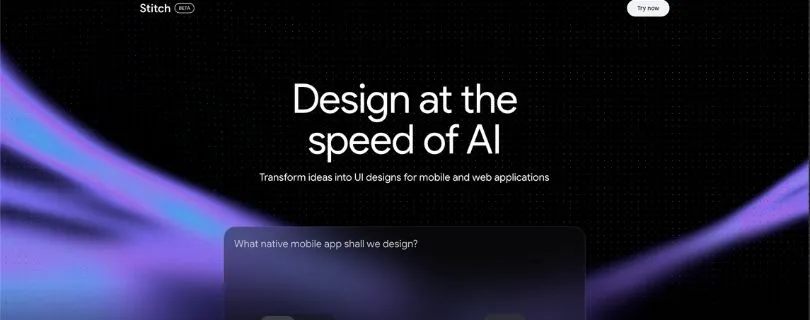
When you describe your idea (“Create a mobile app for a laundry pickup service with booking, order tracking, and payment screens”), Google Stitch can generate:
- Mobile and web UI screens
- Landing pages, dashboards, and app flows
- Interactive prototypes
- Design variations you can refine with prompts
- Frontend code such as HTML and CSS
- Export options for tools like Figma and developer workflows
This ability to move from a rough idea to a polished-looking interface is why Google Stitch is getting attention from founders, developers, product managers, and designers who want to skip the blank-canvas stage without giving up control later.
Key highlights:
- No manual-first design process: everything can start with a text prompt or visual input
- AI-generated UI screens for mobile apps, web apps, dashboards, and landing pages
- Built for rapid prototyping: useful for MVPs, product ideas, and early design exploration
- Supports prompt-based editing, so you can ask for layout, color, style, or content changes
- Can generate design systems, including colors, typography, and reusable visual direction
- Helps bridge the gap between design and frontend development with exportable code
- Best used as an AI design assistant, not a full replacement for Figma or human UX work
You might like reading:
What Is Adobe Express? Features, Pricing, Pros & Cons Explained
5 Best AI Graphic Design Generator Tools I Tested and Compared
How Google Stitch Works Step-by-Step
This core flow shows how Google Stitch usually fits into a real UI design workflow:
Step 1: describe your design idea
You open Google Stitch and start with a prompt field.
You type something like:
“Create a mobile app for a laundry pickup service with onboarding, service selection, pickup scheduling, order tracking, and payment screens.”
Google Stitch reads the request and turns it into a visual direction for the interface.
Step 2: initial UI generation
Google Stitch generates:
- App screens or website sections
- Layout structure
- Buttons, cards, menus, and navigation
- Color and typography direction
- Sample content and placeholder visuals
- Multiple design variations, depending on the prompt
A polished UI concept appears on the canvas, giving you a starting point instead of a blank screen.
Step 3: refine with prompts
You can ask:
- “Make the design feel more premium.”
- “Change the accent color to green.”
- “Add a pricing screen.”
- “Create a dark mode version.”
- “Make the checkout flow shorter.”
Stitch updates the design based on your instructions, so the workflow feels more like directing a designer than manually editing every layer from scratch.
Step 4: prototype, export, or continue editing
You can:
- Turn screens into an interactive prototype
- Create more design variations
- Export to Figma for detailed editing
- Generate frontend code such as HTML and CSS
- Continue the workflow in developer tools or AI Studio
This hybrid model — AI-generated UI plus editable design and code export — is what makes Google Stitch different from a normal design canvas or basic AI image generator.
Use Cases for Google Stitch
Great fit for:
- Startup founders creating MVP mockups quickly
- Developers who need a better-looking UI starting point
- Product managers turning feature ideas into visual screens
- Designers exploring multiple layout directions fast
- Agencies preparing early client concepts and landing page drafts
Not ideal for:
- Teams that need pixel-perfect production design from day one
- Complex UX flows that require detailed user research
- Brands with strict design systems and approval rules
- Projects that need fully polished, production-ready frontend code
Limitations of Google Stitch
1. Output quality can depend heavily on your prompt
Google Stitch is fast, but it is not magic. If your prompt is vague, the result can feel generic.
For example, a prompt like:
“Create a fitness app.”
May give you a clean-looking interface, but it will probably look similar to many other AI-generated app screens.
A better prompt would be:
“Create a premium fitness coaching mobile app for busy professionals. Include onboarding, workout plan, progress dashboard, meal tracking, and subscription screen. Use a dark interface with neon green accents and bold typography.”
Bottom line: Stitch works best when you give it clear direction on the product, audience, screens, style, and user goal.
2. Complex UX flows still need human thinking
Google Stitch can create screens quickly, but it does not replace real UX strategy.
Common issues:
- Multi-step flows may feel too simple
- Edge cases are often missing
- Forms, empty states, error states, and permissions may need extra work
- Navigation can look good visually but still need usability testing
For early prototypes, this is fine. For production products, designers and product teams still need to review the flow carefully.
3. Limited control compared to Figma
Even with AI editing, Stitch does not give the same level of hands-on control as a mature design tool like Figma.
It may not fully replace:
- Pixel-perfect layout editing
- Advanced component systems
- Detailed design tokens
- Team libraries
- Complex prototyping logic
For polished UI work, teams will usually use Stitch to generate the first direction, then move the design into Figma for refinement.
4. Generated code still needs cleanup
Google Stitch can help bridge design and frontend development, but the exported code should be treated as a starting point.
Common issues:
- Code may not match your preferred framework structure
- Components may need refactoring
- Responsive behavior may need testing
- Accessibility details may be incomplete
- Styling may need cleanup before production
This is normal for AI-generated frontend code. Stitch can save time on the first draft, but developers should still review, test, and clean the output before using it in a real product.
Google Stitch Pricing Updated for May 2026
Free Access — $0
Google Stitch is currently free to use through Google Labs. You do not need a paid subscription or credit card to start generating UI designs, which makes it easy to test if you’re exploring AI UI design for the first time.
You get:
- Free access with a Google account
- Browser-based UI design generation
- Standard and experimental generation modes
- Figma export support
- Frontend code generation
- Monthly generation limits
This makes Stitch a strong option for founders, designers, developers, and product teams who want to create app screens or website mockups without paying upfront.
Standard Mode — Free
Standard Mode is built for faster everyday UI generation.
It usually includes:
- Around 350 generations per month
- Gemini 2.5 Flash-powered generation
- Faster output for app screens, dashboards, and landing pages
- Figma export support
- Good fit for quick concepts and early prototypes
This is the mode most users will probably use for normal design exploration because it gives you more generations and faster results.
Experimental Mode — Free
Experimental Mode is designed for higher-quality or more advanced generation.
It usually includes:
- Around 50 to 200 generations per month, depending on availability and Labs limits
- Gemini 2.5 Pro-powered generation
- Better handling of complex prompts
- Support for visual inputs like screenshots, sketches, or reference images
- Stronger fit for high-fidelity UI concepts
This mode is useful when you care more about quality than speed, especially for image-to-UI workflows or more detailed product screens.
Credit and Usage Limits
Google Stitch runs on a credit or generation-based system, so heavy users can still hit limits even though the tool is free.
Common limits may include:
- Monthly generation caps
- Daily usage limits
- Different credit costs depending on prompt complexity
- Lower limits for experimental model usage
The exact numbers can change because Stitch is still a Google Labs product, so the safest move is to check your current limit inside the Stitch dashboard before planning a large project around it.
Pricing Summary
Google Stitch is one of the more generous AI design tools right now because it gives users free access to prompt-based UI generation, Figma export, and code generation without a paid plan. That said, “free” does not mean unlimited. If you generate lots of variations, test long prompts, or use Experimental Mode often, you may run into usage limits faster than expected.
For casual UI concepts, MVP mockups, and early design exploration, the free access is more than enough. For serious team workflows, the bigger question is not price yet — it’s whether Google keeps Stitch free, changes the limits, or introduces paid plans later.
Google Stitch Alternatives
1. Figma AI — best for professional design teams
If your team already uses Figma for product design, design systems, and developer handoff, Figma AI is the most natural alternative to Google Stitch.
Figma AI is useful for:
- Generating layout ideas inside an existing design file
- Editing and organizing design layers faster
- Working with team libraries and components
- Collaborating with designers, PMs, and developers
- Moving from rough concept to production-ready design
It does not feel as “prompt-first” as Stitch, but it gives teams much deeper design control once the first idea is on the canvas.
2. UX Pilot — best for AI UI generation and Figma workflows
UX Pilot is a strong option if you want an AI UI design tool that stays close to a traditional product design workflow.
UX Pilot is ideal when you want:
- Text-to-UI generation
- Wireframes and high-fidelity screens
- Figma-friendly design output
- Faster product mockups
- AI support for UX flows and interface ideas
It is a good Google Stitch alternative for designers who want AI help but still care about structure, editing control, and design handoff.
3. Uizard — best for quick wireframes and beginner-friendly mockups
Uizard is better suited for non-designers, founders, marketers, and small teams that want to create simple app or website mockups quickly.
It works well for:
- Turning rough sketches into UI mockups
- Creating wireframes without design experience
- Building early product concepts
- Testing app ideas before hiring a designer
Compared with Google Stitch, Uizard feels more beginner-friendly, but Stitch has stronger Google AI backing and may produce more polished AI-generated UI concepts.
4. Vercel v0 — best for UI code generation
Vercel v0 is a better fit if your main goal is turning prompts into frontend components rather than visual design files.
Vercel v0 is useful for:
- React and Tailwind UI generation
- Landing page sections
- Dashboard components
- Developer-ready interface blocks
- Fast frontend scaffolding
Google Stitch is more design-canvas focused, while v0 is more code-first. If you’re a developer who wants editable UI code quickly, v0 may feel more practical.
Is Google Stitch Worth It?
Google Stitch shines when you need to turn an idea into a visual interface quickly:
- A mobile app concept
- A landing page draft
- A SaaS dashboard mockup
- A startup MVP prototype
- A client presentation
- A UI direction you want to export and refine in Figma
- A frontend starting point you want to clean up later
If your goal is early design exploration, Google Stitch is absolutely worth trying. It removes the blank-canvas problem and gives you something concrete to react to within minutes.
But Google Stitch struggles when:
- You need pixel-perfect production design
- You need deep component-level control
- You need complex UX flows with edge cases
- You expect fully polished frontend code
- Your team already has a strict design system
- You need mature collaboration features like a full Figma workflow
For quick UI concepts, MVP mockups, and design brainstorming, Stitch is a strong free tool. For final product design, treat it as a starting point, not the whole workflow.
Google Stitch FAQ
What is Google Stitch?
Google Stitch is an AI-powered UI design tool from Google Labs that creates app and website interfaces from text prompts, sketches, screenshots, or visual references. You describe what you want, and Stitch generates UI screens, design directions, prototypes, and sometimes frontend code that you can refine or export.
Is Google Stitch free?
Yes, Google Stitch is currently free to use through Google Labs. You do not need a paid subscription or credit card during its experimental phase. That said, it does use generation limits or credits, so heavy users may hit daily or monthly caps.
How does Google Stitch work?
Google Stitch works by taking your prompt or visual input and turning it into a UI design. For example, you can type:
“Create a mobile app for a food delivery service with restaurant listings, cart, checkout, and order tracking.”
Stitch then generates a set of screens based on that idea. After that, you can ask it to change colors, add screens, adjust the layout, create variations, or export the design for further editing.
What can you create with Google Stitch?
You can use Google Stitch to create:
- Mobile app screens
- Web app interfaces
- Landing pages
- SaaS dashboards
- Onboarding flows
- Checkout screens
- Product pages
- Admin panels
- Design concepts
- Interactive prototypes
It works best when you want a fast visual starting point, not when you need a finished production design on the first try.
Can Google Stitch generate code?
Yes, Google Stitch can generate frontend code such as HTML and CSS. This is useful if you want a starting point for development, but the code should still be reviewed and cleaned before you use it in a real product.
Think of the code as a draft. It can save time, but you’ll still need to check responsiveness, accessibility, component structure, and styling quality.
Can Google Stitch export to Figma?
Yes, Google Stitch supports export workflows such as Figma export, depending on the mode and current product availability. This is one of its most useful features because you can generate the first design in Stitch, then move it into Figma for detailed editing, collaboration, and handoff.
Is Google Stitch a Figma replacement?
Not fully. Google Stitch is better for fast idea generation, early prototypes, and prompt-based UI exploration. Figma is still stronger for pixel-perfect editing, design systems, team collaboration, prototyping details, and developer handoff.
The better workflow is to use both:
Generate the first concept in Google Stitch, then refine it in Figma.
Who should use Google Stitch?
Google Stitch is useful for founders, product managers, designers, developers, marketers, agencies, and small teams that want to create UI concepts quickly.
It is especially helpful if you have an app idea but do not want to start from a blank canvas.
Is Google Stitch good for developers?
Yes, but mainly as a UI starting point. Developers can use Stitch to generate layout ideas, landing page concepts, dashboard screens, and frontend code drafts.
It is not a full app builder like Lovable, Bolt, or Cursor. Stitch focuses more on the design and interface layer, not backend logic, databases, authentication, or full-stack development.
Is Google Stitch good for designers?
Yes, but designers should treat it as a brainstorming tool, not a replacement for professional design work. It can help generate quick layout options, visual directions, and early concepts.
Designers will still need to refine spacing, typography, accessibility, components, user flows, and brand consistency.
What is “vibe design” in Google Stitch?
“Vibe design” means creating a design by describing the feeling, style, audience, or goal instead of manually designing every element.
For example, you might say:
“Create a calm, premium wellness app with soft colors, rounded cards, and a minimalist layout.”
Stitch then tries to translate that “vibe” into a visual interface.
What are the main limitations of Google Stitch?
Google Stitch is useful, but it has limits:
- Vague prompts can create generic designs
- Complex user flows still need human UX thinking
- Exported code may need cleanup
- Figma gives more precise design control
- Brand-specific design systems may need manual refinement
- It is still a Google Labs product, so features and limits can change
It is fast, but it is not a complete design team.
Is Google Stitch better than Uizard?
Google Stitch may be better for polished AI-generated UI concepts and Google ecosystem workflows. Uizard is often easier for beginners who want simple wireframes, sketch-to-mockup features, and quick product mockups.
If you want a fast AI design canvas, try Stitch. If you want a beginner-friendly wireframing tool, Uizard may feel easier.
Is Google Stitch better than Vercel v0?
They are built for different workflows. Google Stitch is more focused on visual UI design and prototypes. Vercel v0 is more focused on generating React and Tailwind components for developers.
Use Stitch when you want design direction. Use v0 when you want frontend code blocks.
Is Google Stitch good for startup MVPs?
Yes, Google Stitch is a strong tool for MVP mockups. You can use it to create app screens, landing pages, dashboards, onboarding flows, and investor demo concepts quickly.
But it does not build the full product. You will still need design refinement, development, backend setup, testing, and product validation.
Can I use Google Stitch for client work?
Yes, you can use Google Stitch for early client concepts, wireframes, UI directions, and presentation mockups. It is useful for agencies because it helps create several visual options quickly.
For final client delivery, you should still polish the design in Figma or another professional design tool.
Does Google Stitch support image-to-UI?
Yes, Google Stitch can work with visual inputs like sketches, screenshots, or reference images in supported modes. This is useful when you already have a rough layout or design inspiration and want Stitch to turn it into a cleaner interface.
What is the best prompt for Google Stitch?
A good Google Stitch prompt should include the product type, target audience, platform, screens, style, colors, and goal.
Example:
“Create a mobile banking app for young professionals. Include onboarding, account dashboard, spending insights, money transfer, savings goals, and profile screens. Use a clean modern style with navy blue, white, and green accents.”
The more specific you are, the better the output usually gets.
Why is my Google Stitch design too generic?
Usually, the prompt is too broad. If you ask for “a fitness app” or “a dashboard,” Stitch has to guess the style, audience, features, and layout.
Add more detail:
- Who is the app for?
- What screens do you need?
- What style should it follow?
- What colors should it use?
- Should it feel playful, premium, minimal, bold, or professional?
Better prompts usually create better designs.
Can Google Stitch create a complete app?
No, not by itself. Google Stitch can create UI screens, prototypes, and frontend design/code starting points, but it does not replace full app development.
If you need database logic, authentication, backend APIs, payments, user roles, or production deployment, you will need a developer or a full-stack AI app builder.
Should I use Google Stitch or Figma first?
Use Google Stitch first if you are still exploring ideas and want quick visual options. Use Figma first if you already have a clear design system, brand rules, or detailed product requirements.
A practical workflow is:
Start in Stitch, generate concepts, export to Figma, then polish the design properly.
Is Google Stitch worth using?
Yes, Google Stitch is worth using if you want a free, fast way to generate UI concepts from prompts. It is especially useful for MVP mockups, product ideas, landing pages, SaaS dashboards, and early design exploration.
Just don’t expect it to replace Figma, UX research, frontend development, or brand-level design refinement. It is best as a fast starting point.