Ever stared at a blank screen, knowing you want to start a podcast but having no clue how to turn your idea into something people can actually listen to? You are not short on ideas. You are stuck on the process. Writing scripts, learning audio tools, fixing mistakes, and spending hours editing can drain the excitement before you even begin.
What if you could skip most of that and start with what you already have, your notes, blogs, or research documents?
That is where Google NotebookLM comes in. It lets you turn your written content into a podcast-style conversation using AI. Instead of just reading text out loud, it creates a discussion between two AI voices that talk through your material like real hosts. The result feels like a genuine podcast episode, not a robotic narration.
In this guide, you will learn how to create a podcast with NotebookLM step by step, turning your content into an educational podcast quickly and simply, without touching a microphone.
If you think this still sounds like hype, good. The rest of the article will show you exactly what it can and cannot do.
What is NotebookLM?
NotebookLM is one of Google’s newest AI tools, designed to turn documents into conversations. You can upload a white paper, report, or even class notes, and it will generate dialogue that feels almost podcast-ready. That said, it’s far from perfect. The tool is limited to just two speakers, which can feel restrictive when your content needs more depth or variety, and customization options are minimal.
NotebookLM often follows its own structure rather than yours, which can be frustrating. Still, with patience and careful prompting, guiding the tone, steering the discussion, and clearly outlining what you want covered, you can get solid results. It works best as a starting point, offering a useful foundation that still benefits from human refinement.
How to Create a Podcast with NotebookLM Step by Step
Podcasts are a great way to share ideas, stories, and knowledge, but starting one from scratch can be daunting. Luckily, with NotebookLM, Google’s powerful tool, you can streamline the process and generate professional-sounding podcast episodes quickly.
Whether you are a student, a content creator, or someone interested in experimenting with audio, this step-by-step guide shows you how to create a podcast with NotebookLM from start to finish.
Step 1: Go to NotebookLM
First, head over to notebooklm.google.com in your browser and sign in with your Google account. This will allow you to access the full range of NotebookLM’s features and create a new notebook for your project.
Step 2: Create a New Notebook
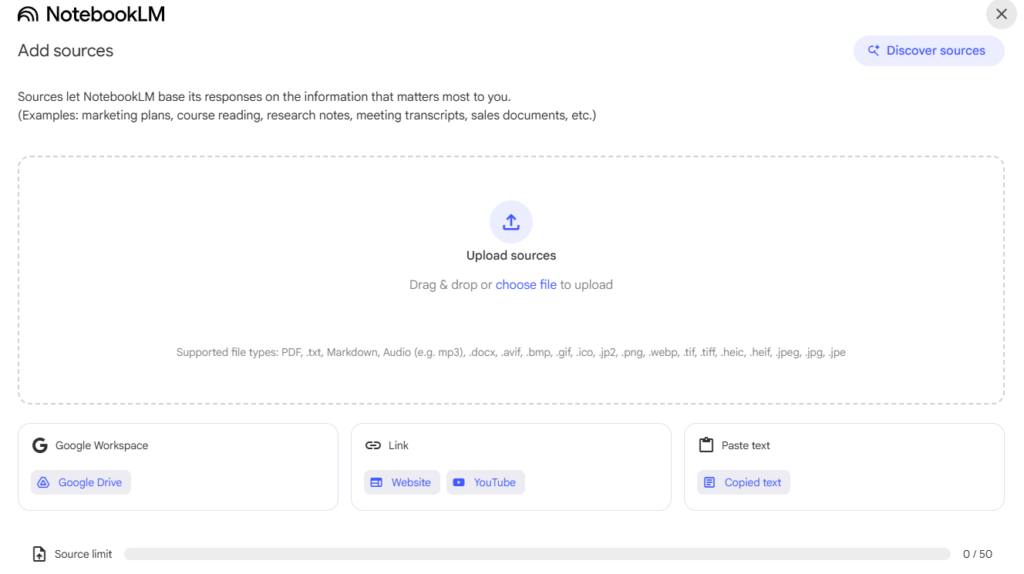
Once you’re logged in, you’ll be on the main dashboard. To begin a new podcast project, click on the “New Notebook” or “Create” button. This will open a new project workspace where you can start adding all the materials you need for your podcast.
Step 3: Add Your Sources
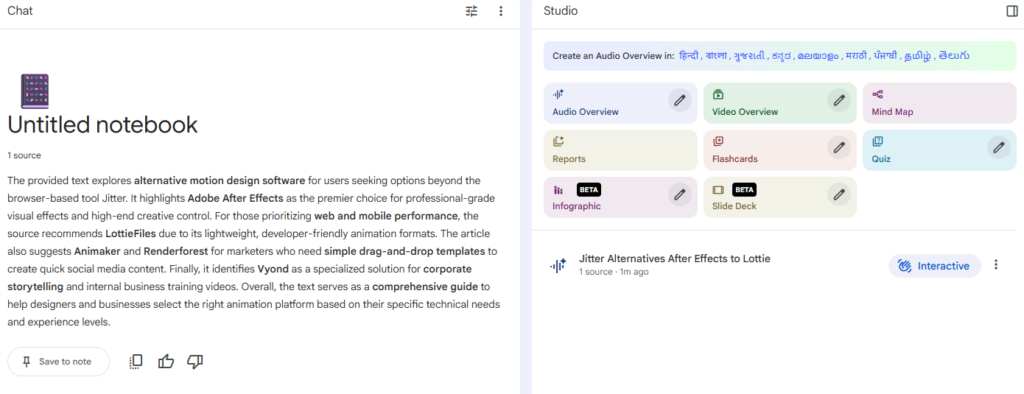
Next, it’s time to upload the material you want to base your podcast on. This could be anything from articles to research papers, YouTube videos, or even podcasts you want to reference.
To add sources, click the “Add Source” button. You can upload materials in various formats, including:
- Google Docs
- PDFs
- Website links
- Copied text
- YouTube video links
The more structured and relevant your sources, the better your podcast will turn out. NotebookLM works best when it has clear, well-organized material to draw from. You can upload up to 50 sources for a more comprehensive output. After that, when submitting your sources, the ‘Notebook Guide’ should automatically pop up. If it doesn’t, you can find it in the bottom right-hand corner of your notebook. Once the notebook guide pops up, you will see the option to generate an audio overview.
Step 4: Generate the Audio Overview
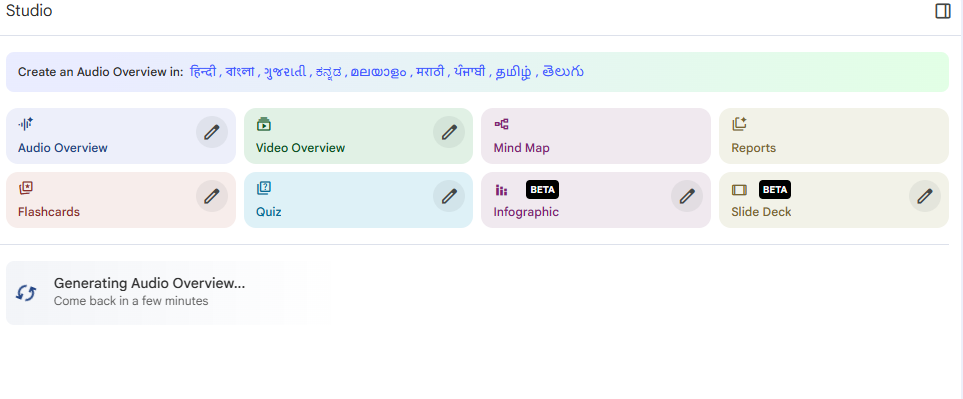
Once you’ve uploaded your sources, head to the “Studio” or “Notebook Guide” panel. This panel is typically located in the bottom right corner of the screen. Here, you’ll find the option to generate the “Audio Overview.”
- Click on “Generate” to start the process.
- The generation might take a few minutes depending on the number of sources you’ve added.
NotebookLM uses the information you’ve uploaded to craft an audio version of the content. The system will pull key points, themes, and insights from your sources to create a coherent podcast overview.
Step 5: Customize Your Podcast (Optional)
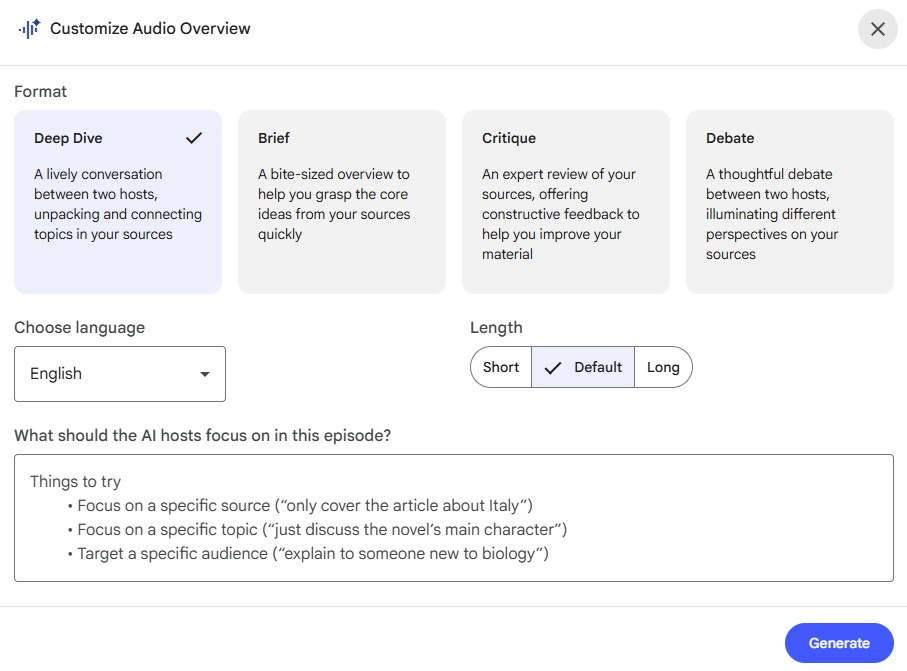
Before creating the audio, you can choose how your podcast will sound. This step is optional, but it helps avoid plain or boring results. NotebookLM lets you change three things: format, length, and prompt.
The format decides the podcast style. Deep Dive is a back and forth conversation. Brief gives a short summary with one voice. Critique focuses on review and analysis. Debate shows two opposite opinions.
Length controls how long the podcast is. Short is good for quick listening, Default works for most topics, and Longer is best for detailed talks.
The prompt lets you give extra instructions, like tone, audience level, or main points. Clear prompts help create better audio.
Once set, generate the podcast. Small adjustments here can significantly improve the final audio.
Step 6: Generate and Review Your Podcast
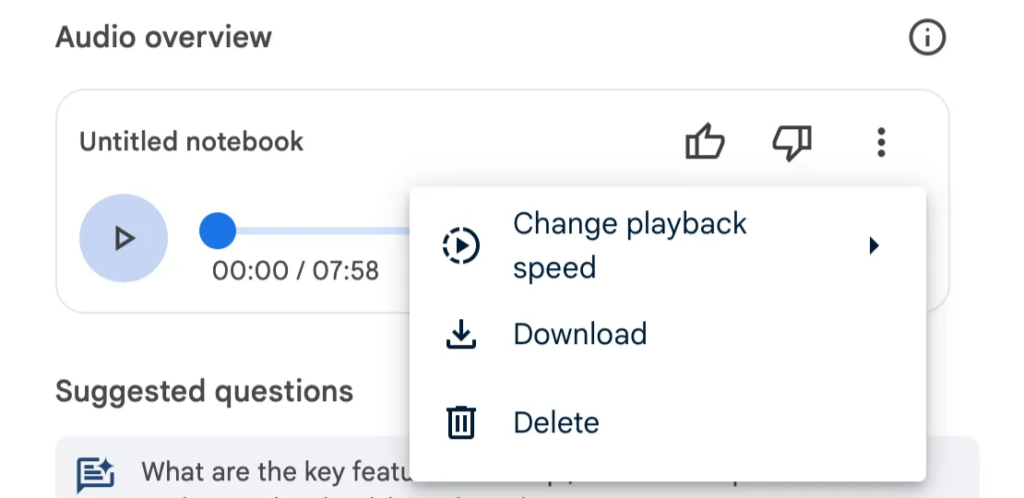
Once you’ve set your preferences, hit the “Generate” button. NotebookLM will process your inputs and generate the audio content based on your selected format, sources, and customizations. This might take a few minutes, so be patient!
Once it’s ready, you’ll be able to listen to the podcast directly within the platform. The audio overview will reflect the style and tone you’ve selected, giving you a solid foundation for your podcast.
Step 7: Download or Share Your Podcast
After you’ve reviewed the generated audio, you have several options to share or download it:
- Download the Audio File:You can download the podcast as an audio file (usually in MP3 format) and save it to your device.
- Share a Direct Link:Share a direct link to the podcast episode with friends, colleagues, or on social media. This makes it easy to distribute your content online.
- Embed It Elsewhere:If you want to integrate your podcast into a website or blog, NotebookLM provides an embed option, making it easy to showcase your content.
Additional Tips for Creating a Great Podcast:
- Be Clear with Your Sources:The quality of your podcast will directly depend on the quality of the sources you provide. Make sure your content is well-organized and free of errors to ensure the generated podcast sounds professional.
- Customize the Tone:Don’t be afraid to get specific with the prompts. If you’re aiming for a formal tone or a casual chat, tailor the instructions to fit the vibe you’re going for.
- Engage Your Audience:While the generated audio gives a great overview, you can add your personal touch. Consider recording your own commentary or inviting guests for live discussions to make the podcast more engaging.
Limitations of Using NotebookLM for Podcast Creation
While NotebookLM’s podcast feature is innovative, it comes with several limitations that content creators should consider. These constraints can affect both the quality and flexibility of the final podcast output.
Podcast length is capped
NotebookLM typically limits podcast episodes to around 30 minutes. Some users report even shorter limits ranging from 3 to 15 minutes. This can be a major drawback for creators who want to produce long-form or in-depth discussions on complex topics.
Limited voice options and no preview
NotebookLM offers only two AI voices, one male and one female. This limited selection makes it difficult to create a unique brand voice or appeal to different audience preferences. Additionally, there is no voice preview feature, so you cannot hear how the podcast will sound before generating the full audio.
Limited customization
Customization options are minimal. You have little control over tone, pacing, or creative nuances, which can result in generic-sounding podcasts that do not fully reflect your intended style.
No multi-language support
Currently, NotebookLM supports English only. This makes it unsuitable for creators targeting non-English or multilingual audiences, significantly limiting its global reach.
No advanced audio editing
NotebookLM does not offer advanced audio editing features such as adjusting intonation, pacing, or post-production effects. Most creators will need to use additional tools to polish their podcasts, adding extra steps to the workflow.
Wrapping Up
Creating a podcast with NotebookLM is one of the fastest ways to turn written research into audio content that people can actually consume. No microphones. No editing maze. Just your sources and a few smart prompts.
But let’s be clear. NotebookLM does not replace real podcast production. It gives you a powerful starting point. What you do after that decides whether your podcast sounds valuable or disposable.
Now it is your turn. Are you using NotebookLM in your daily workflow? How are you using its Audio Overview feature to create AI podcasts or audio summaries? I would love to hear what is working for you. I am most active, so if this guide helped, say hi.