
What if your code editor didn’t just autocomplete lines, but actually understood your entire project? Imagine an editor that can reason about your codebase, help you debug intelligently, refactor with intent, and guide you like a reliable coding partner.
That’s exactly what Cursor AI aims to do.
Cursor AI isn’t just another AI plugin or add-on. It’s an AI-first code editor, built on top of Visual Studio Code, designed to reduce friction in day-to-day development. Whether you’re building a small feature or maintaining a massive codebase, Cursor helps you move faster, stay organized, and avoid unnecessary frustration.
The editor is free to download, and you can try Cursor Pro for two weeks without paying anything.
In this guide, we’ll explore what Cursor AI is, how it works in real-world scenarios, who it’s best suited for, and when adopting it actually makes sense.
What is Cursor AI?
Cursor AI is an AI-native code editor built on top of Visual Studio Code that helps developers write, read, and manage code more efficiently. It uses advanced language models such as GPT-4 and Claude to assist with code generation, editing, refactoring, and even explaining complex codebases using natural language.
What truly sets Cursor apart is its deep understanding of your entire repository. Instead of only offering basic autocompletions or boilerplate suggestions, Cursor lets you explore your codebase through chat, refactor complete files based on intent, and diagnose bugs directly from error traces.
If you’re asking, “Is Cursor AI free?” The platform provides both a free tier and paid plans to suit different needs. Cursor AI pricing is explained in detail later in this guide. In essence, Cursor acts like a coding co-pilot, but one with stronger memory, broader context, and significantly more capability.
Also Read:
What is Replit AI?
Cursor AI in Action: Features That Make It Stand Out
Here’s a closer look at the features that make Cursor AI especially valuable for modern development workflows.
1. AI-powered editing
With Cursor, editing code feels more like giving instructions than writing everything manually.
You can highlight a section of code and say something like:
“Convert this function to use async/await” or “Optimize this logic for better performance.”
Cursor applies the changes directly inside your file, saving you from repetitive rewrites or constant documentation lookups.
2. Codebase-aware chat
Cursor indexes your entire repository, allowing you to ask questions about your project in plain English.
For example:
- “Where is the API client defined?”
- “How does authentication work in this app?”
- “Which tests cover the signup flow?”
Instead of pasting code into ChatGPT or relying on limited context tools, Cursor answers based on your actual files, dependencies, and structure.
3. Inline error detection and fixing
Cursor detects errors and stack traces in real time. When something breaks, it connects the error directly to the relevant file and suggests fixes with context. This tight feedback loop makes debugging faster and far less frustrating, especially in larger projects.
4. Multi-model AI support
Cursor supports multiple AI models, including GPT-4 Turbo and Claude. Depending on your plan, you can choose which model powers your editor. This flexibility allows developers to balance cost, speed, and accuracy based on their needs.
5. Custom tools and extensions
Because Cursor is built on VS Code, it supports a wide range of existing extensions. On top of that, it introduces AI-specific utilities designed for modern, AI-driven development workflows. Its ecosystem is expanding quickly, making it easier to tailor Cursor to your team’s setup.
Key Benefits of Cursor AI
Cursor AI helps developers work smarter by reducing effort and saving time during everyday coding tasks.
Speed: Write and refactor code faster
Cursor AI allows you to write and update code much more quickly. Instead of manually changing logic or rewriting functions, you can explain what you want in simple language, and the AI handles the changes. This can speed up development by two to three times.
Understanding: Explore codebases with ease
Working with a new or large codebase can feel confusing. Cursor AI makes it easier by explaining how files, functions, and features are connected. You can ask questions directly and get clear answers, which helps you understand the project faster.
Productivity: Spend time on real problems
Cursor AI takes care of repetitive tasks like boilerplate code and basic setup. This allows developers to focus more on solving meaningful problems instead of writing the same code again and again.
Confidence: Write safer, more reliable code
The AI helps generate tests, handle edge cases, and catch potential issues early. This gives developers more confidence in their code and reduces the risk of bugs later.
Because of these benefits, Cursor AI is a great choice for startups, remote teams, and developers who work on multiple projects at the same time.
Cursor AI: Best Use Cases Explained
Cursor AI is best suited for developers who are already comfortable using VS Code and regularly work with large, multi-file projects. It shines in situations where understanding, updating, and managing complex codebases is essential.
Common use cases include:
- Startup teams building MVPs quickly, where speed and iteration matter most
- Full-stack developers handling both frontend and backend code
- DevOps engineers working with configuration, YAML, and infrastructure files
- Data engineers managing ETL pipelines and data workflows
- Developers maintaining legacy systems who need to understand large repositories fast
Cursor AI supports widely used programming languages such as JavaScript, TypeScript, Python, Go, and Java. If you’re wondering how to use Cursor AI, the process is straightforward. Install the editor, connect your repository, and start coding with built-in AI assistance right away.
Why Developers Choose Cursor AI?
When AI becomes part of the development workflow, the way teams build software changes. Instead of writing every line manually, developers can describe what they want, review AI-generated code, and refine it as needed.
Studies, including insights from McKinsey, suggest this approach can help developers work up to twice as fast. Beyond speed, it also improves collaboration, especially for teams using Agile methods, by reducing time spent on repetitive tasks and increasing focus on problem-solving.
Cursor AI is no longer just a supporting tool. For many solo founders, startup teams, and professional developers, it has become their primary IDE for everyday development.
How to Set Up Cursor AI for Your Team
Before your team starts using Cursor AI, it’s important to set things up properly. A clean setup helps ensure smooth performance, secure access, and a consistent experience for all developers.
Follow these steps to prepare your systems, configure AI models, and connect your tools so your team can get the most out of AI-assisted development.
Prerequisites and System Requirements
Start by checking your team’s environment. Cursor works on Windows, macOS, and Linux, and runs best with at least 8GB of RAM, which is standard for modern development tools.
You’ll also need:
- Proper access to your code repositories
- Internet access for AI models
- Firewall permissions, especially in corporate environments, to allow API connections
Step 1: Install the Cursor IDE
Download and install Cursor on each developer’s system. Since Cursor is built on VS Code, existing settings and extensions can be imported easily.
To avoid disruption:
- Coordinate installation across the team
- Create a shared base configuration so everyone starts with the same setup
Step 2: Configure AI Models and Access
Select AI models based on your team’s needs and budget. GPT-4 provides more advanced reasoning, while Claude offers strong performance for everyday coding tasks.
Next:
- Set up team billing and usage limits
- Configure privacy settings to protect sensitive code
These setup decisions should be documented and managed carefully. Tools like Replit can help track and govern AI configuration choices alongside your development projects.
Step 3: Import VS Code Settings and Extensions
Move your existing VS Code settings into Cursor. Most extensions will work without issues, but it’s best to test critical ones before rolling Cursor out to the entire team.
To keep things consistent:
- Create a shared extension pack with essential tools.
- Document alternatives for any extensions that don’t migrate smoothly.
This makes onboarding easier and ensures all developers have the same tools from day one.
Step 4: Connect Team Repositories and Tools
Connect Cursor to your version control system and CI/CD pipelines. Set team-wide AI preferences so code generation remains consistent across projects.
You can also integrate Cursor with project management tools like monday dev. This helps teams track AI-assisted work alongside regular development tasks and understand how AI impacts delivery timelines.
Cursor AI Pricing
Cursor AI offers three main pricing tiers designed for different types of users.
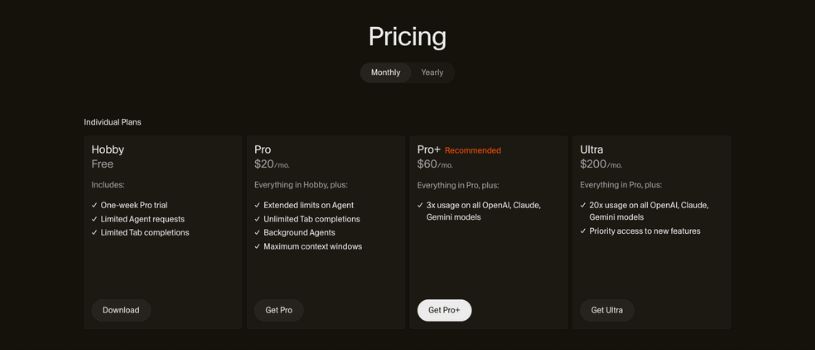
Hobby Plan – Free
The Hobby plan is ideal for trying out Cursor AI or working on small projects.
Includes:
- Two-week Pro trial
- 2,000 AI code completions
- 50 slow requests for heavier operations
Best for:
Students, hobby developers, or anyone exploring AI-assisted coding without commitment.
Pro Plan – $16/month
The Pro plan unlocks Cursor’s full potential and is priced at $16 per month (billed annually).
Includes everything in Hobby, plus:
- Unlimited completions
- 500 advanced requests per month
- Unlimited slow requests
- Max mode for enhanced context and accuracy
Best for:
Freelancers, startup developers, and engineers who rely on AI daily.
Business Plan – $32/user/month
The Business plan is built for teams and organizations that need control and compliance.
Includes everything in Pro, plus:
- Organization-wide privacy enforcement
- Centralized team billing
- Admin dashboard with usage analytics
- SAML / OIDC single sign-on
Best for:
Engineering teams and companies prioritizing security, governance, and visibility.
Also Read:
What is Lovable AI?
Final Thoughts: Is Cursor AI Right for You?
Cursor AI is one of the most advanced AI-powered code editors available today. It goes beyond simple suggestions by understanding your intent, your architecture, and your entire codebase.
If you already spend most of your time in VS Code, Cursor can dramatically reduce friction, speed up refactoring, and help you navigate complex projects with ease.
Ultimately, Cursor AI is best for developers who want AI deeply embedded into their daily coding workflow, without giving up control.